Additional fields on the booking form
Additional fields let you collect extra information from clients during booking — such as a child's date of birth, address, allergies, or business invoicing details. You configure them per programme in the Additional Fields tile.
Navigation: Go to Programmes → select a programme → Edit Settings → Additional Fields.
Enabling additional fields
- Open the programme's settings.
- Click Edit on the Additional Fields tile.
- Check Extend booking form with additional fields.
- Configure the fields you need (see below).
- Save.
Once enabled, the selected fields appear on the booking form for this programme.
Note: Additional fields are configured at the programme level. If you use the same fields across multiple programmes, configure one programme first and then use Copy programme to duplicate the settings.
Built-in fields
These fields are ready to use — you just enable them and optionally set a custom label.
| Field | Description | Notes |
|---|---|---|
| Date of birth | Client's or child's date of birth. | Can be used for age restriction (see below). |
| Child's full name | Full name of the child (for children's programmes). | Shown when the "For children" setting is active. |
| Citizenship | Country of citizenship, selected from a dropdown. | Stored as an ISO 3166-1 country code. Recommended countries for your region are shown first. Syncs to the client profile — updating it on one registration updates the client record. |
| Address | Client's address. | Choose Simple (single text field) or Structured (street, city, zip code as separate fields). |
| Number of occupied slots | How many slots the booking occupies. | Useful for events like birthday parties where one booking takes multiple spots. |
| Identification (birth) number | National identification number. | Region-specific field. |
Business fields
These fields are used for business invoicing. When one or more business fields are active, the booking form shows an option to register as a company. See Business booking for the full workflow.
| Field | Description |
|---|---|
| Business name | Company name. |
| Business address | Company address. |
| Business ID | Company registration number. |
| Tax ID | Tax identification number. |
| VAT | VAT identification number. |
Custom fields (Additional field 1–15)
You can add up to 15 custom fields. Each custom field has:
- Name — the label displayed on the booking form (required).
- Type — Text (free-text input) or Choice (dropdown picker).
- Mandatory — whether the field must be filled in before the client can submit the form.
Choice fields (key-value picker)
When you select the Choice type, you define a list of options. Each option has:
- Key — a short code used in data exports (e.g.,
beginner,intermediate,advanced). - Value — the text displayed to the client on the form (e.g., "Beginner", "Intermediate", "Advanced").
This is useful when you need structured data for reporting — the key ensures consistent values in exports regardless of the display text.
To configure a choice field:
- Set the field type to Choice.
- Click Add option.
- Enter the key and value for each option.
- Repeat for all options.
- Save.
Hiding or disabling a field
To remove a field from the booking form without deleting it permanently:
- Go to Programmes → select the programme → Edit Settings → Additional Fields.
- Uncheck the field you no longer want to display.
- Save.
The field disappears from the booking form immediately. Existing bookings that already have data in that field keep their values — the data is not deleted, just hidden from new registrations.
To hide a custom field (Additional field 1–15), simply clear the field's Name — a custom field with no name is not shown on the booking form.
Note: Fields are configured per programme. If you want to hide a field for one programme but keep it for another, change the setting on that specific programme only.
Editing field values on existing bookings
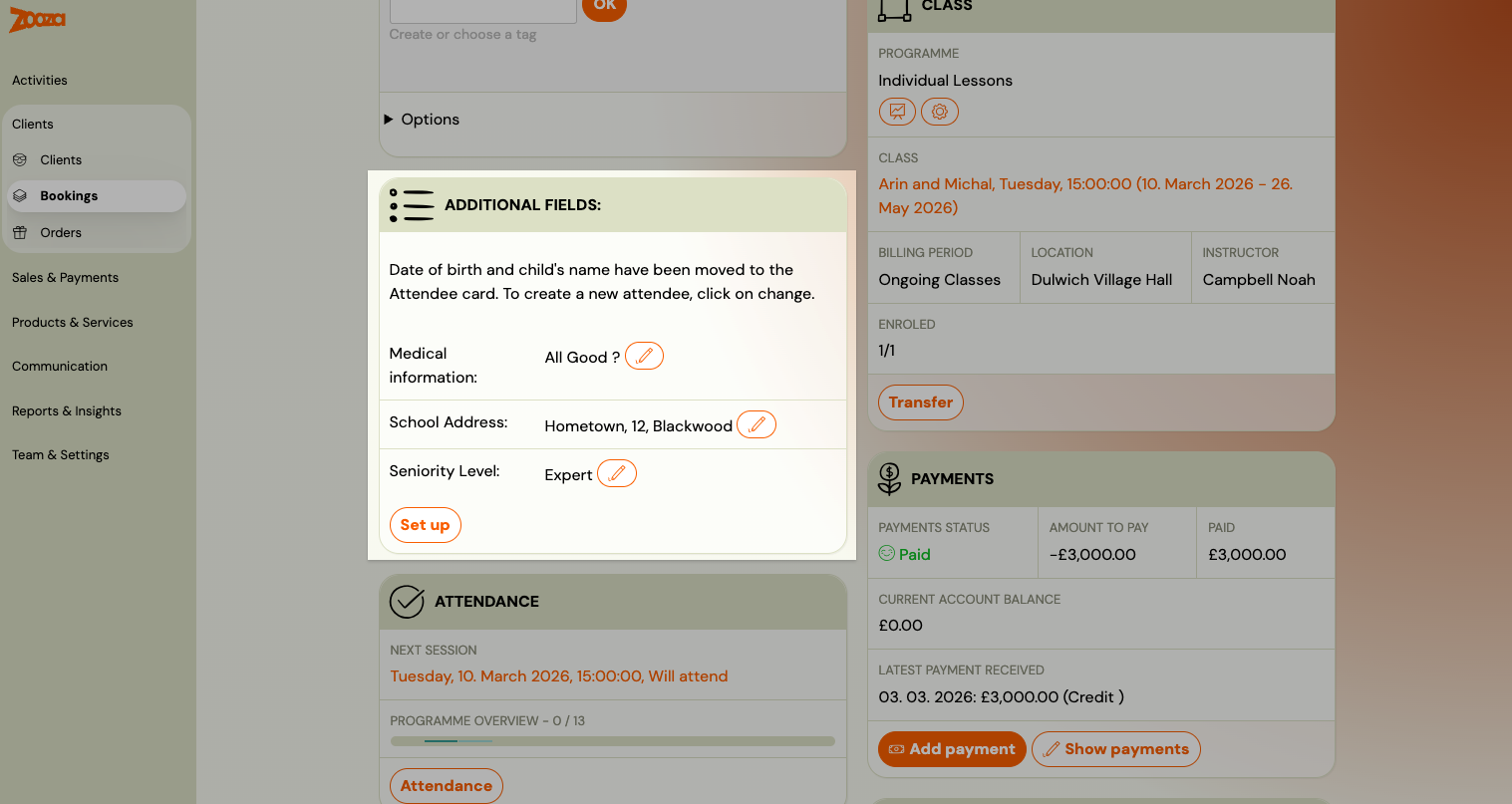
After a client registers, you (as admin) can edit the values they entered in the additional fields:
- Open the booking detail.
- Find the Additional Fields section.
- Click the edit icon next to the field you want to change.
- Update the value and save.
Clients cannot edit these fields themselves after submitting — only admins can change the values.
Age restriction
The date of birth field can be used to restrict bookings by age. When enabled, clients whose child does not meet the age criteria cannot complete the booking.
Setting up age restriction
- Enable the Date of birth field.
- Expand the age restriction options.
- Choose the restriction method:
- By date of birth — specify a minimum and/or maximum date of birth.
- By age — specify a minimum and/or maximum age in years.
- Save.
Age restriction with waiting list
When a client's child does not meet the age criteria:
- The booking form shows a message explaining the restriction.
- If a waiting list is enabled for the programme, the client can join the waiting list instead of being rejected outright. This is useful for children who will reach the required age soon — they are added to the waiting list and can be enrolled when they qualify.
Dynamic tags for additional fields
Additional field values can be used in email templates via dynamic tags. This lets you personalise confirmation emails and other communications.
| Tag | Field |
|---|---|
*|EF_DOB|* | Date of birth |
*|EF_FULL_NAME|* | Full name |
*|EF_CITIZENSHIP|* | Citizenship (ISO country code, e.g. SK) |
*|EF_ADDRESS|* | Address |
*|EF_BUSINESS_NAME|* | Business name |
*|EF_BUSINESS_ADDRESS|* | Business address |
*|EF_BUSINESS_ID|* | Business ID |
*|EF_TAX_ID|* | Tax ID |
*|EF_VAT|* | VAT ID |
*|EF_EXTRA_FIELD_1|* – *|EF_EXTRA_FIELD_15|* | Custom fields 1–15 |
For the full list of dynamic tags, see Dynamic tags.
What additional fields look like on the form
When additional fields are enabled, they appear below the standard booking form fields (name, email, phone). Business fields appear in a separate section that is shown when the client selects the "Register as company" option.
Custom choice fields appear as dropdown menus. Mandatory fields are marked with an asterisk (*).
Related
- Programme Settings Reference — full field reference for the Additional Fields tile.
- Business booking — registering bookings for companies.
- Customizing widgets — how extra fields appear on the booking widget.
- Dynamic tags — using field values in email templates.
- Allowing multiple booking — collecting data from multiple attendees.
- Personas — how Personas replaces extra fields for attendee tracking.