Create a programme
A programme is the top-level container — it holds your pricing, payment settings, and booking form configuration. Classes and sessions are added inside the programme. You create a programme once per product or service, then add new classes each time the schedule changes.
When to create a new programme vs. a new class
- Create a new programme when you are launching a brand-new product or service (different age group, skill track, or offering).
- Create a new class when you are running the same product again — new term, new time slot, new location, or new instructor. The class inherits all programme settings automatically.
For a deeper explanation of how programmes, classes, sessions, and billing periods relate to each other, see Programme, class, session definition.
How to create a programme
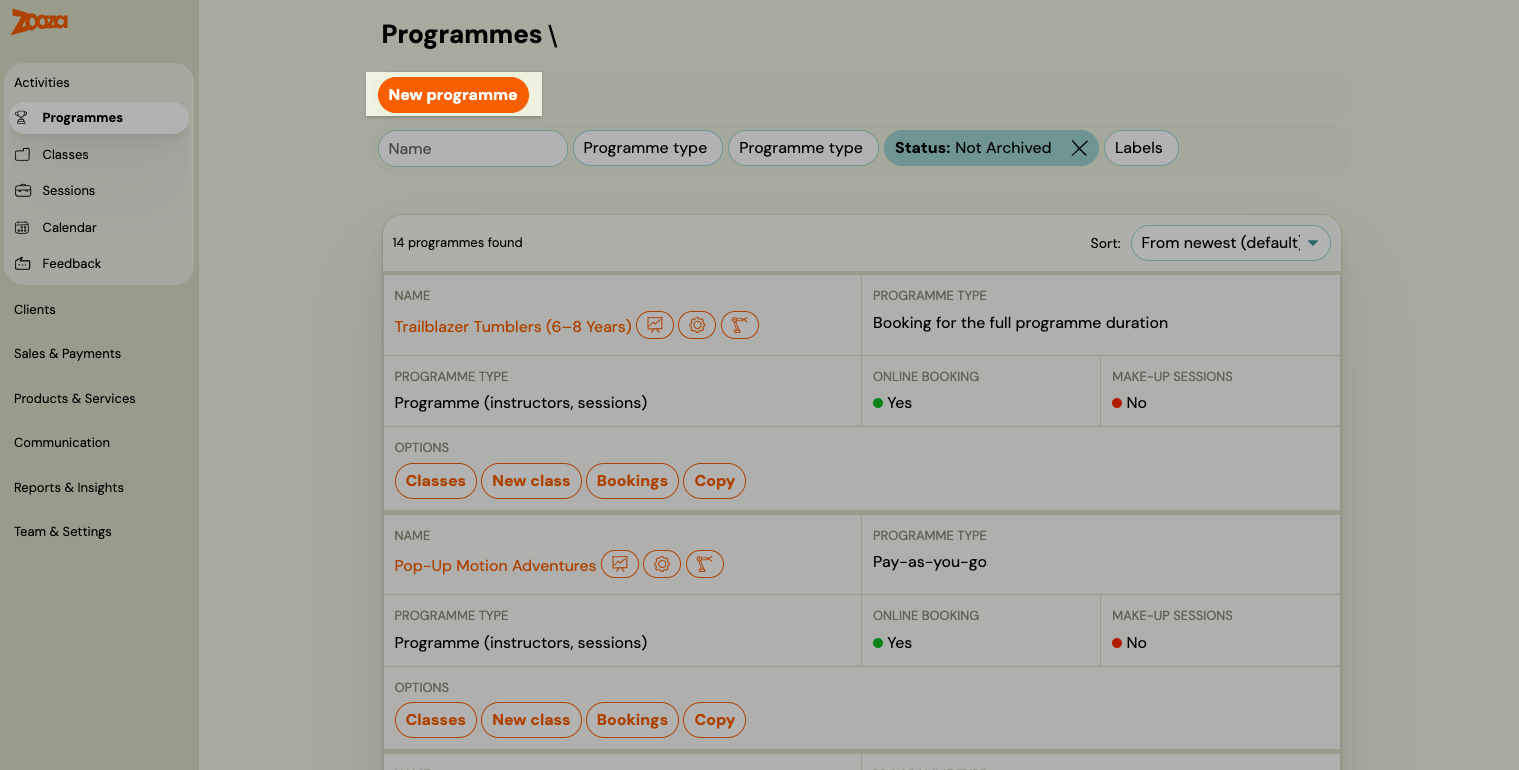
Go to Programmes in the left menu and click New Programme.
Step 1 — Name and colour
Name — Enter the programme name as clients will see it on the booking form and in their profile. Be specific enough to distinguish it from similar programmes (e.g., "Gymnastics – 6 to 8 years" rather than just "Gymnastics").
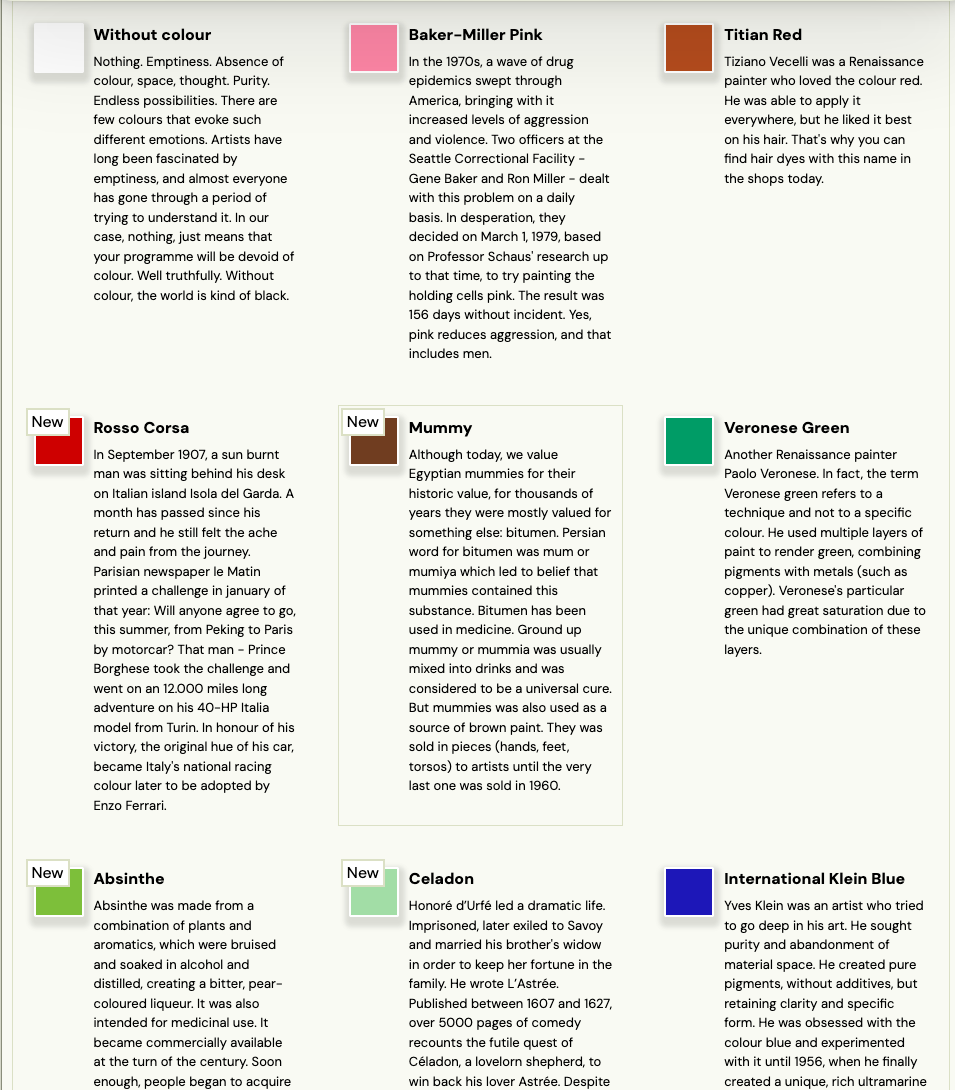
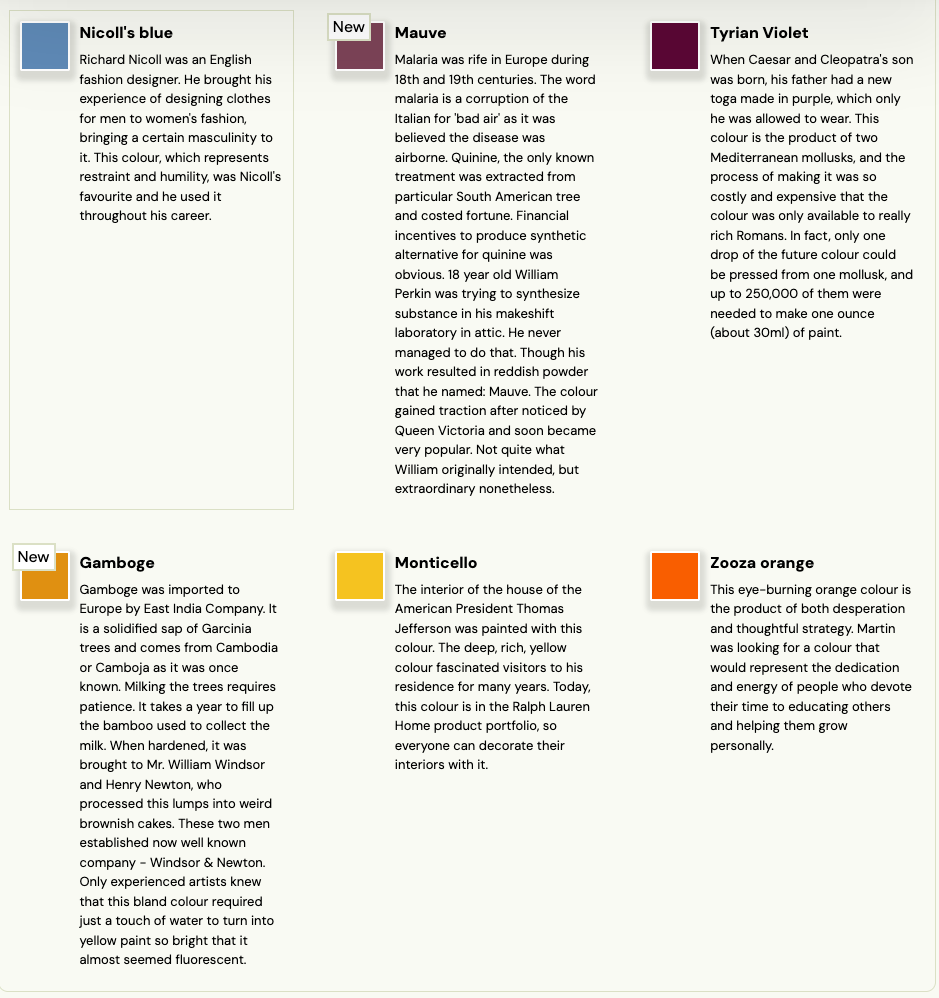
Colour — Choose a colour that will represent this programme:
- In the admin app — the colour appears on the programme tile and in the calendar.
- In the online booking widget and web calendar — clients see the colour to visually distinguish programmes.
Each colour in the picker has a label and a short description. The label is displayed in the web calendar alongside the programme name. Choose a colour that fits the character of the programme — or leave it without a colour if you prefer a neutral look.
Step 2 — Programme settings
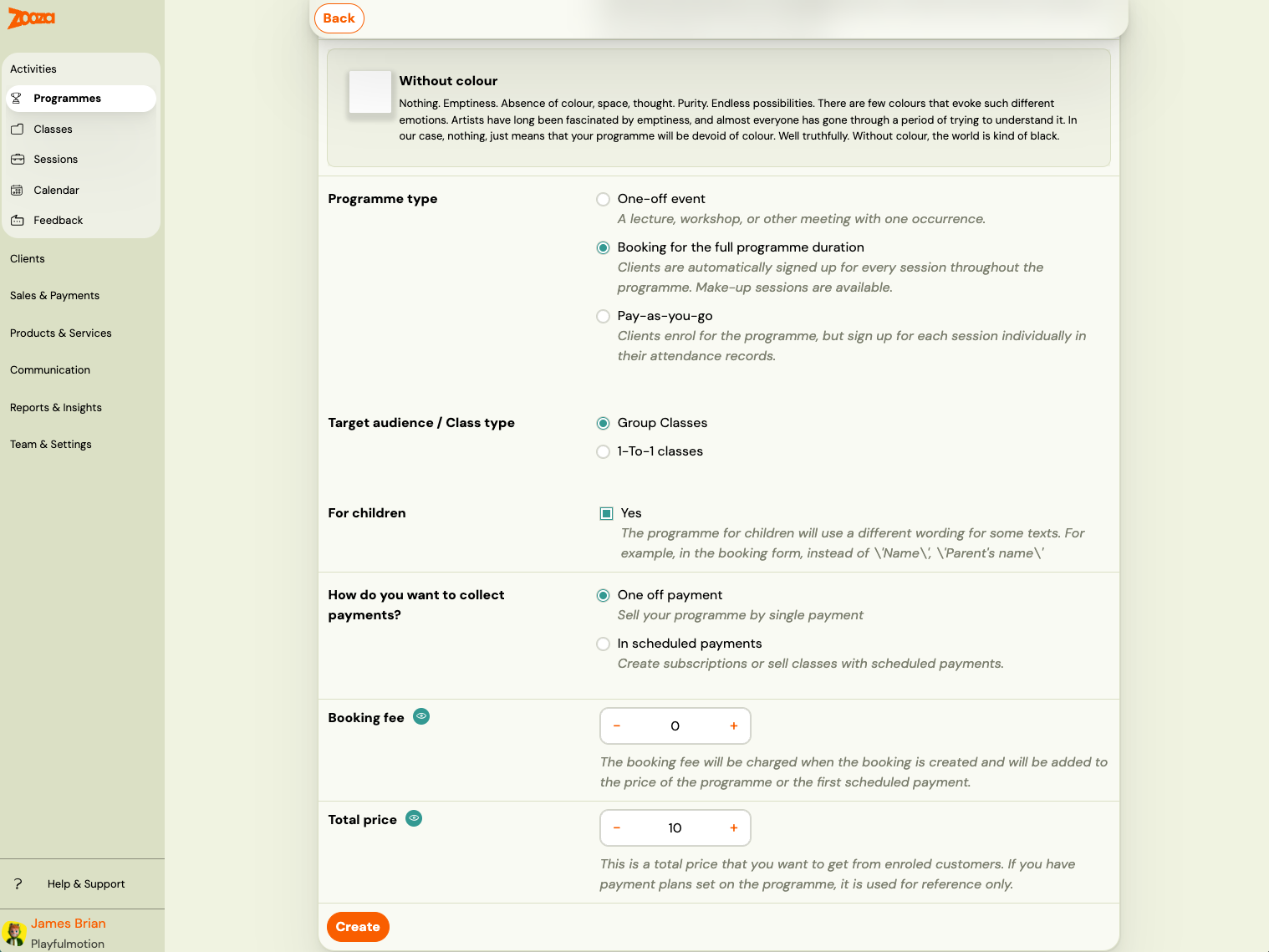
Programme type
Choose the type that matches how clients will use this programme:
| Type | Description | Typical use |
|---|---|---|
| One-off event | A single session on a specific date. Clients enrol and attend once. | Lectures, workshops, open days, consultations |
| Booking for full programme duration | Multiple sessions over a defined period. Clients sign up for all sessions at once. | Term programmes, semesters, ongoing classes |
| Pay-as-you-go | Clients enrol once and then choose which individual sessions to attend. They pay only for sessions they book. | Drop-in classes, flexible schedules |
Note: You can offer entry passes alongside pay-as-you-go programmes to let clients prepay for a bundle of sessions. See the full Pay-as-you-go guide for details.
Target audience
| Option | Use when |
|---|---|
| Group classes | Multiple clients attend the same sessions together. |
| 1-to-1 | Each session is with one client only (private sessions, personal training, individual consultations). |
For children
Toggle this on if the programme is for children. When enabled:
- The booking form includes a child profile section (name, date of birth, notes).
- Attendance and class management features display child-relevant information.
Leave it off for adult programmes or programmes where the participant and the paying client are the same person.
Payment collection
Choose how clients will pay:
| Option | How it works |
|---|---|
| One-off | The full amount is collected in a single payment at the time of booking. |
| Scheduled payments | Payments are split into instalments. You configure the schedule using payment templates. |
Booking fee
An optional one-time fee charged at the moment of booking, separate from the programme price. Leave it at 0 if you do not charge a booking fee.
Total price
The full price of the programme for a single client. If individual classes within this programme will have different prices, you can override the price at the class level — but set a sensible default here.
Create
Click Create to save the programme. Zooza will redirect you to the programme overview, where you can add the first class.
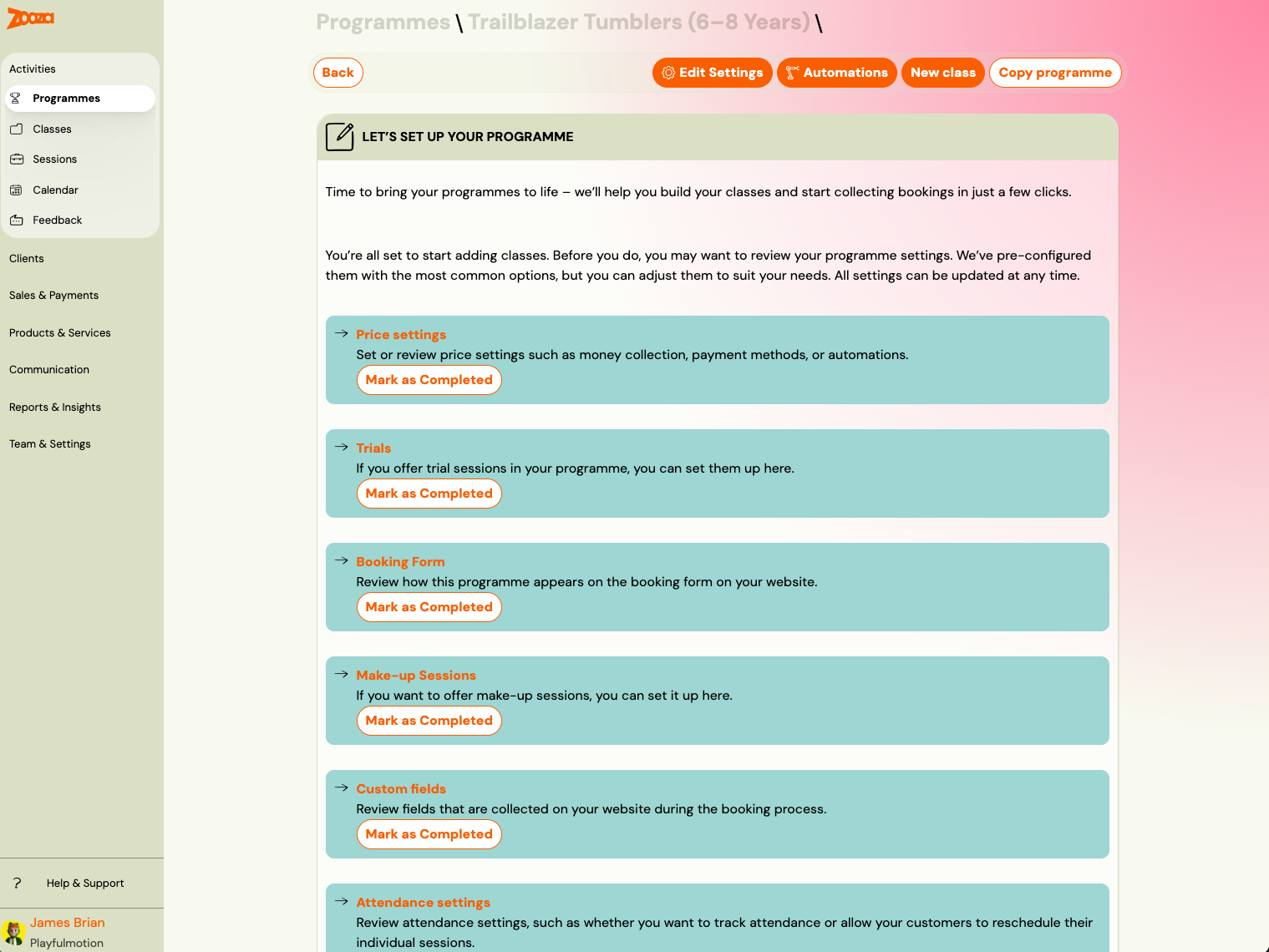
Next step — add a class
A programme without a class cannot accept bookings. After creating the programme, add at least one class to define the schedule, location, and instructor. See Creating a class.
Related
- Programme, class, session definition — understanding the hierarchy.
- Creating a class — adding classes and sessions to the programme.
- Programme settings — full reference for all programme-level settings.
- Pay-as-you-go programme — setting up flexible session-based programmes.
- Copy a programme or class — fastest way to set up a new term.
- Programmes, Timetables and Sessions FAQ