Archive or delete a Programme
You cannot permanently delete a Programme directly in the app. Instead, you archive it — this hides it from your active list while keeping all data, bookings, and history intact.
If you need to fully remove a Programme, you can delete it from the Programme Settings page.
Archive a Programme
Archiving is the standard way to remove a Programme from your active list. Use this when a Programme has ended, is no longer needed, or contains existing bookings you want to keep.
- Go to Programmes.
- Click the name of the Programme you want to archive.
- Go to Programme Settings → Edit.
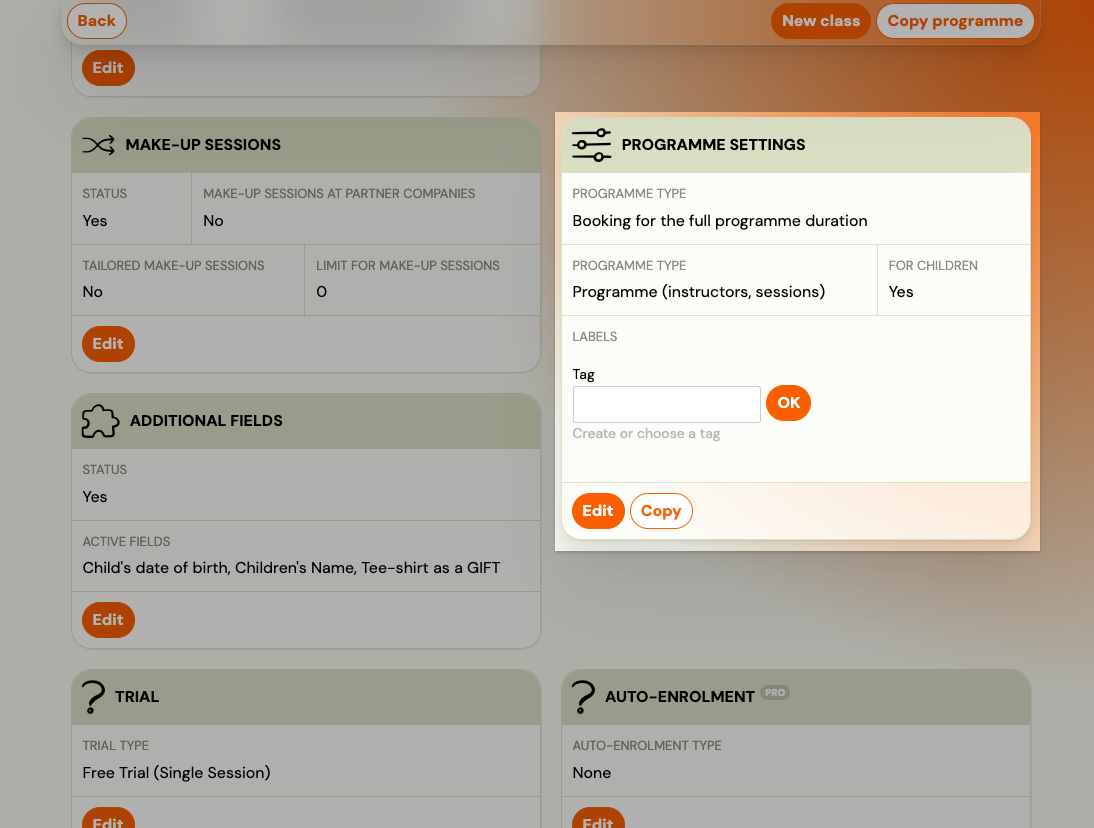
- Tick Archive.
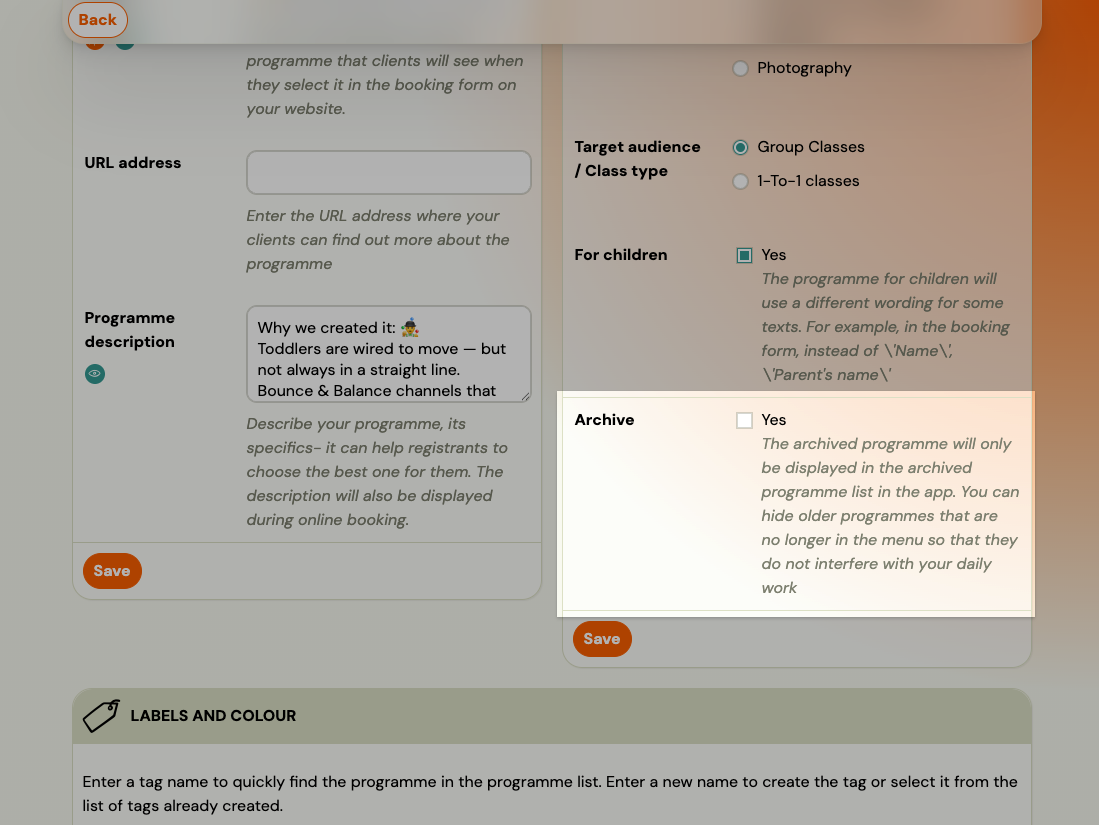
- Click Save.
The Programme disappears from your active list. It remains accessible via the Archived filter in the Programmes list.
To restore: Open the archived Programme, go to Programme → Settings → Programme settings → Edit, uncheck Archive, and save.
Archive a Class
To hide a single Class (class) within a Programme without archiving the whole Programme:
- Go to the Programme and open the Class you want to remove.
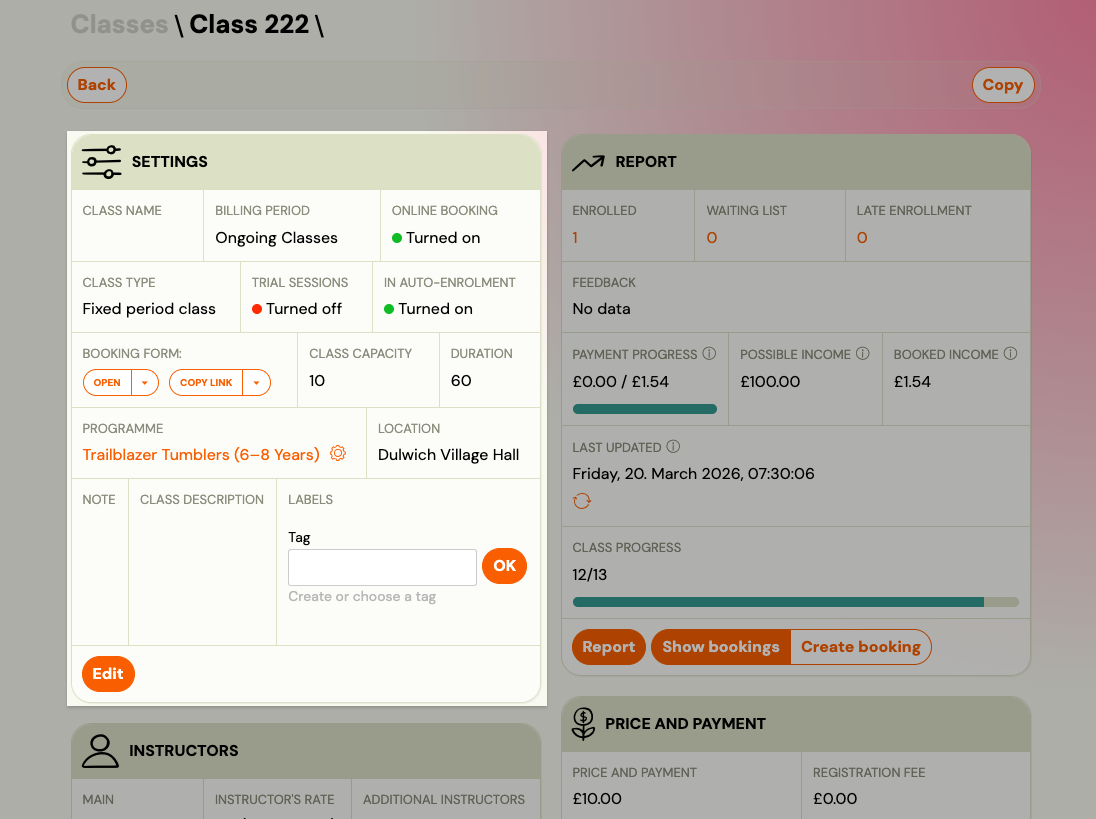
- In the Class settings, tick Archive.
- Save.
Archive rather than delete when the Class has bookings. Archiving keeps everything as it is; deleting leaves the bookings without a Class — see Deleting a Class does not delete its bookings below.
Archiving a Class does not delete its sessions
The sessions stay exactly where they are. Archiving takes the class out of your active lists and off your website; it does not touch the calendar entries behind it.
You do not need to clear them out. Archived classes do not clutter your working views and their sessions do not get in the way of anything — not capacity, not reports, not the calendar you work from day to day. If you would rather remove them anyway you can, in bulk, from the Calendar — but after archiving there is no reason to.
Delete a Class
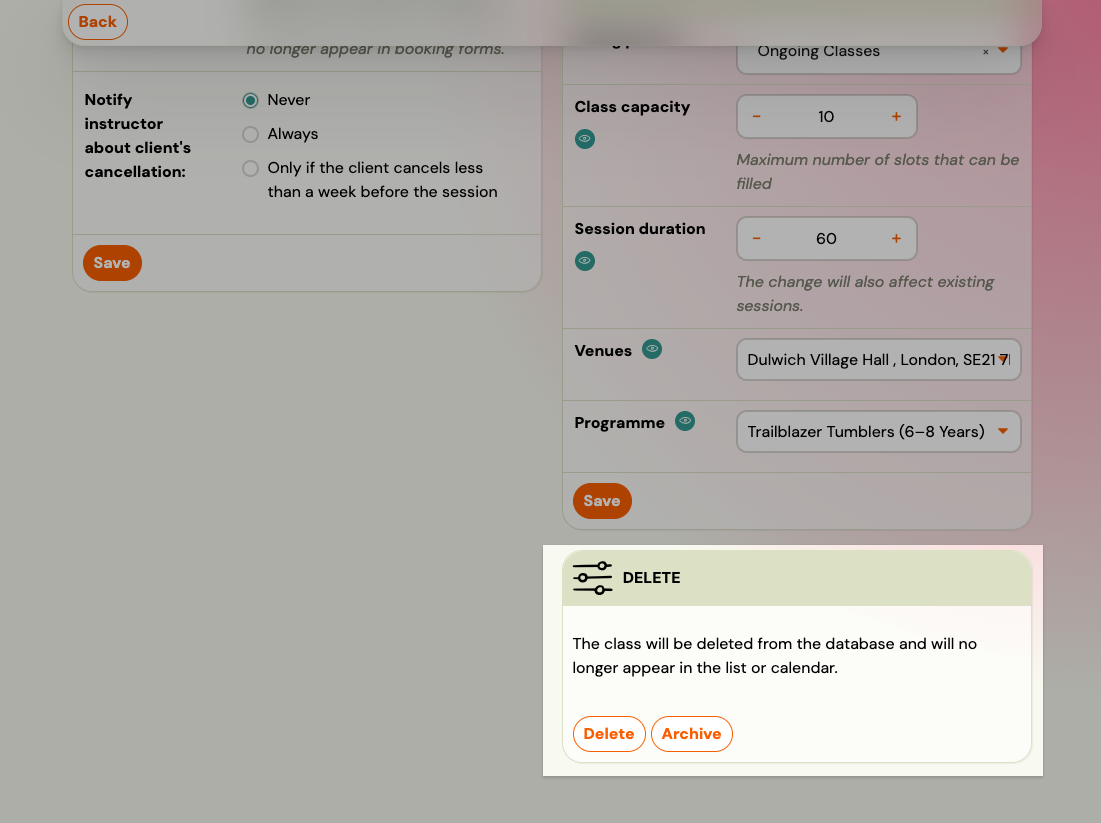
- Open the Class and go to its settings.
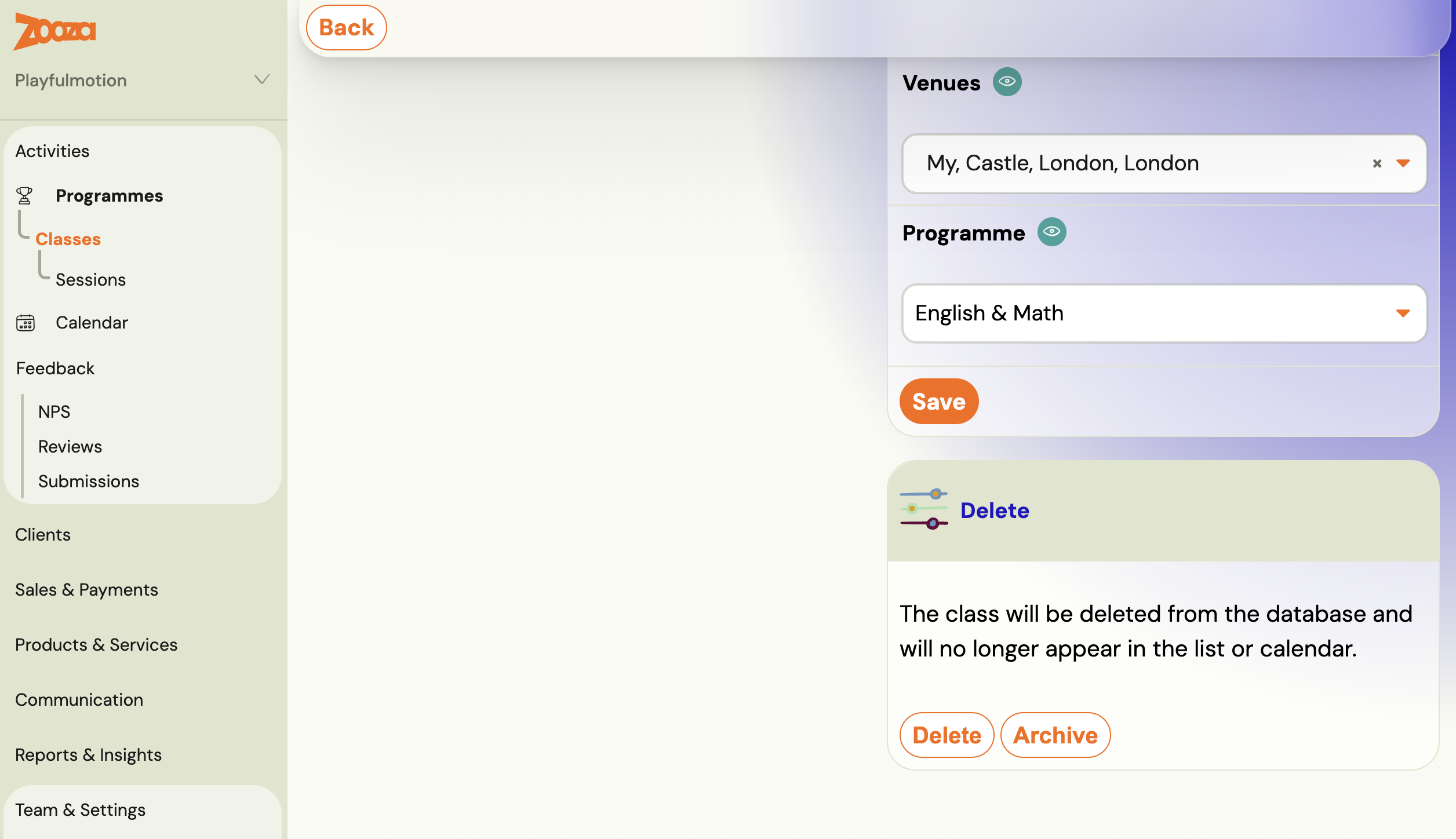
- Scroll to the Delete card at the bottom of the right-hand column. It warns that the class will be removed from the database and will no longer appear in the list or calendar, and offers two buttons: Delete and Archive.
- Click Delete.
Deleting is a soft delete, the same as for a Programme: the Class goes to Trash and can be restored for 30 days. Go to Settings → Tools → Trash. After 30 days it is gone for good.
Deleted a class by mistake? Go straight to Settings → Tools → Trash and restore it — do not start rebuilding it by hand. See Recover deleted items for what can and cannot come back.
Deleted it and it is still in the list? It almost certainly did delete. Some data is held in your browser and does not clear the moment the record does, so the row can linger for a few minutes. Refresh the page (F5) and it goes. Only if it survives a refresh is something actually wrong.
Deleting a Class does not delete its bookings
The bookings survive. Deleting a Class does not delete the people enrolled in it — it removes the Class they were assigned to. The bookings stay in your account; they are simply no longer attached to that Class.
That is better than losing them, but it is not a tidy state: those bookings now have no schedule behind them, so the clients have no sessions and nothing to attend. You have to put them somewhere — restore the Class from Trash within 30 days, or assign the bookings to another Class.
So archive instead whenever the Class has run. Archiving keeps every booking attached to its Class along with payments and attendance, and is reversible at any time — not just within a 30-day window.
Last year's classes are still showing on my website
Because "Ended" does not mean inactive. A class can sit in the state Ended (Active) — it has finished running, but it is still an active record in the system, for example while final payments are settled. In that state it can still be picked up by the booking page and the calendar widget.
Two ways to take it off the site:
- Archive the class (above). Keeps every booking and all history, removes it from active lists and from the public offer. This is the right choice at the end of a term.
- Turn off online booking on the class, in its settings. Use this when you want the class to stay in your active lists internally but disappear from the website.
If old classes reappear every season, archiving as part of your term-reset routine is the fix — see Run a term reset.
Delete a Programme
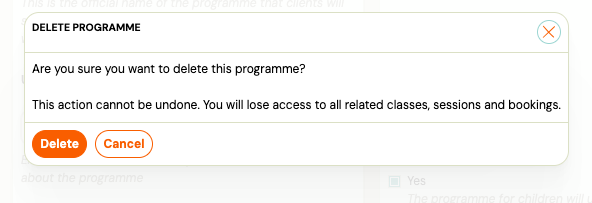
Admins with the edit_course permission can permanently delete a Programme directly from Programme Settings. This action cannot be undone — you will lose access to all related Classes, sessions, and bookings.
Note: Deletion is a soft delete. The Programme and its data are no longer accessible in the app but are kept in Trash for 30 days. Go to Settings → Tools → Trash to restore a deleted Programme within that window. After 30 days the item is permanently removed.
-
Go to Programmes and open the Programme you want to delete.
-
Go to Programme → Settings → Programme settings → Edit.
-
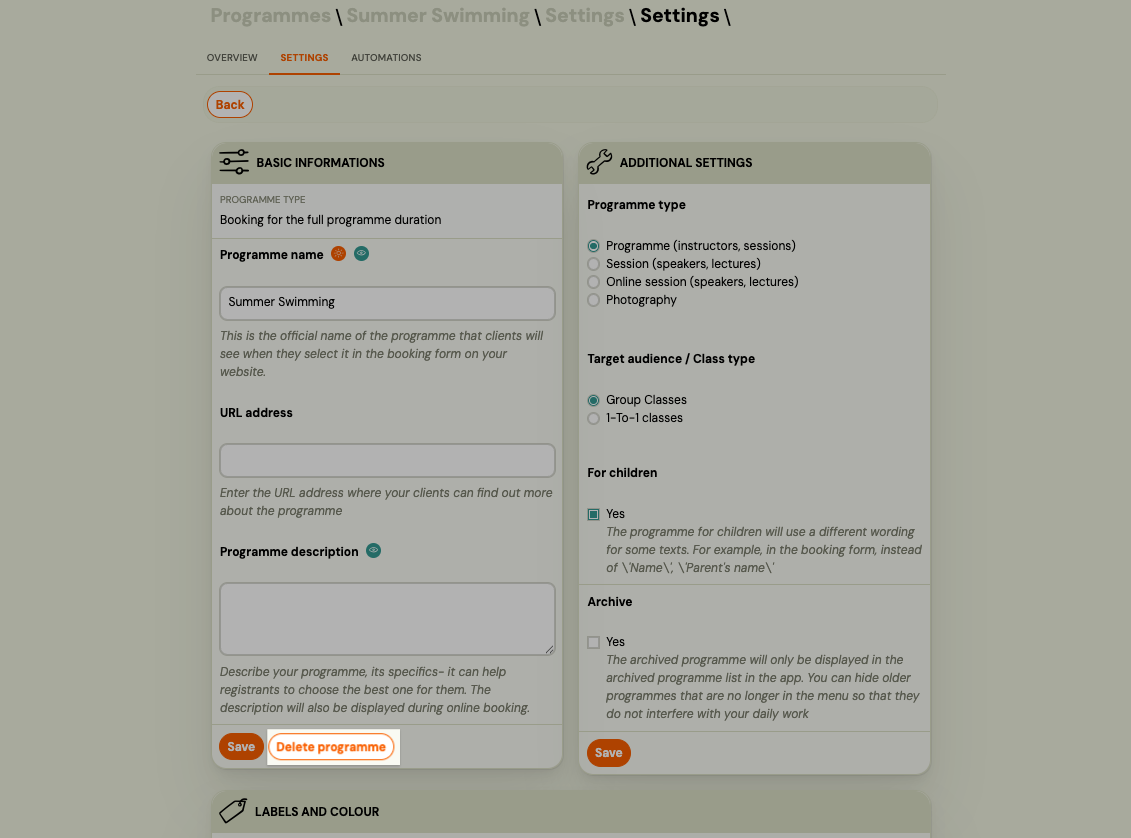
Click Delete programme (next to the Save button).
-
Read the warning in the confirmation dialog and click Delete to confirm.
Zooza redirects you to the Programmes list after deletion.
When to use this: Programmes you no longer need and want fully removed from your active view. If the Programme has historical bookings you may want to reference later, consider archiving instead.
Summary
| Goal | Action |
|---|---|
| Hide from active list, keep data | Archive the Programme |
| Remove one class, keep the Programme | Archive the Class |
| Fully remove the Programme | Delete from Programme Settings |
| Restore a hidden Programme | Unarchive from Archived filter |
| Recover an accidentally deleted Programme, Class, or Registration | Settings → Tools → Trash (within 30 days) |
Related
- Recover deleted sessions, classes, and registrations — restore accidentally deleted items within 30 days