Individual sessions via lead collection class
If, as a language school or a project offering individual sessions, you are first collecting interest and then creating dates and schedules, it is ideal to use a class – Lead collection (classes without sessions).
The first question to ask yourself is how well you can tell when and how many sessions you are offering a client. Individual sessions can be created with a class:
- Full – you know exactly when the dates will take place and how much you want to be paid for them. In this case, use progress programmes with payment in advance or according to your own payment template. See Creating a class.
- Gradual - you don't know exactly when the dates will take place and the client pays by the number of sessions. In this case, use Pay-as-you-go programmes and create sessions on a rolling basis with ongoing payments. If the client has prepaid credit, you can record it on the booking.
- How to create a Pay-as-you-go programme
- Instructions on how to edit payments on booking.
Based on the above, start making an offer as follows:
- Create classes as Lead collection in a given programme. Interested parties will gradually enrol in the class and wait for instructions. Don’t forget to edit the email template that will come as a confirmation of inclusion in the class – Lead collection.Instructions
- Create an individual class. Then create sessions for individual bookings by creating a class of one capacity. Instructions
- Move the client from the lead collection class to an individual class. Create session dates and move the given booking to this class from the class – Lead collection. In the booking details, click on the Class tab and then on the Move option where you select where.
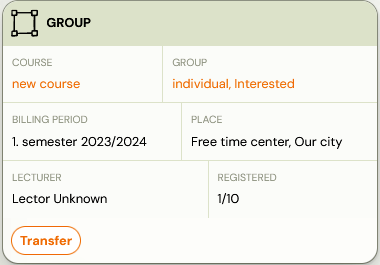
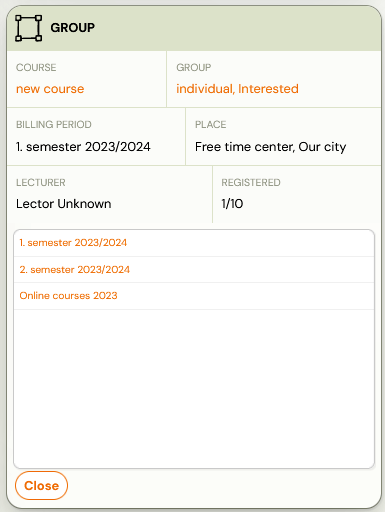
- Choose the client’s first session or let him choose it himself. In the client’s attendance section, sign the client in for the session or they can do so in their profile.
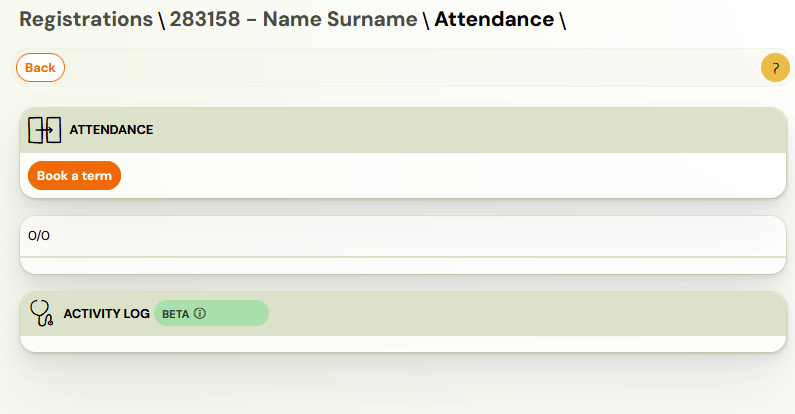
Summary for open sessions:
- Create a class for a client
- Insert the first session
- The client signs up for the session in the profile by selecting it or you select the appointment for the client in the booking details. In both cases, the debt for that session is immediately created; if there is a credit, it is deducted from the credit.
- If the session is cancelled, the credit will be refunded. If the session is moved in time, the credit remains applied.
 Note: If you do not want to display the class in the public calendar menu or booking form, just uncheck the class in the programme properties and save the change. You leave the lead collection class up for booking and the other individual classes remain hidden.