Programme settings
After creating your programme, Zooza will automatically take you to the Programme Overview page. Here, you can add classes, adjust settings, and review your programme’s details.
Programme overview
New programme
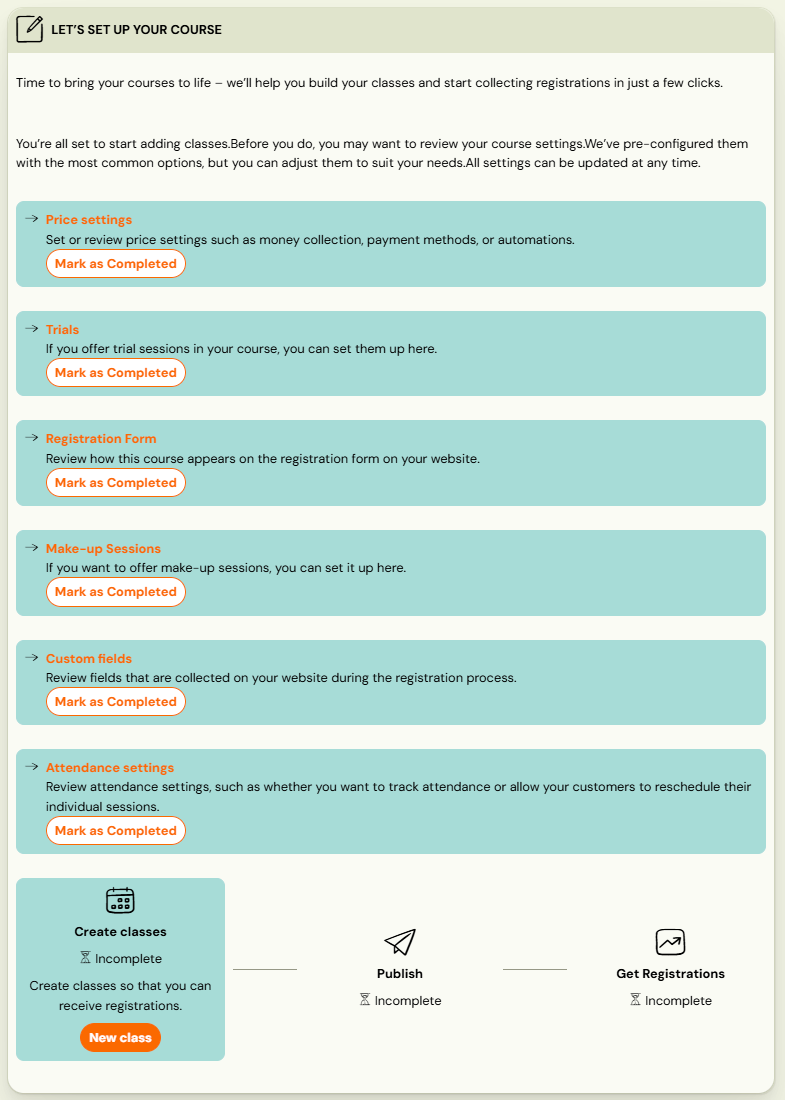
If you’ve just created a blank programme, the overview page will display a setup checklist designed to guide you through each step. You can follow the checklist in order, marking each item as completed as you go. This ensures nothing is missed before your programme goes live. Each setting has its own documentation about how to proceed.
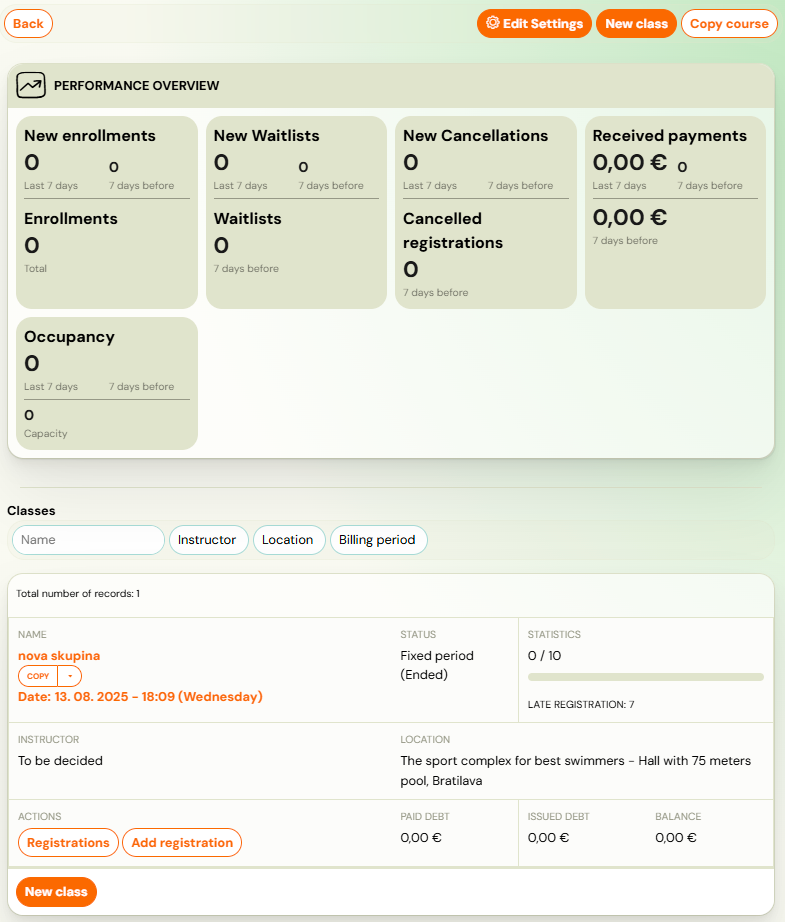
Programme with classes
If your programme already has ongoing or completed classes, the overview page will show a Performance overview along with a list of all active and finished classes. At the top of the page, you’ll find quick access to:
- Edit settings
- Create a new class
- Copy programme
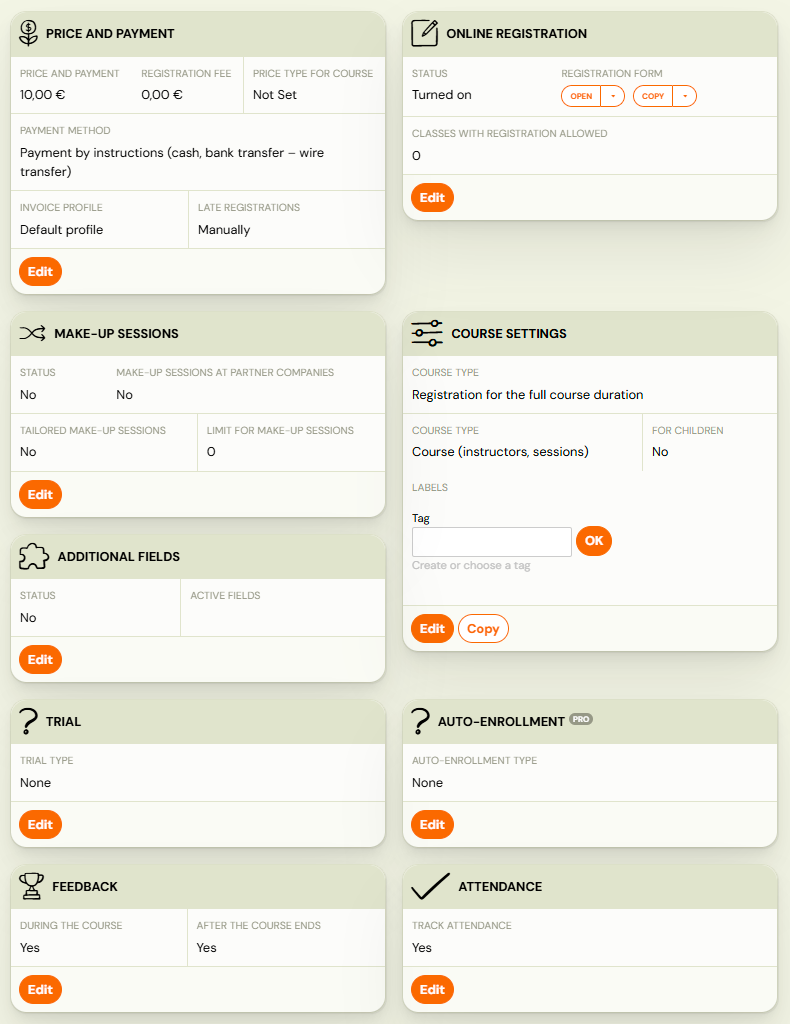
Selecting Edit Settings the programme detail page will open, where multiple settings are grouped into tiles for easy navigation.
Programme Settings
Each booking type has a different bundle of settings divided into tiles that can be modified.
- Price and Payment
- Online Booking
- Make-up Sessions (full duration programmes only)
- Programme Settings
- Additional Fields
- Trial (full duration programmes only)
- Auto-Enrolment (full duration programmes only)
- Feedback
- Attendance
- Class linking (Pay-as-you-go programmes only)
You can edit each section by clicking its *Edit *button.
Price and payment
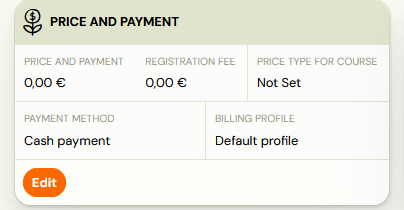
This setting is set when creating the programme, but you can update the unit price or booking fee later if needed.
- For guidance on correctly setting prices, refer to the Price and payment setup guide.
- For help configuring payment reminders, see the Payment Reminders Guide.
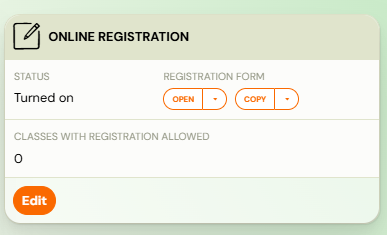
Online registration
To configure how the programme will appear on your website and how communication with clients will be handled, use the Online Booking tile. A detailed explanation of each feature is available in the Online Booking manual.
->vymen screenshot za asdfasdfasf.png
Make-up sessions
If attendance recording is enabled, you can also set up make-up sessions for missed classes. Full guidance on configuring make-up sessions is available in this manual.
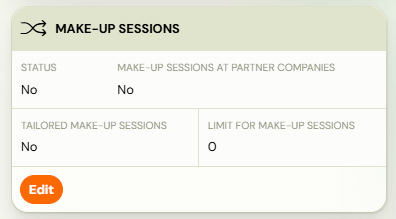

Note: This function is available for* full duration programmes* only.
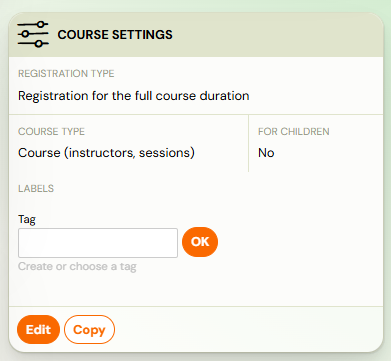
Programme settings
This setting is set when creating the programme, but you can change it anytime and add more information about the programme. All information is available here.
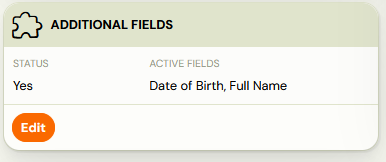
Additional fields
At the programme level, you can add Additional Fields to the booking form to collect additional information from participants, such as age, allergies, or skill level. For detailed instructions on creating and managing extra fields, see the Additional fields on the booking form guide.
Trial
In the Trial tile, you can set up a menu of trial sessions that clients without a long-term commitment can sign up for. You can read how to set up trial sessions here.

Auto-enrolment
Auto-enrolment is a pro feature designed to make re-enrolment easier and more efficient for your existing clients. It allows you to offer them a new programme before their current one ends, giving them priority access and a streamlined sign-up process. Detailed instructions on setting up and using auto-enrolment can be found in the Auto-enrolment manual.
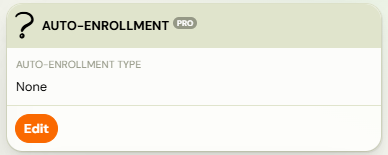
Note: This function is available for* full duration programmes* only.
Feedback
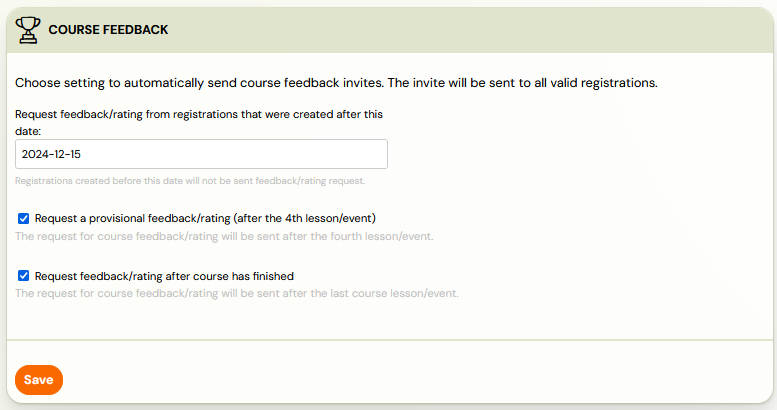
In the Programme Feedback section, you can choose if and when the system should automatically send clients a form inviting them to evaluate your programme.
Attendance
In some programmes — including single-session programmes such as camps or tours — it may not be necessary to record attendance, since you expect participants to attend for the entire scheduled time. In these cases, you can disable attendance tracking in the Attendance tile. By default, this function is enabled by the system.
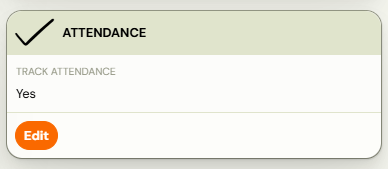
Note that when attendance tracking is turned off, make-up sessions cannot be offered. For a full explanation of how this feature works in all scenarios, see the Attendance manual.
Class linking
Zooza offers a possibility to link multiple classes together which will enable clients to enroll to one class (e.g. based on age restriction, level,...) and then enroll to sessions from other classes. Detailed definition of this functionality can be found here.
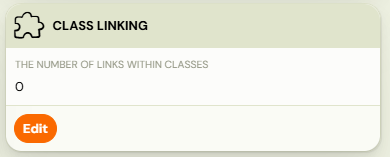
Note: This function is available for Pay-as-you-go programmes only.