Programme Automations
Automations define the workflows that run automatically when clients interact with your programme — booking, paying, joining trials, or getting enrolled. Each automation type describes a step-by-step flow with configurable email templates and behaviour.
Navigation: Go to Programmes → select a programme → Automations.
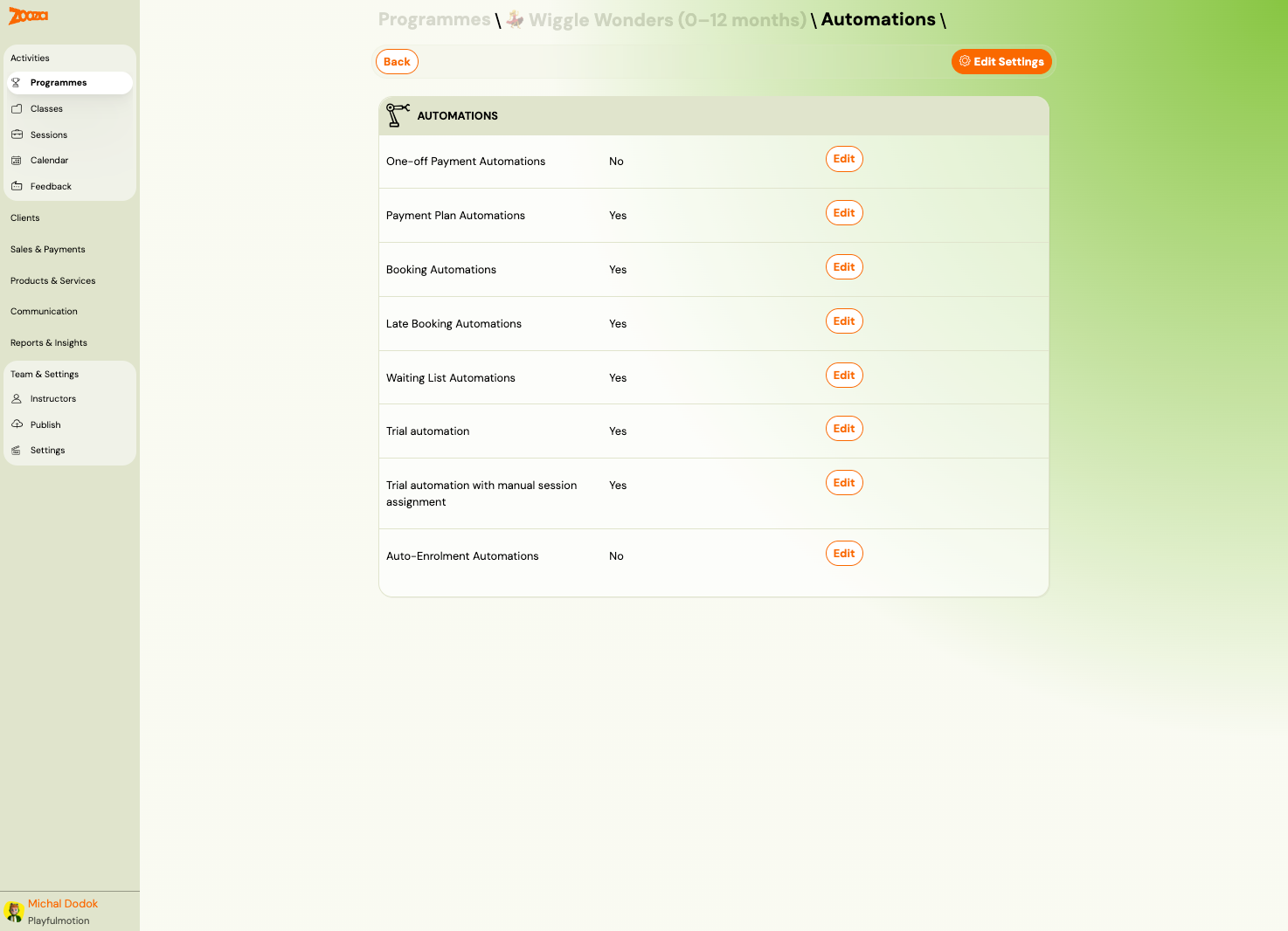
Automations Overview
The overview page lists all 8 automation types with their current status (Yes/No) and an Edit button for each.
| Automation | Description |
|---|---|
| One-off Payment Automations | Payment collection for programmes with a single payment. |
| Payment Plan Automations | Payment collection for programmes with scheduled/recurring payments. |
| Booking Automations | The standard booking flow — form, schedule, consents, confirmation. |
| Late Booking Automations | Handling bookings after the programme has already started. |
| Waiting List Automations | Flow when a class is full and the client joins the waiting list. |
| Trial automation | Automated trial-to-enrolment workflow. |
| Trial automation with manual session assignment | Trial workflow where the admin assigns sessions manually. |
| Auto-Enrolment Automations | Re-enrolment flow when a client's current class is ending. |
One-off Payment Automations
Defines how payments are collected for programmes using a single payment model.
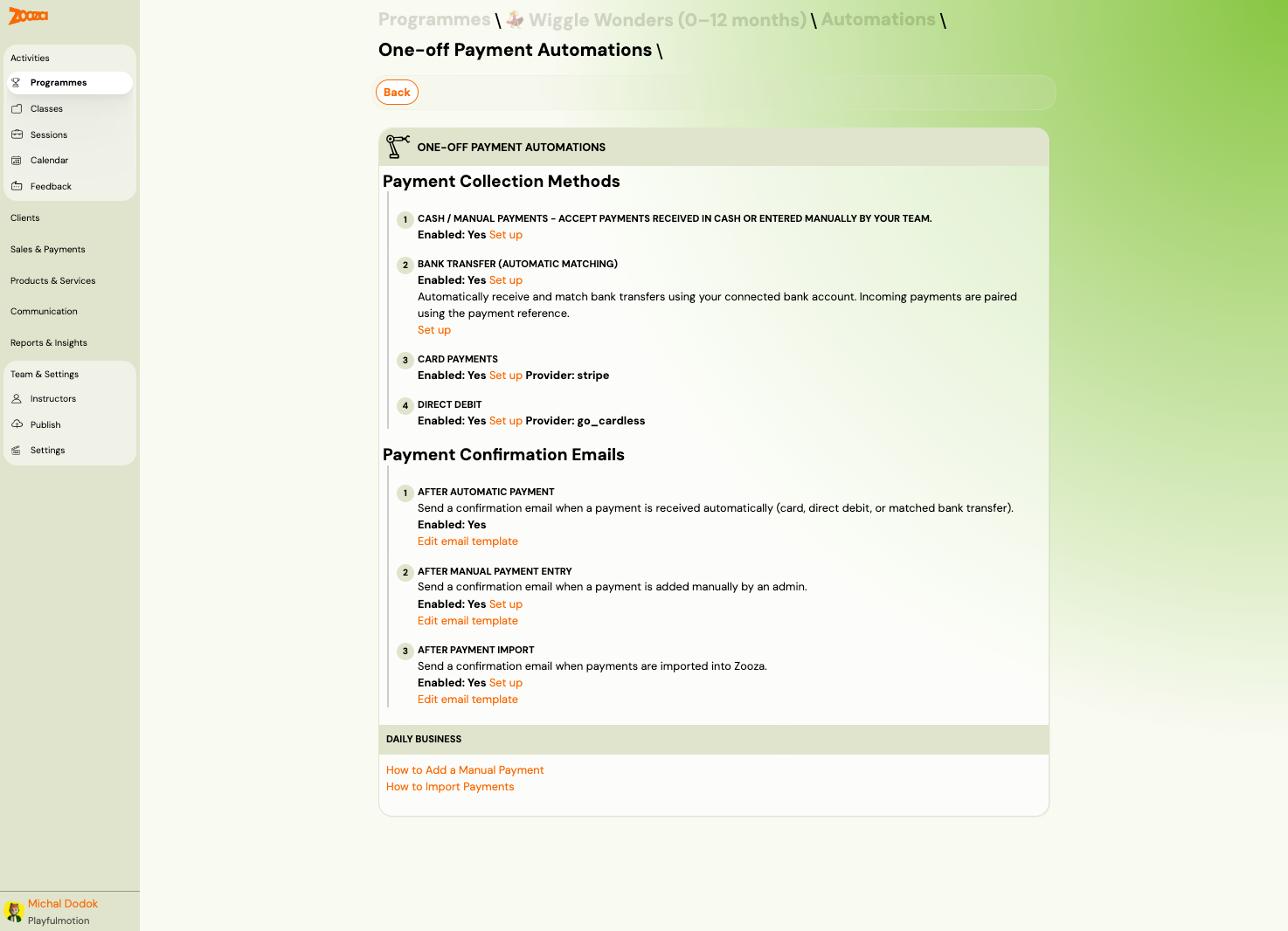
Payment Collection Methods
- Cash / Manual Payments — accept cash or manually entered payments.
- Bank Transfer (Automatic Matching) — automatically match incoming bank transfers using the payment reference.
- Card Payments — online card payments via Stripe.
- Direct Debit — recurring collection via GoCardless.
Each method shows its enabled status and has a Set up link to configure.
Payment Confirmation Emails
- After Automatic Payment — sent when a payment is received via card, direct debit, or matched bank transfer.
- After Manual Payment Entry — sent when an admin records a payment manually.
- After Payment Import — sent when payments are imported into Zooza.
Each email template can be customized via the Edit email template link.
Payment Plan Automations
Defines payment collection for programmes with scheduled/recurring payments. The structure is identical to One-off Payment Automations.
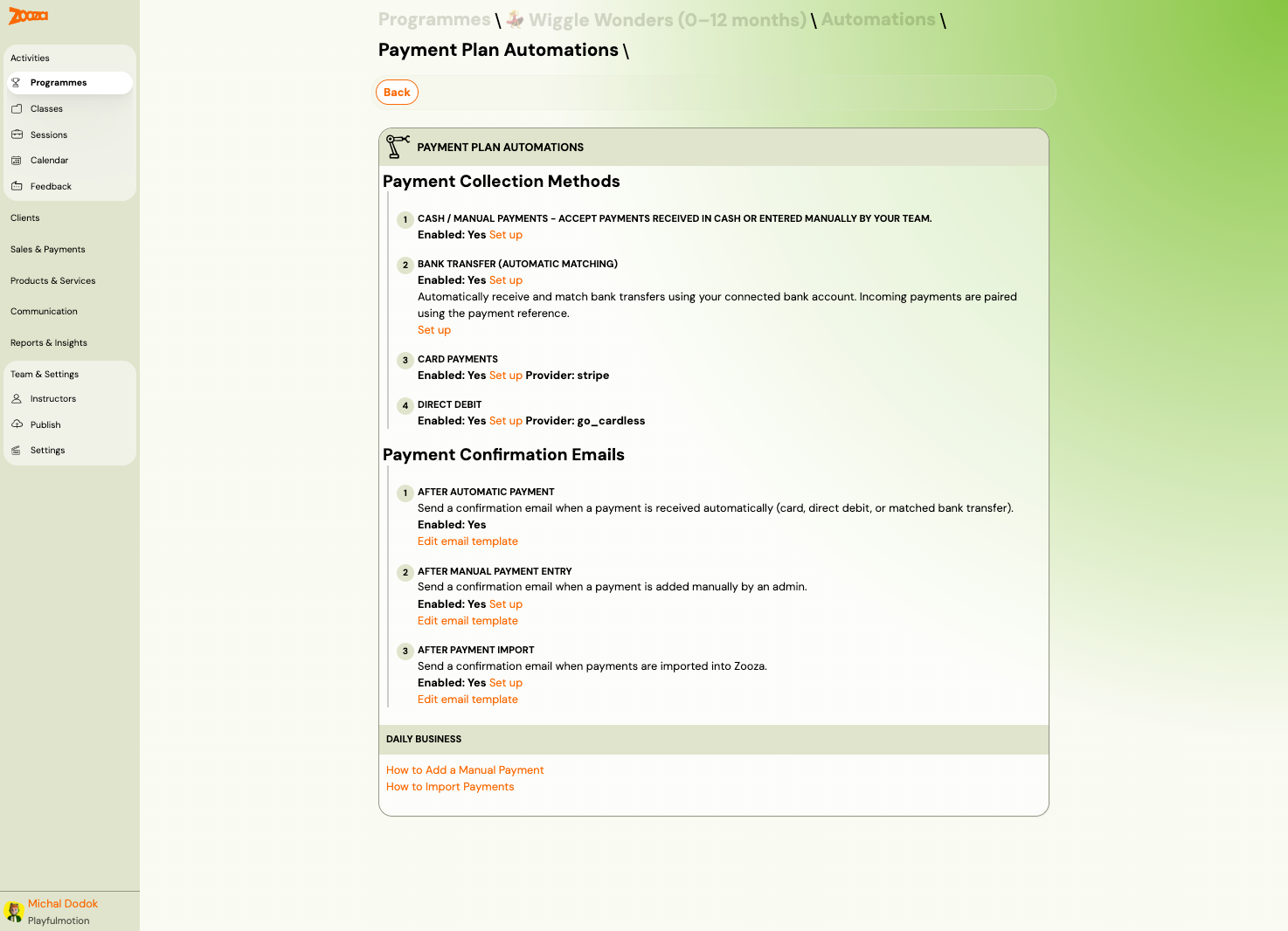
Payment Collection Methods
Same four methods as One-off: Cash/Manual, Bank Transfer, Card Payments, Direct Debit.
Payment Confirmation Emails
Same three triggers: After Automatic Payment, After Manual Payment Entry, After Payment Import.
Daily Business Links
- How to Add a Manual Payment
- How to Import Payments
Booking Automations
Defines the standard booking flow that clients go through when registering.
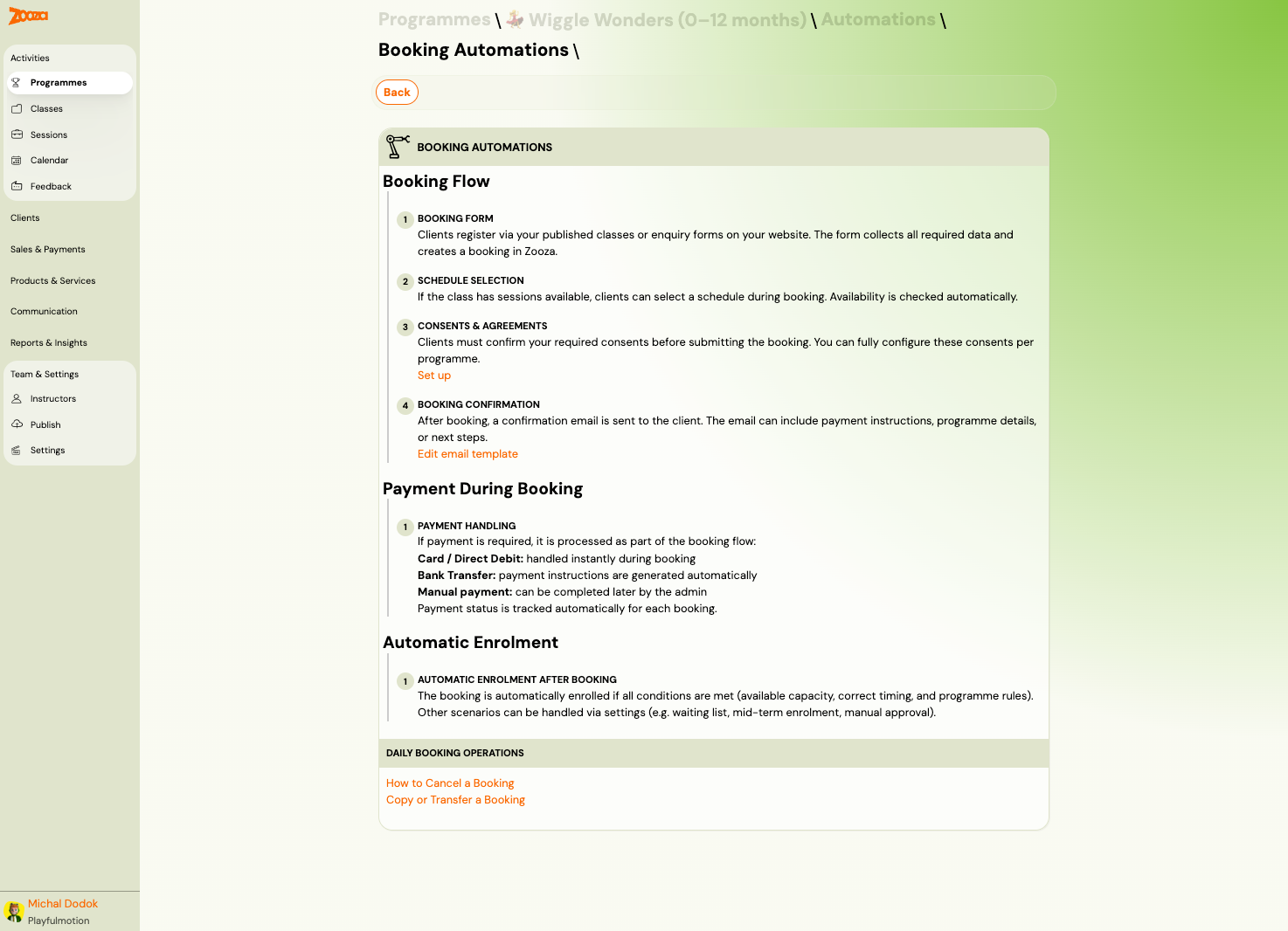
Booking Flow
- Booking Form — clients register via your published classes or enquiry forms. The form collects all required data and creates a booking in Zooza.
- Schedule Selection — if the class has sessions available, clients can select a schedule during booking. Availability is checked automatically.
- Consents & Agreements — clients confirm required consents before submitting. Consents are configurable per programme.
- Booking Confirmation — a confirmation email is sent. The email can include payment instructions, programme details, or next steps.
Payment During Booking
Payment is processed as part of the booking flow:
- Card / Direct Debit — handled instantly during booking.
- Bank Transfer — payment instructions are generated automatically.
- Manual payment — can be completed later by the admin.
Payment status is tracked automatically for each booking.
Automatic Enrolment
The booking is automatically enrolled if all conditions are met (available capacity, correct timing, and programme rules). Other scenarios (waiting list, mid-term, manual approval) are handled via settings.
Daily Booking Operations
- How to Cancel a Booking
- Copy or Transfer a Booking
Late Booking Automations
Handles bookings submitted after the programme has already started or while it is in progress.
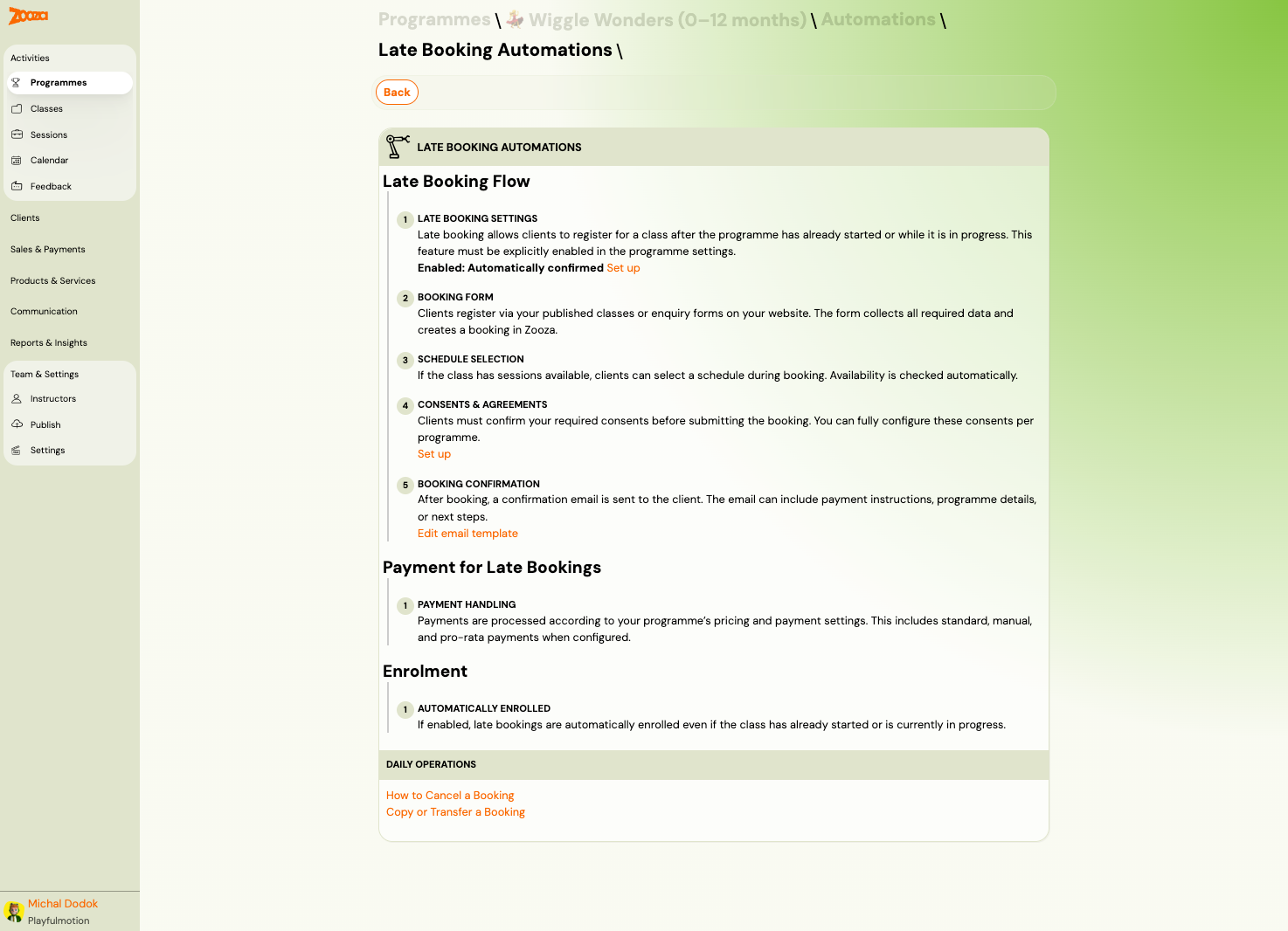
Late Booking Flow
- Late Booking Settings — must be explicitly enabled in programme settings. Controls whether clients can register mid-term.
- Booking Form — same form as standard bookings.
- Schedule Selection — availability checked automatically.
- Consents & Agreements — same consent flow.
- Booking Confirmation — confirmation email sent.
Payment for Late Bookings
Payments follow the programme's pricing and payment settings, including standard, manual, and pro-rata (aliquot) payments when configured.
Enrolment
If enabled, late bookings are automatically enrolled even if the class has already started or is in progress.
Waiting List Automations
Defines the flow when a class is full and the client joins the waiting list.
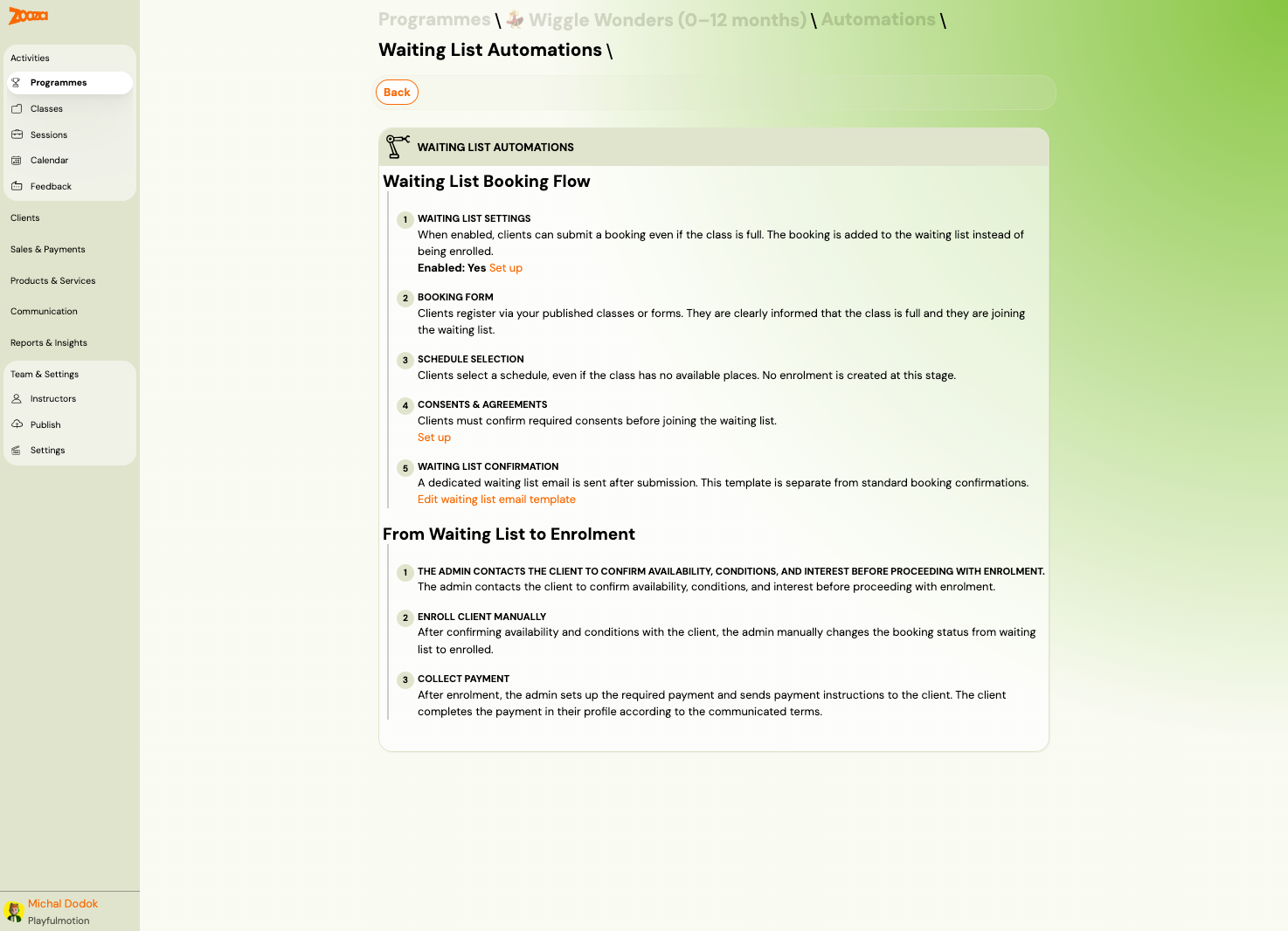
Waiting List Booking Flow
- Waiting List Settings — when enabled, clients can submit a booking even if the class is full. The booking is placed on a waiting list.
- Booking Form — clients are clearly informed that the class is full and they are joining the waiting list.
- Schedule Selection — clients select a schedule even if no places are available. No enrolment is created.
- Consents & Agreements — same consent flow.
- Waiting List Confirmation — a dedicated waiting list email is sent (separate template from standard confirmations).
From Waiting List to Enrolment
- Admin contacts the client — confirms availability, conditions, and interest.
- Enroll client manually — the admin changes the booking status from waiting list to enrolled.
- Collect payment — the admin sets up payment and sends instructions. The client completes payment via their profile.
Trial Automation
Automated workflow for trial sessions — from booking through attendance to enrolment or follow-up.
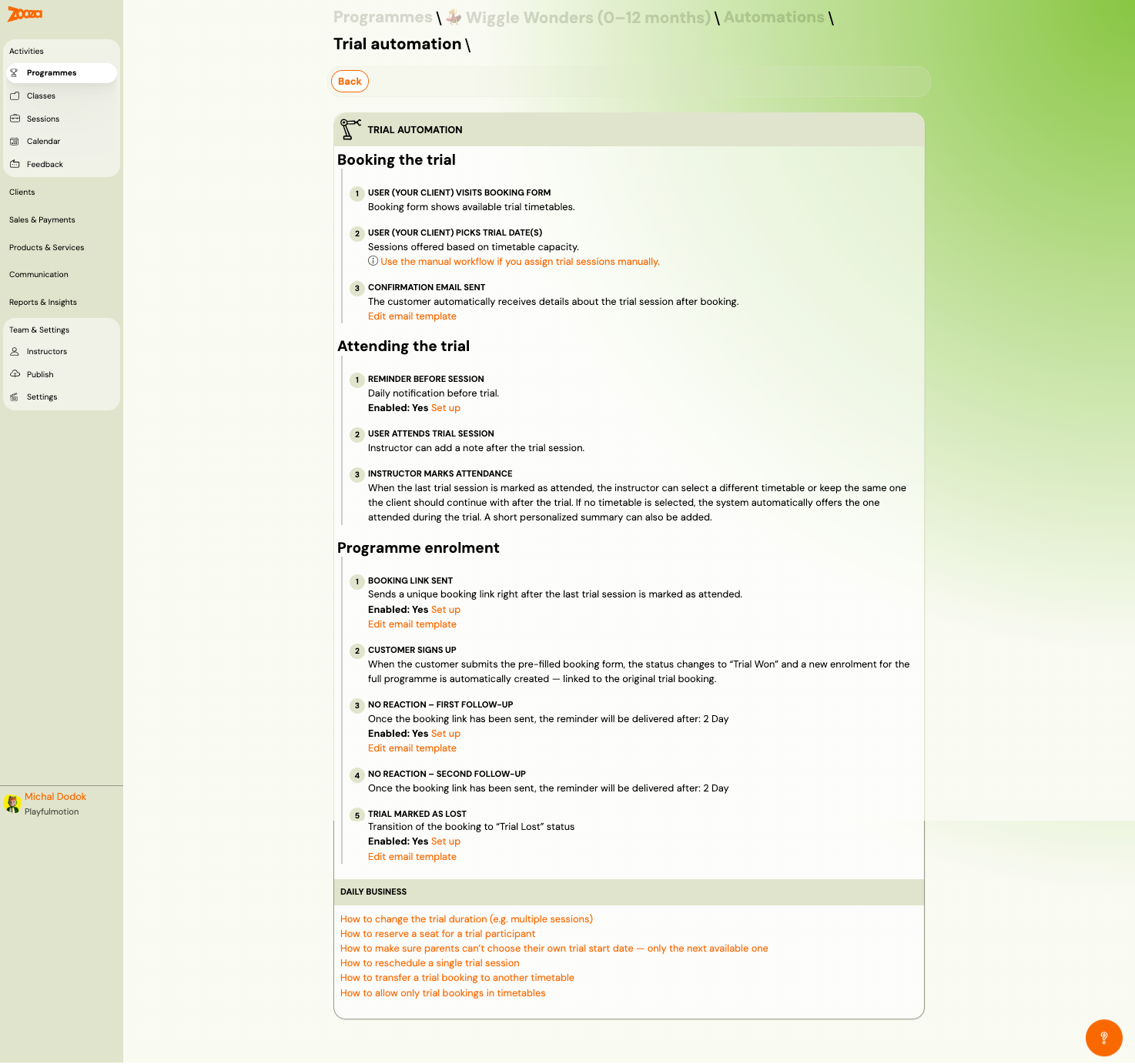
Booking the Trial
- User visits booking form — shows available trial timetables.
- User picks trial date(s) — sessions are offered based on timetable capacity.
- Confirmation email sent — automatic confirmation with trial session details.
Attending the Trial
- Reminder before session — daily notification before the trial. Configurable.
- User attends trial session — instructor can add a note.
- Instructor marks attendance — when the last trial session is marked attended, the instructor can select which timetable the client should continue with.
Programme Enrolment
- Booking link sent — unique enrolment link sent right after the last trial session is marked attended.
- Client signs up — submitting the pre-filled form changes status to "Trial Won" and creates a full enrolment.
- No reaction — first follow-up — reminder sent after a configurable number of days (e.g., 2 days).
- No reaction — second follow-up — second reminder after additional days.
- Trial marked as lost — booking transitions to "Trial Lost" status. Optional notification sent.
Trial Automation with Manual Session Assignment
Similar to the standard trial automation but the admin assigns trial sessions manually instead of the client choosing dates.
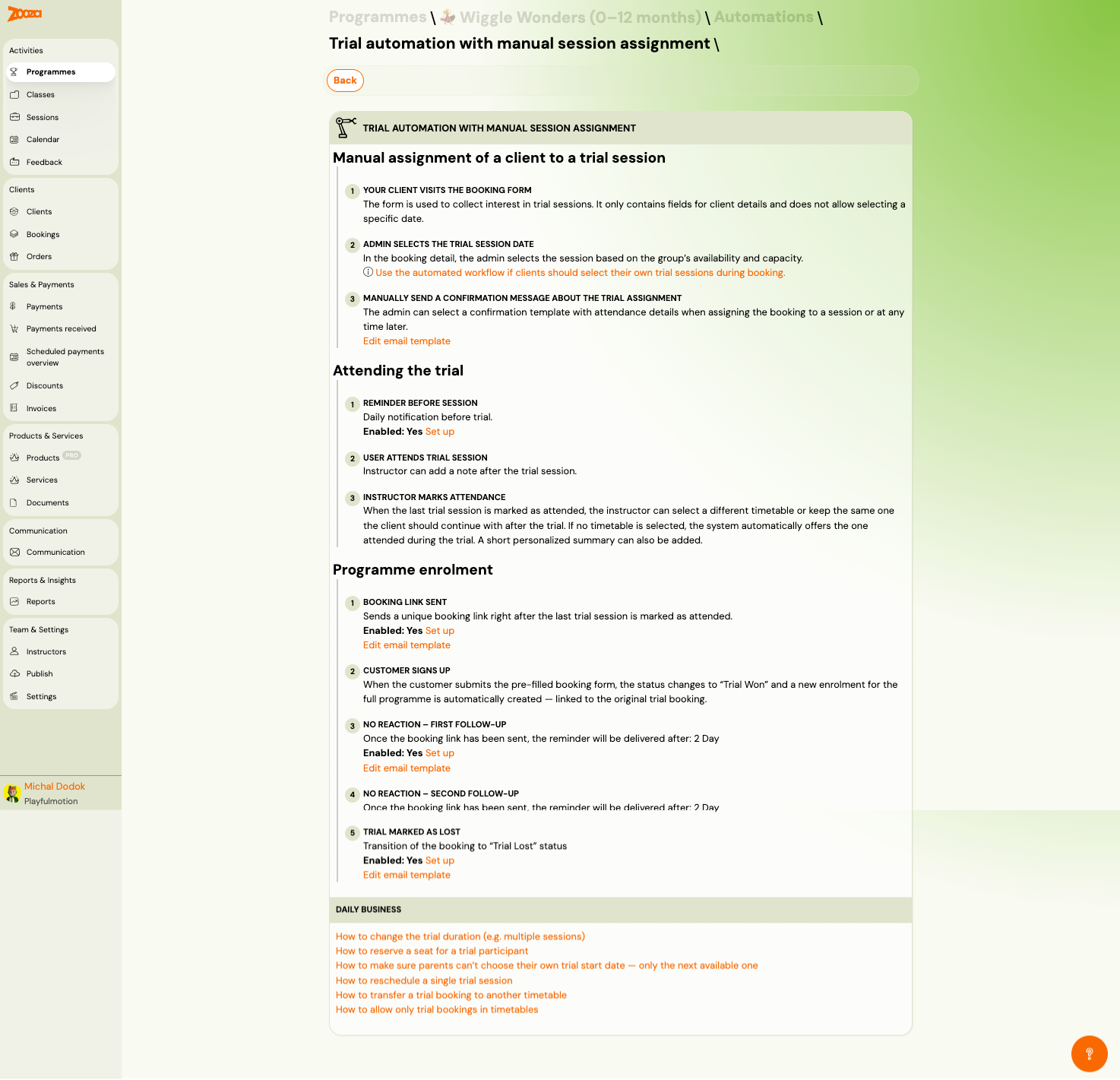
Manual Assignment Flow
- Client visits booking form — the form collects interest and client details only (no date selection).
- Admin selects the trial session date — in the booking detail, the admin picks the session based on availability and capacity.
- Manually send a confirmation message — the admin selects a template with attendance details.
Attending the Trial
Same as standard trial: reminder before session, attendance, instructor marks attendance.
Programme Enrolment
Same follow-up flow: booking link sent, client signs up, follow-ups, trial lost.
Auto-Enrolment Automations
Automated re-enrolment for clients whose current class is ending.
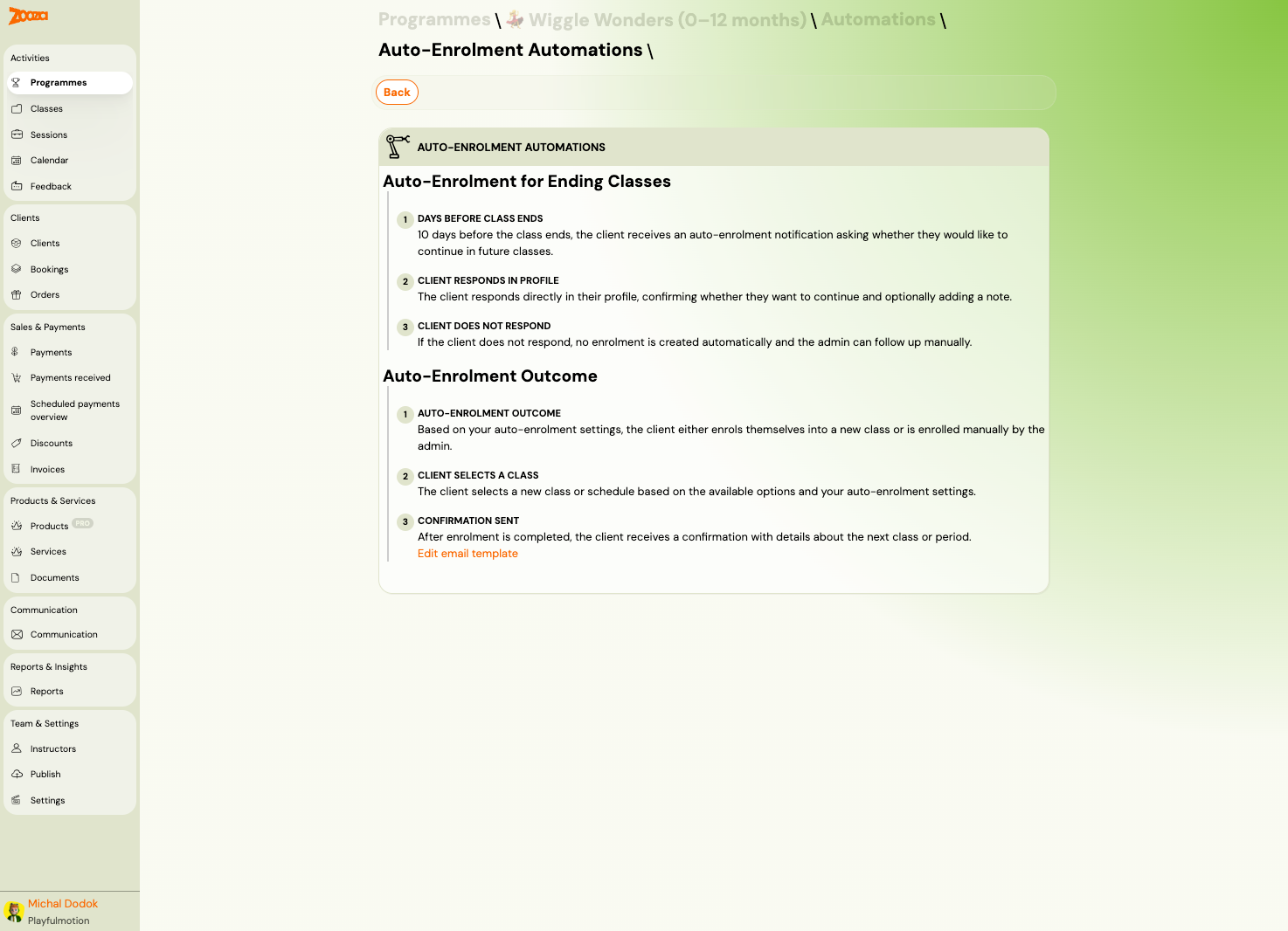
Auto-Enrolment for Ending Classes
- Days before class ends — the client receives a notification asking whether they want to continue.
- Client responds in profile — confirms continuation and optionally adds a note.
- Client does not respond — no enrolment is created. Admin can follow up manually.
Auto-Enrolment Outcome
- Auto-enrolment outcome — based on settings, the client either self-enrols or is enrolled by the admin.
- Client selects a class — chooses a new class or schedule from available options.
- Confirmation sent — the client receives a confirmation with details about the next class or period.
Related
- Programme Settings — all settings tiles including trial and auto-enrolment configuration.
- Programmes List — the main programmes view.
- Auto-Enrolment Setup — step-by-step auto-enrolment configuration.
- Automatic Payment Reminders Guide — configuring payment follow-ups.
- Trials FAQ — common trial questions.
- Waiting List FAQ — waiting list behaviour.