Automatic reminders for payment schedule
If the client has selected payment with a payment schedule in the booking or you have set it up manually, they will always be informed of this obligation in time -- automatically by the application. Reminders are sent as email notifications. Learn how to set up payment templates in the payment templates manual.
Reminder 1: Upcoming payment notification
Informs the client that a scheduled payment will be due on their programme booking in a few days (depending on the setup).
- The reminder must be enabled in Settings --> Payments, where you can specify the number of days before the payment is created when the notification should be sent.
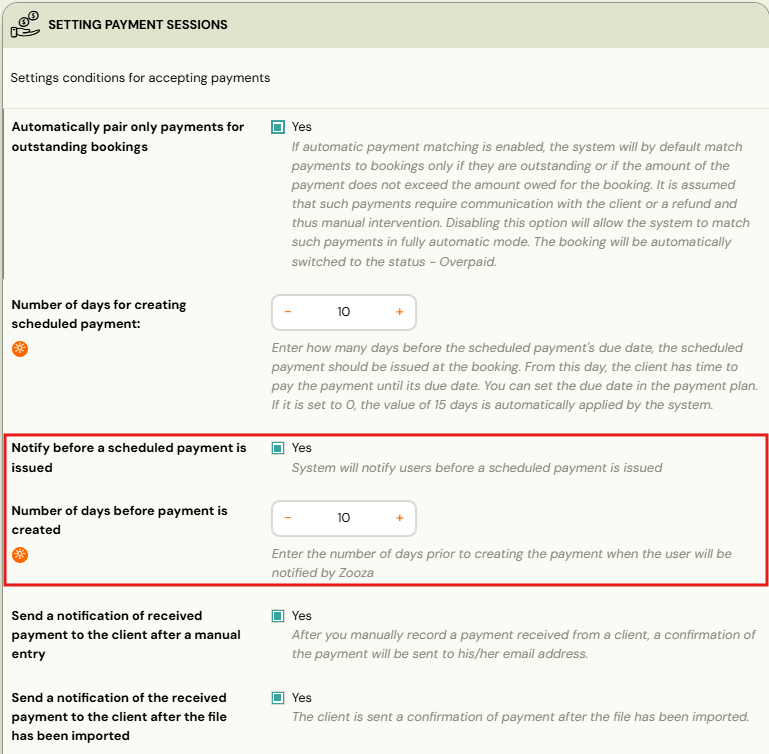
-
The notification before the payment is created is sent according to the formula: Due date - Number of days due - Number of days before payment creation
-
You can edit the text in Communication --> Message Templates, under the template titled: Upcoming Payment.
-
To communicate the date when the payment will be created, use the dynamic tag:
SCHEDULED_AT_DATE
Reminder 2: Payment created notification
Informs the client that a new scheduled payment has been created on their booking. The date when the payment is posted and the notification sent follows the formula: Due Date - Number of days due.
-
Set the payment due date in Settings --> Payments, where you can specify the number of days.
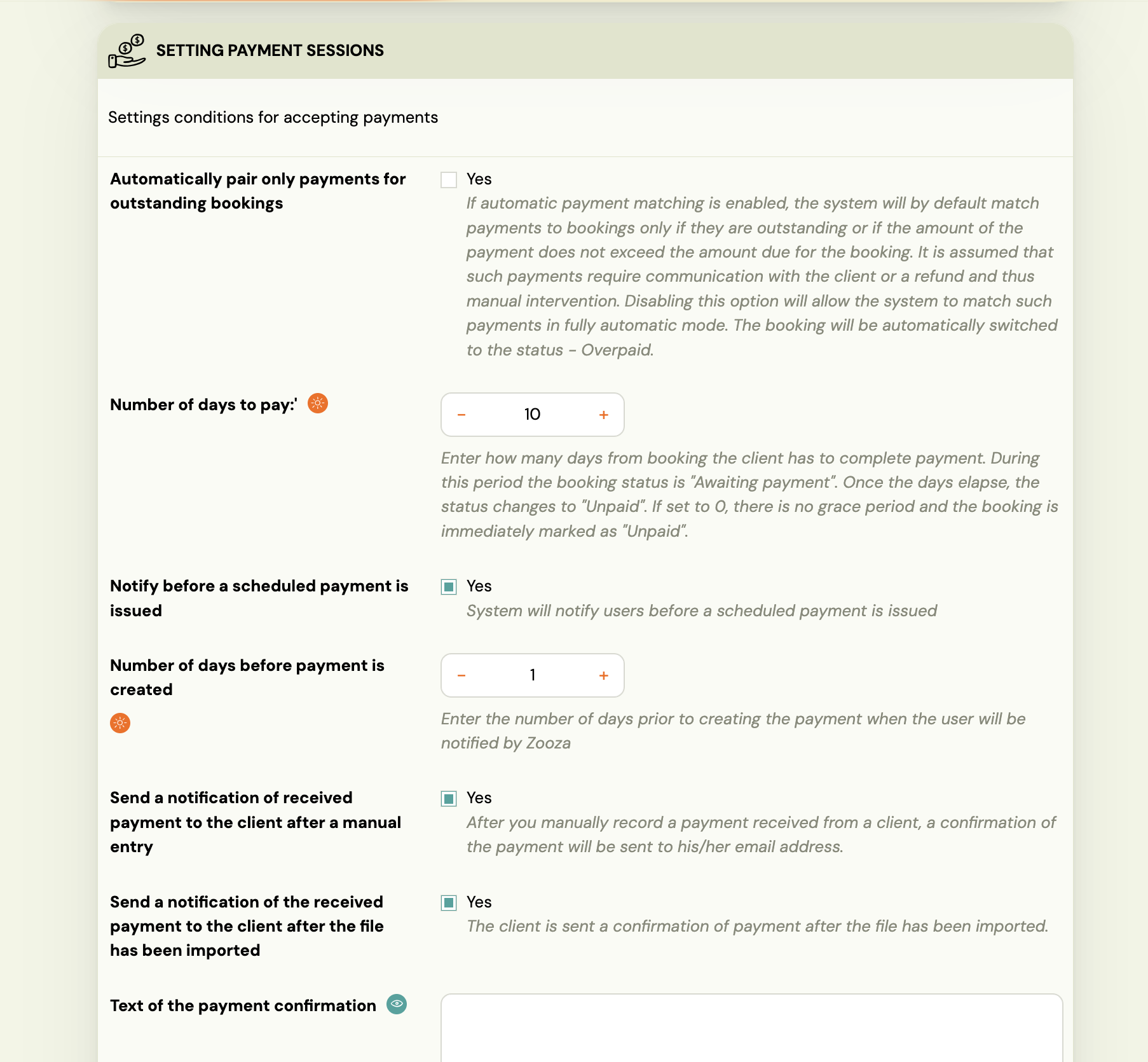
-
Customize the text in Communication --> Message Templates, under the template named: New payment.
-
To communicate the due date, use the dynamic tag:
DUE_DATE
Reminder 3: Overdue payment notification
Informs the client that the booking has not been paid by the due date.
- It is sent on the due date if the booking is in an unpaid/partially paid status.
- Edit the text in Communication --> Message Templates, under the template titled: Missed payment.
- To communicate the due date, use the dynamic tag:
DUE_DATE
Understanding the three notification types
Clients often confuse these three notifications. Here is a clear distinction:
| Notification | When it is sent | Purpose | Template name |
|---|---|---|---|
| Upcoming payment | Before the debt is created (configurable days) | Informational — tells the client a payment will be due soon | Upcoming Payment |
| Payment created | When the instalment debt is posted | Action required — tells the client to pay | New Payment |
| Overdue payment | On or after the due date, if unpaid | Urgent — the payment is past due | Missed Payment |
Common confusion: "I already paid but got a reminder"
This happens when:
- The client paid before the debt was created (e.g., after receiving the "upcoming payment" notification).
- The payment was received by the bank but auto-pairing has not yet processed it (GoCardless syncs once daily; email-notification pairing is near real-time).
- The system sent the next scheduled notification before the payment was matched.
The client sees what looks like an overdue notice, but it was actually the "upcoming" or "payment created" notification for a future scheduled payment. The wording of these notifications should clearly distinguish them.
Notification timing
All payment notifications are processed in a nightly batch. This means:
- Notifications may arrive in the early morning hours (e.g., midnight to 6 AM).
- The send time is not configurable per programme or globally.
- If this timing causes client complaints, consider adding a note in your notification template explaining that the email was generated automatically overnight.
The "zeroth" notification (pre-payment)
You can enable a notification that is sent before the first instalment is created. This gives the client advance notice that they will receive a payment request soon. It acts as a fourth touchpoint in addition to the three reminders above.
Enable this in Programme → Settings → Price and payments → Payment reminder settings.
Turn off scheduled payment notifications
If you want to stop all payment reminder emails for your clients, you can disable them globally.
Go to Settings → Billing → Payments and turn off the Send scheduled payment notifications toggle.
When this is off:
- The upcoming payment (pre-notice) email is not sent.
- The payment created email is not sent.
- The overdue payment email is not sent.
What is not affected: the payment confirmation email (sent when a payment is successfully processed) — that notification is not controlled by this toggle and is always sent.
Suppress duplicate payment emails (cooldown)
If clients receive multiple payment notifications for recurring charges in quick succession, the cooldown setting can help.
When the master notifications toggle is on, you can set a cooldown period in months. If a previous scheduled payment in the same series was processed within that window, the at-creation email for that booking is suppressed.
Who the cooldown applies to: Stripe stored card and GoCardless inbound clients only.
Who always gets the email regardless of cooldown:
- Clients paying by bank transfer (manual recording)
- The first payment in any series
Default: notifications on, cooldown = 0 months (no suppression).