Sending email/SMS to clients
For effective communication with your clients, you can use the messaging capabilities offered by the application. This method of communication is quick and easy.
The biggest advantage is that you can find every sent and received email/SMS in the client details or in the message overview, so you know exactly what was communicated and when.
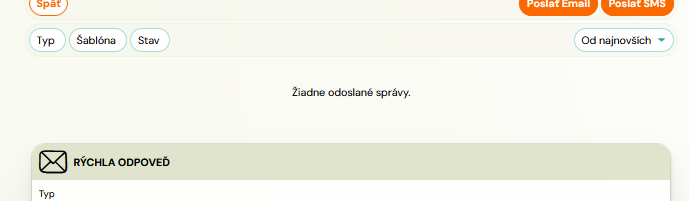
Overview of messages
To view the total communication for all your clients:
- Click on the Communication tab and then on Messages Overview.
In the message overview, messages can be filtered by:
- Email or phone number
- Type -- received emails, sent emails, SMS messages
- Templates -- by the name of the message template
- Condition -- unread, to do, solved
You can also sort them from newest or oldest.
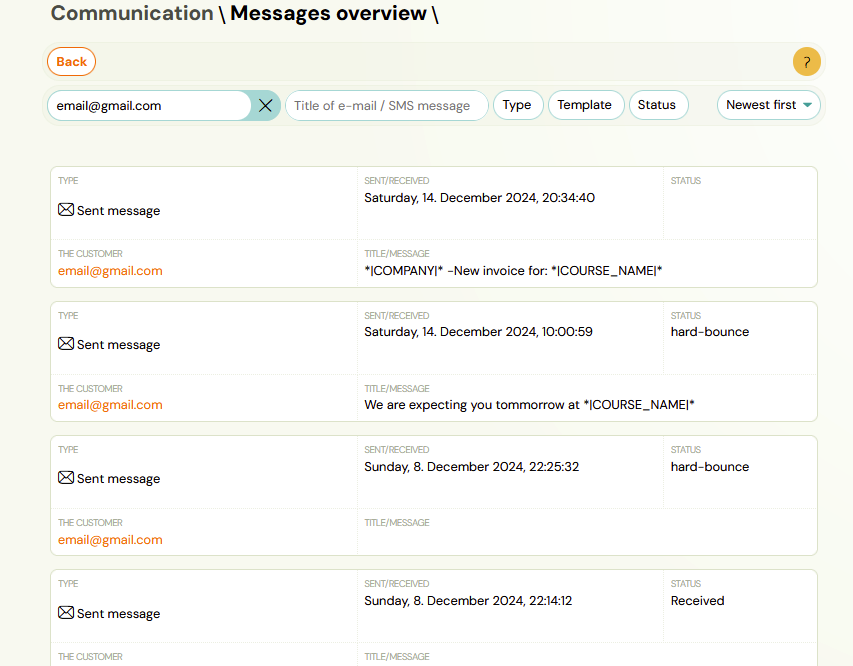
Clicking on the client's email takes you to the communication detail for the selected client.
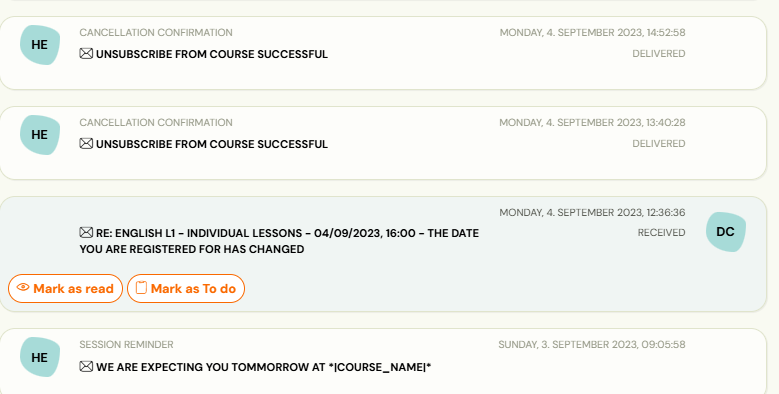
You can also access the communication detail by searching for a specific booking and clicking the Communication button. In this section you can:
- Send a new message
- View the history of sent emails/SMS
- Filter messages
- View the content of sent and received messages
- See whether messages have been read or handled
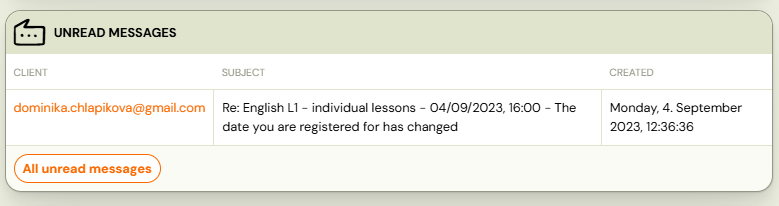
The list of all unread messages can be found on the main dashboard under the list of bookings, where you can click on the email and Zooza will redirect you to the booking communication.
Sending messages
The procedure for sending emails and SMS is the same:
- Click on the Communication tab and then on Send Email or Send SMS.
- Select a Target group.
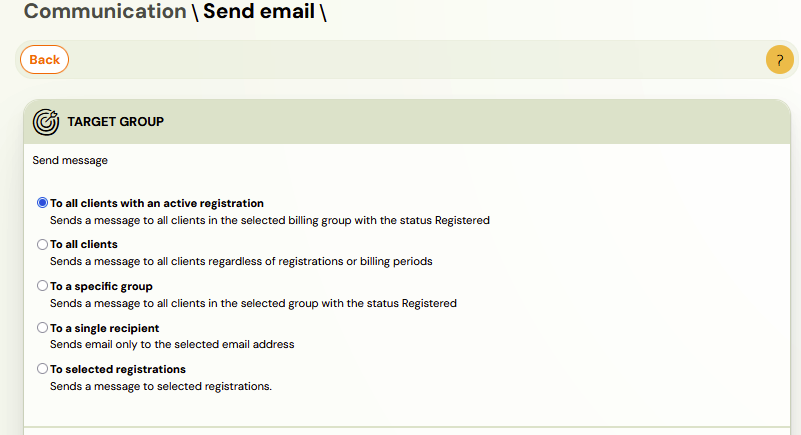
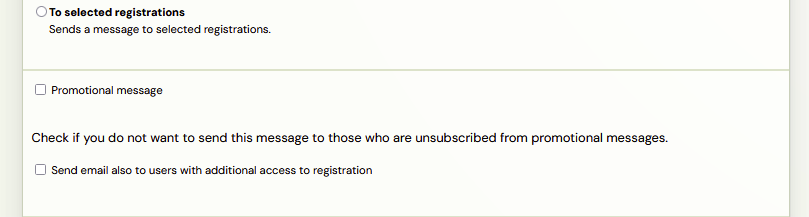
- Check the Promotional message box if your message is promotional. This setting means that if any client has cancel from receiving advertising messages, they will not receive them. If you want to send a message to all clients including those who have additional access to bookings, click the checkbox Send email also to users with additional access to booking.
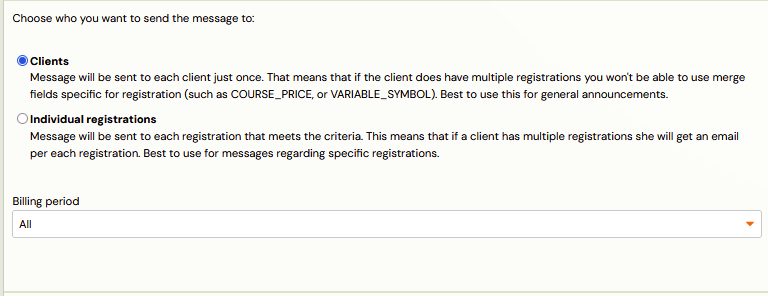
- Choose who you want to send the message to:
- Clients -- if a client has multiple bookings, they receive the email only once.
- Bookings -- if you need to include specific information about each booking; a client with multiple bookings receives more emails.
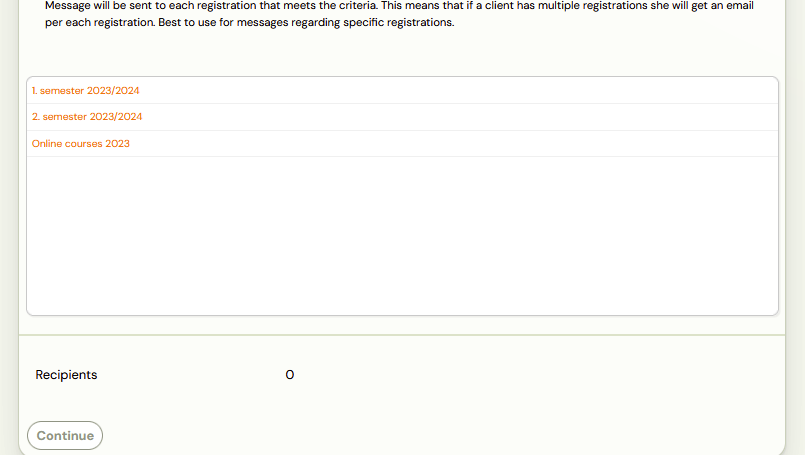
- If you selected a specific class as your target, select the class.
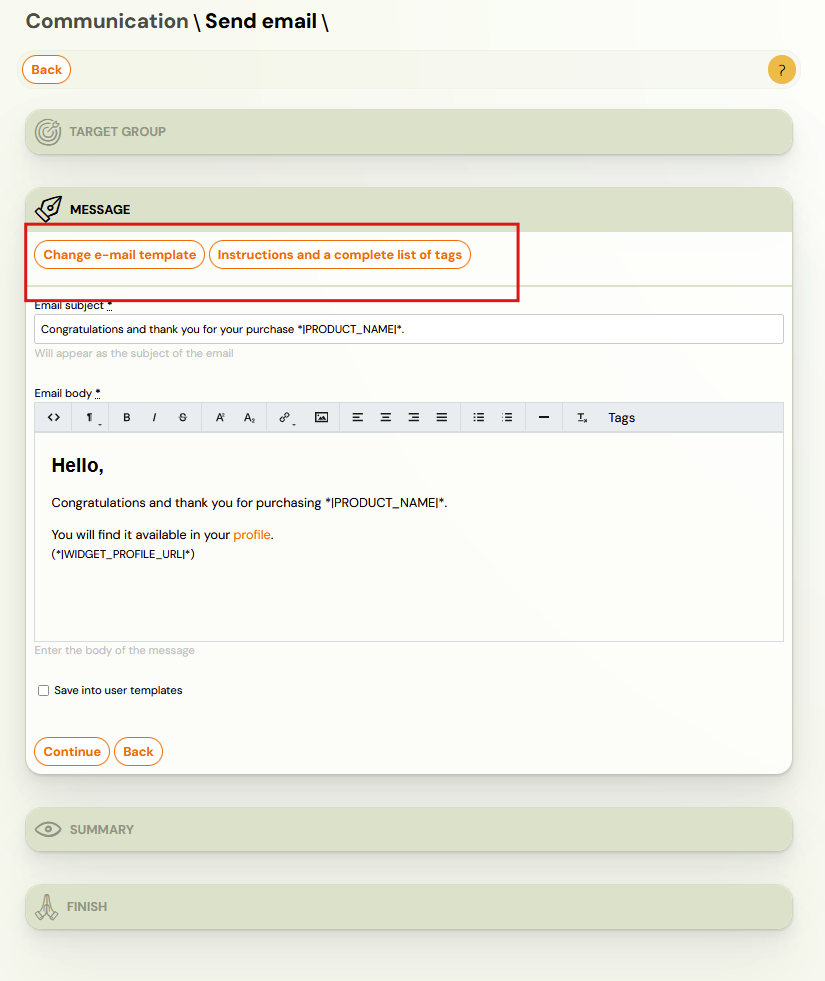
- Choose whether to use a prepared template or create custom text. For custom text, use dynamic tags via the Tags button in the formatting panel.
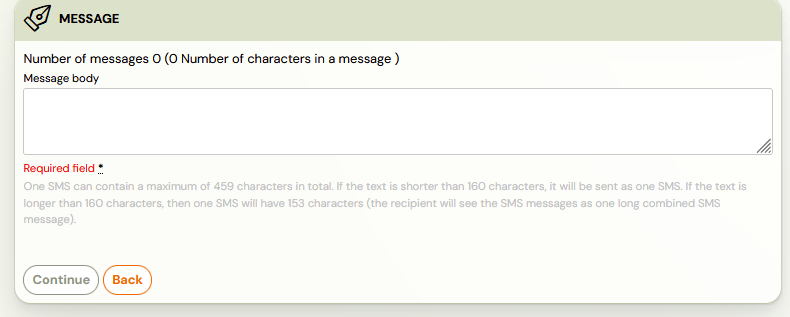
- You will be taken to a summary screen where you can check your selections.
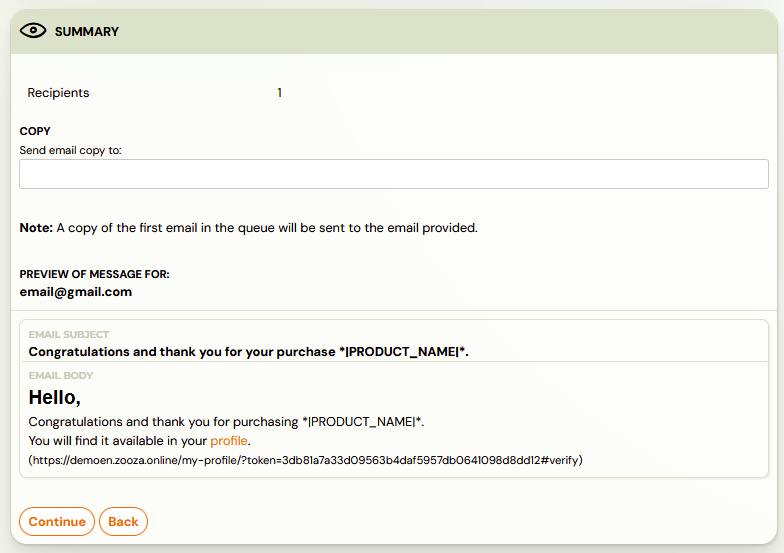
-
Click Continue. Zooza counts the exact recipient list and creates a send job.
- Under 100 recipients: sending starts automatically.
- 100 or more recipients: Zooza shows you the recipient count and waits for your confirmation. Click Approve to start sending.

-
Sending runs in the background. A progress view shows how many recipients have been processed.
If another send for your account is already in progress, the new send is placed in the queue and starts automatically when the first one finishes.
-
You can Cancel the send at any time from the progress view. Emails already dispatched cannot be recalled.
Note: To check each sent email, we recommend that you include your own email address.
If the audience is awkward to express in filters, describe it to Zooza AI instead — "everyone in Monday classes who has not paid" is a sentence it can resolve into a list, and it is usually faster than building the filter by hand.
Emailing a group the composer cannot target
The Target group list in the composer is deliberately short. If the audience you want is not in it — everyone in lead collection, everyone in Monday classes, everyone on a waiting list — do not try to send to All clients and untick people. Send from the Classes list instead.
- Go to Classes.
- Filter the list down to what you want. The Status filter is the one that gets you lead collection; you can also filter by day, location, instructor or programme.
- Click Email in the action bar at the top of the page.
Everyone in the filtered classes becomes the recipient list.
Sending this way also exposes one filter the normal composer does not have: once you are in a class you can narrow to a subset of its bookings — for example only the people on the waiting list, rather than everyone enrolled.
This is the practical answer to most "can I email just X?" questions. Classes can be filtered in ways bookings cannot, so reaching the audience through Classes is usually faster than looking for a matching target group.
Everyone at one venue
A common one, and there are three routes depending on what you mean by "everyone there".
| What you want | Where to do it |
|---|---|
| Everyone with a booking at that venue | Bookings — filter by location, then send a bulk message |
| Everyone in the classes held there | Classes — filter by location, then Send email |
| Everyone due at that venue on one specific day | Calendar — Bulk edit, tick the sessions, and send from there |
The third is the one for "the pool is closed on Thursday": the message goes to everyone on the sessions you ticked, so you are not telling families about a closure on a day they were not coming anyway.
The sessions list is not one of the routes. People try it because it looks like the place where venues and dates live, but the send actions are on Bookings, Classes and the Calendar.
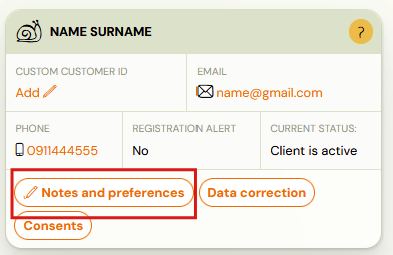
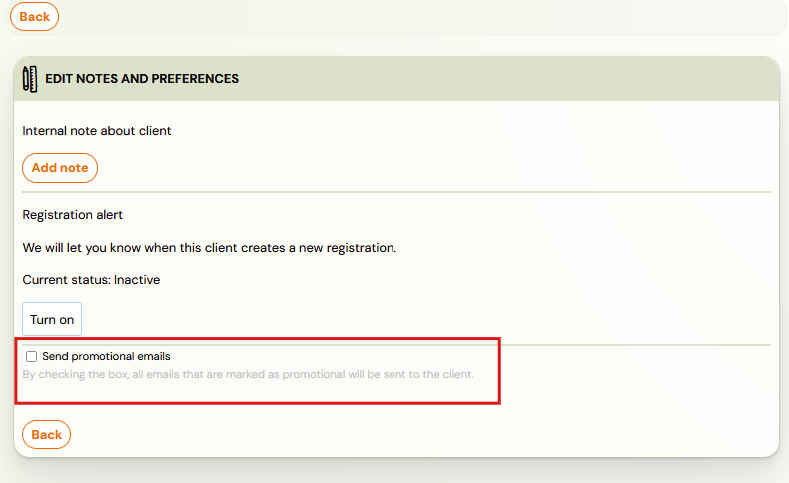
Attention! Zooza does not function as a marketing communications system that allows clients to opt out of receiving marketing/promotional messages. It is also not used to obtain information about how many clients opened the promotional email or responded to links. The Promotional Email / Promotional SMS function is for client information only. If a client wants to cancel from promotional emails, you can do it based on their request:
- In the Clients section, open the client account and click on Notes and preferences.
- Untick the Send promotional emails box.
There is a second place, on the booking. Open the registration → the first section, Registration → Options, and untick sending promotional messages there.
The difference matters when a client has more than one booking. The client-level setting covers the person; the booking-level one covers that booking. If someone says they still receive promotional email after you switched it off, check the other level.
Either way, the switch only works if you also tick Promotional message when sending. An untagged send goes to everyone regardless of these settings — that is the most common reason an opt-out appears not to work.
Taking someone out of the recipient list
The preview list before you send is editable — Remove next to a recipient drops them from this send without touching your filter.
In Clients mode, removing someone now removes the person. When you send to Clients — one message per person rather than one per booking — a single Remove takes out every booking that person holds. Until 10 September 2026 it removed one booking at a time, so a parent with three children came back twice more and you clicked Remove three times.
That is the mode to use when you are sweeping a location or a term and want to spare a couple of families: filter wide, then take out the handful by name.
The extra recipients it suggests are the browser's, not Zooza's
When you type an extra address into the recipients field, the list that drops down is your browser's own form autocomplete. Zooza puts nothing into it and cannot read it.
That explains the two complaints people bring:
- It stopped suggesting the combinations I use. A browser update, a cleared history or a different profile, not a change in Zooza.
- It offers instructors who left. The browser is remembering what you once typed. Clear the saved form entries in your browser to get rid of them.
There is no setting in Zooza for any of this, and nothing we can do from our side — the field has no interface a website is allowed to drive.
If you are adding the same addresses every time, that is worth telling us about rather than fighting the browser. It is a common enough pattern that it belongs in the product.
Can I attach a file to an email from Zooza?
No. The message composer does not take attachments. What you can do instead, in rough order of how well it works:
| Instead of attaching | Do this |
|---|---|
| A file the whole class needs | Add it to the programme or the class under Documents. Everyone enrolled sees it in their profile. |
| A file for one family | Add it to their booking under Documents. |
| Material for one session | Attach it to the session — see Attach documents to sessions. |
| A file hosted elsewhere | Put a link in the message. |
Documents added this way do not announce themselves. The client sees them in their profile, but nothing tells them to look. If the timing matters, add the file and then send the message with the link or a line saying it is there.
How to send email/SMS to one client
You can also use the procedure above, but it assumes you know the recipient email. When communicating with a specific client:
- In the Bookings tab, click on the name of the client you want to contact.
- In the client booking details, click the Email or SMS button in the Communication section.
The recipient's details will automatically fill in. The rest of the process is the same as described above.
Attention! If no communication has been sent to the client, a notification about this fact will be displayed in the overview of sent messages for the given booking.
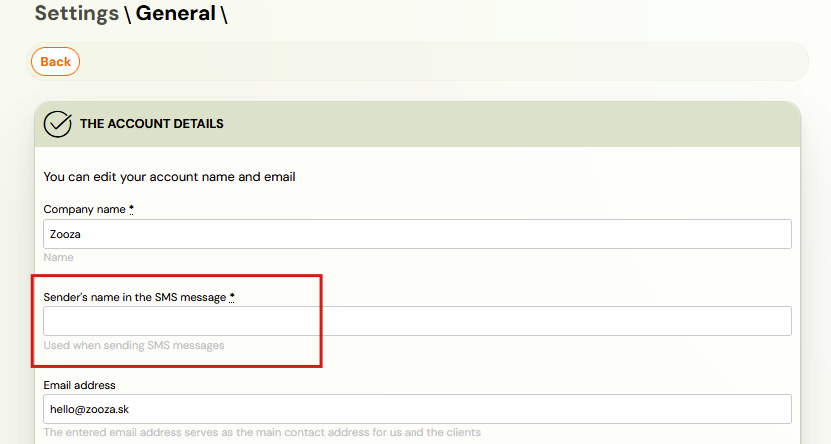
How to set the sender name for SMS
For SMS, you can set the name under which the message appears on the client's phone (the sender name).
To set the name, go to Settings --> General settings.
What parents see, and whether they can reply
SMS messages do not go out from a physical phone number. They are sent from a virtual number, and the parent's phone shows the sender name set above (your account name unless you changed it) rather than a number. That has two consequences:
- They cannot reply. SMS from Zooza is one-way. A parent who wants to answer has to use your published contact details — put them in the message if you expect a response.
- Keep it for operational news. A change of time or venue, a cancelled session, a reminder. Some companies use SMS for promotion; we advise against it — the per-message cost and the one-way nature make it a poor channel for anything that invites a conversation. If you want two-way messaging on the phone, WhatsApp is the channel for it.
Each SMS is billed per message; the current price is on the pricing page.