Discounts
The Discounts screen manages all discount codes, applied discounts, free session credits, and payment template discounts. Use it to create promotional codes, track usage, and review credits.
Navigation: Go to Sales & Payments → Discounts.
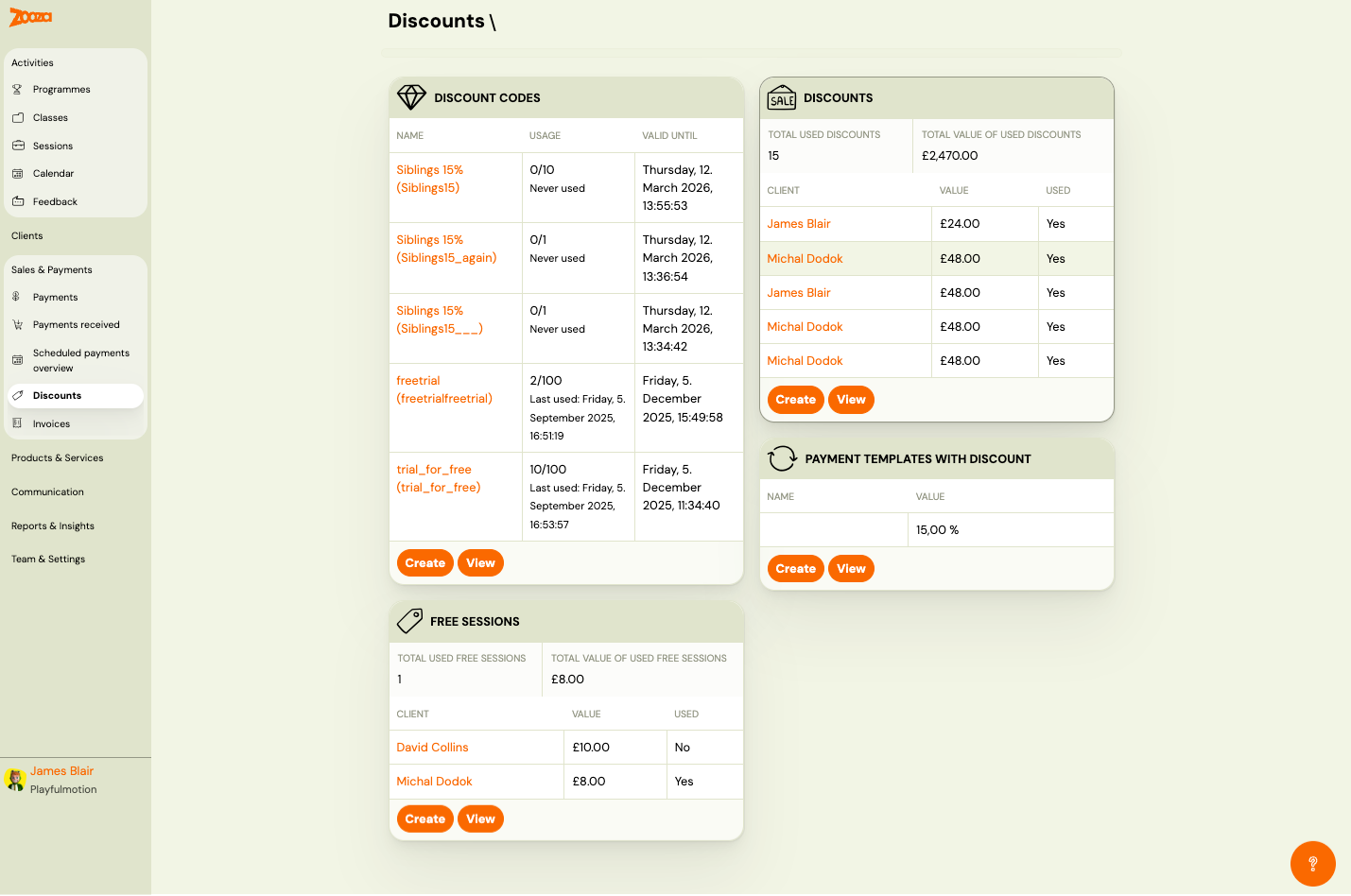
Dashboard
The dashboard is divided into four sections:
Discount Codes
Lists all discount codes:
| Column | Description |
|---|---|
Name | Discount code display name with internal code in parentheses (clickable link). |
Usage | Usage count vs. limit (e.g. "0/10", "2/100") and last used date or "Never used". |
Valid until | Expiration date and time. |
Buttons: Create (new discount code) and View (opens Discount Codes List).
Discounts
Summary of applied discounts:
| Field | Description |
|---|---|
Total used discounts | Number of discounts applied. |
Total value of used discounts | Sum of all discount values. |
Below, a table shows individual discount usage:
| Column | Description |
|---|---|
Client | Client name (clickable link). |
Value | Discount value applied. |
Used | "Yes" or "No". |
Buttons: Create and View.
Free Sessions
Summary of free session credits:
| Field | Description |
|---|---|
Total used free sessions | Number of free sessions used. |
Total value of used free sessions | Sum of free session values. |
Table of free session credits:
| Column | Description |
|---|---|
Client | Client name (clickable link). |
Value | Credit value. |
Used | "Yes" or "No". |
Buttons: Create and View.
Payment Templates with Discount
Lists payment templates that include a built-in discount:
| Column | Description |
|---|---|
Name | Template name. |
Value | Discount percentage (e.g. "15,00 %"). |
Buttons: Create and View.
Discount Codes List
Navigation: Discounts dashboard → Discount Codes → View.
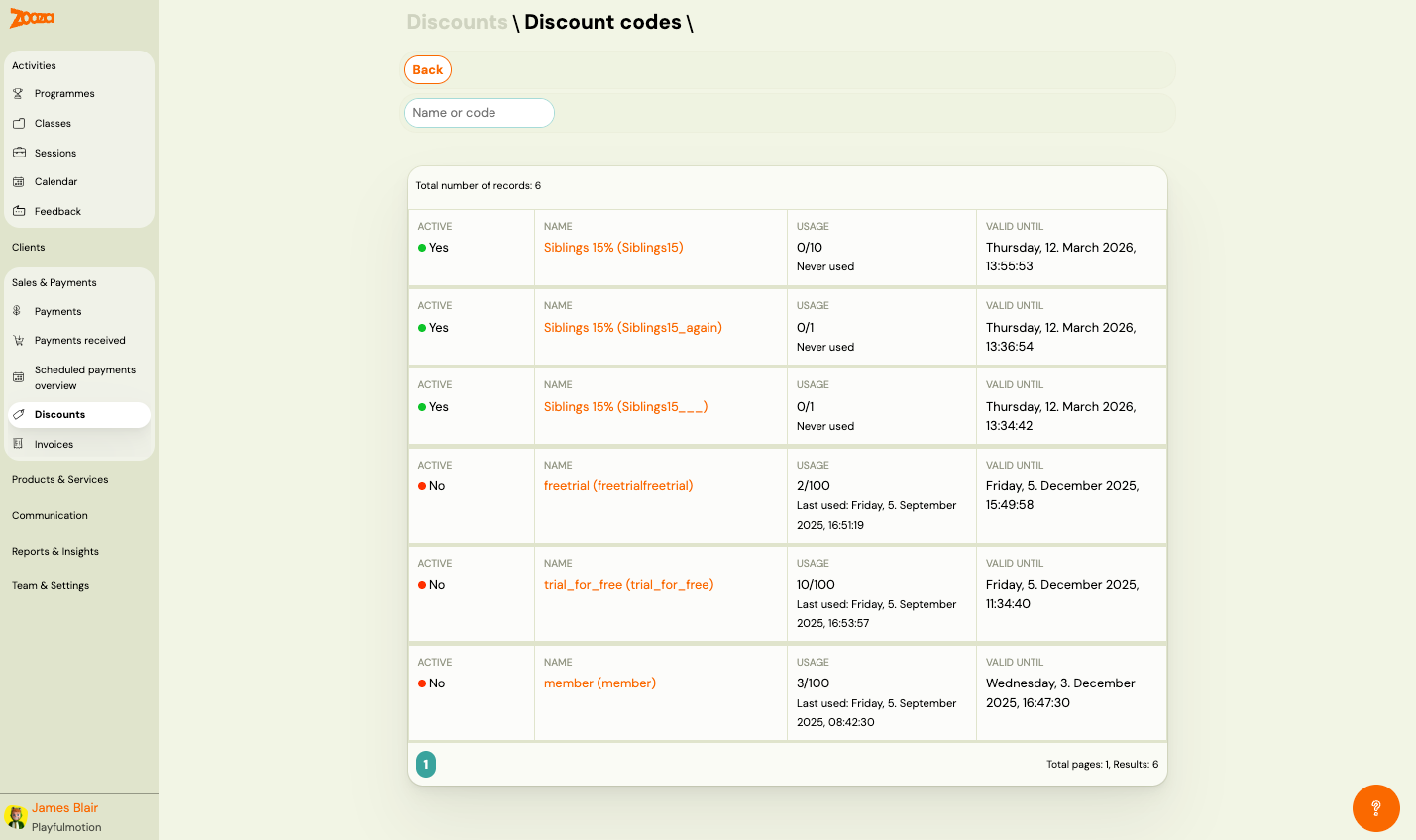
Filter
- Name or code — free-text search by discount name or code.
List
Each row shows:
| Column | Description |
|---|---|
Active | Green dot = "Yes" (active), Red dot = "No" (inactive/expired). |
Name | Discount name with internal code in parentheses (clickable link to detail). |
Usage | Usage count vs. limit (e.g. "0/10") and last used date or "Never used". |
Valid until | Expiration date and time. |
Pagination shows total records count.
New Discount Code
Navigation: Discounts dashboard → Discount Codes → Create.
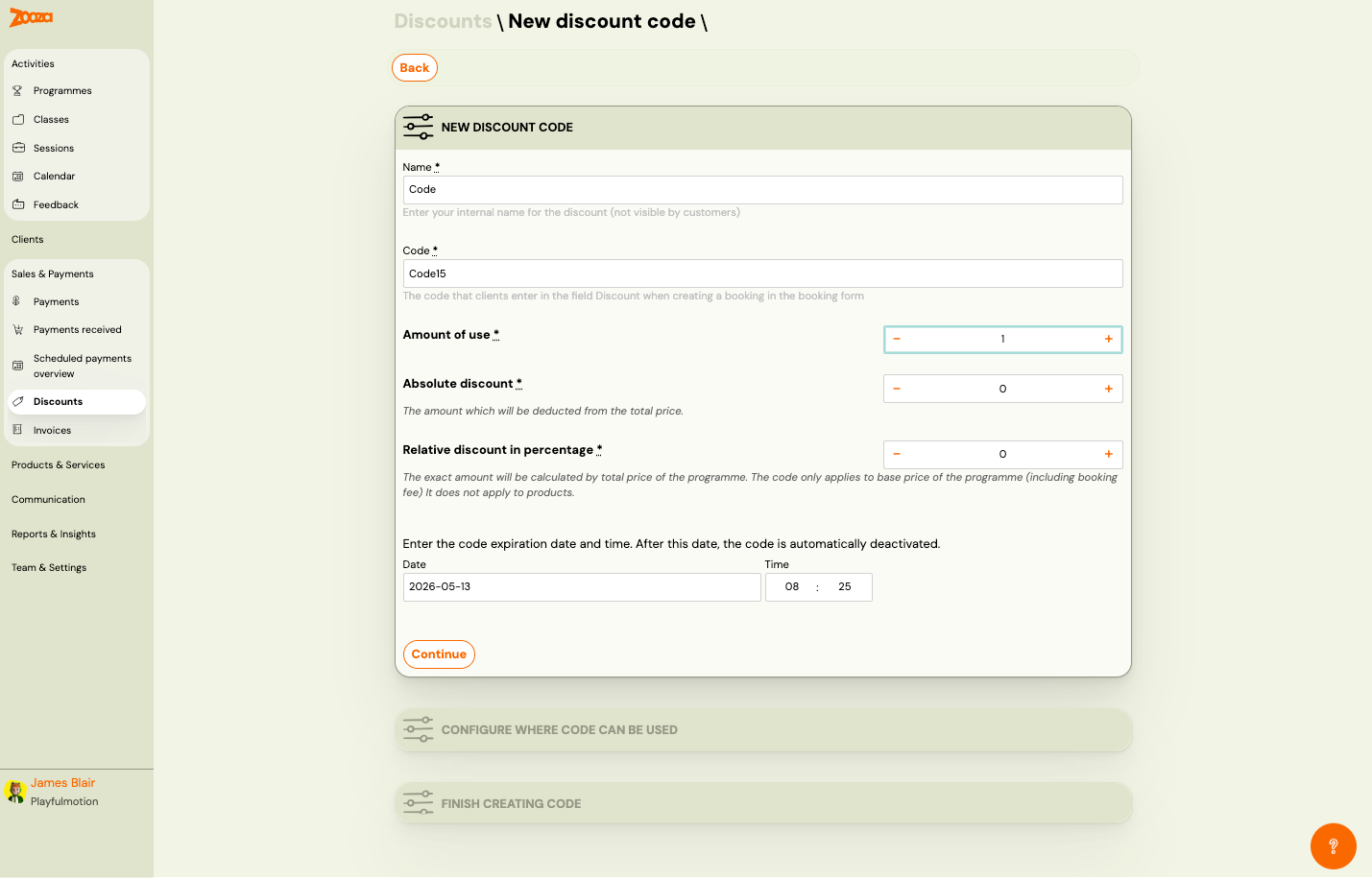
Step 1: New Discount Code
| Field | Description |
|---|---|
Name | Internal name for the discount (not visible to clients). Required. |
Code | The code clients enter in the booking form. Required. |
Amount of use | Maximum number of times the code can be used. +/− controls. Required. |
Absolute discount | Fixed amount deducted from the total price. +/− controls. |
Relative discount in percentage | Percentage discount calculated on the total programme price (including booking fee). Does not apply to products. |
Date / Time | Expiration date and time. After this date, the code is automatically deactivated. |
Click Continue to proceed.
Step 2: Configure Where Code Can Be Used
Select which programmes and/or classes accept this discount code.
Step 3: Finish Creating Code
Review and confirm the discount code creation.
Credits
Navigation: Discounts dashboard → any section → View, or Sales & Payments → Discounts → Credits tab.
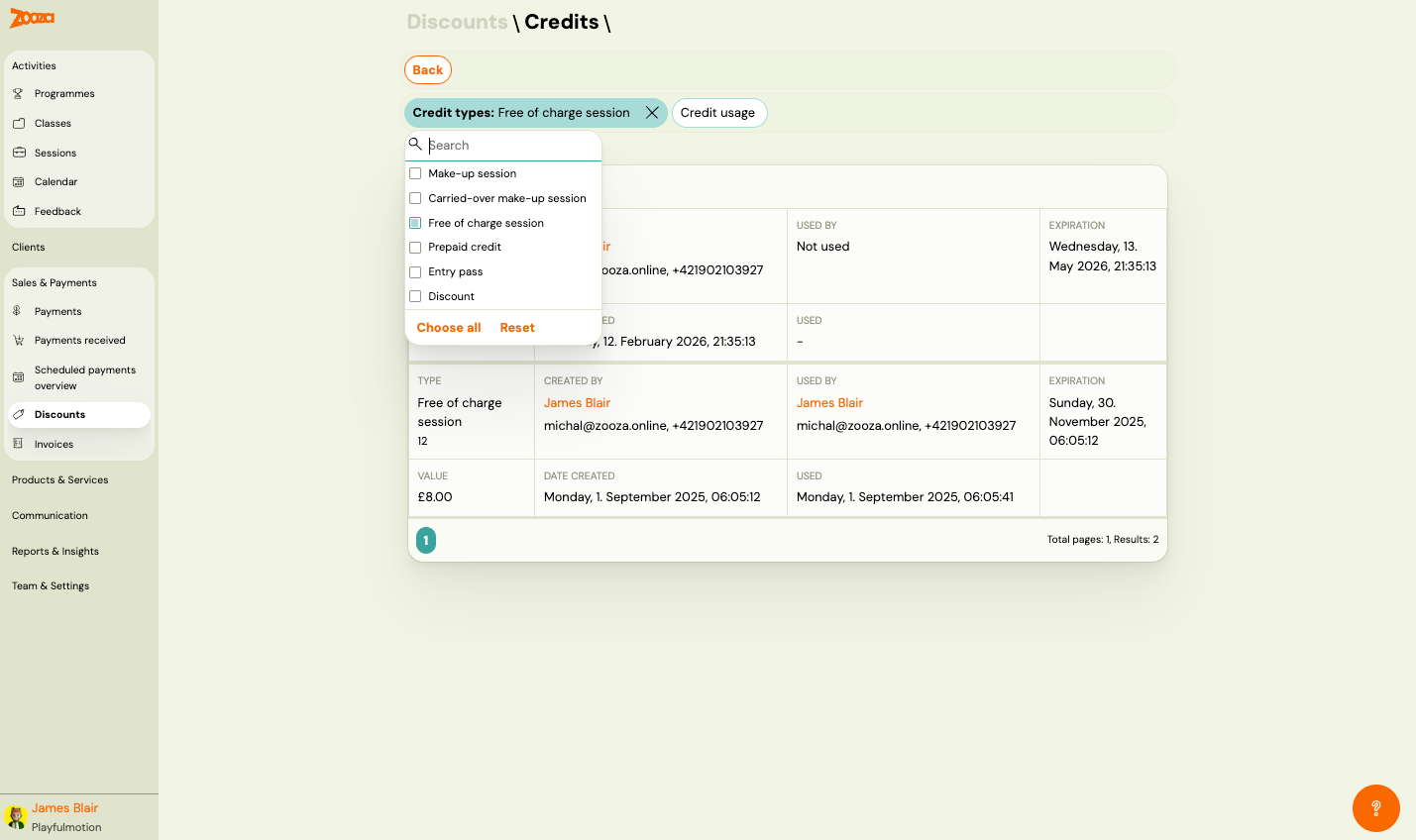
Filters
- Credit types — multi-select dropdown with options:
- Make-up session
- Carried-over make-up session
- Free of charge session
- Prepaid credit
- Entry pass
- Discount
- Credit usage — filter by usage status.
Active filters show as highlighted chips with X to remove. Use Choose all to select all types, or Reset to clear.
Credits List
Each credit card shows:
| Field | Description |
|---|---|
Type | Credit type and number (e.g. "Free of charge session 12"). |
Created by | User who created the credit (name, email, phone). |
Used by | User who redeemed the credit, or "Not used". |
Expiration | Expiration date and time. |
Value | Credit monetary value. |
Date created | Creation timestamp. |
Used | Usage timestamp (or "−" if unused). |
Pagination shows total pages and results count.
Related
- Discount Code Guide — how to create and manage discount codes.
- Discount Types Guide — overview of available discount types.
- Discounts and Sibling Pricing FAQ — common questions about discounts.