Payments
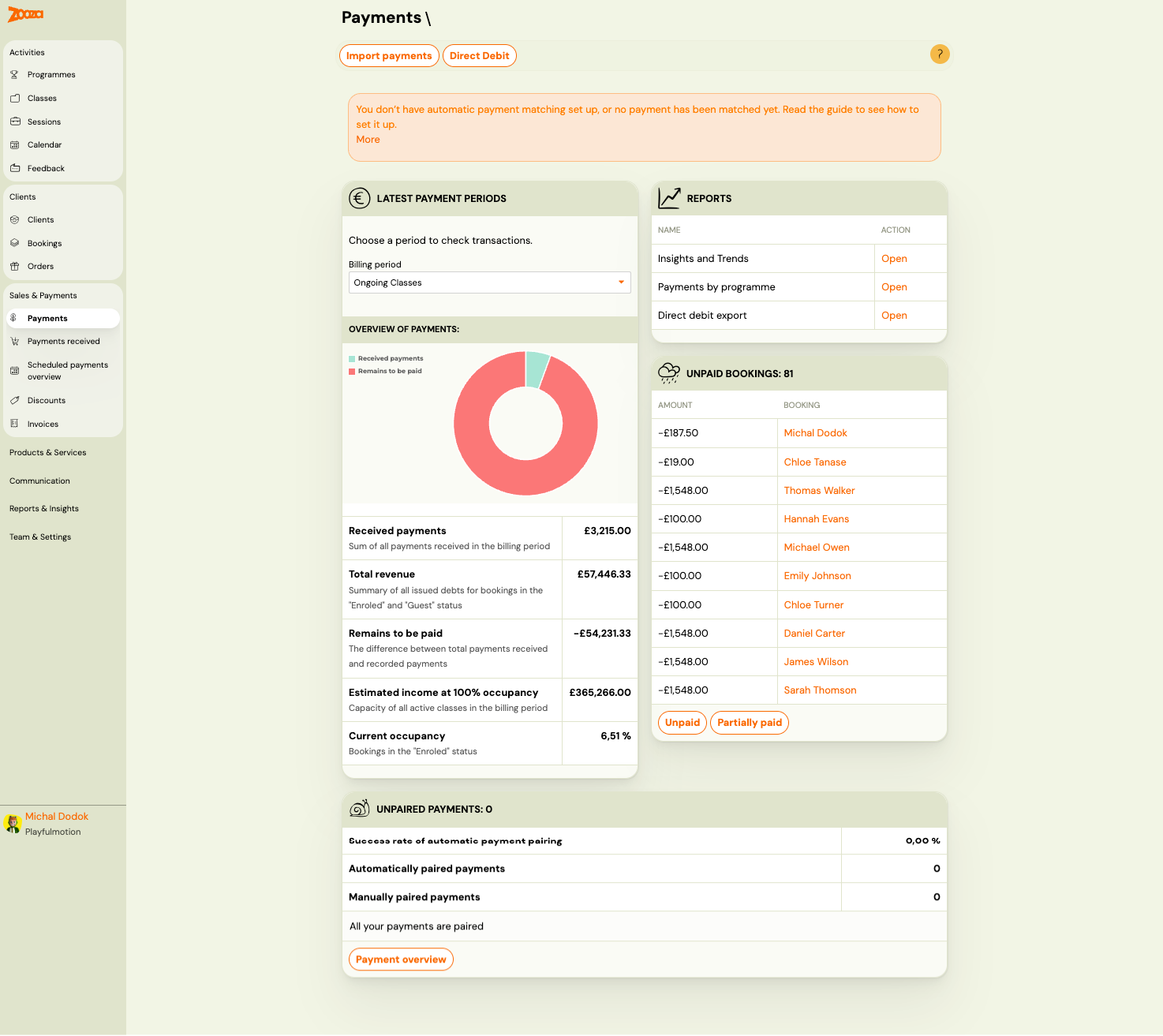
The Payments screen is the central hub for managing all financial transactions. It provides an overview of received payments, outstanding balances, unpaid bookings, and payment pairing status.
Navigation: Go to Sales & Payments → Payments.
Dashboard
Top Actions
| Button | Description |
|---|---|
| Import payments | Import bank payment data for automatic pairing. |
| Direct Debit | Opens the direct debit export screen (see Direct Debit Export). |
Latest Payment Periods
Select a billing period to view transactions for that period.
| Field | Description |
|---|---|
Billing period | Dropdown to select a period (e.g. "Ongoing Classes"). |
Overview of Payments
A donut chart shows the split between received payments (green) and remaining amounts (red).
| Metric | Description |
|---|---|
Received payments | Sum of all payments received in the billing period. |
Total revenue | Summary of all issued debts for bookings in "Enrolled" and "Guest" status. |
Remains to be paid | Difference between total revenue and received payments. |
Estimated income at 100% occupancy | Capacity of all active classes in the billing period. |
Current occupancy | Percentage of bookings in "Enrolled" status vs. total capacity. |
Reports
Quick access to payment reports:
| Report | Description |
|---|---|
| Insights and Trends | Booking and payment trends over time (see Insights and Trends). |
| Payments by programme | Breakdown of income, discounts, refunds, and amounts due per programme (see Payments by Programme). |
| Direct debit export | Export direct debit data (see Direct Debit Export). |
Unpaid Bookings
Lists all bookings with outstanding balances, showing:
| Column | Description |
|---|---|
Amount | Outstanding amount (negative = owed). |
Booking | Client name (clickable link to booking). |
Filter buttons: Unpaid and Partially paid.
Note: The dashboard displays only the first 10 unpaid bookings. To see the complete list of all unpaid bookings, go to Bookings and filter by payment status.
Unpaired Payments
Shows payment pairing statistics:
| Metric | Description |
|---|---|
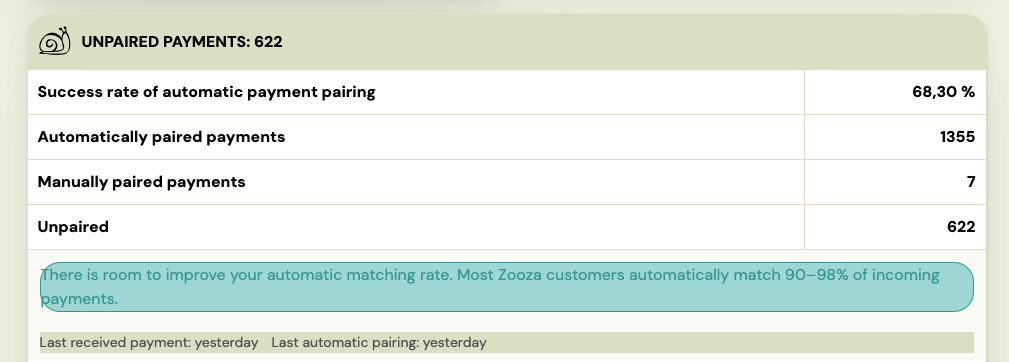
Success rate of automatic payment pairing | Percentage of payments automatically matched. |
Automatically paired payments | Count of auto-paired payments. |
Manually paired payments | Count of manually paired payments. |
If all payments are paired, shows "All your payments are paired."
Button: Payment overview — opens detailed payment pairing view.
Inbound payment status (bank email integrations)
If your account uses automatic bank email pairing, the dashboard also shows the current status of your inbound payment setup:
| Indicator | Meaning |
|---|---|
| Waiting for first payment | Your bank integration is configured but no payment has been received yet. Check that your bank is forwarding notifications to the correct address. |
| Last inbound payment | How long ago the last bank notification was received. |
| Last auto-paired | How long ago the last payment was automatically matched to a booking. |
If the "last inbound" counter grows unusually large, check whether your bank's email notification service is active.
Payments Received
Navigation: Sales & Payments → Payments received.
Top Actions
| Button | Description |
|---|---|
| Import from bank | Import bank statement data for payment matching. |
| Export | Export the payments received list. |
Filters
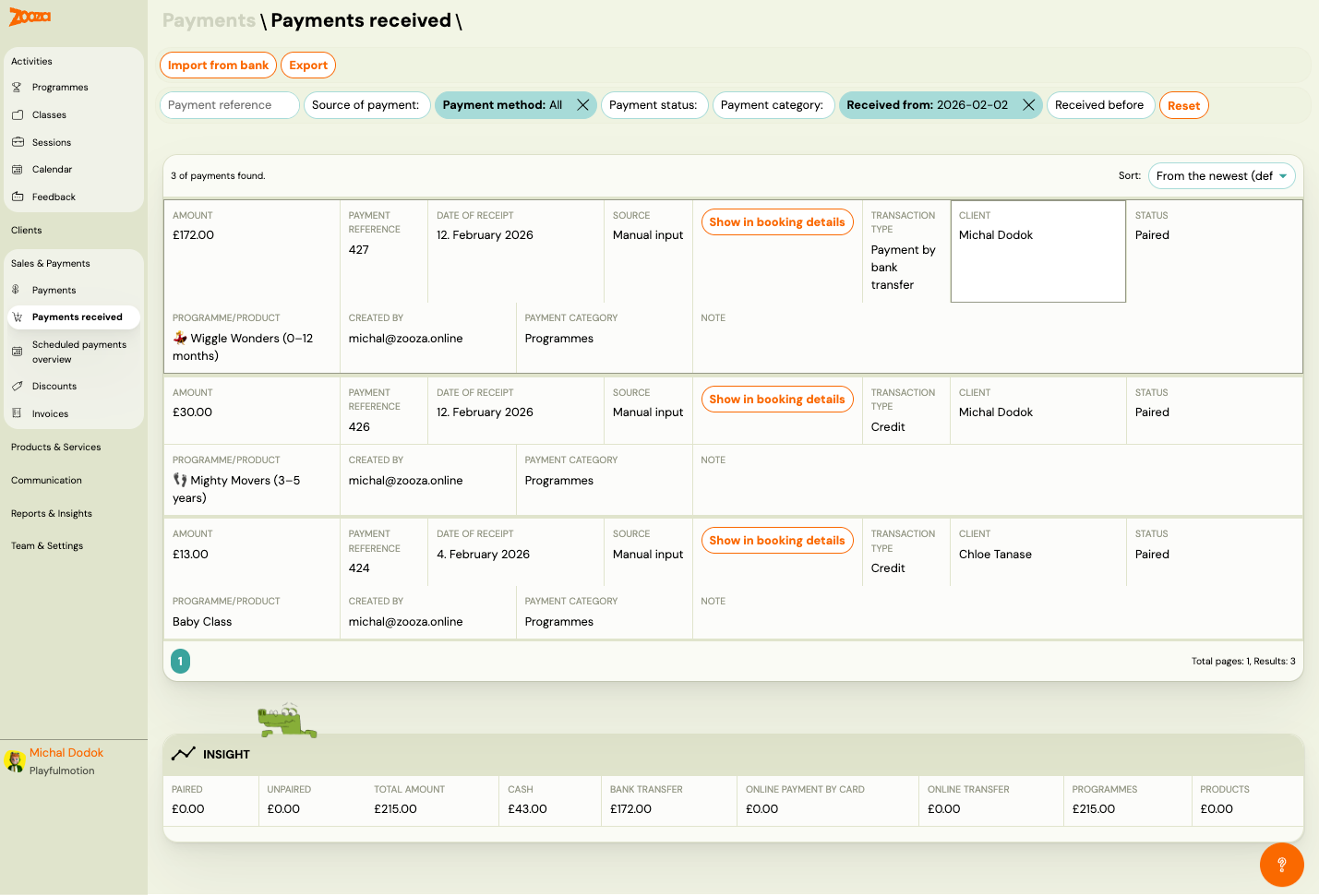
- Payment reference — search by reference number.
- Source of payment — filter by source.
- Payment method — filter by method (e.g. "All"). Active filters show as highlighted chips with an X to remove.
- Payment status — filter by status.
- Payment category — filter by category.
- Received from — start date filter.
- Received before — end date filter.
- Reset — clear all filters.
Sort: From the newest (default).
Payment List
Each payment card shows:
| Field | Description |
|---|---|
Amount | Payment amount. |
Payment reference | Reference number. |
Date of receipt | When payment was received. |
Source | "Manual input", "Zooza", "Bank import", etc. |
| Show in booking details | Link to the related booking. |
Transaction type | E.g. "Payment by bank transfer", "Credit". |
Client | Client name. |
Status | "Paired" or "Unpaired". |
Programme/Product | Programme or product name. |
Created by | User who recorded the payment. |
Payment category | E.g. "Programmes". |
Note | Additional notes. |
Pagination shows total pages and results count.
Insight
Summary bar at the bottom:
| Metric | Description |
|---|---|
Paired | Total paired amount. |
Unpaired | Total unpaired amount. |
Total amount | Sum of all payments. |
Cash | Cash payments total. |
Bank transfer | Bank transfer total. |
Online payment by card | Card payments total. |
Online transfer | Online transfer total. |
Programmes | Programme-related payments. |
Products | Product-related payments. |
Scheduled Payments Overview
Navigation: Sales & Payments → Scheduled payments overview.
Filters
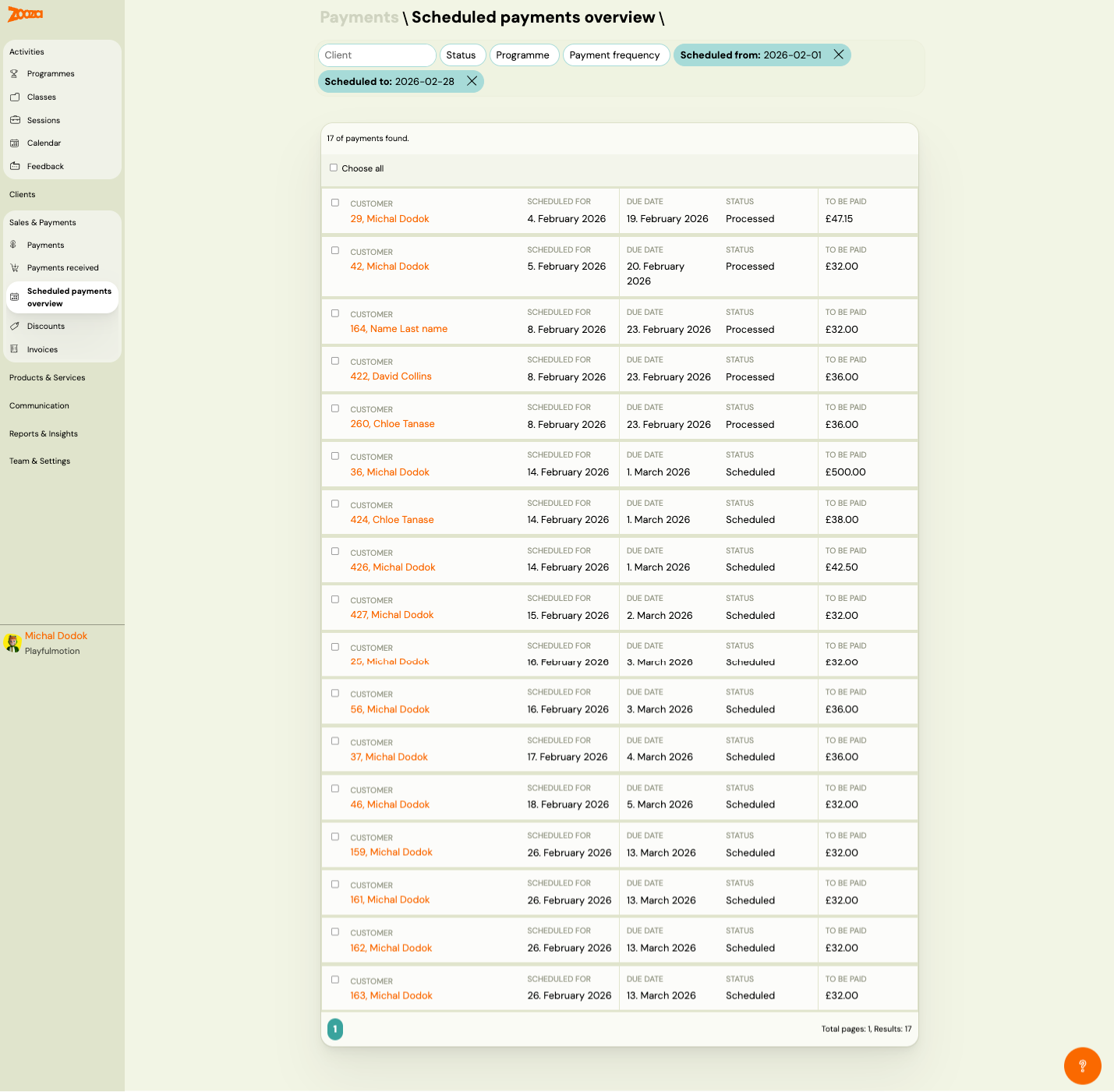
- Client — search by client name.
- Status — filter by payment status.
- Programme — filter by programme.
- Payment frequency — filter by frequency type.
- Scheduled from — start date (active filters show as highlighted chips).
- Scheduled to — end date.
Payment List
Each row shows:
| Column | Description |
|---|---|
| Checkbox | Select for bulk actions. |
Customer | Booking number and client name (clickable link). |
Scheduled for | Date the payment is scheduled for. |
Due date | Payment due date. |
Status | "Processed" or "Scheduled". |
To be paid | Amount to be paid. |
Choose all checkbox at the top selects all visible payments.
Pagination shows total pages and results count.
Insights and Trends
Navigation: Sales & Payments → Payments → Reports → Insights and Trends.
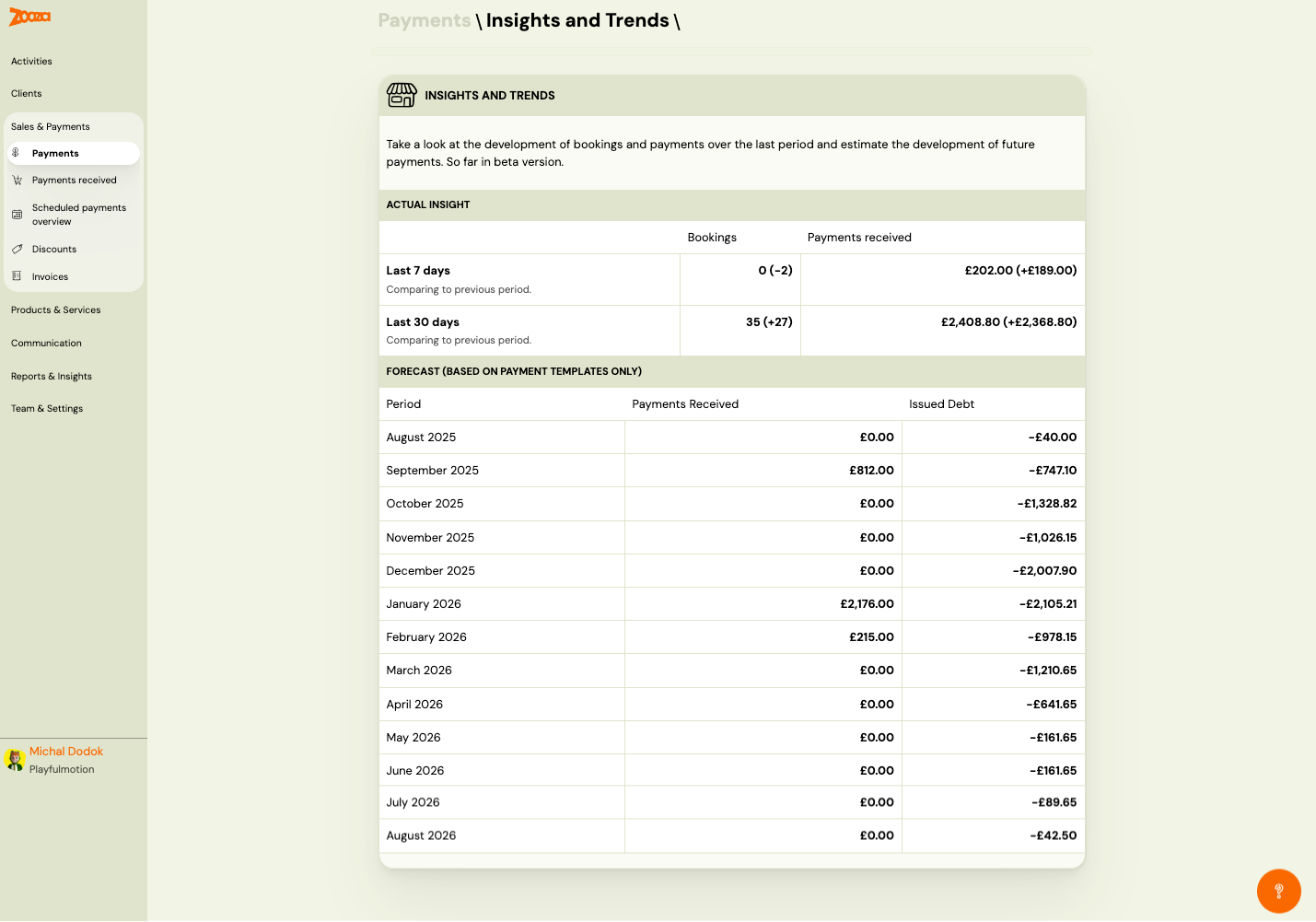
Note: This feature is currently in beta.
Actual Insight
Compares current performance to previous periods:
| Period | Bookings | Payments received |
|---|---|---|
| Last 7 days | Count with change vs. previous period (e.g. "0 (−2)"). | Amount with change (e.g. "£202.00 (+£189.00)"). |
| Last 30 days | Count with change (e.g. "35 (+27)"). | Amount with change (e.g. "£2,408.80 (+£2,368.80)"). |
Forecast (Based on Payment Templates Only)
Monthly forecast table:
| Column | Description |
|---|---|
Period | Month and year. |
Payments Received | Actual or projected amount received. |
Issued Debt | Debt issued for the period (negative = outstanding). |
Payments by Programme
Navigation: Sales & Payments → Payments → Reports → Payments by programme.
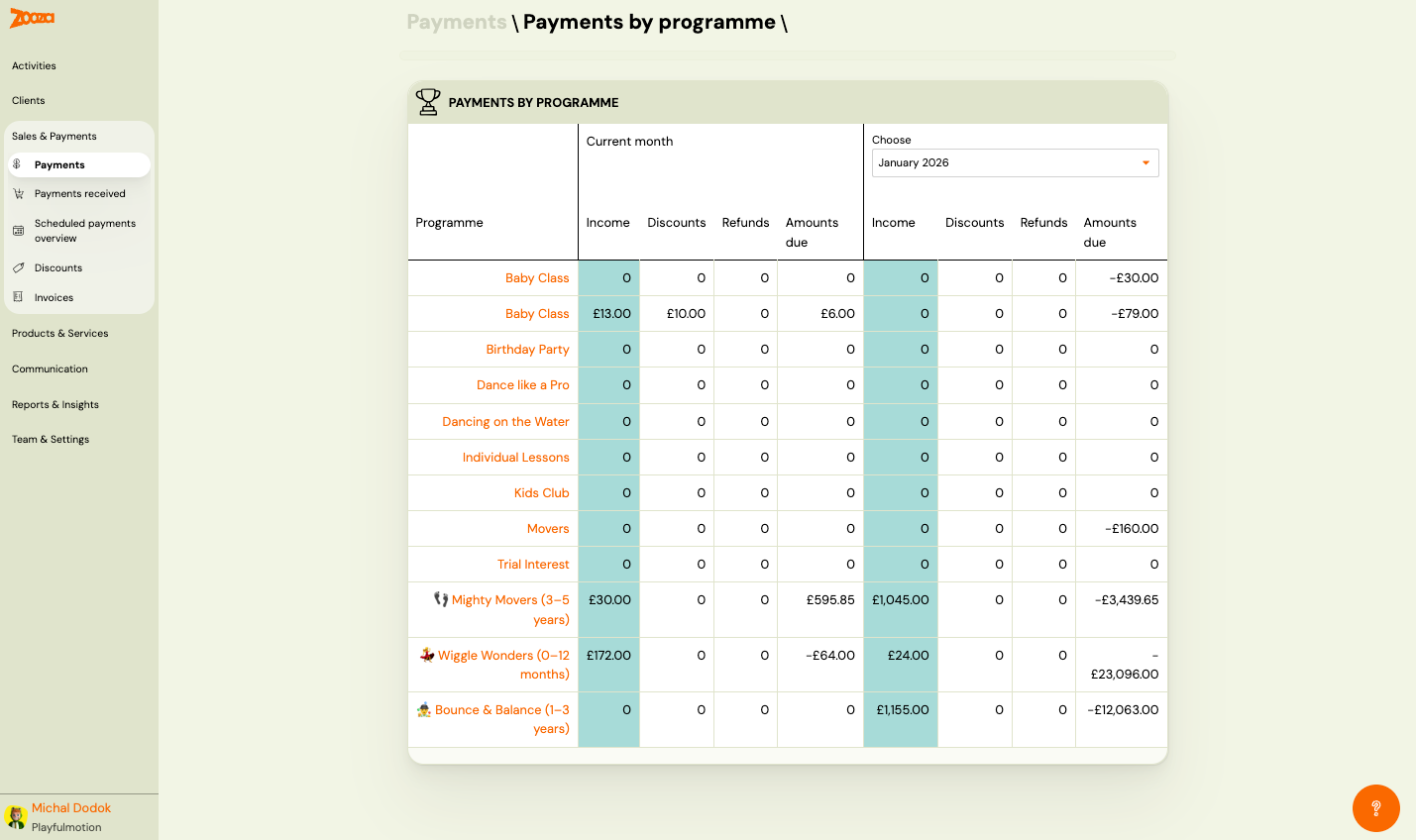
A table comparing current month and a selectable historical month:
| Column (per period) | Description |
|---|---|
Programme | Programme name (clickable link). |
Income | Total income received. |
Discounts | Discounts applied. |
Refunds | Refunds issued. |
Amounts due | Outstanding amounts (negative = owed). |
The "Choose" dropdown on the right lets you select a comparison month.
Direct Debit Export
Navigation: Sales & Payments → Payments → Direct Debit.
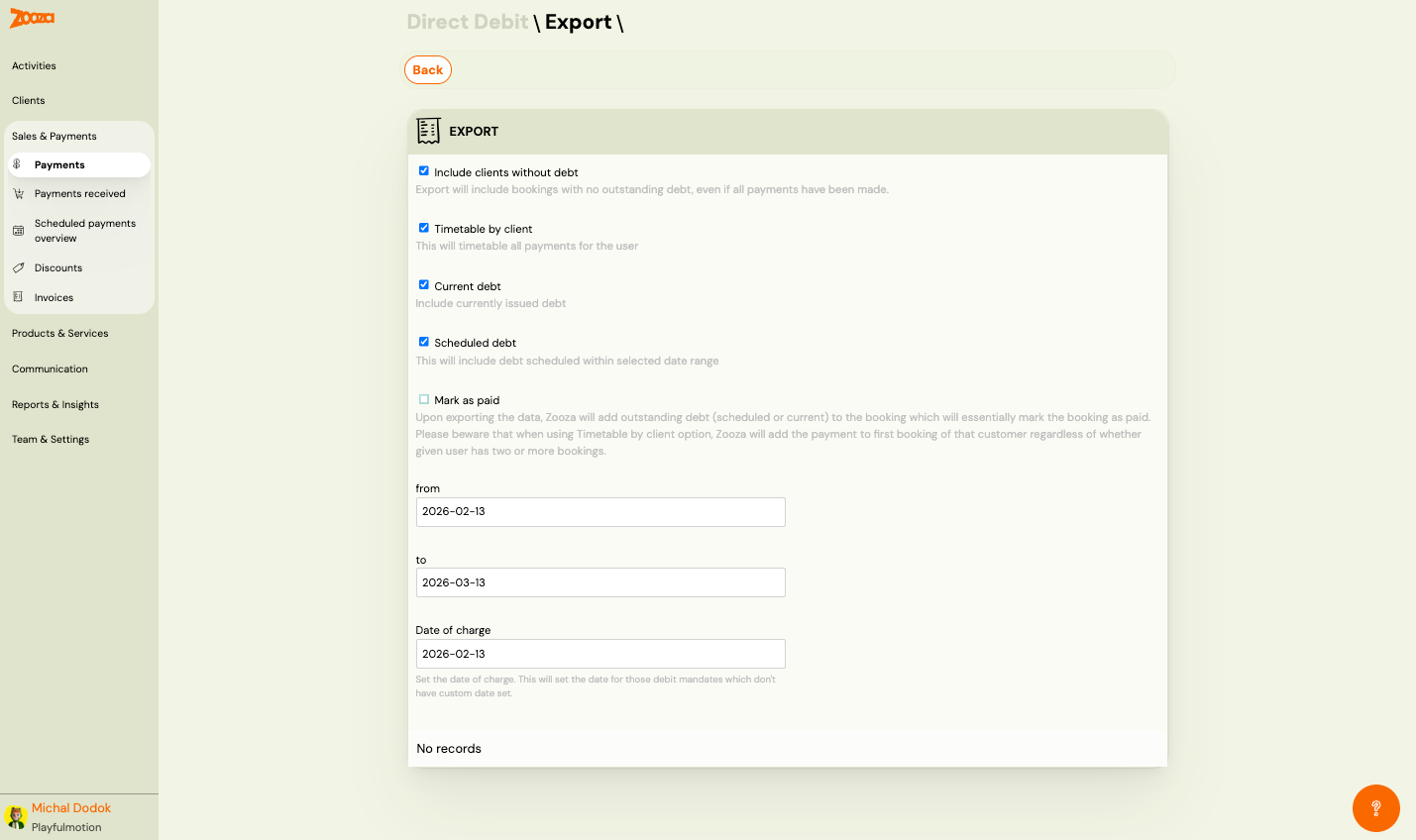
Export direct debit data for your payment provider.
| Field | Description |
|---|---|
Include clients without debt | Checkbox — include bookings with no outstanding debt. |
Timetable by client | Checkbox — timetable all payments for the user. |
Current debt | Checkbox — include currently issued debt. |
Scheduled debt | Checkbox — include debt scheduled within the selected date range. |
Mark as paid | Checkbox — upon export, Zooza adds outstanding debt to the booking and marks it as paid. Warning: when using "Timetable by client", payment is added to the first booking regardless of multiple bookings. |
from | Start date for the export period. |
to | End date for the export period. |
Date of charge | The charge date set for debit mandates without a custom date. |
The export generates records for matching debit mandates. Shows "No records" if no matching mandates are found.
Related
- Payment Pairing Guide — how to match bank payments to bookings.
- Automatic Payment Reminders — set up automated payment reminders.
- Payments and Billing FAQ — common payment questions.