Add the Zooza app to your phone’s desktop
If you use the Zooza app most often from your phone, you can simplify access by adding it as a shortcut to your home screen.
- Open zooza.app in the browser on your phone.
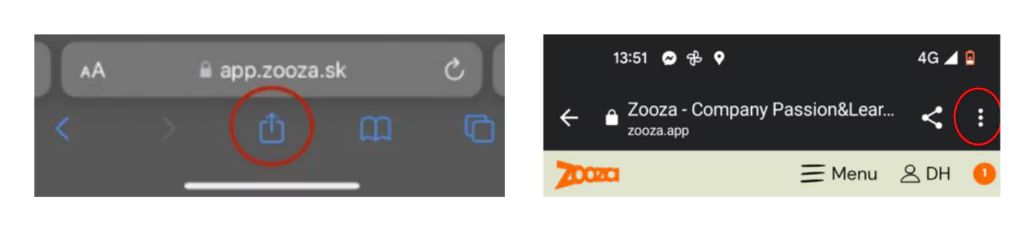
- Open the share/options menu:
- Android — tap the 3-dot menu (top right).
- iPhone — tap the square icon with an arrow (bottom centre).
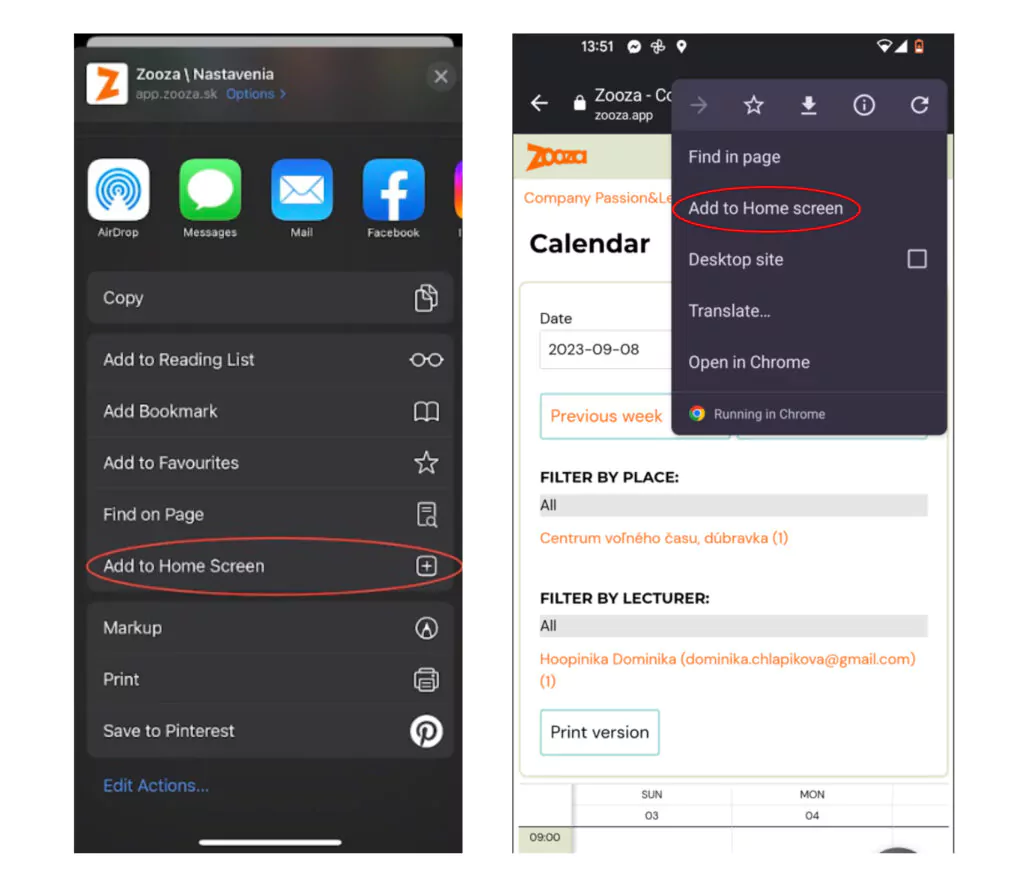
- Select Add to Home Screen.
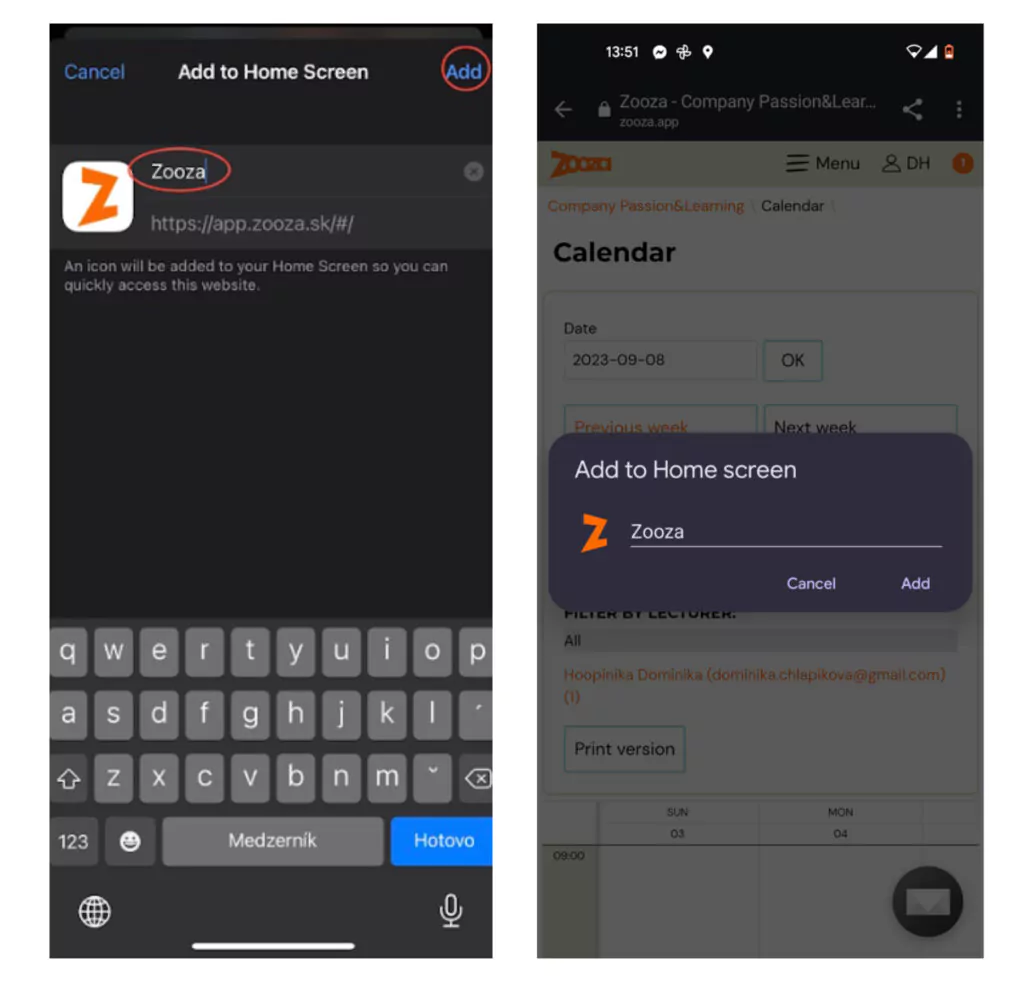
- Enter the name for the shortcut and tap Add.
Tip for instructors: If you use Zooza mainly for taking attendance, open the Calendar section first and then add that page to your home screen. The next time you tap the icon, the calendar opens directly — no extra navigation needed.