Instructors working hours
In the *Instructors *section, instructors can manage their working time. If they define their working hours and possible absences, this data will then be taken into account by the system when scheduling terms.

Example: Alice works Tuesdays to Fridays from 9:00 to 16:00 with an hour lunch break.
1. Setting working hours
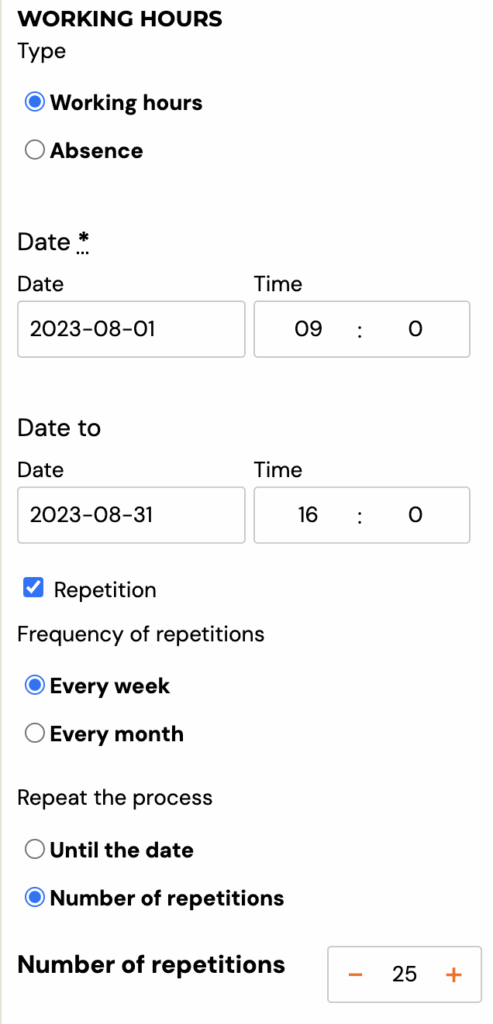
- In the application, she clicks on the Add Availability button
- As the type selects Working Hours
- Selects a date range. In our example we choose 4th. January to 7th. January.
- As the time range selects 9:00 to 16:00
- She activates repetition at a weekly frequency. Depending on how long such working hours will be valid, the number of repetitions will be chosen.
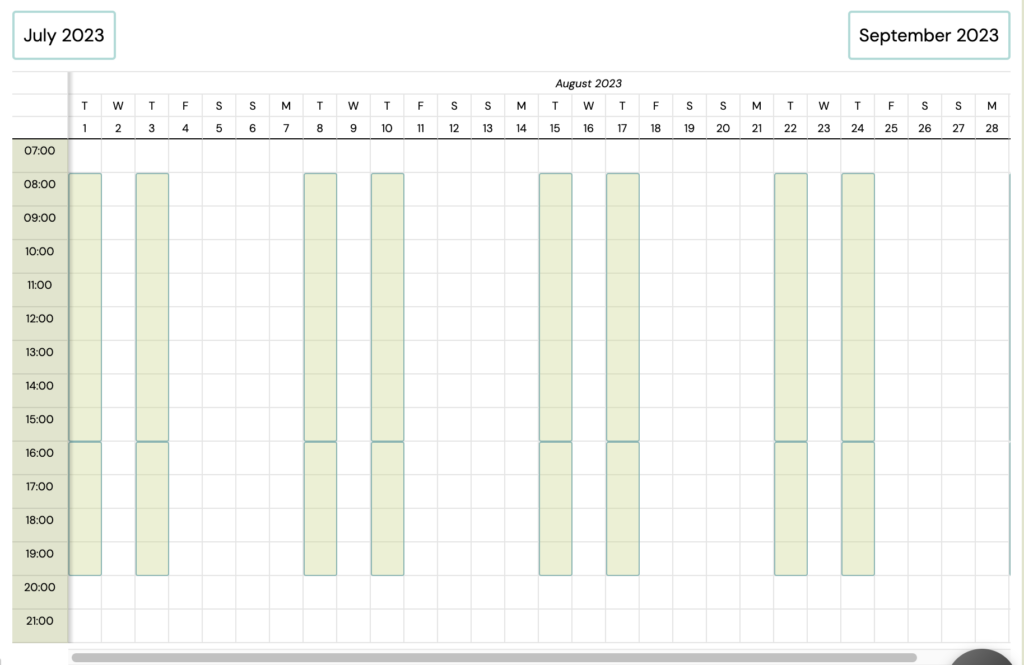
- On the calendar in the app, availability will be displayed as follows:
Step 2 - Lunch break
- Since Alice goes out for lunch in the middle of the day, she needs to tell the system that she doesn't work then.
- Again clicks the Add Availability button
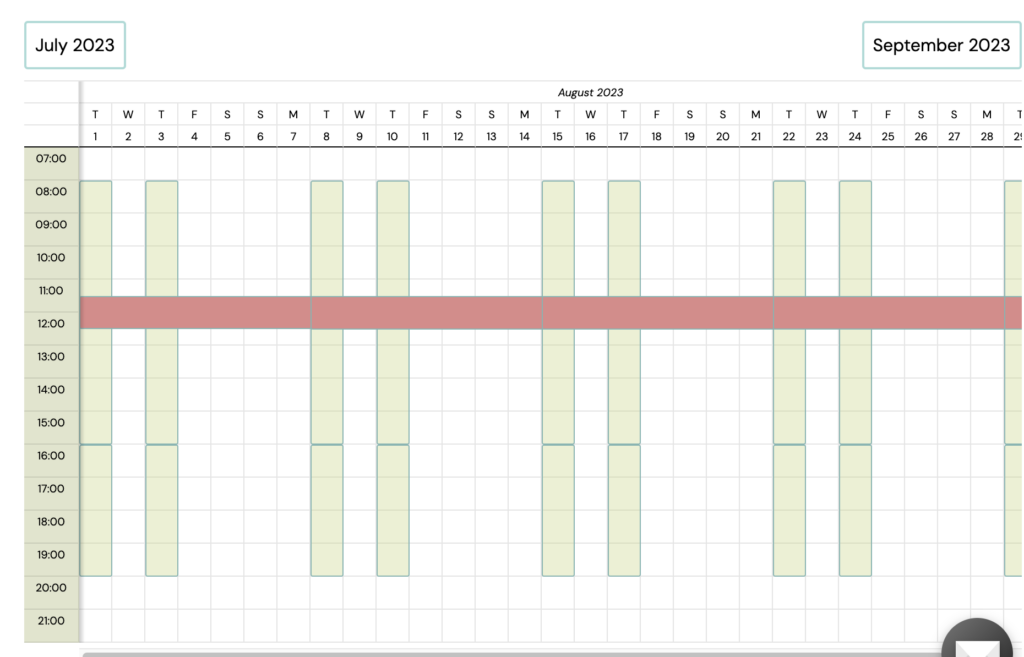
- This time she selects the Absence option and enters the same data as before, except that the time period will be from 11:30 to 12:30
- She chooses the name of this absence: lunch break.
- The resulting calendar will look like this:
How availability works when creating terms
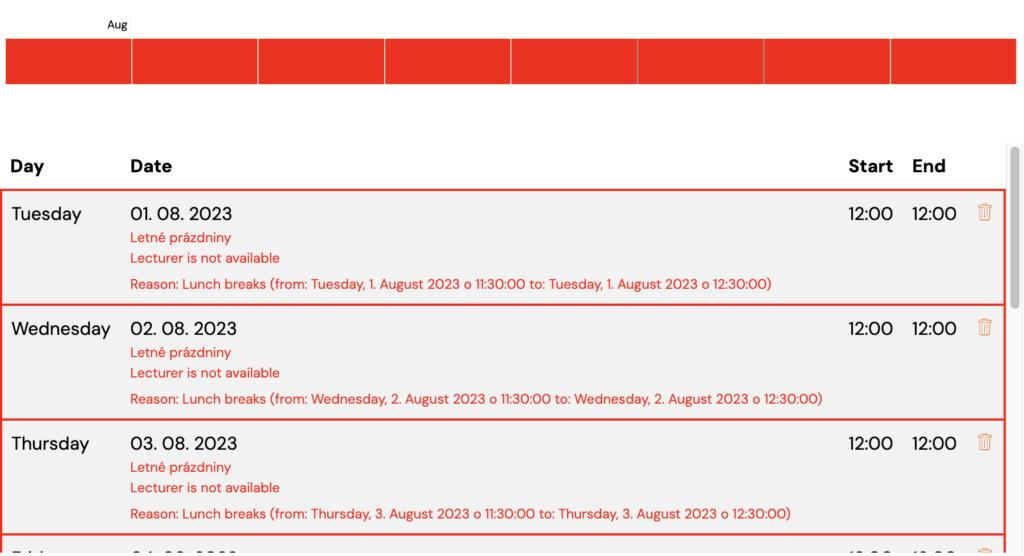
From now on, when scheduling terms, the app will inform the admin that Alice is unavailable for appointments at lunchtime.
Mass deleting of availability/absences
Since the availability of instructors can change frequently in the application, you have the option of mass deletion. This allows you to edit faster.
- In the instructor's details under Working hours, click Activate.
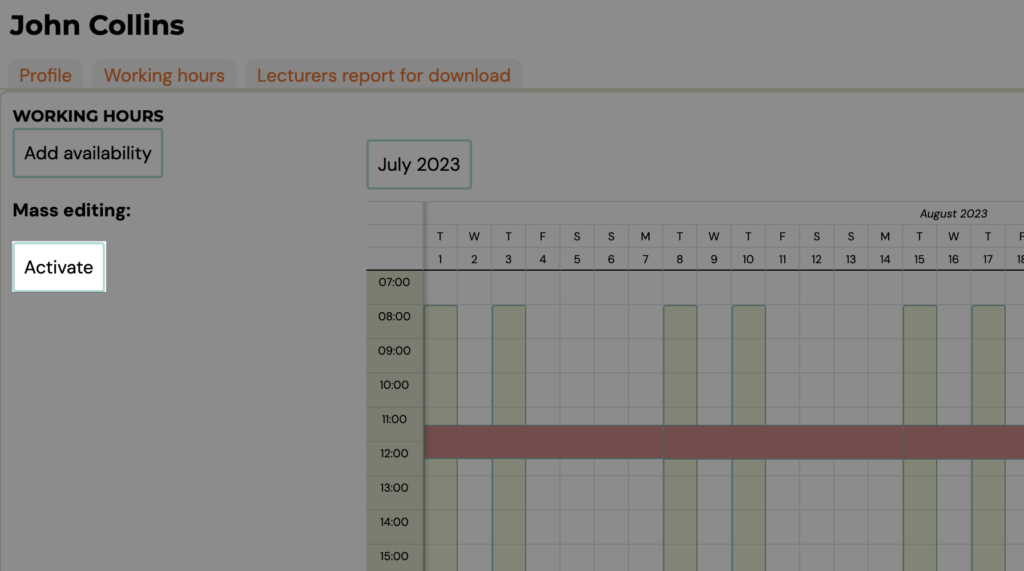
- Select the availability/absences you want to delete by clicking on them and click on the Delete selected availability button.
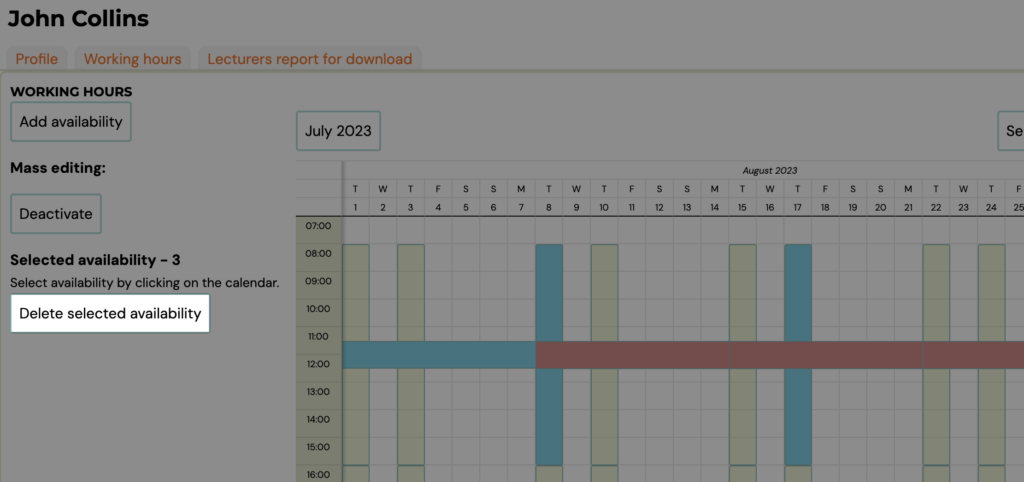

Note: You can only do a mass deletion within one month. If you move to the next month, your previous withdrawal will be cancelled