Session payment adjustments
Payment adjustments let you credit or debit a client's scheduled payment — either in bulk across multiple sessions from the Calendar, or individually on a specific payment in a booking.
Use adjustments when:
- You cancel a session and want to reduce what clients owe for that billing period
- You need to manually correct a scheduled payment amount for a specific client
- A client attended an extra session that was not automatically accounted for
Note: Adjustments affect scheduled payments only. They do not trigger an email notification to the client.
How adjustments work
Each scheduled payment has a base amount set by the payment template. Adjustments are signed corrections stacked on top:
- Credit — reduces the amount the client owes (e.g. cancelled session, goodwill gesture)
- Debit — increases the amount the client owes (e.g. extra session, correction)
The final amount charged is always base amount + all adjustments, floored at zero. A client can never be charged a negative amount.
Adjust session payments in bulk from Calendar
Use this when you cancel one or more sessions and want to credit all affected clients at once.
-
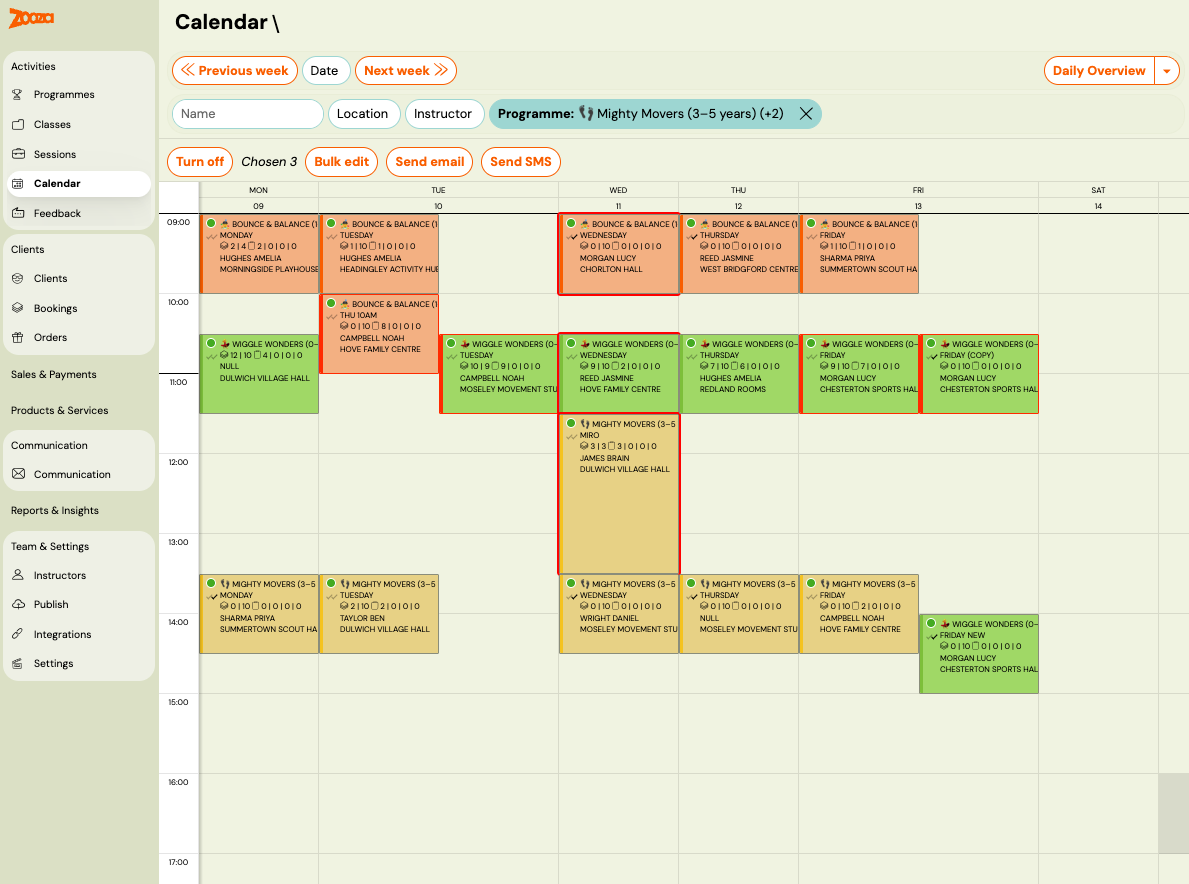
Go to Calendar.
-
Select the sessions you want to adjust using the checkboxes.
-
Click Bulk edit.
-
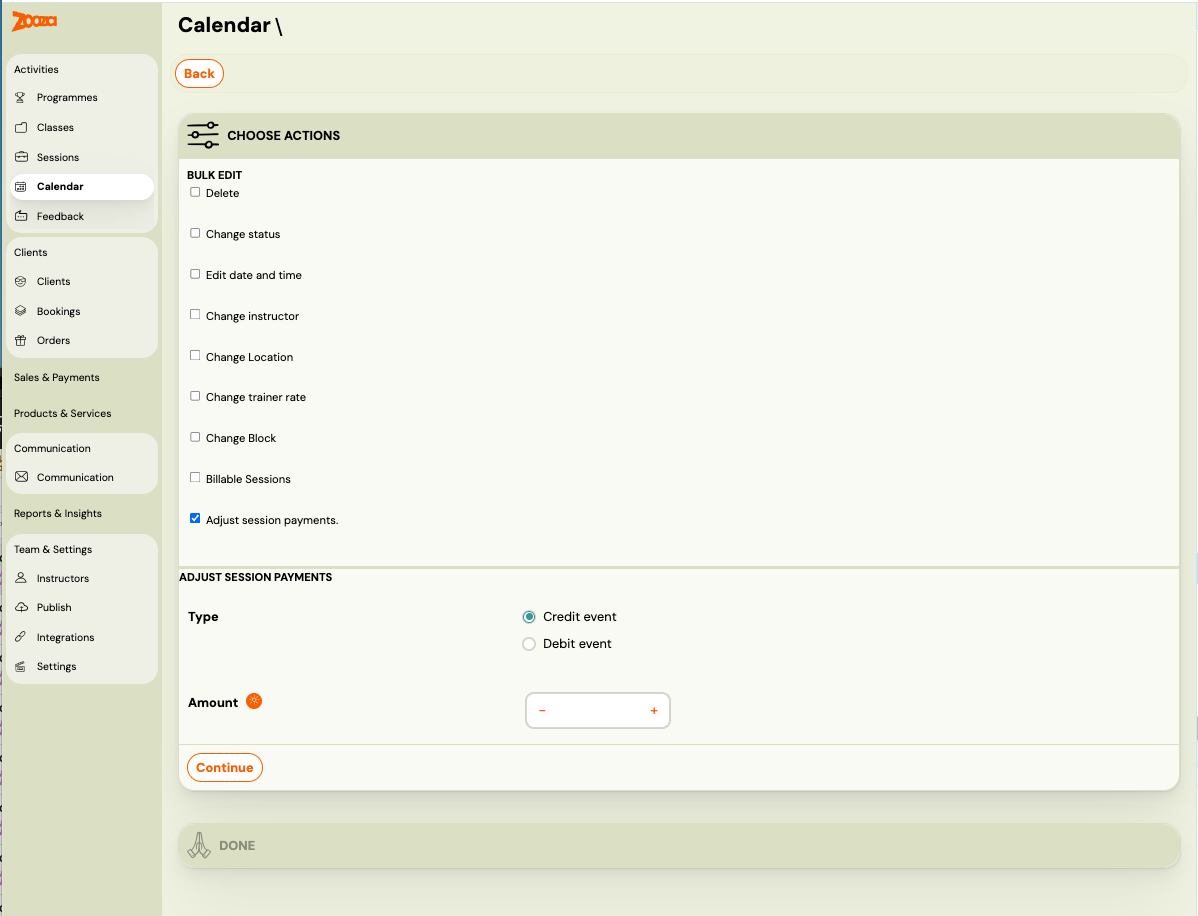
Check Adjust session payments.
-
Under Type, choose:
- Credit sessions — to reduce the scheduled payment (most common when cancelling a session)
- Debit sessions — to increase the scheduled payment
-
Set the Amount (per session, per client).
-
Click Continue, then confirm.
Zooza applies the adjustment to the next scheduled payment for each affected client. Clients on a fixed monthly or quarterly payment plan are adjusted the same way as Pay-as-you-go clients.
Which scheduled payment receives the adjustment? The adjustment is applied to the client's next upcoming scheduled payment with status Scheduled. If a client has no upcoming scheduled payment (e.g. their plan has ended), no adjustment is created for that client.
Adjust a single scheduled payment manually
Use this to correct or credit one specific client's scheduled payment.
-
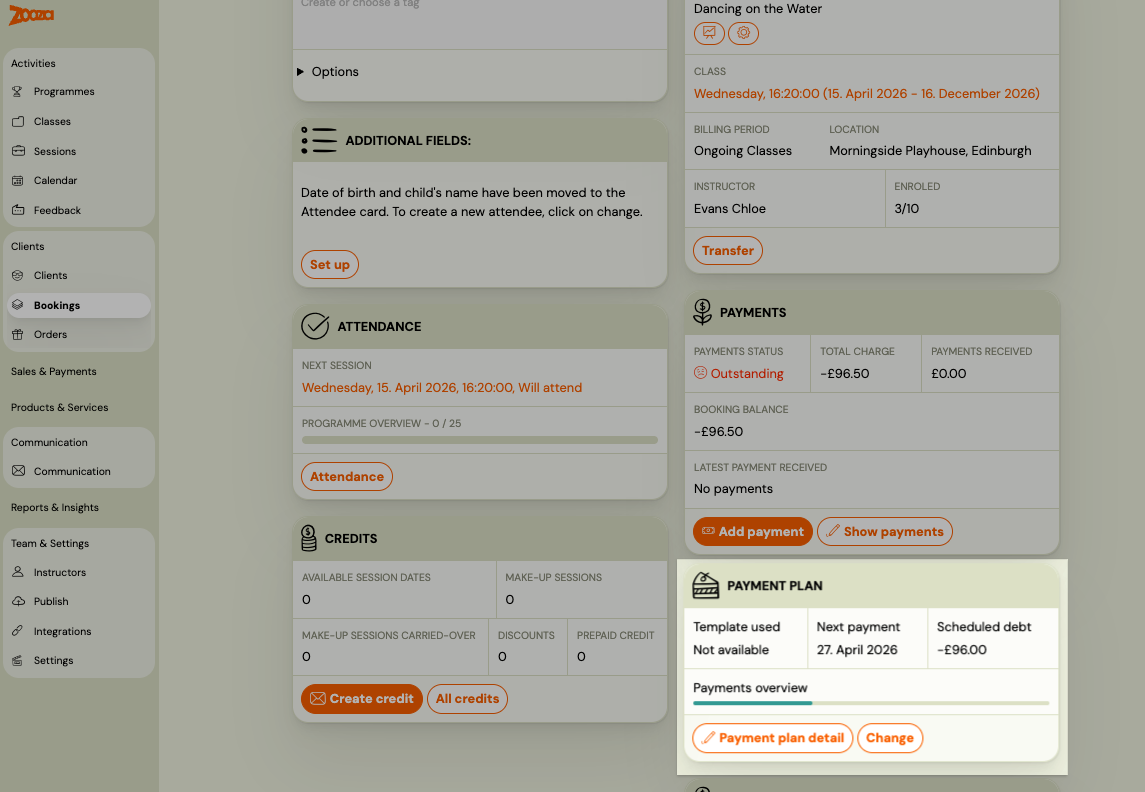
Go to Bookings and open the booking.
-
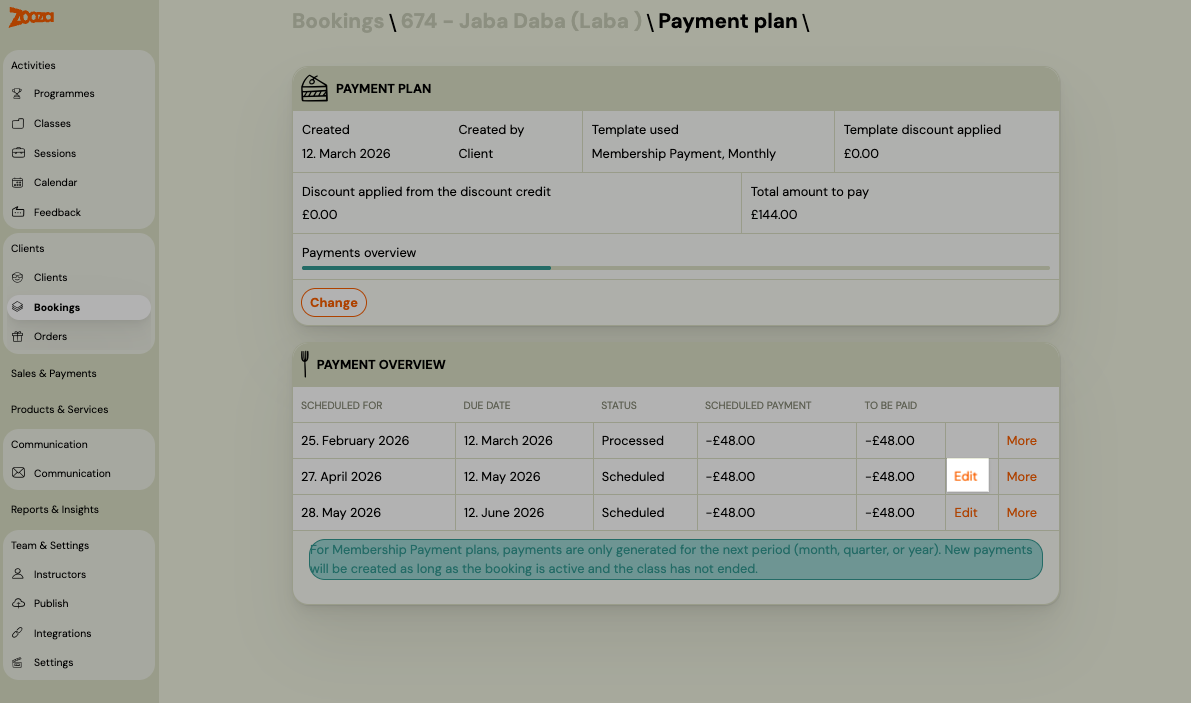
In the Payment plan section, click on the scheduled payment you want to adjust.
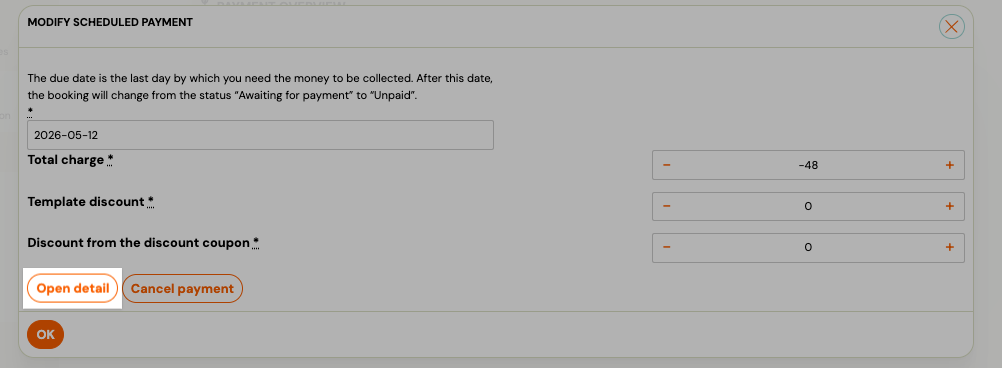
-
You are now on the Payment detail screen. Scroll to the Adjustments section.
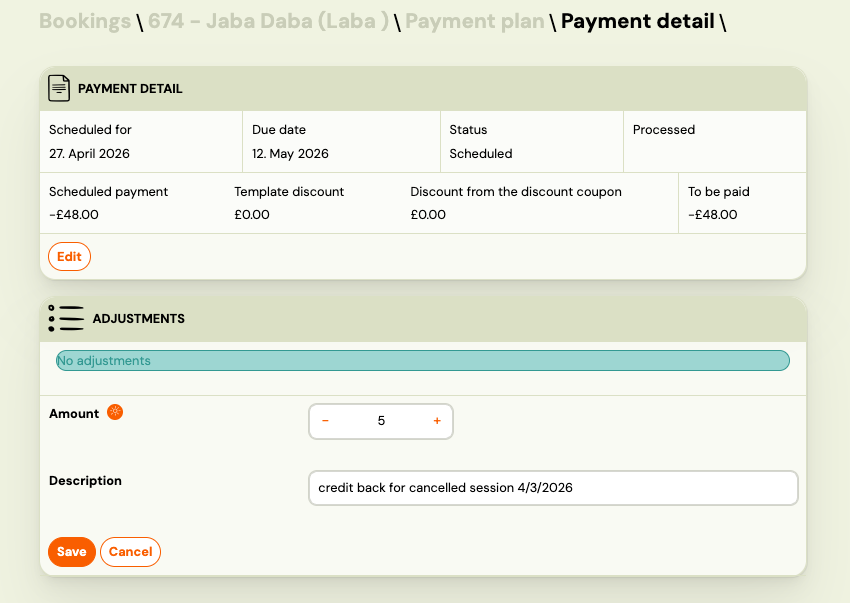
-
Enter the Amount:
- Positive number = credit (reduces what the client owes)
- Negative number = debit (increases what the client owes)
-
Enter a Description — e.g. Cancelled session on 15 April or Manual correction.
-
Click Save.
The adjustment appears in the list immediately. The To be paid amount at the top of the payment detail updates to reflect the new total.
View existing adjustments
All adjustments on a scheduled payment are listed in the Adjustments section, including:
- Automatic adjustments created by session bookings or cancellations (Pay-as-you-go)
- Bulk adjustments applied from Calendar
- Manual adjustments you entered here
Each row shows the amount, description, and when it was created.
Reverse a manual adjustment
If you entered an adjustment by mistake, you can reverse it:
- In the Adjustments list, find the adjustment you want to reverse.
- Click Reverse.
A new adjustment with the opposite sign is created. The original adjustment remains in the list for the audit trail.
You can only reverse manual adjustments. Automatic adjustments (from session bookings/cancellations) are managed by the system and cannot be reversed manually.
Applying a discount to a plan that is already running
Someone qualifies for a discount after their plan was set up — a sibling rate that started late, a loyalty rule switched on part-way through the year. The instinct is to build them a new payment plan. Don't. Edit the instalments in the plan they already have.
Why a new plan is the wrong tool: a booking records income and expenses like a bank account. Money already received is never removed, so a second plan on top does not replace the first — it leaves you with an overpayment or an underpayment for that period and a history nobody can read later.
What "amount to pay" shows
Every field labelled amount to pay on a payment plan shows the net figure — the instalment after every discount has come off. That covers the per-payment columns in the payments overview and in the payment detail, and the total amount to pay on the plan summary, which is the sum of those nets.
Corrected on 8 September 2026. Before that these fields echoed the gross instalment, so a plan with a discount displayed a higher figure than the client actually owed — while the scheduled debt on the Payments card, which was right all along, showed something different. If you have a screenshot from before that date where the two disagree, that is the explanation; the money was never wrong, only one of the two figures.
All three kinds of discount are taken into account: the one built into the payment template, a coupon or credit on the booking, and loyalty.
The rule that decides which instalment to edit
For membership plans, Zooza does not create every instalment up front. It adds the next one as the period comes round, for as long as the booking is active and the class is still running — and each new instalment is copied from the last one that exists, discount included.
That single fact gives you both cases:
| What you want | What to edit |
|---|---|
| A permanent discount | The last scheduled instalment. The new amount carries forward into every instalment created after it, automatically. You do not need a new template or a new plan. |
| A one-off or temporary discount | Only the earlier instalments. Leave the last one at full price — otherwise your "one-off" copies forward and quietly becomes permanent. |
If the instalment you need does not exist yet, either wait for it to be generated or add it with Add scheduled payment.
Moving the payment date works the same way
The last instalment is not only how you change an amount going forward — it is also how you change when the money is taken.
A client paying on the 1st who wants to pay on the 15th does not need a new plan. Change the due date on the last scheduled instalment to the 15th, and every instalment created after it falls on the 15th too.
Do not re-apply the payment plan to achieve this. Re-applying replaces everything currently charged on the booking — the registration fee included — and schedules the new plan in its place. That is where the surprise Correction payment and Registration fee correction lines come from. Editing the last instalment changes the future and leaves the past alone.
If the instalment has already been paid
Edit it exactly the same way. The difference stays with the client as credit on their account and comes off their next instalment on its own.
Do not double the discount on the following instalment to compensate. People do this to "catch up" the amount, and it backfires: that inflated figure is then the last instalment, so it is the one that gets copied forward.
Check whether the discount is per month or per instalment
A discount of 4 € a month is 12 € on a quarterly instalment, not 4 €. Work out which the number is before you type it — this is the most common way these corrections come out wrong.
Pay-as-you-go: how adjustments work automatically
For Pay-as-you-go programmes, adjustments happen automatically without any admin action:
- Client books a session → a credit adjustment equal to the unit price is added to their next scheduled payment
- Client cancels a session → the credit is removed (payment returns to previous amount)
- Admin cancels a session from the Calendar → all clients who were marked as attending receive a credit automatically
You can still add manual adjustments on top of the automatic ones if needed.
Related guides
- Pay-as-you-go programme — How the session-based payment model works
- Payment templates creation — Set up the base payment schedule
- Edit payment on booking — Other ways to modify payments on a booking