Automatically cancel unpaid registrations
When a registration stays unpaid beyond a configured number of days, Zooza can automatically cancel it. The cancellation is not instant — the system first schedules it for a future date, giving the client a window to pay and have the cancellation revoked automatically.
This is different from payment reminder emails, which only notify the client. Auto-cancel actually removes the registration if the client does not pay.
"How do I make payment mandatory so unpaid bookings are not confirmed?"
You do not. Zooza works the other way round, and this pairing is the answer to that question.
Every booking gets a grace period in which the client can pay. Auto-cancel then removes the ones that stay unpaid when it expires. So instead of blocking the booking at the door, you accept it, give the client a defined window, and let the system clear up after.
The reason it works this way is that a blocked booking is a lost lead. A parent who cannot complete a form at 21:00 because their card is upstairs usually does not come back; a parent with an unpaid booking and a reminder in their inbox usually pays.
To set it up:
- Set the grace period — see Automatic payment reminders.
- Configure reminders so the client is actually told during that window.
- Enable auto-cancel below, so unpaid bookings do not accumulate.
Changing payment methods does not make payment mandatory. Leaving only online card payment enabled still produces bookings that can complete unpaid — it just removes the other ways to settle up afterwards.
How it works
The auto-cancel flow has two stages:
- Trigger — After a registration has been unpaid for the configured number of days (
cancel_after_days_unpaid), the system schedules a cancellation for a future date. - Lead time — The cancellation is set
cancellation_lead_daysdays into the future. During this window, the existing cancellation confirmation email is sent to the client, and the registration shows as pending cancellation. - Resolution — If the client pays before the cancellation date, the scheduled cancellation is automatically revoked and the registration remains active. If no payment arrives, the registration is cancelled when the lead-time window expires.
Only applies to new registrations. The feature affects registrations created after it is enabled on a programme. Existing registrations at the moment of activation are not retrospectively affected.
Where to configure
Programme → Settings → Price and payment, at the bottom of the page, the Auto-cancel unpaid bookings card. It is its own card, directly below Payment reminders settings.
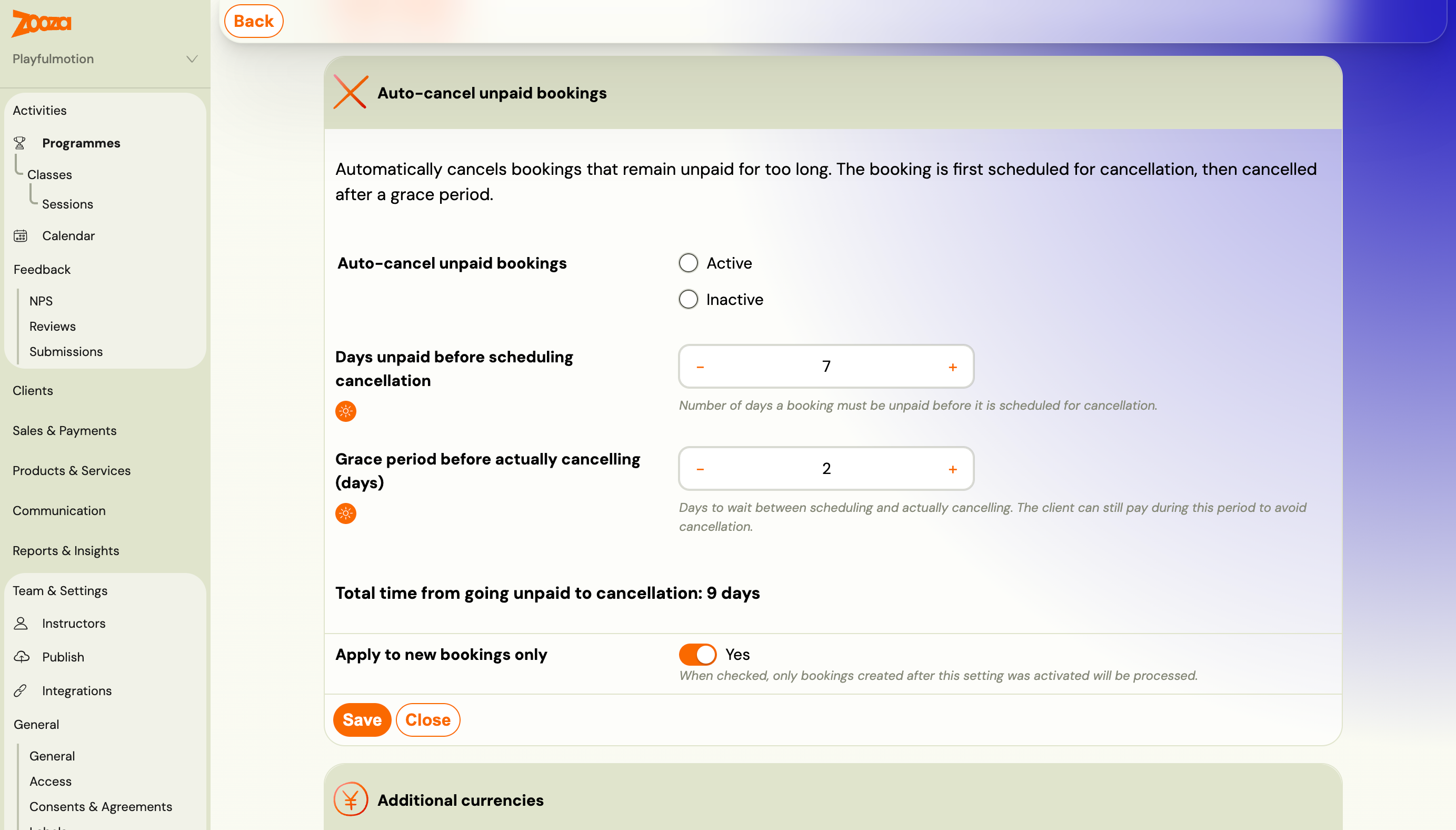
| Field | What it does |
|---|---|
| Auto-cancel unpaid bookings | Active or Inactive |
| Days unpaid before scheduling cancellation | How long a booking may stay unpaid before it is scheduled |
| Grace period before actually cancelling (days) | The wait between scheduling and cancelling. The client can still pay during it and keep their place. |
| Apply to new bookings only | Only bookings created after you activated it are processed |
The card adds the two numbers for you — Total time from going unpaid to cancellation — so you can see the real figure rather than working it out. Seven days plus a two-day grace period is nine days from the moment a booking goes unpaid.
Cancelling is not the same as deleting
There are two mechanisms here and they are easy to confuse, because they live one above the other on the same page:
| Auto-cancel unpaid bookings | Delete an unpaid booking | |
|---|---|---|
| Where | Its own card | Inside Payment reminders settings |
| What happens | The booking is cancelled — scheduled first, then cancelled after the grace period | The booking is deleted |
| Warning first | Yes, the client is emailed during the grace window and can still pay | No |
| Reversible by the client | Yes, by paying | No |
Cancel is the one to reach for. It warns, it waits, and paying undoes it. Deletion is immediate and final, and it catches anyone whose payment has arrived but has not been matched to their booking yet. See Automatic payment reminders.
What happens after cancellation
When a registration is cancelled by this process, it receives the status Auto-unenrolled. The client receives the standard cancellation confirmation email.
To find all auto-cancelled registrations for a programme, go to Bookings and filter by Status: Auto-unenrolled.
Outstanding payments report
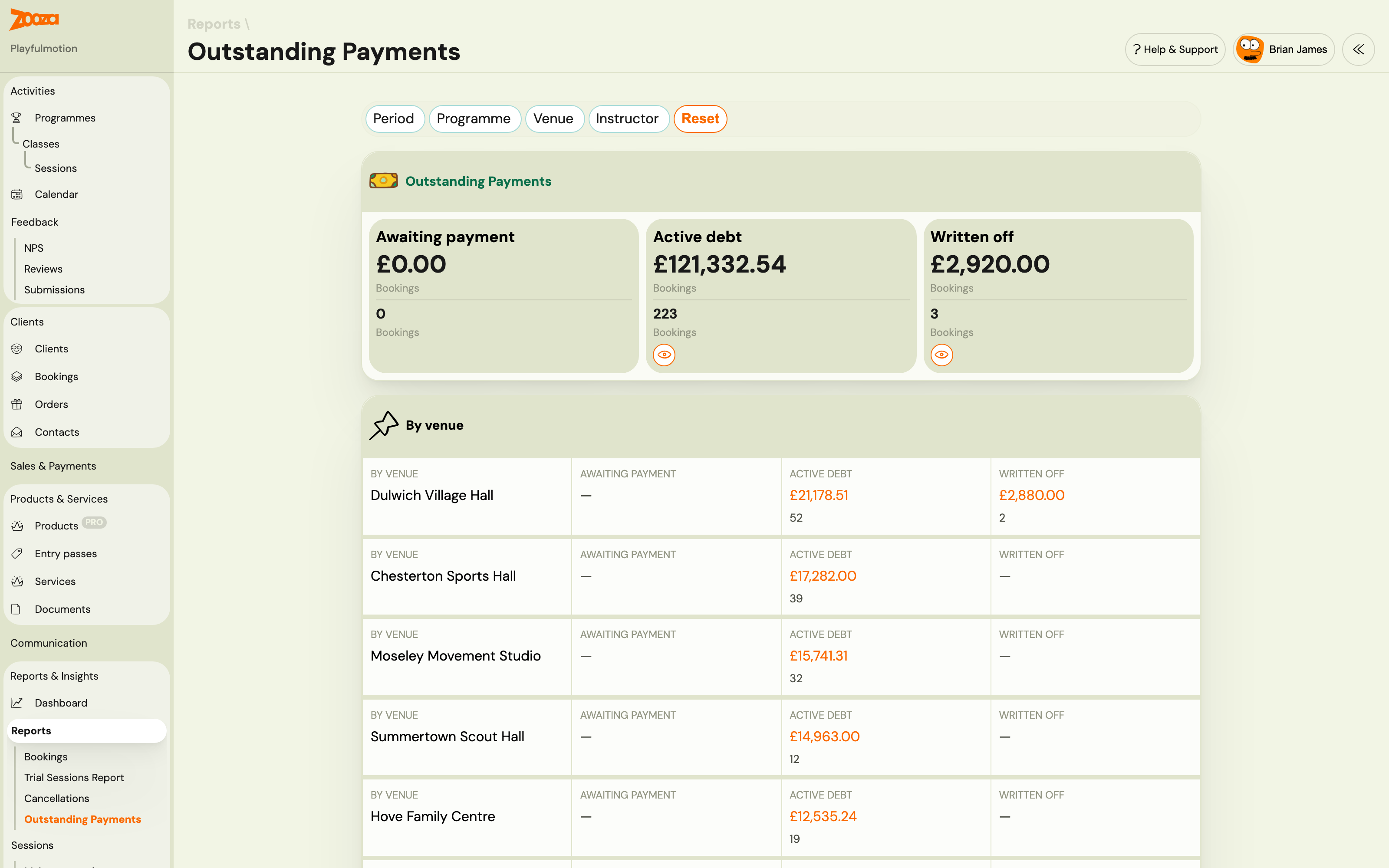
Go to Reports & Insights → Reports → Outstanding payments to see an overview of unpaid registrations grouped into three cohorts:
| Cohort | What it shows |
|---|---|
| Awaiting payment | Registrations with an outstanding balance still within the payment grace window |
| Active debt | Registrations past the grace window with unpaid debt — auto-cancel may be scheduled |
| Written off | Registrations that were auto-cancelled (status: Auto-unenrolled) |
Use this report to monitor which clients are approaching the cancellation threshold and decide whether to intervene manually before the cancellation fires.
Related
- Automatic payment reminders — email reminders and grace period settings (a separate, complementary feature).
- Registration statuses — full list of registration statuses including Auto-unenrolled.