Programme Settings
The Programme Settings page is a dashboard of configuration tiles. Each tile controls a different aspect of the programme. Open it by clicking Edit Settings on a programme detail page.
Navigation: Go to Programmes → select a programme → Edit Settings.
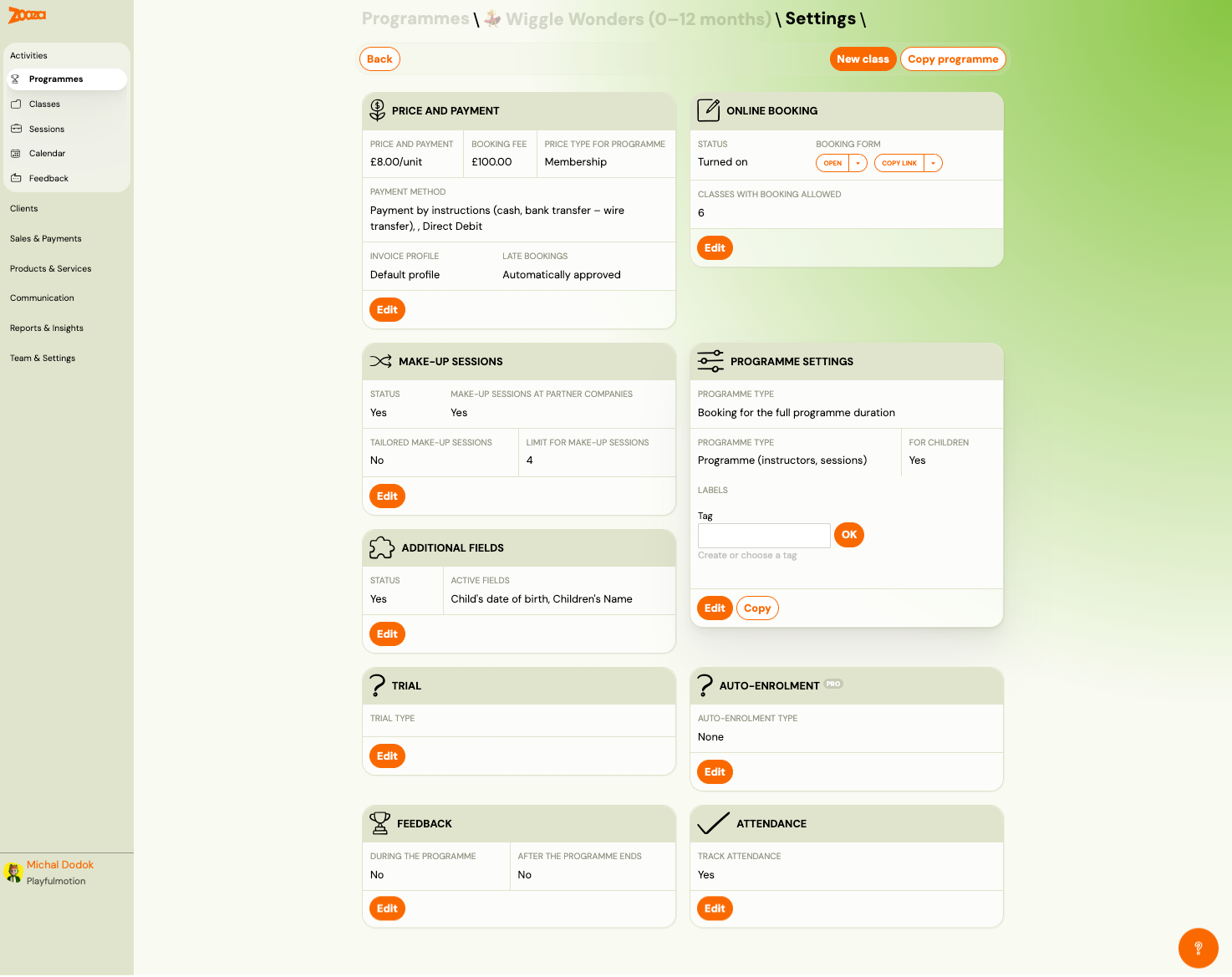
Settings Overview
The dashboard shows 10 tiles at a glance. Each tile displays a summary of current values and an Edit button to open the full editor.
| Tile | Summary shown |
|---|---|
| Price and Payment | Unit price, booking fee, price type, payment method, invoice profile, late bookings policy. |
| Online Booking | Status (on/off), booking form link, number of classes with booking allowed. |
| Make-up Sessions | Status, partner companies, tailored make-ups, session limit. |
| Programme Settings | Programme type, timetable type, for children flag, labels. |
| Additional Fields | Status, list of active fields (e.g., "Child's date of birth, Children's Name"). |
| Trial | Trial type (none, free, paid, etc.). |
| Auto-Enrolment | Auto-enrolment type (none, suggest timetables, duplicate). |
| Feedback | During programme (yes/no), after programme ends (yes/no). |
| Attendance | Track attendance (yes/no). |
Top-right buttons: New class, Copy programme.
Price and Payment
Controls how much clients pay and how payments are collected. For a full explanation of each pricing model, see Price and payment setup.
| Field | Description |
|---|---|
How do you want to collect payments? | One off payment — single charge. In scheduled payments — recurring (term, membership, subscription). |
Price type for programme | Term payment — total price split into instalments by frequency. Membership — recurring charge at a fixed interval. |
Booking fee | One-time fee charged at booking. |
Advanced settings | Expandable section with: Down payment, Late bookings policy, Aliquot price calculation, Include Initial Full Scheduled Payment, Billable sessions, Payment managed by registrant. |
Down payment | None, Fixed amount, or Percentage of total price. |
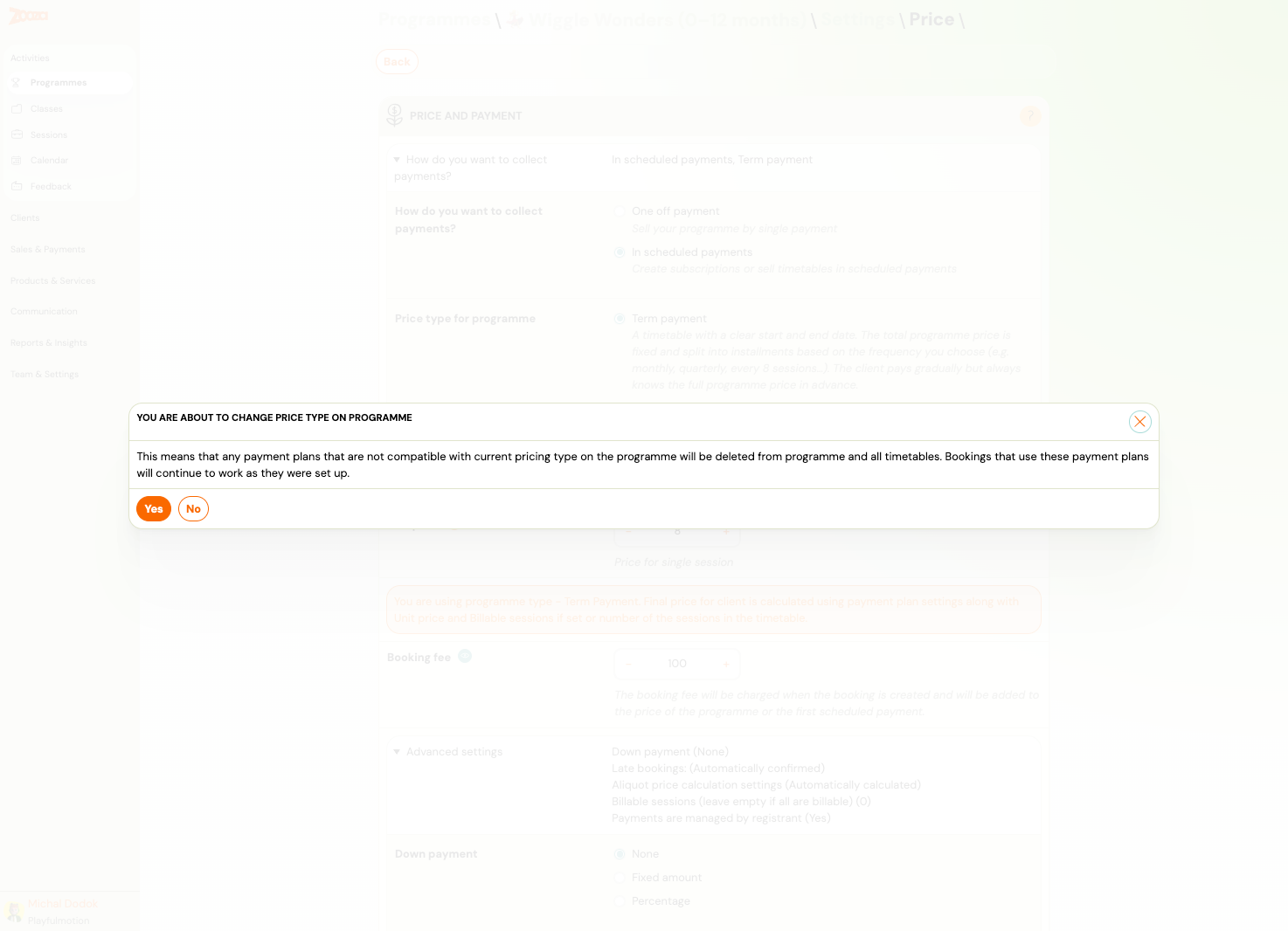
When changing the price type, a confirmation dialog warns that incompatible payment plans will be deleted from the programme and all timetables.
Online Booking
Controls how the programme appears on your public booking forms.
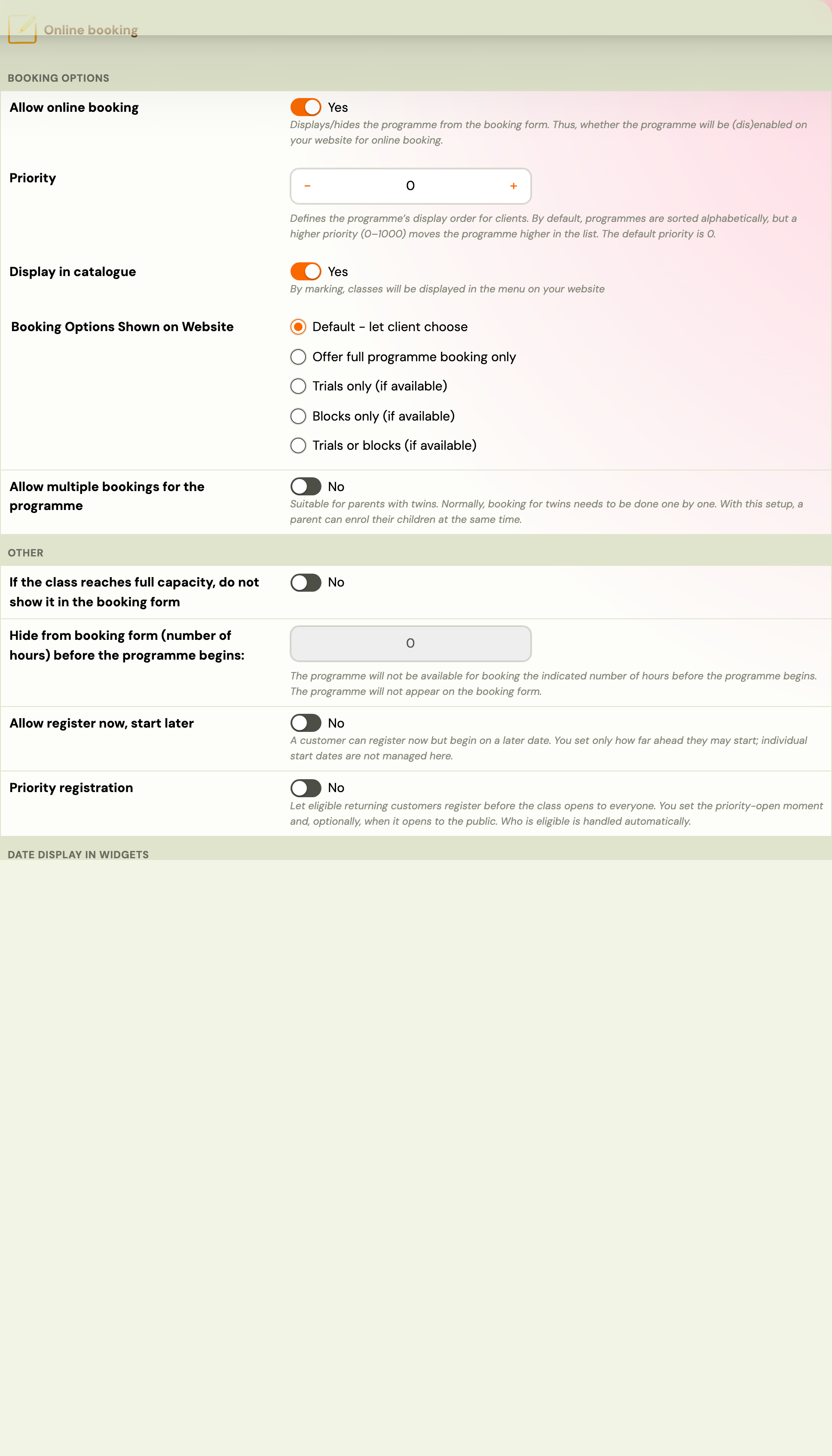
Booking Options
| Field | Description |
|---|---|
Allow online booking | Master toggle — shows/hides the programme on your website. |
Priority | Display order (0–1000). Higher priority = higher in the list. Default: 0. |
Display in catalogue | Show classes in the website menu. |
Booking Options Shown on Website | Default — client chooses. Full programme only, Trials only, Blocks only, Trials or blocks. |
Allow multiple bookings for the programme | Enables parents to enrol multiple children at once (e.g., twins). |
Minimum / Maximum number of bookings | Min and max children per form submission. |
Collect basic data from | All enrolled or Only the registrant. |
Collect additional data from | All enrolled or All except the registrant. |
Other
| Field | Description |
|---|---|
If the class reaches full capacity, do not show it in the booking form | Hides full classes entirely (instead of showing "class full"). |
Hide from booking form N hours before the programme begins | Auto-hides the programme before it starts. |
Class Settings
Select which classes (timetables) are available for online booking. Toggle individual classes or use Choose all.
Customizing Booking Form
| Field | Description |
|---|---|
Custom field name: Note | Custom label for the note field. |
Custom field name: Name | Custom label for the name field. |
Custom field name: Surname | Custom label for the surname field. |
Custom field name: Email address | Custom label for the email field. |
Custom field name: Phone | Custom label for the phone field. |
Communication
| Field | Description |
|---|---|
Send automatic email reminders the day before the session | Sends reminders at 09:00 the day before. |
Confirmation email | Template used after booking. Click Edit to customize. |
Confirmation email for lead collection | Separate template for lead-collection timetables. |
Session reminders | Template for session reminder emails. |
Preset signature | Select a pre-configured email signature. |
Make-up Sessions
Controls whether clients can book make-up sessions for missed classes.
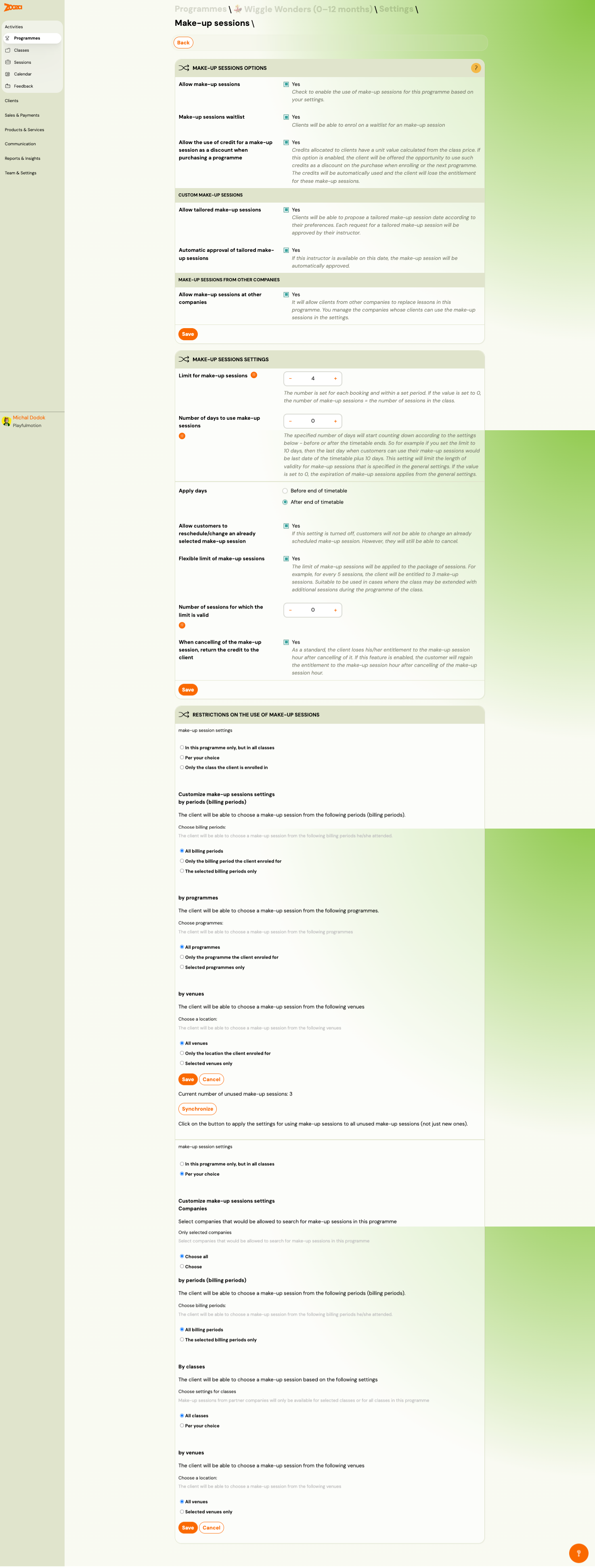
Make-up Sessions Options
| Field | Description |
|---|---|
Allow make-up sessions | Master toggle. |
Make-up sessions method | How clients access make-ups (notified, self-service, etc.). |
Allow the use of credits for a make-up session | Enables credit-based make-up redemption. |
Allow tailored make-up sessions | Lets clients request a tailored (custom) make-up session. |
Automatic approval of tailored make-ups | Auto-approves or requires admin review. |
Allow make-up sessions at other companies | Partner company make-ups (cross-company). |
Make-up Sessions Settings
| Field | Description |
|---|---|
Limit for make-up sessions | Maximum number of make-ups per client per period (e.g., 4). |
Number of days to use make-up | Deadline for using a make-up after the missed session. |
Apply filter | "Before end of timetable" or "After end of timetable". |
Allow customers to purchase/exchange an already used make-up session | Allows rebooking used make-ups. |
Flexible limit of make-up sessions | Makes the limit soft — e.g., if limit is 3, client gets entitled to 3 make-ups every N sessions. |
When cancelling of the make-up by the client | Controls what happens when a client cancels their make-up. |
Restrictions on the Use of Make-up Sessions
Customize restrictions by:
- Billing period — limit make-ups to specific billing periods.
- Programme — limit to specific programmes.
- Venue — limit to specific locations.
- Class — limit to specific classes.
Programme Settings (Basic Info)
Core programme identity and type.
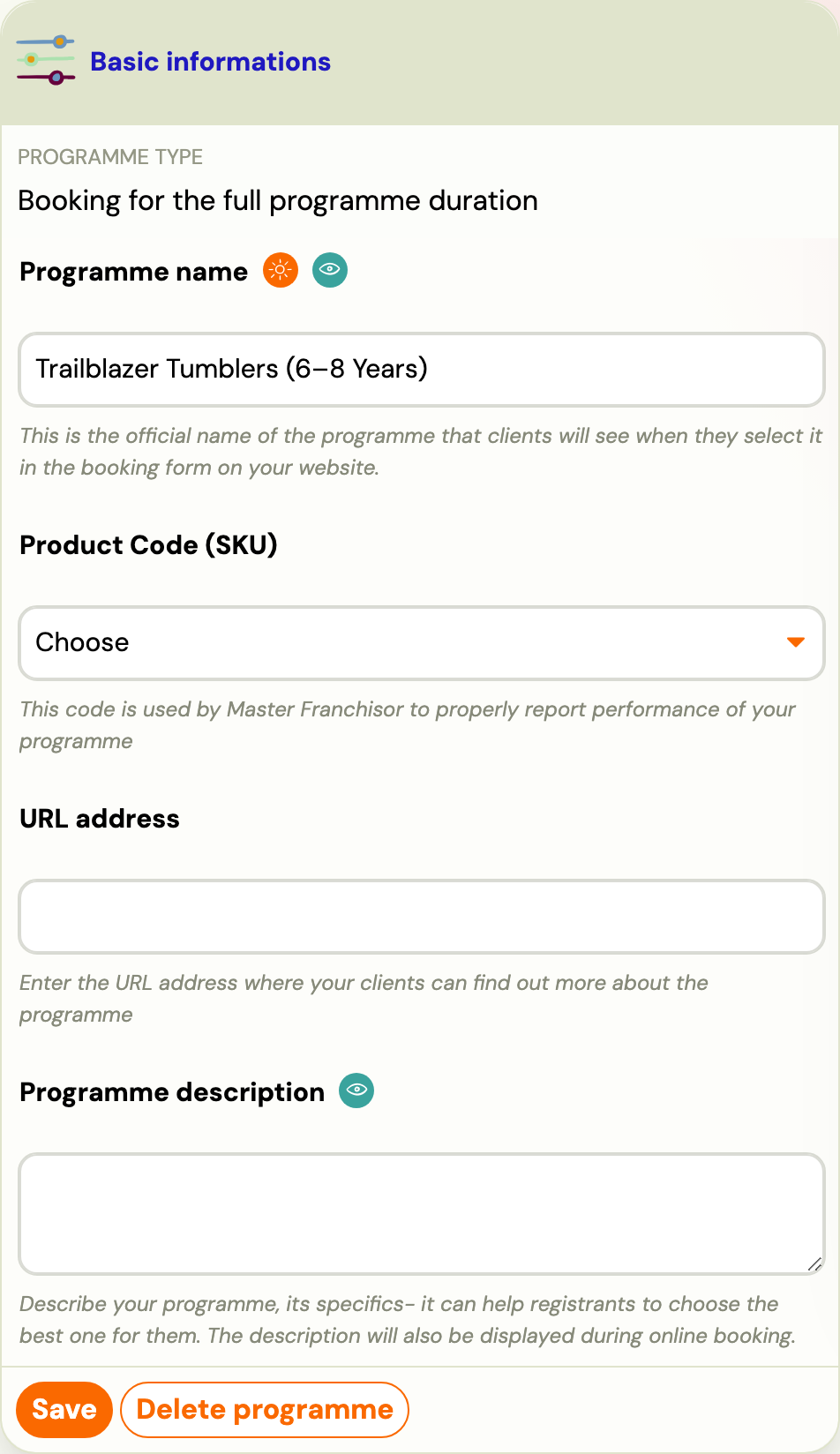
Basic Information
| Field | Description |
|---|---|
Programme name | Public name shown on booking forms and your website. |
Product Code (SKU) | Networks only. Picked from the codes the HQ maintains, so the same kind of programme reports together across every unit. The field's own note says it: "used by Master Franchisor to properly report performance of your programme". A standalone company can leave it alone. |
URL address | Custom URL slug for the programme page. |
Programme description | Rich text description shown during online booking. |
Archive | Archive the programme (hides it from active lists). |
Additional Settings
| Field | Description |
|---|---|
Programme type | Programme (instructors, sessions) or other types. |
Target audience | Class Timetables or 1-To-1 classes. |
For children | Uses child-oriented wording on booking forms. |
Labels and Colour
- Labels — add tags to categorize the programme.
- Colour — select a colour for calendar display and visual identification. Choose from preset colours (each with a creative description) or use custom colours.
Additional Fields
Configures extra data fields on the booking form. For a step-by-step guide, see Additional fields on the booking form.
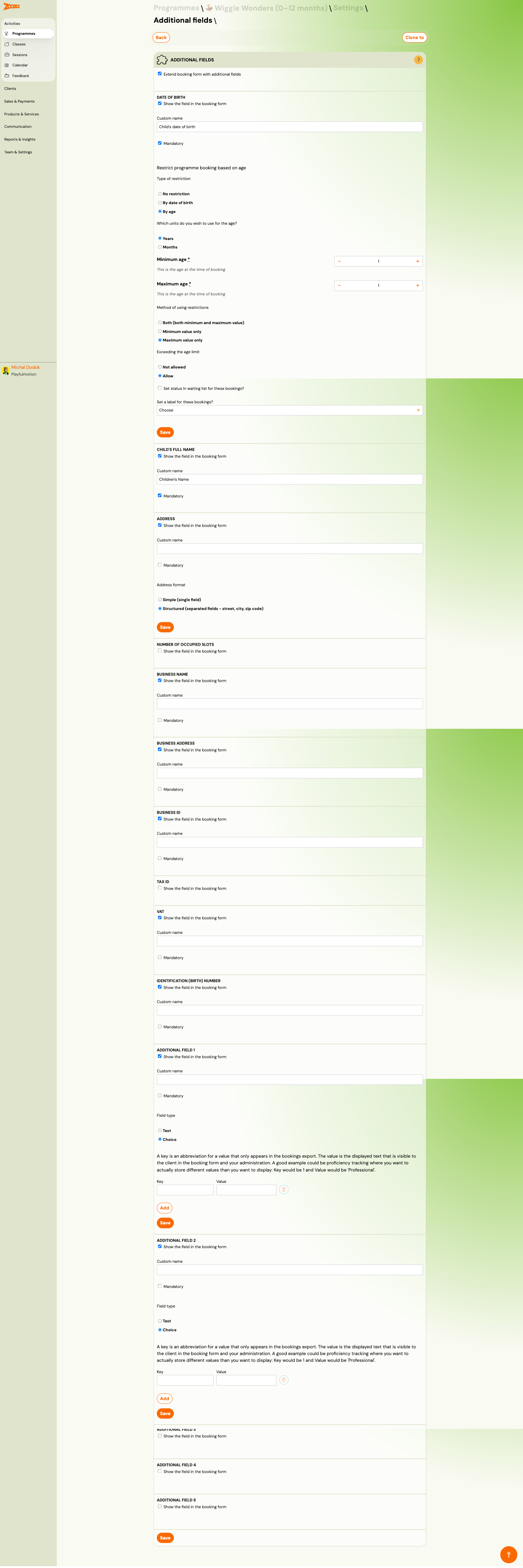
| Field | Description |
|---|---|
Extend booking form with additional fields | Master toggle. |
Date of birth | Show on form, custom label, mandatory flag. Optionally restrict booking by age (min/max, by date of birth or by age). |
Child's full name | Show on form, custom label, mandatory flag. |
Address | Simple (single field) or Structured (street, city, zip code). |
Number of occupied slots | Relevant for sessions (e.g., birthday parties). |
Business name / Business address / Business ID / Tax ID / VAT | Business/invoice fields. |
Identification (birth) number | National ID field. |
Additional field 1–5 | Custom fields with Text or Choice type. Choice fields use key/value pairs for export. |
Trial
Configures trial session behaviour for the programme.
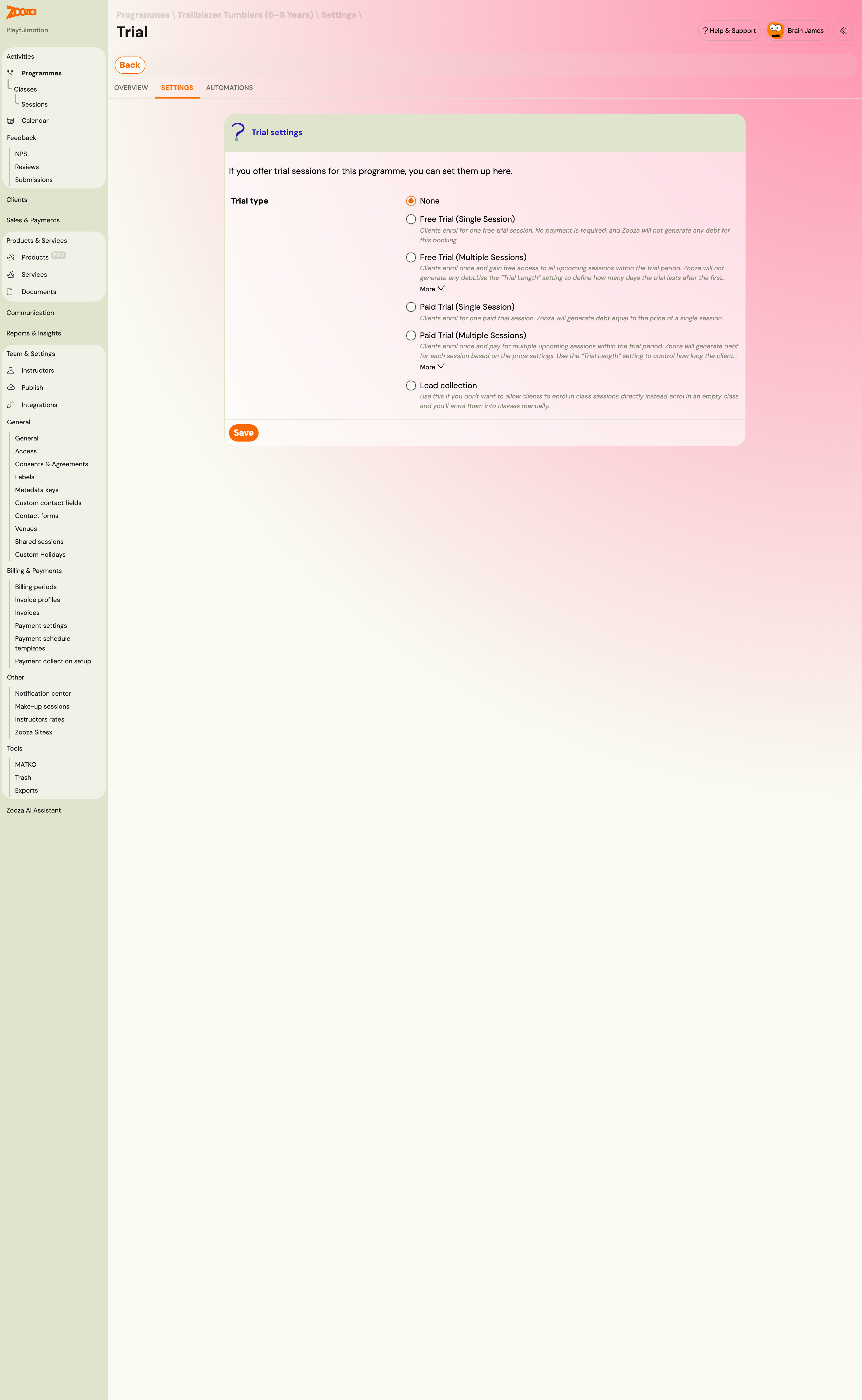
Trial Settings
| Field | Description |
|---|---|
Trial type | None, Free Trial (Single Session), Paid Trial (Single Session), Free Trial (Multiple Sessions), Lead collection — each with different billing and session behaviour. |
Unit Price for Trial | Price per trial session (if paid). |
Sessions Shown in Form | By number of days — limited by date range. By number of sessions — limited by session count. By dates — specific date range. |
Session capacity | Currently available capacity or Force capacity (override). |
Reserve seat for trial attendee | Holds a spot during the trial period. |
Trial Length Method | Days — number of days the trial remains active. Sessions — number of sessions. |
Trial Length | Number of days or sessions. |
Timetables Included in Trial
Select which timetables are available for trial bookings. Toggle Automatically add newly created timetables to trial.
Automation Settings
| Field | Description |
|---|---|
Automation status | Active/inactive toggle. |
Send booking link | Sends an enrolment link after the trial ends. |
Send follow-up | First follow-up email after N days. |
Send second follow-up | Second reminder after additional N days. |
Automatically transition trial to lost | Auto-marks abandoned trials as "Trial Lost". |
Change the status to "Trial Lost" after N days | Timeout in days. |
Send notification to client after trial lost | Notifies the client when their trial expires. |
Automatically mark abandoned trials | Marks unattended trial bookings. |
Auto-Enrolment
Controls what happens when a client's current class/timetable is ending.
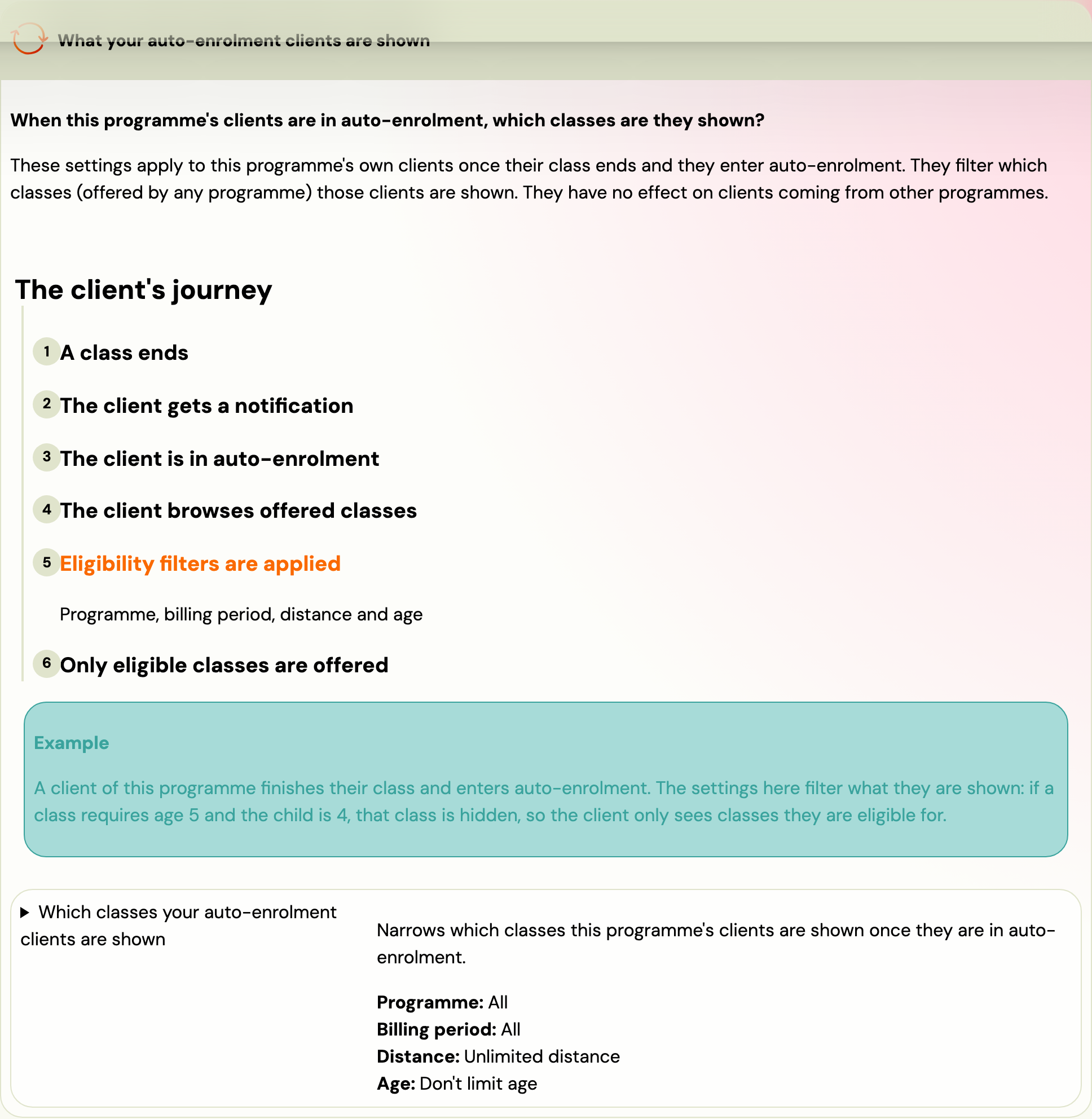
| Field | Description |
|---|---|
Auto-enrolment type | None, Suggest timetables (client picks from filtered options), Duplicate current timetable (1-to-1 classes only). |
Notify the customer N days before the timetable ends | Days before expiry to send the notification. |
Keep customer in auto-enrollment for N days | How long the offer stays visible in the client's profile (0 = default 30 days). |
Auto-enrolment message | Rich-text message sent to the client. |
Filtering Options
| Field | Description |
|---|---|
Choose billing periods | All, only enrolled period, or selected periods. |
Choose programmes | All, only enrolled programme, or selected programmes. |
Age from / Age to | Filter offered timetables by child age. |
Distance | Limit by distance (km) from the client's current location. |
Timetables in Auto-Enrolment
Select which timetables to offer to returning clients. Must be explicitly enabled per timetable.
Feedback
Controls automatic feedback collection.
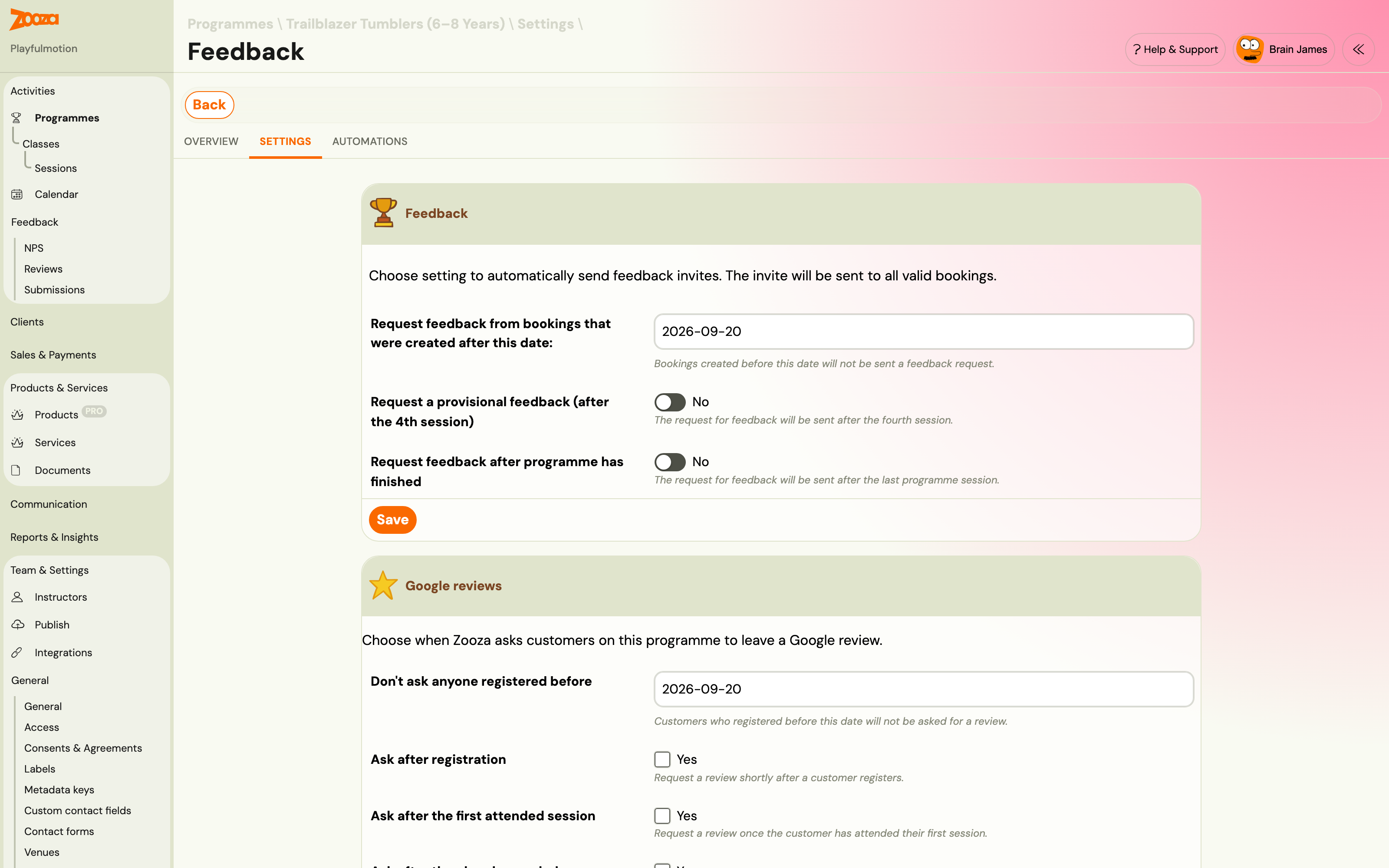
| Field | Description |
|---|---|
Request feedback from bookings that were created after this date | Only bookings after this date receive feedback invites. |
Request a provisional feedback (after the 4th session) | Sends a mid-programme feedback request. |
Request feedback after programme has finished | Sends feedback after the last session. |
Attendance
Controls attendance tracking and session rescheduling.
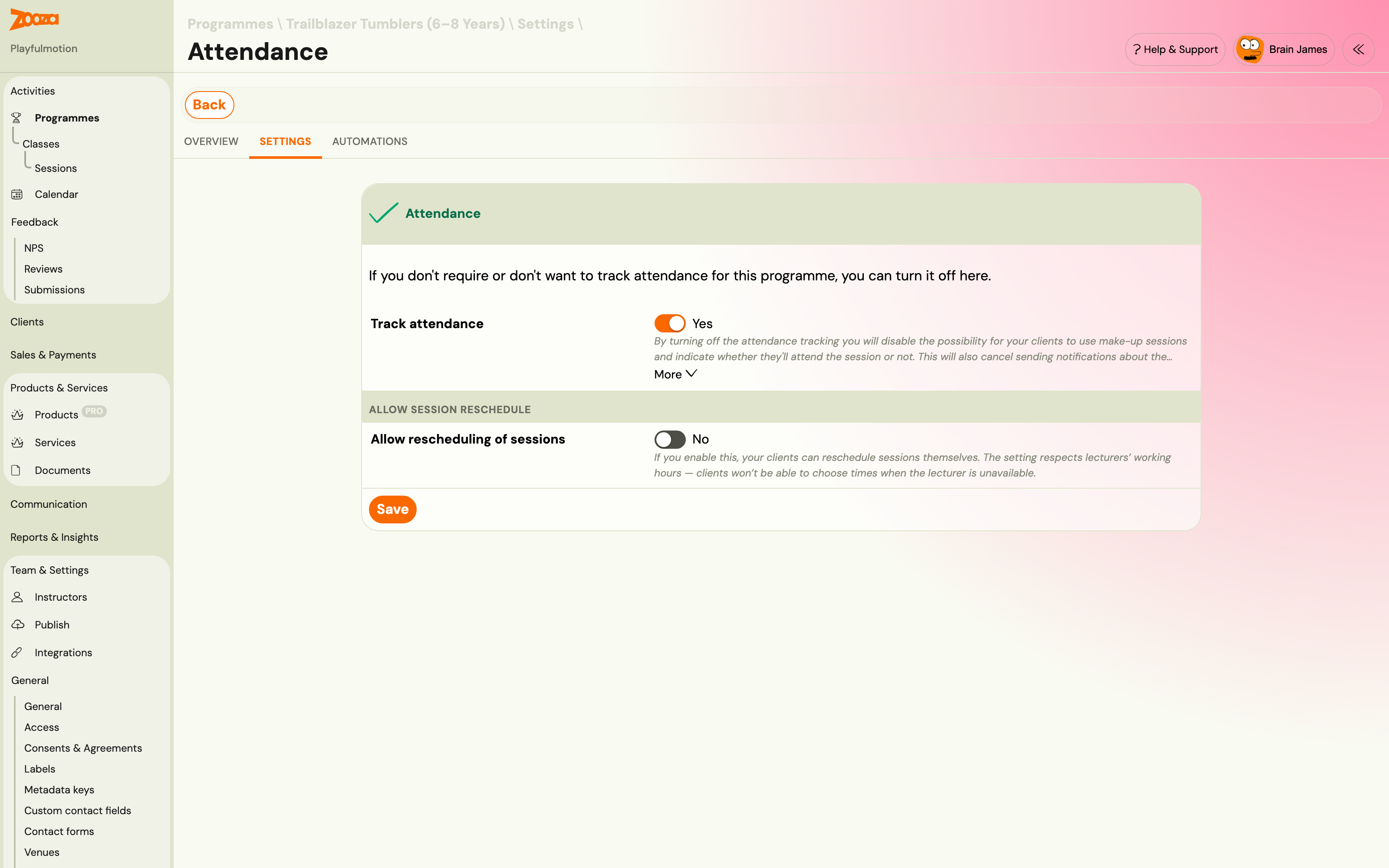
| Field | Description |
|---|---|
Track attendance | Disabling removes make-up session availability and cancels session notifications. Useful for summer camps or daily programmes. |
Allow Session Reschedule
| Field | Description |
|---|---|
Allow rescheduling of sessions | Lets clients reschedule their own sessions (respects instructor availability). |
Automatically approve requests for session rescheduling | Auto-approves reschedule requests. If disabled, the instructor must approve each request. |
If both make-up sessions and rescheduling are enabled, a warning appears: clients can both cancel and request a make-up, which may cause confusion.
Metadata
Attach typed key-value data to a programme — for internal tagging, integrations, or exposing structured data to the booking widget.
The Metadata card appears on the programme Settings page. Each row is a key-value pair.
| Control | Description |
|---|---|
| Add metadata | Opens the key picker. Type to search existing keys or create a new one inline. |
| Key | Short identifier (e.g. difficulty, min_age). Scoped to your company. |
| Value | Typed according to the key's value type: Text, Number, Yes/No, or JSON. |
| Public | Whether the value is exposed to the registration widget (set at key level, not per-programme). |
Creating a new key inline: type a name that doesn't exist → press Enter → fill in value type and public flag → confirm. The key is created and reusable on all programmes.
Manage all keys centrally: Go to Settings → General → Metadata keys to rename keys, toggle public visibility, or delete a key and all its assigned values.
Metadata exists on programmes only, not on classes
This is the constraint to design around when you want to filter your public offer by something Zooza does not model natively — level (A1–C2), format (in person / online), intensity, focus.
- Programme level: metadata. Use it for anything that describes the offering.
- Class level: no metadata. Use tags on the class instead.
The distinction matters because people usually discover it halfway through building a filter. If "A2 conversational, online" identifies a programme in your setup, metadata works. If it identifies one specific class within a programme, you need tags.
Public metadata is readable by the registration widget, so it can drive both your own site's filter and how the course tiles render — see the registration widget metadata reference.
How integrators usually build this. Rather than querying Zooza on every page load, partners cache the courses and classes once a day and build the filter and listing from that cache. Only the pre-filled registration form then points at live availability. This keeps a large catalogue fast and means a Zooza hiccup does not take your course listing down with it.
Ordering is separate from filtering: the booking form sorts courses alphabetically until you give them a Priority (0–1000, higher first). If your filter returns the right courses in an unhelpful order, that is the setting you want, not metadata.
Related
- Programmes List — the main programmes view.
- Programme Automations — booking, payment, and enrolment automations.
- Payment Options Guide — how to configure payment methods.
- Trial Sessions Setup — step-by-step trial configuration.
- Online Registration Setup — publishing your booking forms.