Session payment adjustments
Payment adjustments let you credit or debit a client's scheduled payment — either in bulk across multiple sessions from the Calendar, or individually on a specific payment in a booking.
Use adjustments when:
- You cancel a session and want to reduce what clients owe for that billing period
- You need to manually correct a scheduled payment amount for a specific client
- A client attended an extra session that was not automatically accounted for
Note: Adjustments affect scheduled payments only. They do not trigger an email notification to the client.
How adjustments work
Each scheduled payment has a base amount set by the payment template. Adjustments are signed corrections stacked on top:
- Credit — reduces the amount the client owes (e.g. cancelled session, goodwill gesture)
- Debit — increases the amount the client owes (e.g. extra session, correction)
The final amount charged is always base amount + all adjustments, floored at zero. A client can never be charged a negative amount.
Adjust session payments in bulk from Calendar
Use this when you cancel one or more sessions and want to credit all affected clients at once.
-
Go to Calendar.
-
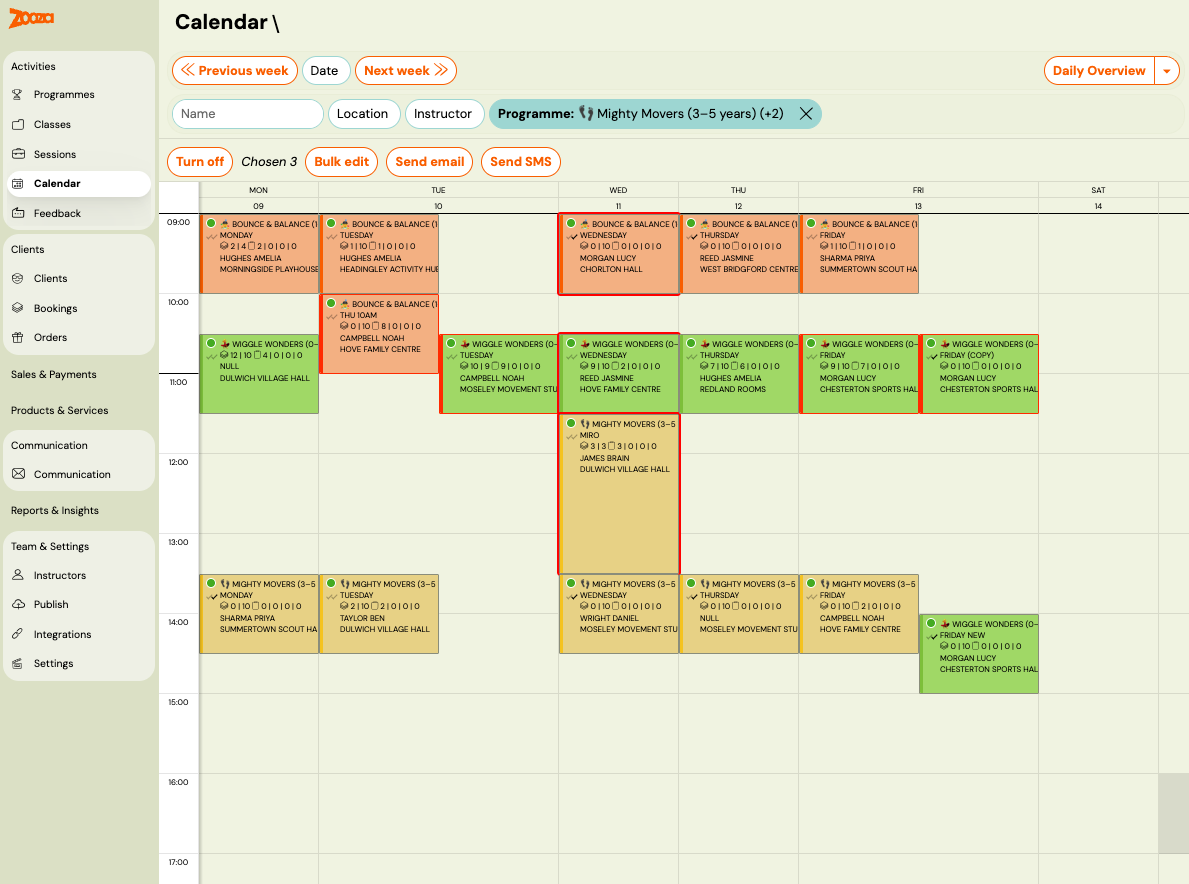
Select the sessions you want to adjust using the checkboxes.
-
Click Bulk edit.
-
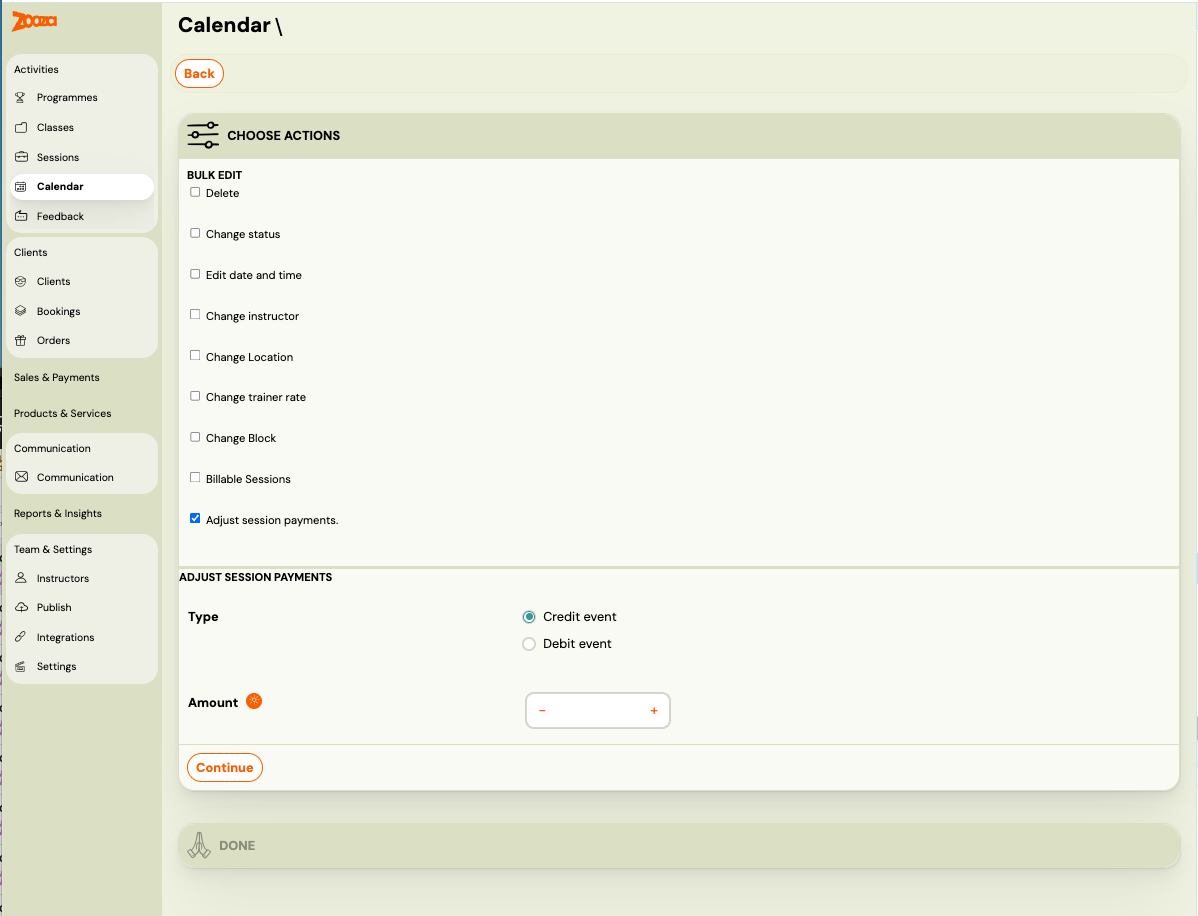
Check Adjust session payments.
-
Under Type, choose:
- Credit sessions — to reduce the scheduled payment (most common when cancelling a session)
- Debit sessions — to increase the scheduled payment
-
Set the Amount (per session, per client).
-
Click Continue, then confirm.
Zooza applies the adjustment to the next scheduled payment for each affected client. Clients on a fixed monthly or quarterly payment plan are adjusted the same way as Pay-as-you-go clients.
Which scheduled payment receives the adjustment? The adjustment is applied to the client's next upcoming scheduled payment with status Scheduled. If a client has no upcoming scheduled payment (e.g. their plan has ended), no adjustment is created for that client.
Adjust a single scheduled payment manually
Use this to correct or credit one specific client's scheduled payment.
-
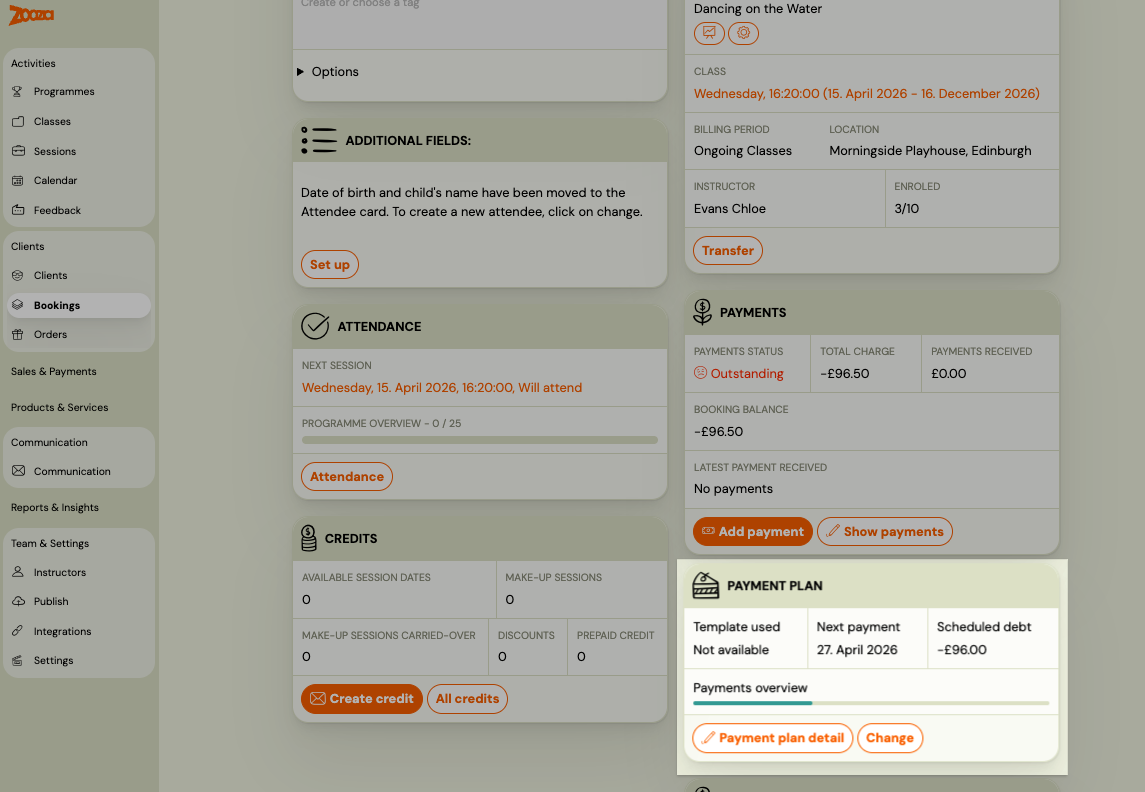
Go to Bookings and open the booking.
-
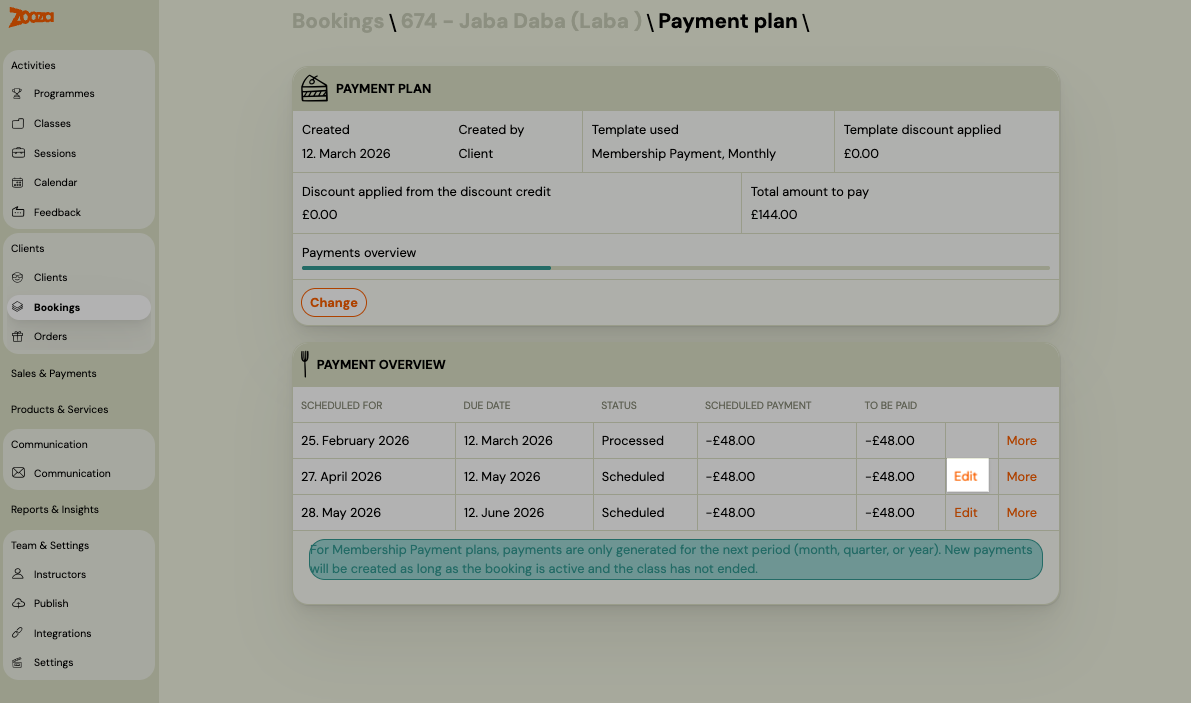
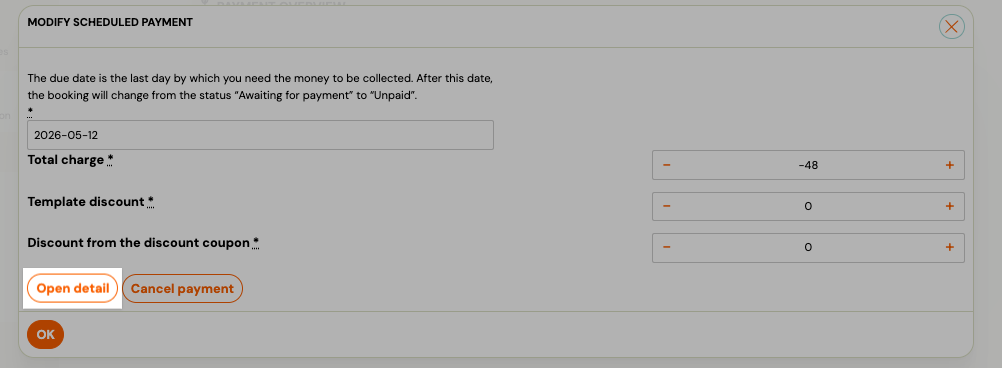
In the Payment plan section, click on the scheduled payment you want to adjust.
-
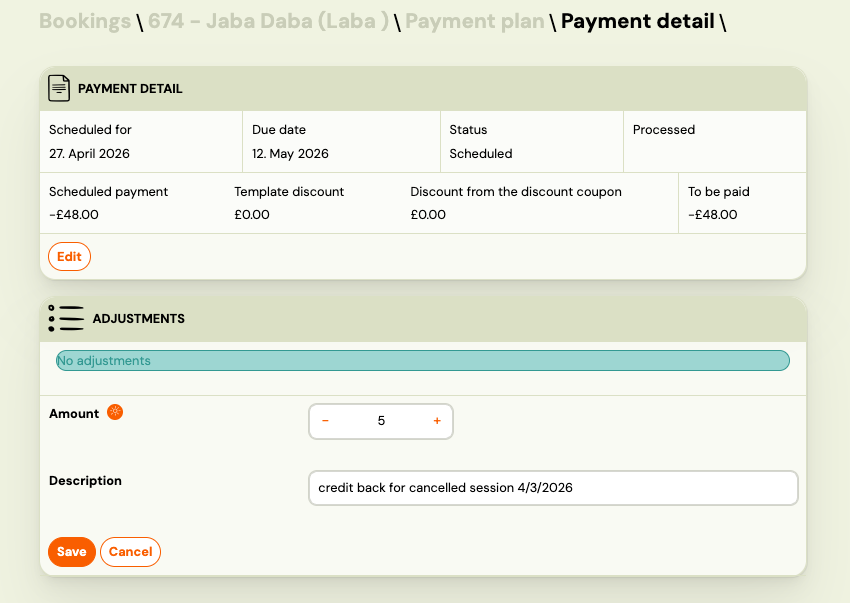
You are now on the Payment detail screen. Scroll to the Adjustments section.
-
Enter the Amount:
- Positive number = credit (reduces what the client owes)
- Negative number = debit (increases what the client owes)
-
Enter a Description — e.g. Cancelled session on 15 April or Manual correction.
-
Click Save.
The adjustment appears in the list immediately. The To be paid amount at the top of the payment detail updates to reflect the new total.
View existing adjustments
All adjustments on a scheduled payment are listed in the Adjustments section, including:
- Automatic adjustments created by session bookings or cancellations (Pay-as-you-go)
- Bulk adjustments applied from Calendar
- Manual adjustments you entered here
Each row shows the amount, description, and when it was created.
Reverse a manual adjustment
If you entered an adjustment by mistake, you can reverse it:
- In the Adjustments list, find the adjustment you want to reverse.
- Click Reverse.
A new adjustment with the opposite sign is created. The original adjustment remains in the list for the audit trail.
You can only reverse manual adjustments. Automatic adjustments (from session bookings/cancellations) are managed by the system and cannot be reversed manually.
Pay-as-you-go: how adjustments work automatically
For Pay-as-you-go programmes, adjustments happen automatically without any admin action:
- Client books a session → a credit adjustment equal to the unit price is added to their next scheduled payment
- Client cancels a session → the credit is removed (payment returns to previous amount)
- Admin cancels a session from the Calendar → all clients who were marked as attending receive a credit automatically
You can still add manual adjustments on top of the automatic ones if needed.
Related guides
- Pay-as-you-go programme — How the session-based payment model works
- Payment templates creation — Set up the base payment schedule
- Edit payment on booking — Other ways to modify payments on a booking