How to assign Direct Debit mandates to bookings (GoCardless)
After the import, you can assign existing Direct Debit mandates to the imported bookings.
Link existing Direct Debit mandates (Migration)
Linking mandates is safe — no money will be collected until a payment plan is created later.
Quick step-by-step
- Go to Payments
- Click Direct Debit (top menu)
- Click Migration
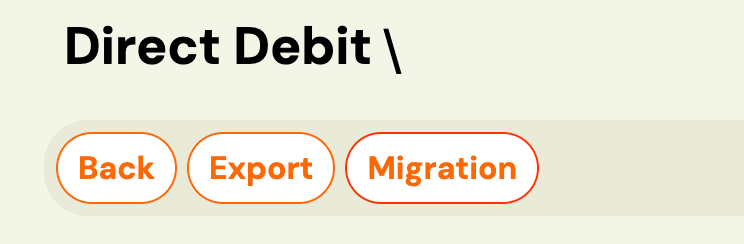
You will see this option only if:
- Your GoCardless account is connected, and (If not > Zooza (Team & Settins) > Settings > Payments)
- At least one programme previously used Direct Debit
- A list of all Direct Debit mandates not yet linked in Zooza will be displayed
- Click Link next to a mandate

- Choose the correct booking for that mandate
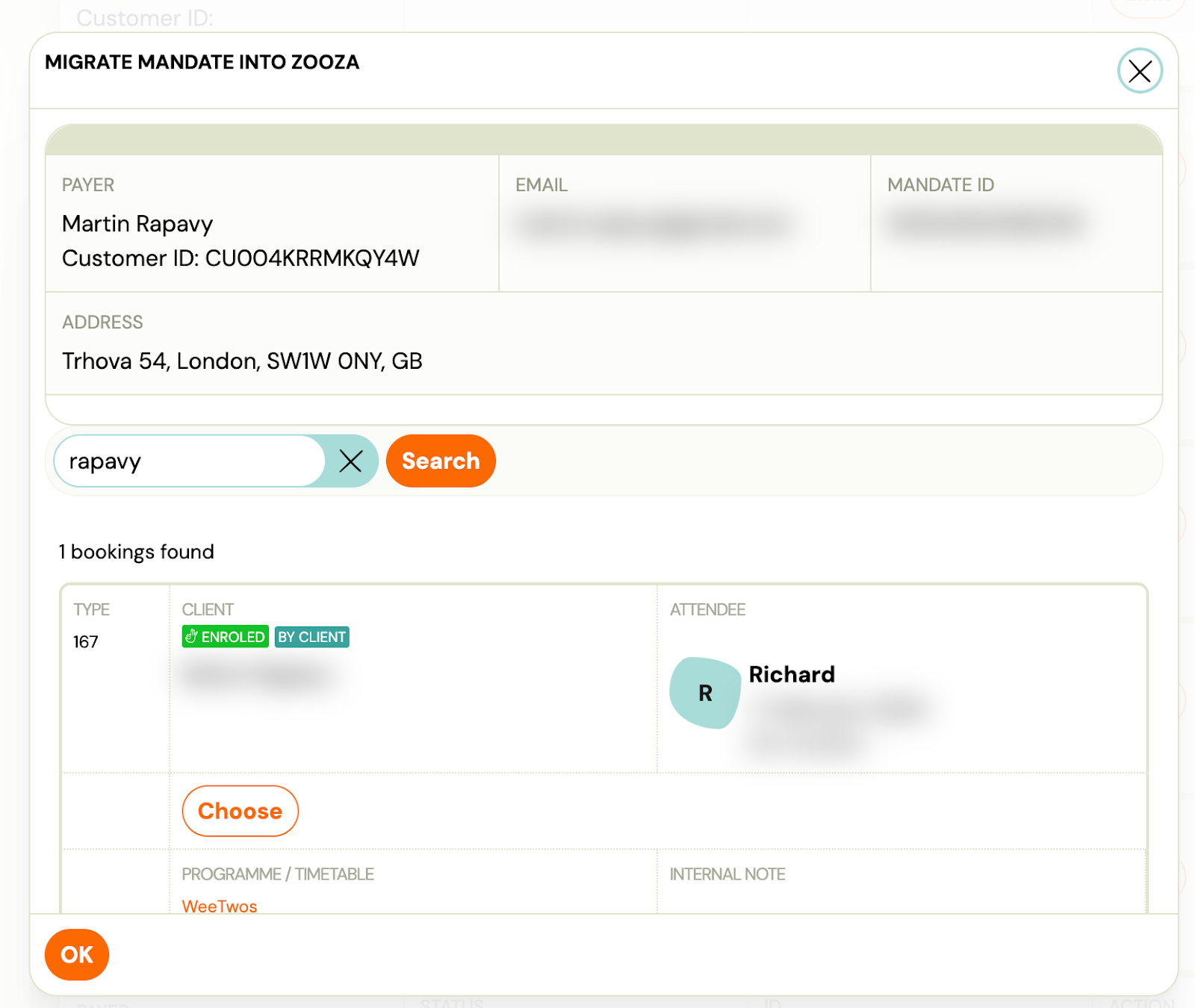
- Confirm OK
Once linked:
- The mandate is connected to the booking
- It will disappear from the migration list
- No payment will be taken at this point
💡 Payments are collected only after a payment plan is manually created in the next step.
Doing this early allows us later to simply apply payment plans to bookings, without any additional setup.
Create payment plans
Option A: Apply a payment template to the whole class (recommended)
For each class:
- Open the class
- Go to Price & Payments
- Click “Apply payment template”
- Set the amount (based on the class)
- Select start date: e.g. 1 January 2026
- Choose which bookings it applies to (usually all)
- Confirm and continue
Option B: Create payment plans manually per booking (Guide)
The logic is the same, just done individually.
Connection maintenance
After initial setup, your GoCardless bank connection requires periodic renewal.
Important: Most bank connections expire every 90 days due to bank security policies (PSD2 regulation). When the connection expires, Zooza stops receiving transaction data until you re-authorize.
For full details on managing connection expiry, renewal, and troubleshooting bank-specific issues, see the GoCardless Connection Lifecycle guide.
For quick answers about GoCardless, see the GoCardless FAQ.