Zooza 101 for Instructors
A simple guide to get you started
This guide explains the basics every instructor needs to know when working with Zooza. It is short, practical, and focused on what matters most in your daily work.
1. Logging in to Zooza
To access Zooza, you must have your email address assigned to your instructor profile by the organisation you work with.
How to log in
- Open https://zooza.online/access
- Select the region where your organisation operates
- Enter your email address
- Zooza will send you a login link or code
- Open the link (or enter the code) to access the application
That’s it. No password is needed.
2. Your main task: Attendance management
Your primary responsibility in Zooza is to mark attendance for your classes.
🎥 How to mark attendance as an instructor in Zooza
https://www.loom.com/share/372a39657cb74874b2d56432af036f28
In this video, we’ll show you how instructors mark attendance in Zooza.
Step-by-step
Step 1 – Log in Log in to the Zooza application using your instructor account.
Step 2 – Use the dashboard
On the dashboard, you’ll see a list of your upcoming classes.
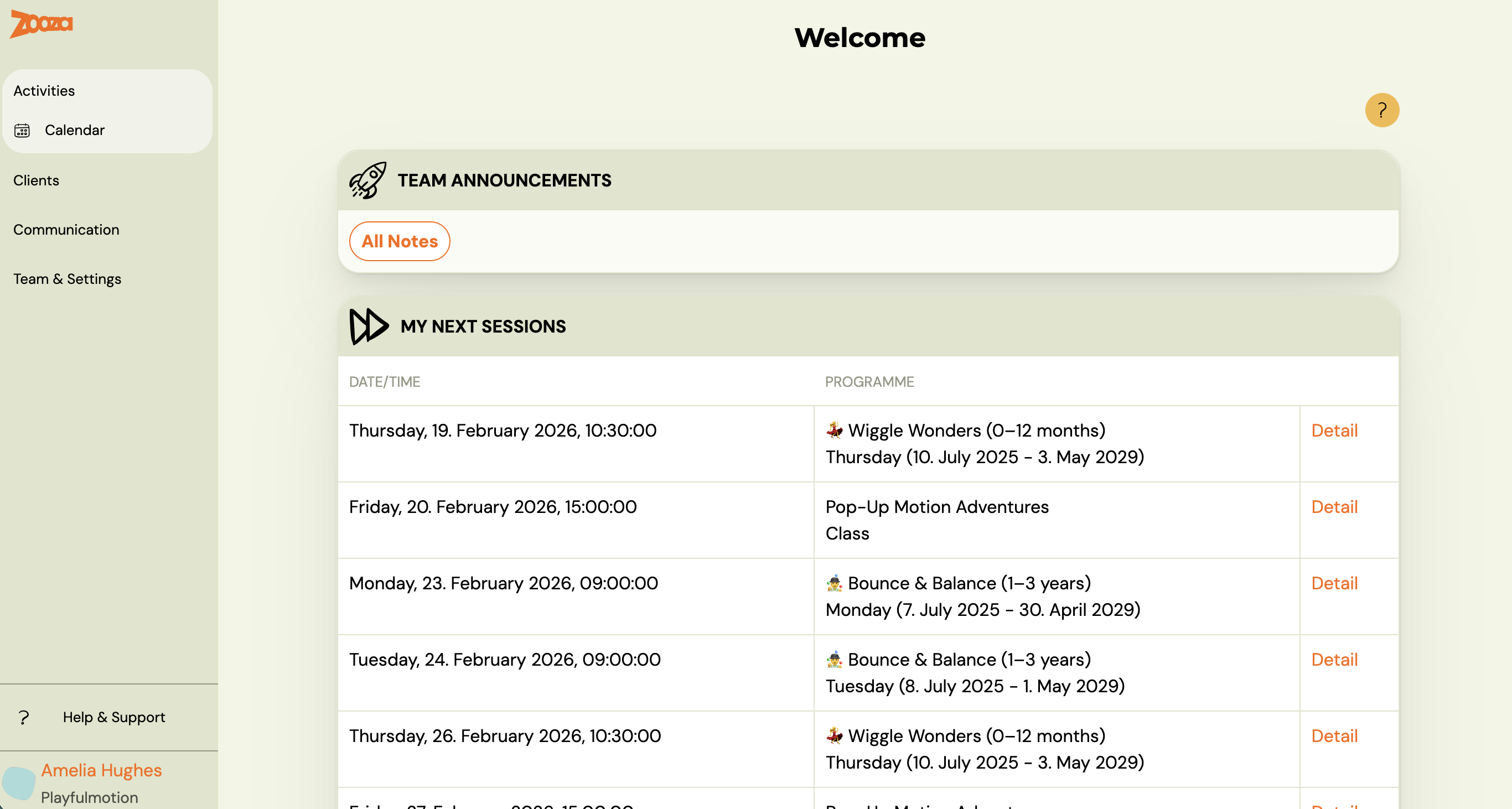
Step 3 – Open the class
Click on the class or session you are about to run.
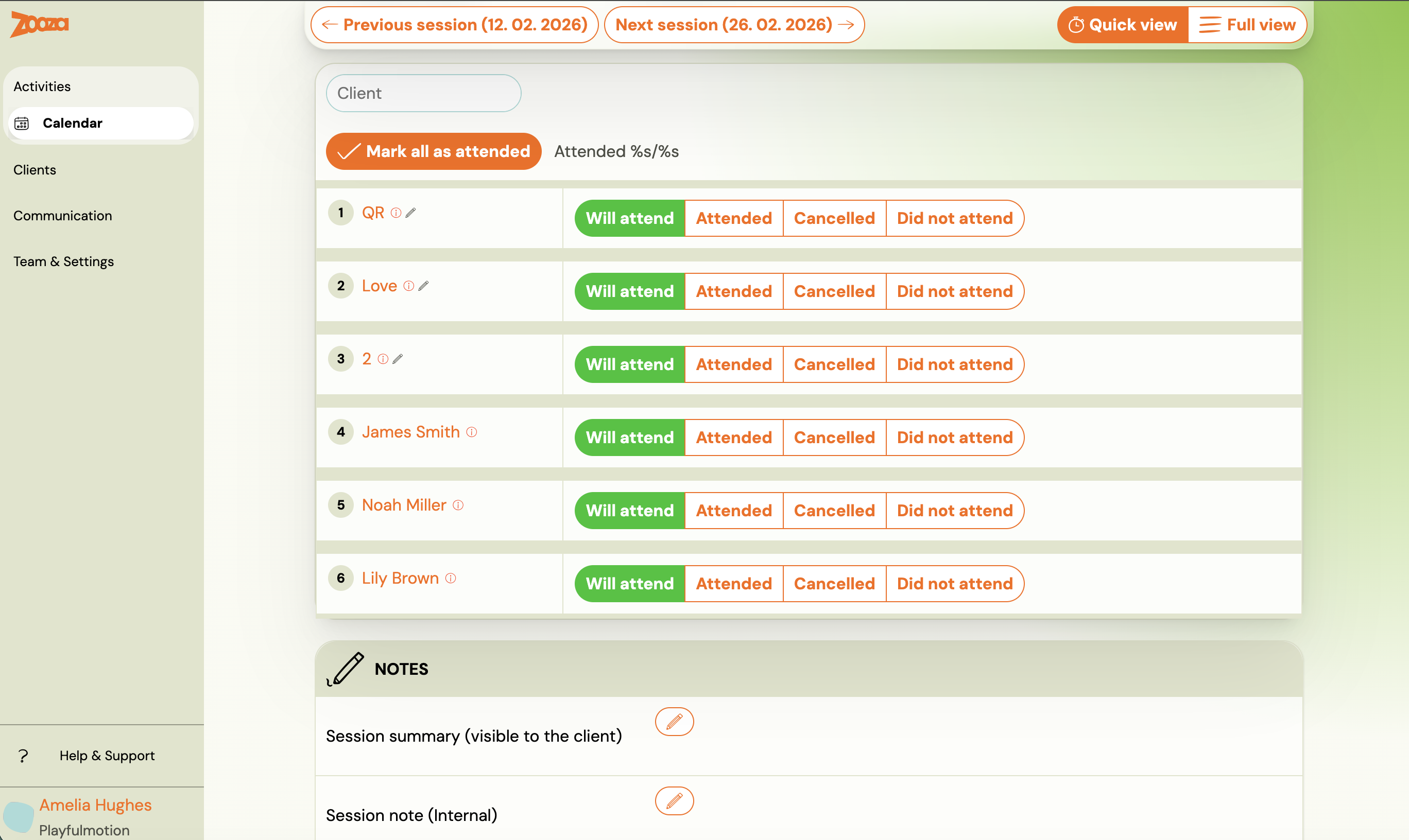
Step 4 – Mark attendance Mark each child as present or absent.
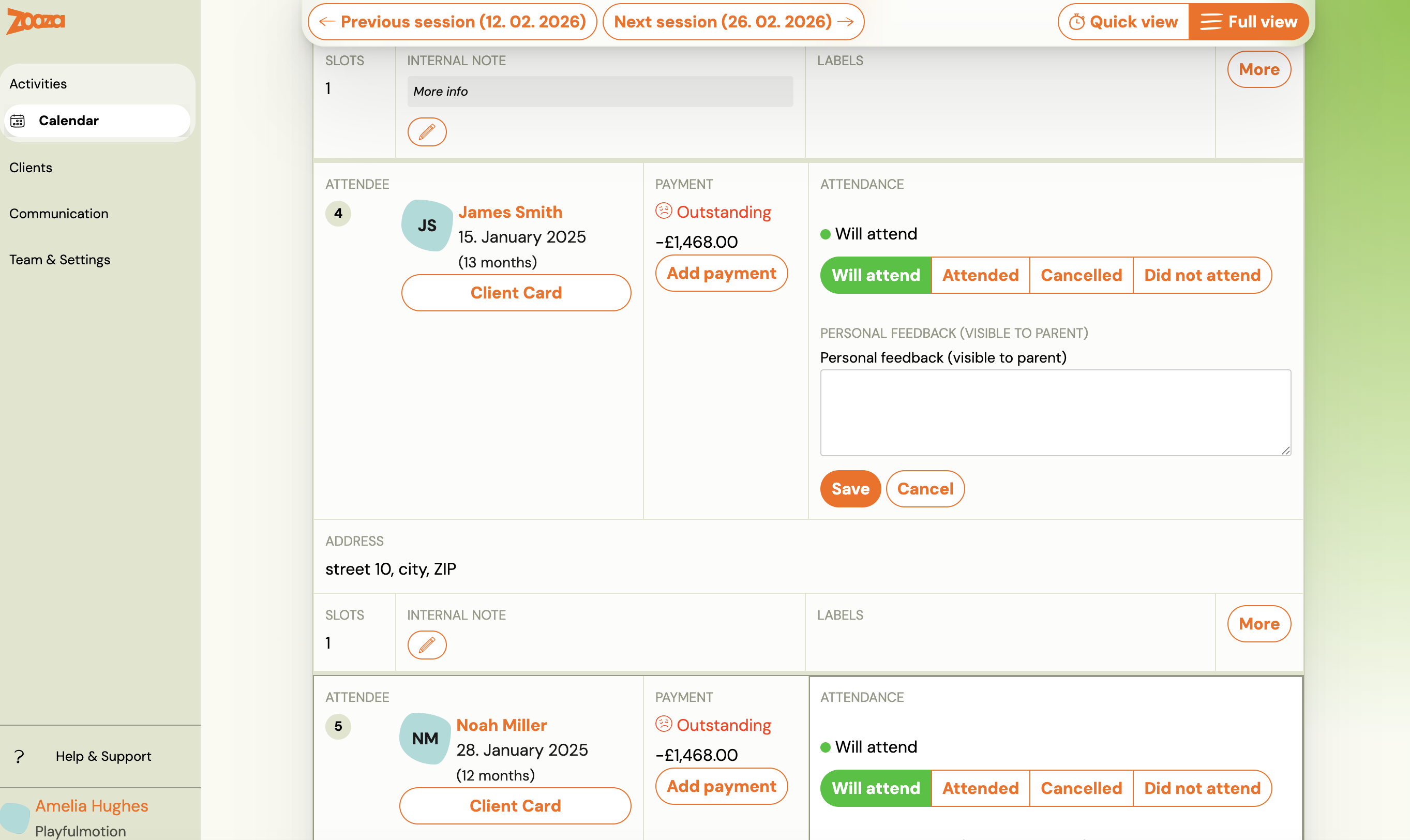
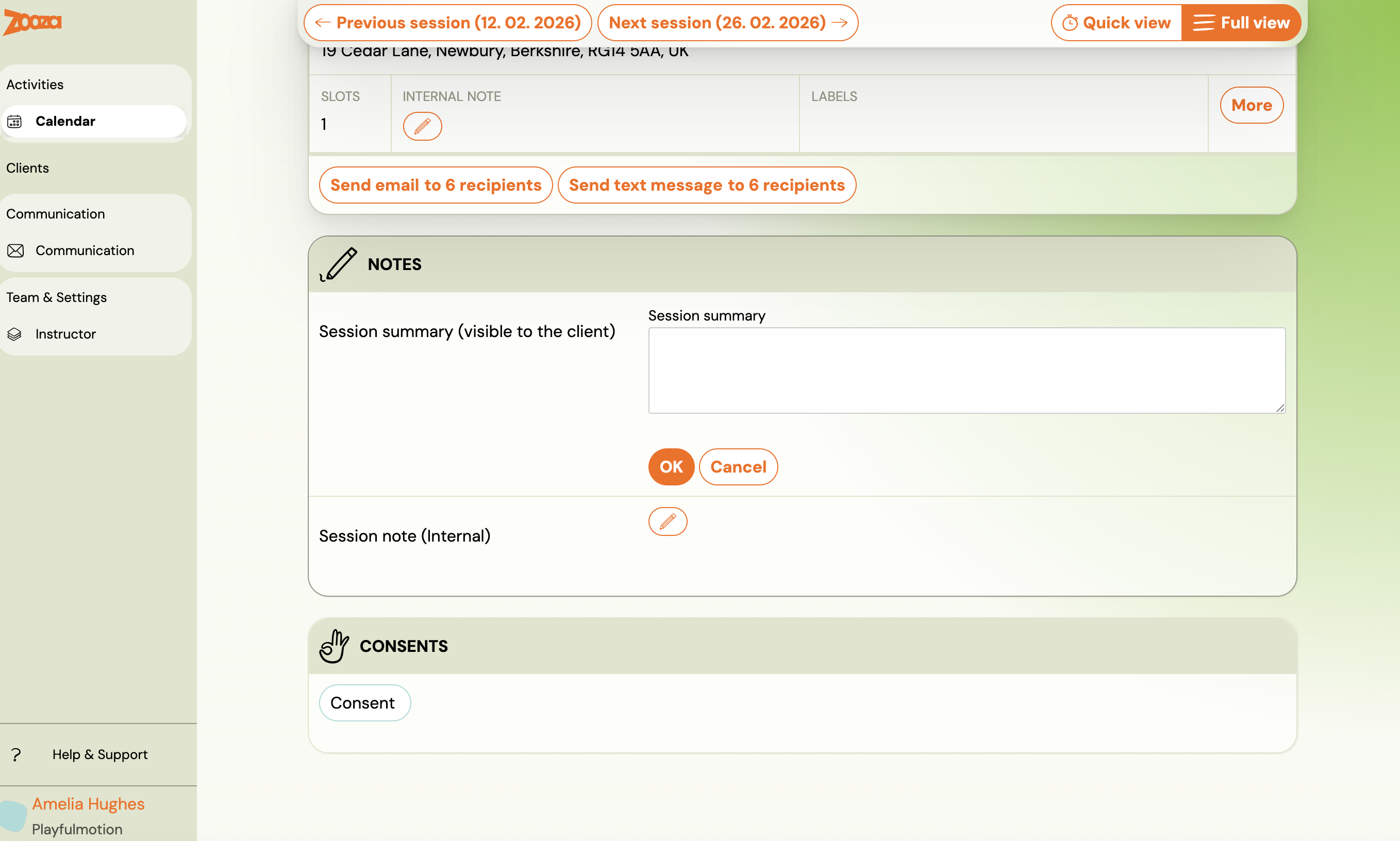
Step 5 – Add notes (optional) If needed, you can add a note:
- for a specific child, or
- for the whole class
These notes can be shared with parents, depending on the organisation’s settings.
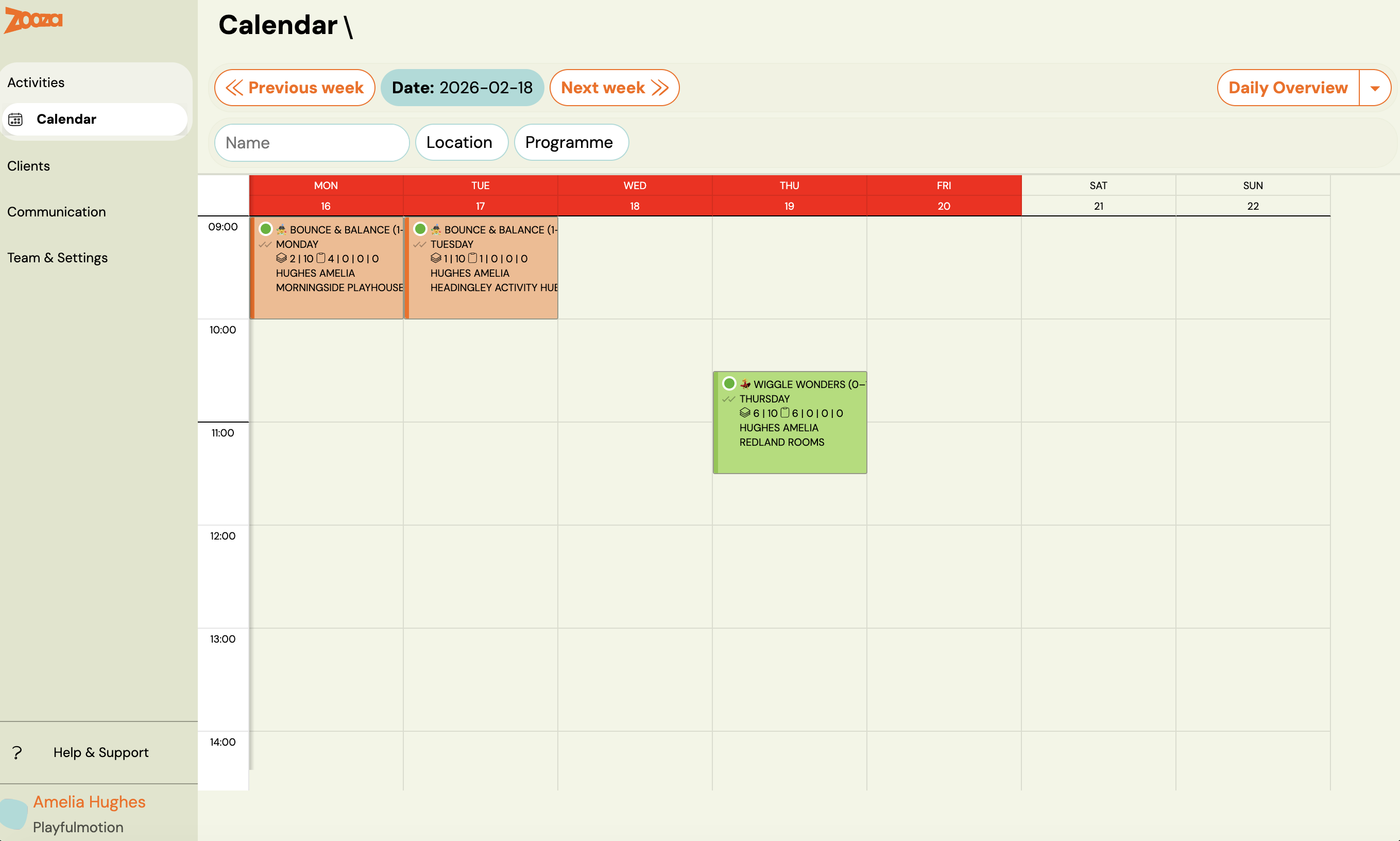
Step 6 – Use the calendar (alternative view)
You can also open your calendar from the menu.
This shows all your classes for the selected week.
Step 7 – That’s it Attendance is saved directly in the class view. No further steps are required.
Note: Exact rules may vary based on internal policies of the organisation, but this is the standard workflow.
3. Reporting your taught hours
Zooza also gives you access to your personal teaching reports.
Where to find it
- Open Team & Settings
- Go to Instructor
- Here you can see:your taught hours report
- your instructor profile
- your availability and absence management
This section is typically used for internal reporting and planning.
4. Using Zooza on your mobile phone
Most instructors use Zooza on their mobile phone. The mobile experience is designed around the instructor’s daily workflow — you don’t need to navigate through admin menus to get to what matters.
Zooza works as a web app and can be added to your phone’s home screen so it looks and behaves like a regular app.
👉 Follow this guide to add Zooza to your home screen
Home screen
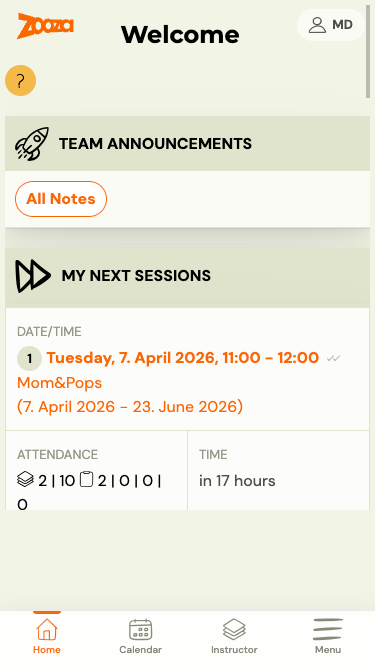
When you open Zooza on mobile, the home screen shows:
- Team Announcements — any notes posted by your organisation.
- My Next Sessions — your upcoming sessions with date, time, programme name, and a live attendance counter. Tap a session to open it directly and mark attendance.
Bottom navigation
The bottom bar gives you one-tap access to the four most important areas:
| Tab | What it opens |
|---|---|
| Home | Your home screen — next sessions and announcements. |
| Calendar | The weekly calendar view with all your classes. |
| Instructor | Your instructor profile, taught hours report, and availability. |
| Menu | Full navigation to all sections of the app. |
Note: The bottom navigation is tailored for instructors. Admins see Bookings instead of Instructor in the same position.
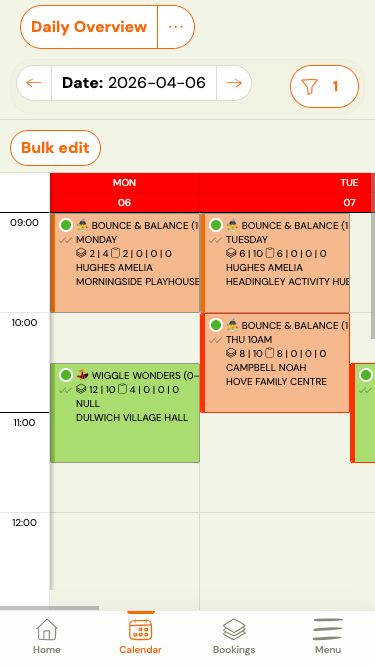
Calendar view
Tap Calendar to see your weekly schedule. Sessions are shown as tiles with programme name, attendance count, location, and instructor. Use the date arrow to navigate between weeks.
Instructor tab — your reports
Tap Instructor to go directly to your profile and reports. This is where you can:
- View your taught hours for a selected period.
- Download your instructor report.
- Manage your working hours and availability.
No digging through menus — one tap from anywhere in the app.
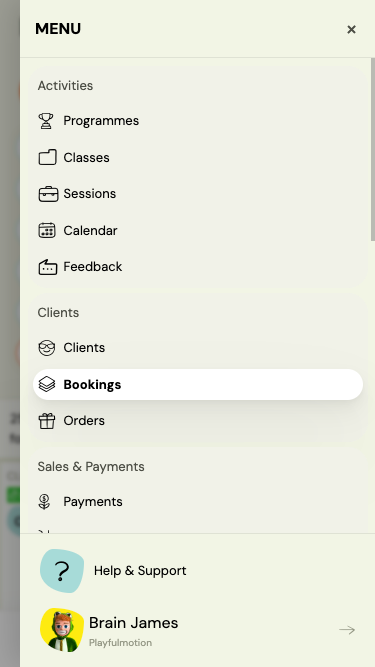
Full menu
Tap Menu to access all sections: Programmes, Classes, Sessions, Clients, Bookings, Payments, and Settings.
Final note
Zooza is designed to be simple, fast, and practical for instructors. If something is unclear, your organisation’s admin can help or provide additional rules specific to your team.