Online registration
To control how the programme is displayed on your website and how communication with clients is managed, use this setting. It includes three parts:
- Online registration
- Customizing the booking form
- Communication
Online registration
Booking options
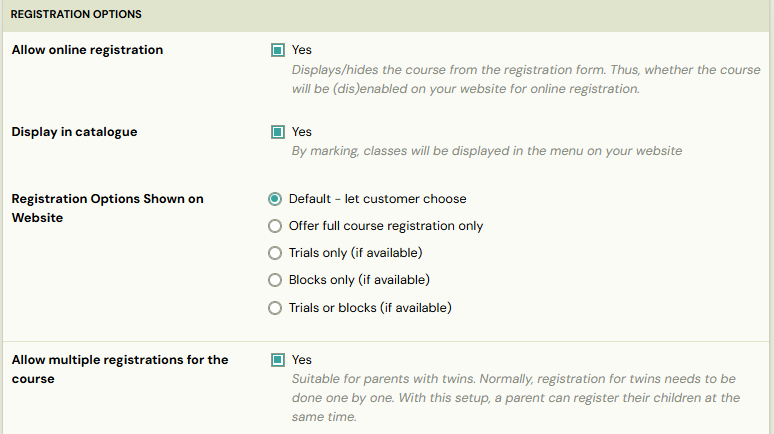
In the* Booking options* section you set the visibility on your website and in the booking form.you can control what is visible on your website and in the booking form. If your programme includes a *Trial *or Blocks, you can decide exactly what you want clients to see.

Example: If you don’t want clients to choose between blocks and the full programme, select the Blocks only option.
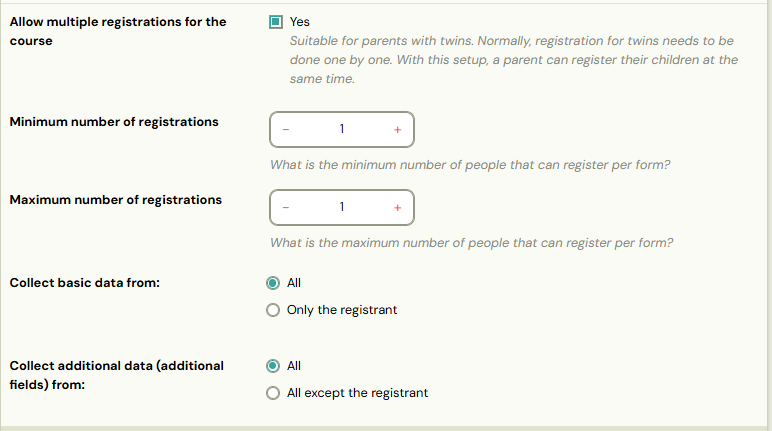
Multiple bookings for the programme
When you enable multiple bookings for a programme, you can choose whose information you need to collect — only from the main registrant or from every participant.
We also recommend selecting the *Payments are managed by registrant *option in the *Price and Payment *tile. This ensures that all payments for the bookings are grouped under the main booking, using a single variable symbol, and allows clients to pay everything in one transaction.
Other
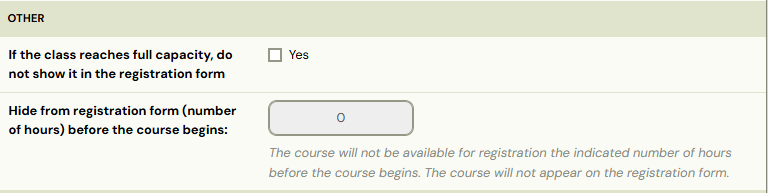
These settings let you control how long classes remain visible in your booking form in the following situations:
- When a class reaches capacity – choose whether it should still appear or be hidden.
- Before the programme starts – set the number of hours in advance when the programme should be hidden from your website’s programme catalogue.

Alert: Hiding the programme before it starts will disable the option to allow late booking in the Price and Payment tile.
Class settings
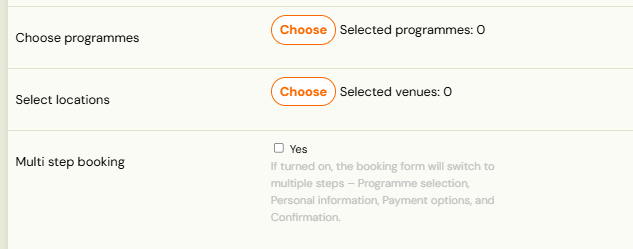
Here, you can choose which classes from your list should appear in the menu on your website as available for online registration. This is especially useful when launching a new set of classes and you want to open online registration for multiple classes at once.

Customizing booking form
If you need different field names for this programme’s booking form, you can set them in the *Customizing the Booking Form *section. This is useful when certain programmes require specific field labels that differ from your standard booking form.
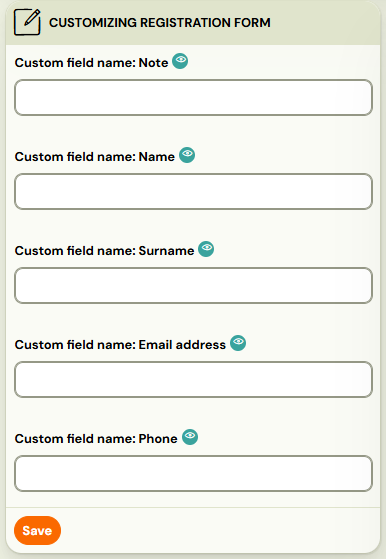
Communication
Communication plays an important role throughout the programme. Each booking type has its own specific communication settings, in addition to a standard set of email templates you can use.
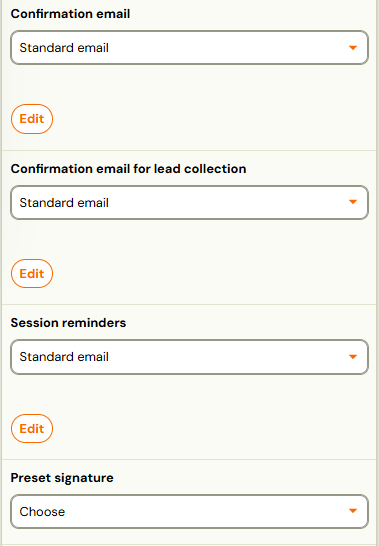
Email templates and signature
Select which templates to use for:
- Confirmation email
- Lead collection confirmation
- Session reminders
- Preset signature
Info: Information about how to work with email templates is available in this manual.
Automatic email reminders
Choose whether the system should send a reminder to participants the day before each session.
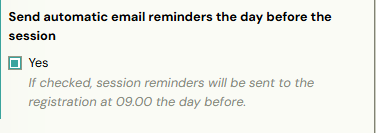

Note: The exact time the reminder email is sent can be configured in the message template * Automatic session reminder*.
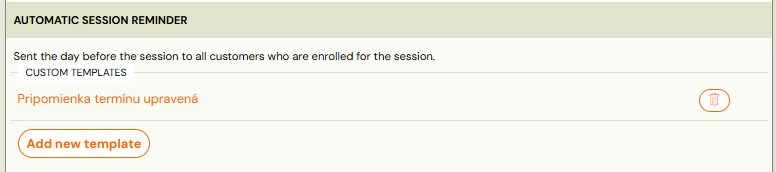
Notification about upcoming sessions
For Pay-as-you-go programmes only, Zooza provides an additional email notification for upcoming sessions with available slots possible for booking.
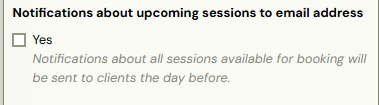
Note: This template is to be found in Message templates as* Upcoming Session Notification *template.

Notification to waiting lists about available slot
If your *one-session programme *is full and you allow clients to join a waiting list, you can set up an automatic notification to inform them when a spot becomes available due to a cancellation.
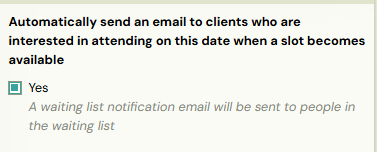
Note: This template is available in message templates as *Automatic waiting list notification.
