Client import
When you are a new client, or if you need to move existing clients from one Zooza account to another, the Client Import feature can save you time.

Important: Before starting the import, make sure the required programmes and classes are already created in Zooza. Clients can only be imported into existing classes.
Data preparation
- Download the spreadsheet provided in this article.
- Fill in all required fields as shown below
| Column name | Value | Note | Required |
|---|---|---|---|
| Full name | James Smith | For programmes where the attendee is different from the client (e.g., a child), enter the attendee’s name here. | Y |
| First name | John | First name of client | Y |
| Last name | Smith | Last name of client | Y |
| Phone | 00421377 | Use the format starting with 00 instead of + (e.g., 00421...). | Y |
| jane.doe@example.com | Y | ||
| Date of Birth | YYYY-MM-DD | Use this date format exactly. | N |
| Class | name of required class | Must match the class name exactly as it appears in Zooza. | N |
The table in Excel will look like this:


Important! To successfully import your data, save the spreadsheet in .csv format. Other Excel formats will not work.
Import to Zooza
- In Zooza, go to the Clients tab in the menu and click Import.
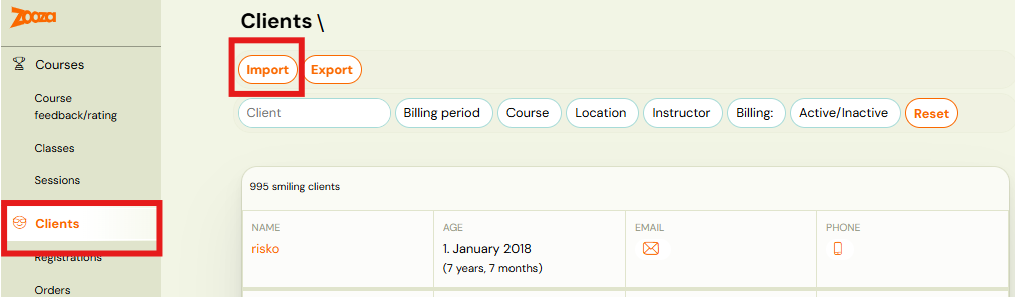
- Create a new import by clicking the Import button.

- Upload the .csv file you prepared.

- Map the spreadsheet headers to the corresponding Zooza fields (as shown in the example image) and click Continue.
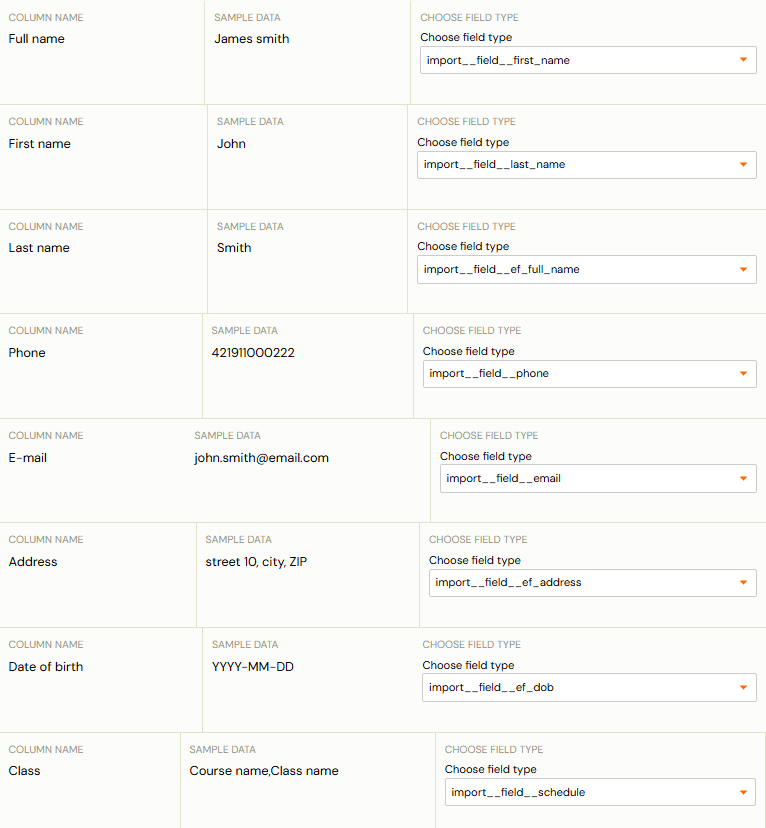
- If the classes already exist in Zooza, assign clients to the appropriate classes and click Continue.
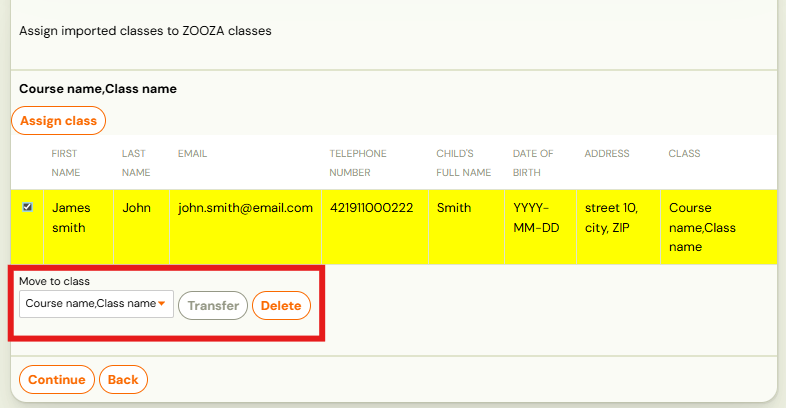
- Zooza will validate each row of your spreadsheet and notify you if any data is incorrectly formatted. You can then adjust your spreadsheet and re-import the file.

Notes:
- If you do not assign a class, the client will be created in Zooza but no booking will be created.
- You can perform a partial import from your spreadsheet to verify that you are importing the correct clients into the right classes.
- Processing starts immediately after upload — there is no waiting period. You can track the real-time progress in the List of Imports.
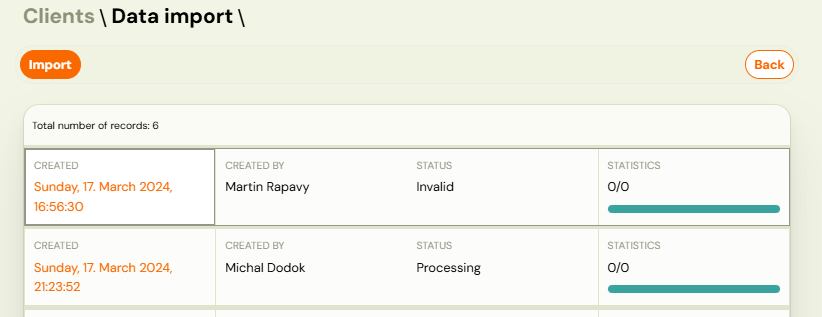
Import statuses
| Status | Meaning |
|---|---|
| Processing | Import is running. A progress bar shows how many rows have been processed. |
| Done | All rows were imported successfully. |
| Partial | Some rows had validation errors and were skipped. Valid rows were imported. Click Process to retry the skipped rows after fixing the source data. |
| Failed | The import worker encountered an error. Click Retry to re-dispatch the import. |
If an import is stuck in Processing for more than a few minutes, use Retry to restart it.