Client Management FAQ
How do I create a new client manually (not through booking)?
Zooza does not have a standalone "Add client" button. A client record is created when a booking is made. You have three options:
Option 1 — From within a class (class)
Open the class, go to the bookings/registrations tab, and use the manual booking option there. This creates both the client record and the booking in one step.
Option 2 — From the Bookings list
Go to Bookings → Create booking. At the "Choose the client" step, select New client, enter name, surname, and email, then complete the booking. If you only need the client profile without an active booking, delete the booking afterwards — the client profile remains in the system.
Option 3 — Client import
Use Clients → Clients → Import to bulk-import client records from a CSV file. This creates client profiles (and optionally bookings) without going through the booking form one by one.
How do I change the client (parent) on an existing booking?
Changing the client on a booking reassigns that single booking to a different parent. It does not change the client's personal data across all their bookings.
- Open the booking detail.
- Click Change Client.
- In the
Clientfield, enter the email or name of the new client and click Search. - Select the correct client from the results and confirm.
The new client must already exist in the system (they must have at least one booking of any status). Communication history tied to the booking is preserved because it is linked to the booking number, not the email address.
See also: Data Correction or Change Client.
A client has duplicate accounts -- how do I merge them?
Duplicates occur when a parent registers with two different email addresses, or when an admin creates a second record by mistake.
- Go to Clients and open one of the duplicate client profiles.
- Navigate to Family & Connections and click Manage.
- Select the duplicate profiles you want to merge.
- Click Merge profiles.
Merging combines the booking history and family connections from both profiles into one. You cannot undo a merge, so verify the records carefully before proceeding.
How do I change a client's email address?
You cannot edit a client's email address directly. Email changes go through a formal request process:
- Go to Clients and open the client's profile.
- Click Data correction.
- Click New Request and fill in the new email address in the
New data entryfield. - Click Submit.
The Zooza team reviews and processes the request, usually within 1 business days. You receive a notification email when the request is approved or rejected.
Common rejection reason: The name embedded in the new email address does not match the parent's name on record. For example, if the client's name is "Jana Nováková" but the requested email contains a different name, the request will be declined. Double-check that the new email belongs to the same person before submitting.
Second rejection reason — the address is somebody's login. A client's email is their Zooza account, and the same account can hold bookings at several companies. If the "new" email belongs to a different person — a gift booking where the buyer registered under their own address and now wants it under the recipient's, say — changing the email would hand the recipient every booking and personal record the original person has, at your company and elsewhere. That request is declined for the original person's protection, not yours.
The right move is to change who the booking belongs to, not what the client's email is:
- If the other person is not yet a client of yours, create them — the quickest way is to add any registration for them by hand and delete it again; the client record stays.
- Open the original booking and use Change Client to move it to them.
- Move any payment across with it (see Edit payment on a booking).
If you need to assign a booking to a completely different person (not just fix a typo), use Change Client on the booking instead.
Invoice name: If the client's invoicing name also needs to change (e.g. after a surname change), update it separately in Settings → Billing & Payments — this is a distinct field from the client's login email.
How do I add a child or attendee to an existing registration?
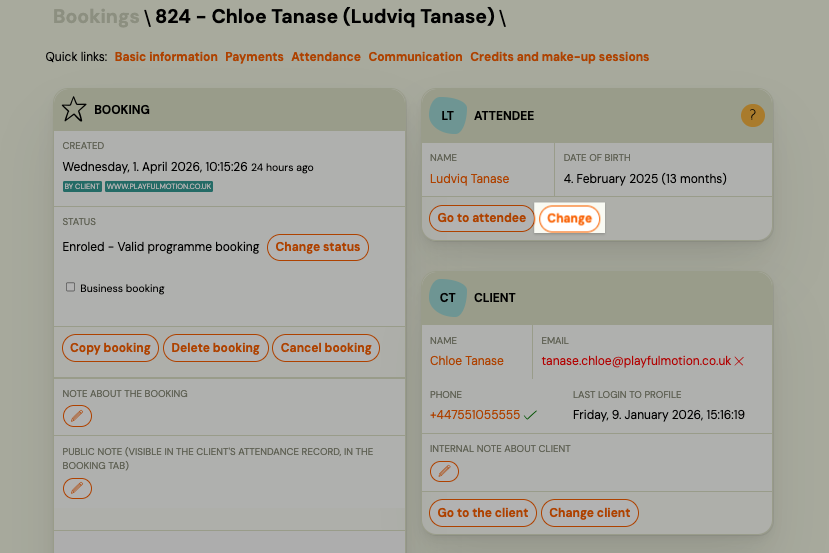
If a parent has already registered and wants to add a new child to their account, you can create the child's profile directly from their existing booking:
- Open the booking detail.
- In the Attendee section, click Add new person (or Create child).
- Enter the child's name, date of birth, and other required details.
- Save.
The new child record is linked to the same parent account. The parent can then use this child profile when making future bookings — they will see all registered children in their Client Profile and can select the correct one during checkout.
Note: Adding a child here creates the attendee profile only. You still need to create a separate booking for the child in whichever class or programme they are joining.
How does Client ID work across franchise accounts?
Each client profile can have a Custom customer ID field, which you set manually in the client detail. This is a free-text identifier you define for your own tracking purposes (e.g. an internal reference number).
When a child transfers between franchise accounts (separate Zooza companies), the child may exist as a different client record in each account. The Client ID does not sync automatically across franchise accounts. Each franchise manages its own client database independently.
How do I add another email address to a client?
On the booking, not on the client. Open the booking and look at the first block, headed Registration — inside it is an expandable Options section, and the extra address goes there.
You can add more than one, separated by commas. In practice these are the second parent, the child themselves once they are old enough to want their own reminders, and sometimes grandparents doing the school run.
Those addresses receive session reminders. They do not receive payment reminders or the rest of the booking-level communication, and the client can add them themselves from their own profile.
Warning: If you collect a secondary email address via an extra field on the booking form (e.g., Additional field 1), that value is not automatically transferred to the system's secondary email field. Extra fields are text-only data collection and are not linked to system notification fields. You must manually copy the email from the extra field into the booking's Additional settings → secondary email field for the second parent to actually receive notifications.
How do I give a divorced parent separate access to the same child?
Zooza supports this through a combination of guest access and additional notification emails:
- Guest access to the booking — In the booking detail settings, use Guest access to the booking to grant a second parent read access via their email address. This lets them view the booking without needing a separate account.
- Additional email for reminders — Add the second parent's email in the Additional email for reminders before sessions field so they receive session notifications independently.
Both parents do not need separate Zooza accounts. The primary client (the parent who created the booking) retains full control, while the second parent gets visibility through guest access and reminder emails.
Does "Guest access to booking" mean the guest receives all booking emails?
No. Guest access to booking (shown as Dodatočný prístup k registrácii in Slovak) gives the guest view-only access to the booking detail — they can see the schedule and booking status, but they do not automatically receive emails.
These are two separate settings with different purposes:
| Setting | What it does |
|---|---|
| Guest access to booking | Lets a second person view the booking in their Zooza profile. No emails sent. |
| Additional email for reminders | Sends session reminder notifications to a second email address. No profile access. |
To give a second parent both access and notifications, you need to configure both settings separately on the booking detail page.
Where can I see which fields are visible to instructors on the attendance screen?
The fields visible to instructors on the attendance screen are determined by the instructor's role and your account settings. By default, instructors see the attendee's name and basic session details.
Whether additional fields like phone number or email are shown depends on the role assigned to the instructor in Settings > Team > Access. The standard instructor role has limited visibility and does not show client contact details on the attendance screen. If you need instructors to see phone numbers or other client data, check the permissions for their assigned role.
Go to Settings > Team to review which roles have access to client contact information.
Where do I set or change a child's date of birth on a booking?
This depends on whether the attendee (participant) is a different person from the buyer (the person who registered and pays):
Attendee is different from the buyer (e.g. child booked by a parent)
The attendee's date of birth can be edited directly:
- Open the booking detail or the attendee's record in the Clients list.
- In the Attendee card, click the name or the edit icon.
- Update the Date of birth field and save.
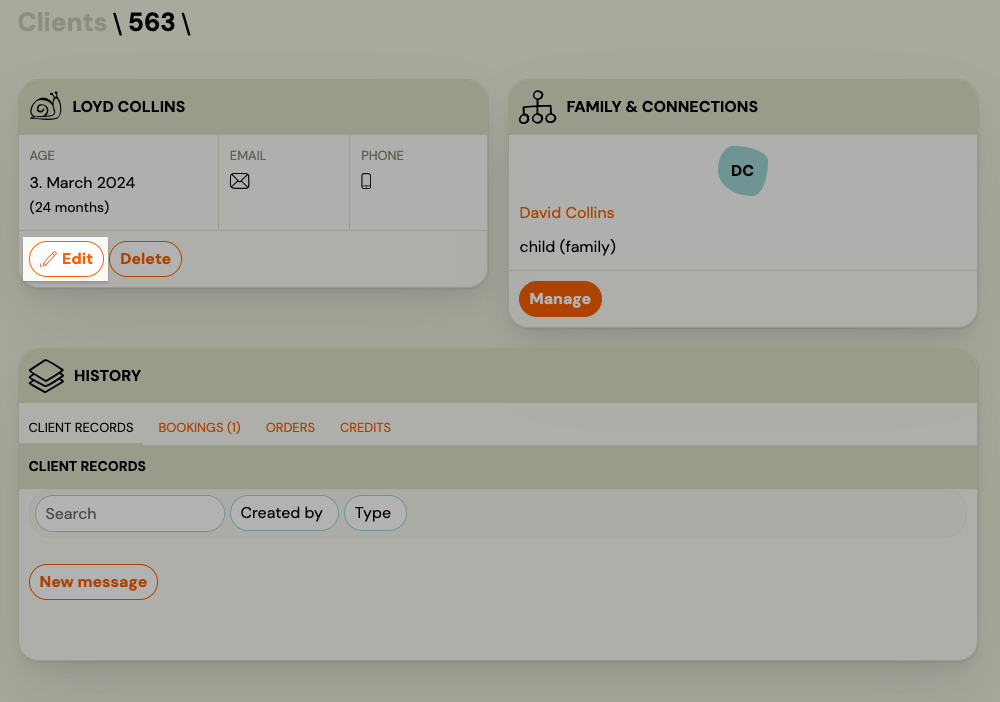
Note: This changes the date of birth across all bookings for that attendee — the attendee record is shared.
Attendee is the same person as the buyer (adult who registered themselves)
If the buyer filled in their own date of birth at booking, that value cannot be edited in the admin app. The client can update it themselves the next time they register, or by contacting Zooza support.
Changes to the buyer's core data (email, name) go through the formal Data correction request flow — see Data correction or change client data.
Participant or client — what is the difference, and can I turn one into the other?
Zooza holds one object, a person. A person who has an identity — an email they can log in with — is a client. A person without one is a participant (attendee): the child in the class, or an adult somebody else registered.
The practical consequences:
- A client's email is unique, enforced at database level, so the same address cannot belong to two clients. That is why duplicate clients are rare.
- Participants have no such rule — two participants may carry the same email, or none, which is how the same child ends up in the system twice.
- You can turn a participant into a client. Since 27 September 2026 there is a dedicated action for it — the teenager turning 18 and taking over their own booking is exactly the case it was built for. It gives them their own login and moves the client role across the bookings you pick. Only the account owner can do it. See Make an attendee a client. (Before that date the only route was to create a booking by hand with their email and move the existing booking over with Change client. You no longer need that workaround.)
- Two participants that are the same child can be merged by you, from their relationships on the client record. If that does not work, ask support — but doing it in the app is better, because the change then propagates everywhere.
How do I move a child (or client) to a different class or class?
In Zooza, clients and their children are linked to bookings, not to classes directly. To move a child to a different class, you transfer the booking — not the client record.
Important: You cannot move a client or child from the Clients page. The action is performed on the booking itself, found under Clients → Bookings.
- Go to Clients → Bookings and open the booking you want to move.
- Click Transfer (in the Class card).
- Select the target class and confirm.
The child (attendee) and their booking move to the new class. Their client profile stays the same.
See Transfer and copy bookings for a step-by-step walkthrough.
How do I delete or remove a client?
Zooza does not have a standalone "Delete client" button on the Clients page. What most users mean when they want to "delete a client" is one of these booking-level actions:
| What you want to do | Action on the booking |
|---|---|
| Client registered by mistake or was a test entry | Set booking status to Deleted |
| Client is leaving or cancelling their enrolment | Set booking status to Cancelled |
| Client is taking a temporary break | Pause the payment plan (do not delete) |
Navigation: Go to Clients → Bookings → open the booking → change the status in the booking detail.
Setting a booking to Deleted is typically used in the early phase (test registrations, duplicates, or bookings created by mistake). The client record itself remains in the system — it is not removed.
If you need to delete a client record entirely, contact Zooza support.
See Common booking scenarios for details on each status.
The delete failed and I am the account owner
Check whether that email is also an instructor on your account. A person who holds both roles cannot be removed from the client list — the account exists for the instructor side, and they show up among clients only because registrations are attached to them.
They are not counted as a client for billing purposes. If the entry is only cluttering your list (for example a test registration you made under your own email while setting the system up), delete the bookings instead — the row disappears from the useful views and the instructor account stays intact.
An admin created a booking and it linked the wrong family together
This happens when a booking is created from a client profile while logged in as that client, rather than from the admin app.
Zooza reads a booking made inside someone's profile as "this person is booking for someone connected to them", and creates a family relationship accordingly. That relationship is attached to the user account, not to your company — so it follows the person into every other Zooza account they belong to. Colleagues at a different branch will see a child listed under a parent who has nothing to do with them.
Always create bookings from the admin app (Bookings → Create booking), or make sure you are not logged into a client profile when you do it.
To repair one that already happened: open the client, go to Family & Connections, and remove the incorrect relationship. Deleting the booking does not remove the relationship — the link survives the booking that created it, which is why this tends to be noticed long after the fact.
Can I customise which panels appear on the client detail?
No. The client detail screen has a fixed layout — there is no way to hide panels you do not use, reorder them, or choose which fields appear. What you see is what everyone in your account sees.
This is worth knowing because the Bookings list is customisable, and the two get confused. On the bookings list you can add and remove tiles from the cards. The client detail has no equivalent.
If a specific panel is in your way, tell support which one and why — that is the kind of feedback that shapes the screen, and there is no workaround to offer in the meantime.
Why can't I find "move" or "delete" actions on the Clients page?
The Clients page (and the individual client profile) shows contact and personal information only. It does not contain actions for moving, cancelling, or deleting enrolments.
All enrolment-level actions — transferring to another class, cancelling, deleting, pausing — are performed on the booking, not on the client record.
To manage enrolments, go to Clients → Bookings (the Bookings list), find the booking, and open it. All available actions appear there.
How do I give a student or second parent access to a registration?
By default, access to a registration (client profile) is tied to the email address used during registration. To give a different person (e.g., a student logging in themselves, or a second parent) access to the same registration:
- Open the registration detail.
- In the Registration section, click Options.
- Add the email address that should have access.
- Save.
The person at that email address can now log in via the passwordless login on your booking site and see the registration, payments, and attendance linked to it.
What does "active client" mean in Zooza?
A client is active if they have at least one booking in Enrolled, Trial not started, Trial started, or Trial finished status in a class that has not ended yet. A client is also active if they have a scheduled make-up session or unused credit. Active status is determined automatically — you cannot set it manually. For the full technical definition, see Active and inactive clients.
How do I turn off an alert showing on a client?
Open the client's detail, go to Notes and preferences, and switch the alert off there.
This is also where the promotional-email preference lives, so it is worth knowing as the general place for per-client switches rather than only for this one.
How do I find how many active clients I have?
Go to Clients and use the Active/Inactive filter, set to Active clients. The count is shown above the list.
That is the number your subscription is measured against, so it is the one to check before a billing question — not a count of registrations, which is a different thing entirely. One client with three bookings is one active client.
Why is a client still showing as active after I cancelled their booking?
Client deactivation runs once a day at midnight. If you cancel or delete a booking during the day, the client remains active until the next midnight run. Also check that the client does not have other active bookings, unused credits, or scheduled make-up sessions — any of these keeps the client active.
How does the active client count affect my Zooza subscription?
Your Zooza service package is based on the peak number of active clients within the month — not the count at month-end. If you exceed your current package limit at any point during the month, you are automatically upgraded. To downgrade, you must request it in writing by the end of the month. For details, see Active and inactive clients.
Can I attach a certificate or document to all registrations in a class at once?
Zooza does not support bulk-attaching a personalised document to individual registrations. However, you can add a general document (PDF, certificate, any file format) at the programme or class level — this makes it visible to all clients in that programme or class through their Client Profile.
To add a document at the programme or class level:
- Go to Documents in the left menu.
- Click Add New and upload the file (PDF, image, etc.).
- Assign the document to the programme or class in the document settings.
- All clients enrolled in that programme or class will see it in their profile.
For personalised certificates that contain client-specific data (name, date, etc.), use Dynamic Documents — these are template-based documents that auto-fill client data. Dynamic documents are also assigned at programme or class level, not per individual registration.
Note: Attaching a document directly to a single booking (at the booking level) must be done one at a time. There is no bulk action for booking-level document attachment.
See Documents for the full setup guide.
Someone enquired through my website -- where is it, and how do I make them a client?
Enquiries from the Zooza contact form are not clients. They are contacts, under Clients → Contacts, with the page and campaign they came from, an owner, a status and a timeline. When the person is ready to join, open the contact and click Convert to client. Zooza creates the client from the contact's details and you book them as usual. If the enquiry came from someone who is already your client, the contact is linked to them automatically. See Work with contacts and enquiries.
Related
- Work with contacts and enquiries — enquiries from the contact form, and converting them into clients
- Remove a client or user — steps to deactivate or delete a client record
- Client profile 101 — reading and using the client profile
- Client profile dashboard — overview of the client-facing profile
- Documents — attach documents to client records
- Subscription FAQ — how active client counts affect your plan