Custom make-up session
Standard make-up sessions work by filling a vacant slot in another class — the client picks from whatever sessions have capacity. This works well for group classes, but not for individual or specialist sessions such as piano sessions, personal training, or counselling.
For those cases, custom make-up session let the client propose a specific date and time to their instructor, who then approves or declines the request. If approved, the make-up session is created automatically and the client is enrolled.
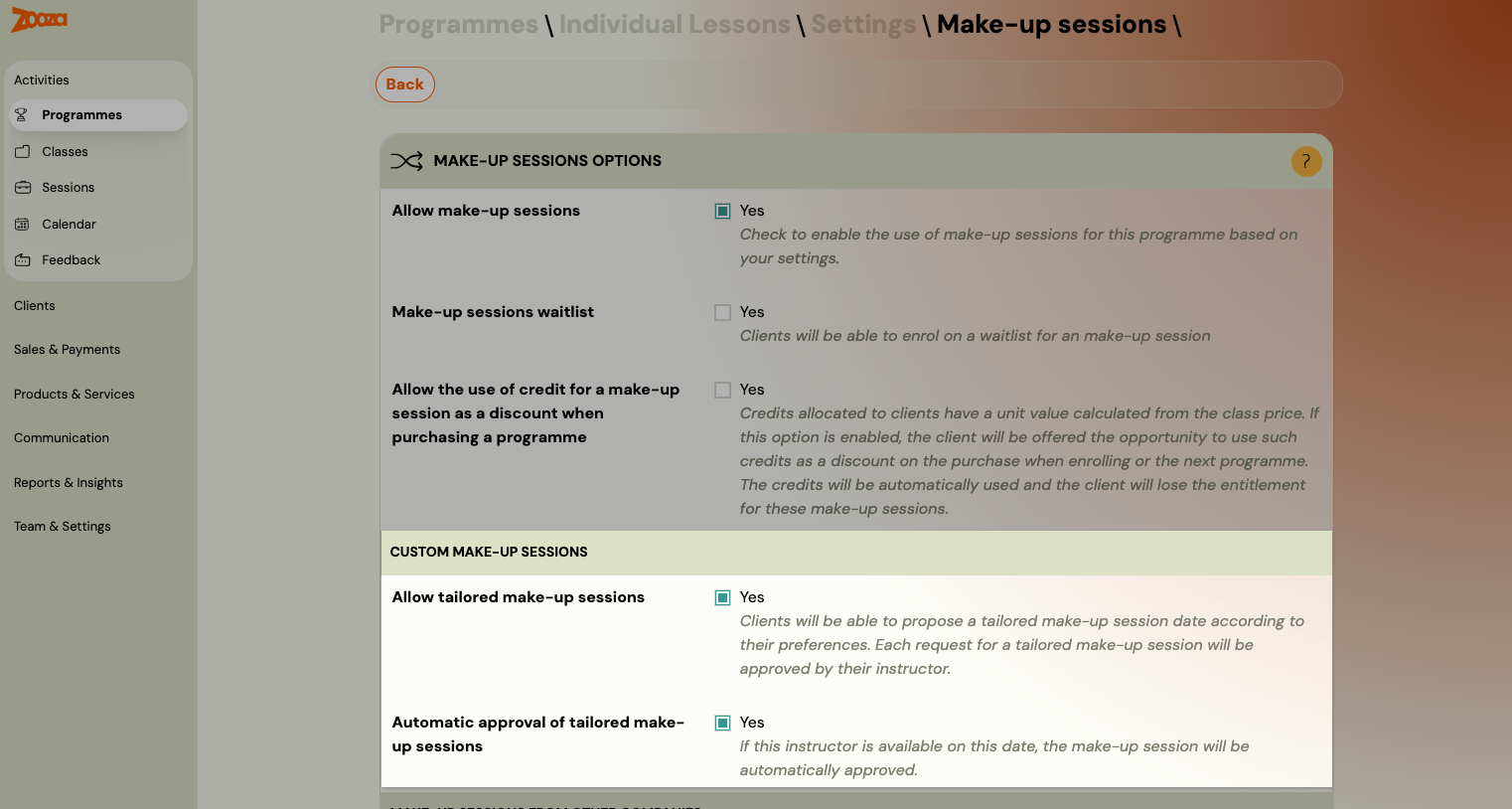
Enable custom make-up session
Custom make-up session are configured at the programme level.
- Go to the programme and open the Make-up session tile.
- Click Edit.
- First enable make-up session in general (the top checkbox).
- Then enable the following options under Custom Replacement Sessions:
| Setting | Description |
|---|---|
| Allow custom make-up session | Enables the feature. Clients can submit a request for a specific date and time. |
| Automatic approval of custom make-up session | If enabled, requests are approved automatically without instructor action. Use this only if you trust clients to self-schedule without conflicts. If disabled, the instructor must manually approve each request. |
Restrict standard make-ups (optional)
By default, standard make-up sessions (based on vacant seats) remain available alongside custom requests. If you want clients to use only custom requests — for example, to ensure the replacement always happens with their own instructor — disable standard make-ups by adjusting the credit properties on the programme.
Client view
When a client cancels a session, the standard make-up session list appears (if any sessions have available slots). Below that list, the custom replacement request section is shown.
The widget fetches the instructor's available slots for the next 14 days and displays them as a list of dates. Each date shows the number of available times. The client expands a date and picks one of the displayed time slots — for example "09:00 – 10:00".
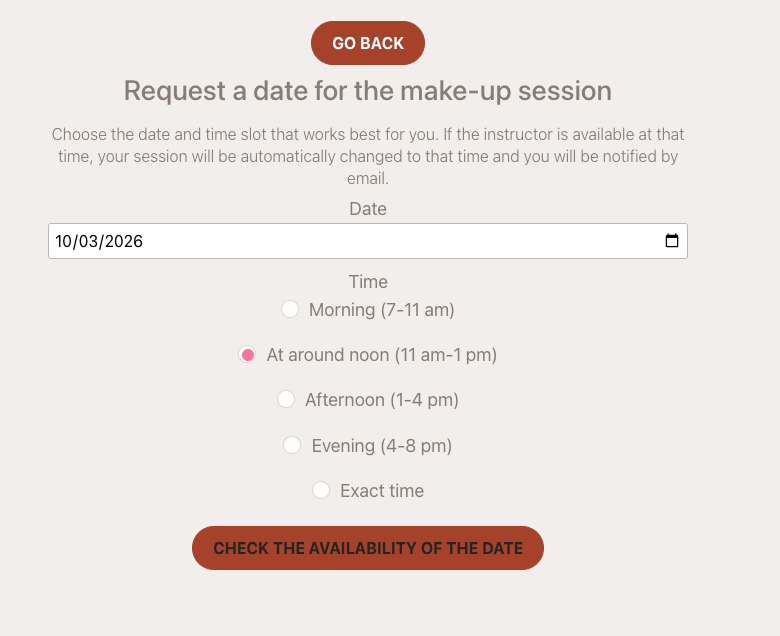
Once a slot is selected, a note field and a Submit button appear. The client can add an optional note to the instructor before sending.
There is no manual date/time entry and no separate "check availability" step — only slots that are genuinely free are shown.
No available slots
If the instructor has no free slots in the next 14 days, the widget shows a message and offers a simplified free-text form. The client can enter a preferred date and note — this creates a standard request that the instructor handles manually.
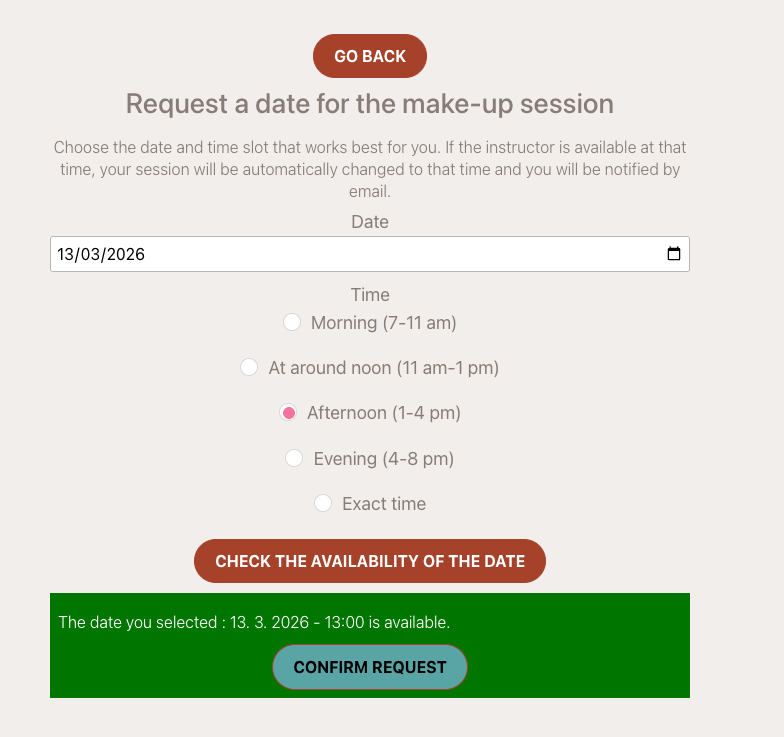
After submitting, the attendance record shows the request status. The client can cancel the request at any point before the instructor confirms it. Once the instructor confirms, the client receives an email notification with the outcome.
Instructor view
When a client submits a request, the instructor receives an email notification.
In the attendance view (from the booking detail or calendar), the request appears alongside the regular attendance. The instructor can still choose a standard make-up session for the client, but is expected to respond to the custom request.
When handling the request, the instructor sees:
- A summary of the class's schedule.
- Their own calendar for the relevant time period — the hatched area shows the client's preferred time window, the green area shows when the real session takes place.
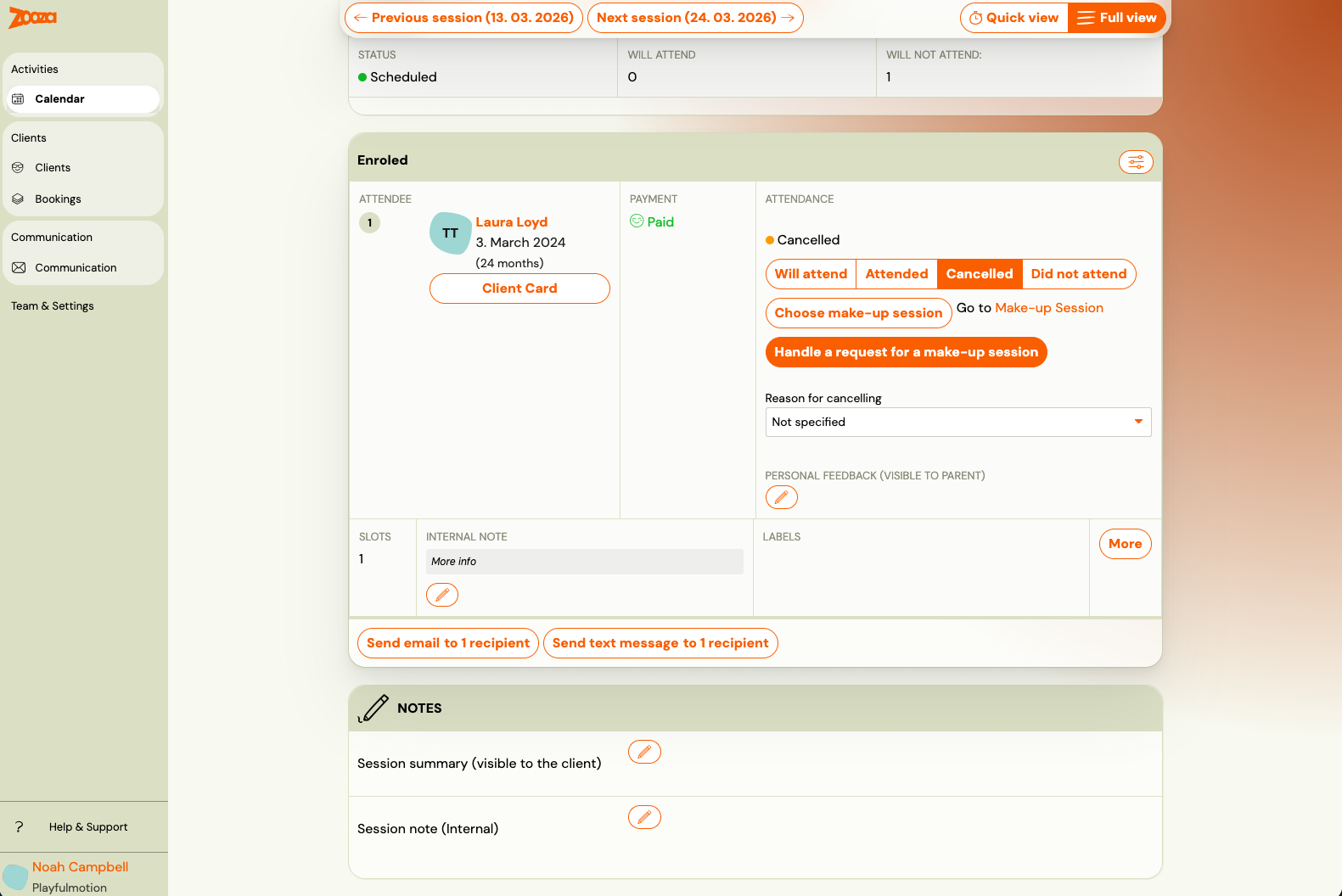
The instructor can adjust the proposed date and time before confirming.
Approve
If approved, the make-up session is created automatically within the client's class and the client is logged in. The new session is highlighted in the class schedule.
Decline
If declined, the instructor must provide a reason. The reason is sent to the client as an email notification. The client can then submit a new request with a different time.
Related
- Make-up session — complete guide — standard make-up session setup and workflow.
- MATKO — Diagnose why a make-up session is not showing — run a precise diagnostic when a session is not visible
- Make-up sessions FAQ
- Instructor attendance management
- King of a class