King of a class
King of a class is a feature that lets one client manage make-up session attendance on behalf of all registrations in a class. Instead of each participant booking or cancelling their own make-up sessions individually, the designated king handles it for the entire class.
The case it was built for is a corporate booking: a company buys a group course, and the assistant there is made king. When two of five colleagues say they cannot come, she logs into her own profile, cancels the session and schedules a new one on the group's behalf — without anybody calling you.
Prerequisite: This feature is only available in classes where custom make-up sessions (self-replacement) are enabled. If make-up sessions are not enabled on the class, the King of a class option will not appear.
How it works
- The king is assigned to a booking (registration), not to a person. If a client has multiple bookings in different classes and is set as king on only one of them, they can only manage attendance for that one class.
- A class can have more than one king at a time. Each king manages make-up session for the whole class simultaneously.
- Once a king is set, all other participants in the class lose the ability to book or cancel make-up sessions individually. The king takes over this responsibility for everyone.
- Individual participants can still opt out on their own — they are not forced to follow the king's decisions.
What it is not: a way to let someone watch attendance
The king acts on the group — and in doing so takes the ability to book and cancel make-ups away from everybody else in the class. It is not a read-only role, and it is the wrong tool if what you need is an observer.
The usual request is a corporate client's HR contact who wants to see attendance across several of that company's groups, without attending anything themselves. For that, give them additional access to the bookings instead: every booking they have access to then appears in their own profile, attendance included, and nothing changes for the participants.
Check the numbers before you go down that route. Additional access is granted per booking, so it suits a handful of people and becomes unmanageable across hundreds. If a company has that many participants, talk to us about it rather than clicking through them.
Set a king
- Open the booking you want to designate as king.
- Go to the Attendance tab.
- Click Set as King of the class.
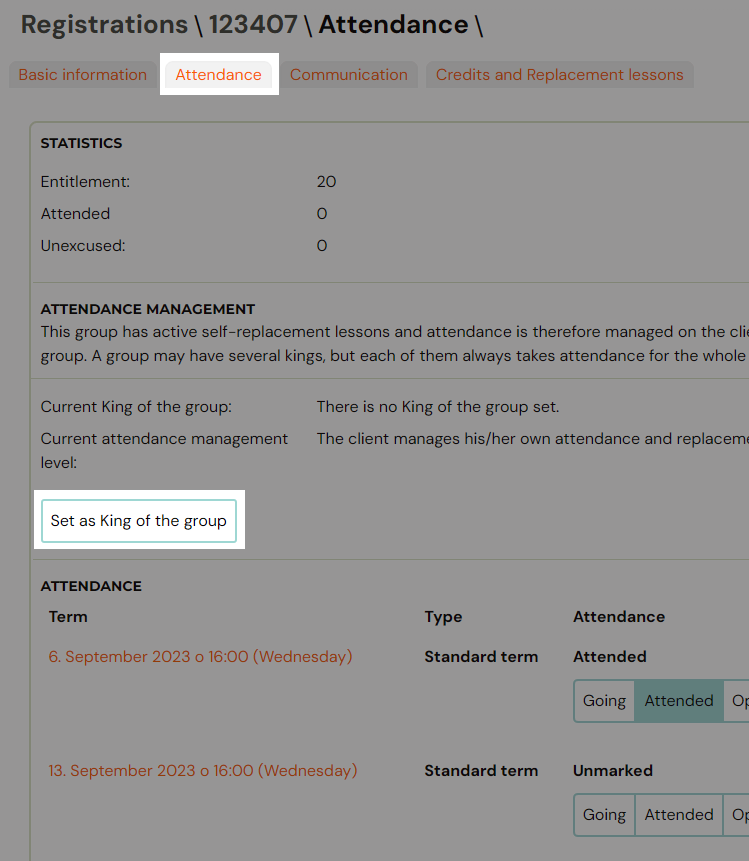
Once a king is set, any other booking in the same class will show who the current king is in the Attendance Management section.
Remove a king
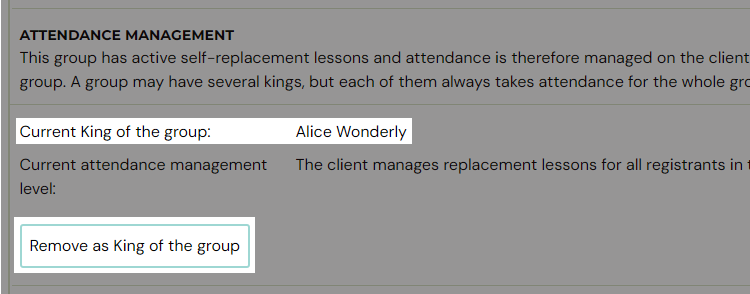
On the king's booking, go to the Attendance tab and click Remove as King of the class. This returns attendance management back to individual participants.
Related
- Make-up session — complete guide — full guide on how make-up sessions work.
- Make-up sessions FAQ
- Instructor attendance management