Make-up Sessions FAQ
How do make-up sessions work?
When a child misses a session and the absence is properly recorded, the system generates a make-up credit on the booking. The parent can then use this credit to book a make-up session in another compatible class (same programme, matching age range) through their Client Profile.
Make-up sessions must be enabled per programme. Go to Programmes → select the programme → Settings → Make-up sessions to configure them.
A client wants an extra session, not a make-up — what do I use?
Make-up credits replace a session the client already paid for and missed. If they simply want to attend more than their booking covers, that is an additional session — which you can charge for, unlike a make-up.
Worth switching on if parents ask to come more often: a paid extra session sells a seat you already have, without them committing to a second enrolment for the same child, and without spending a free credit.
What attendance state triggers a make-up credit?
Only the "Cancelled" attendance state generates a make-up credit. If a child is marked as "Did not attend" (no-show), no make-up credit is created. This is by design — the system distinguishes between a planned absence (cancel in advance) and an unexcused no-show.
If a make-up credit was not generated after a missed session, check whether the attendance state is "Did not attend" instead of "Cancelled". An admin can correct the state in the session's attendance view.
The reverse also happens, and it is the more common surprise. A parent cancels in time, the credit is created, the parent gets the confirmation email — and then the instructor, filling in the register, switches that record from Cancelled to Did not attend because the child was not there. That change deletes the credit. The parent later clicks "choose a session" in their email and sees nothing to book. The registration's activity log shows the change and who made it.
Two ways to stop it:
- Tell instructors: a session already marked Cancelled is a planned absence, not a no-show — leave it.
- Or take the choice away from them. Settings → General → Access → Attendance management settings for instructors has a Limited mode in which instructors only get attended / did not attend on the register — a client's own, in-time cancellation is not theirs to overwrite. Full mode lets them set any state, including Cancelled, and choose make-up sessions for clients.
If the credit is already gone, set the record back to Cancelled; a fresh credit is created (see the "deadline-expired credit" workaround further down for the same trick used deliberately).
How does the "extra capacity for make-up sessions" setting work?
Extra capacity is invisible to the booking form — a client enrolling normally can never take an extra seat. Make-up bookings can. Trials may or may not, depending on the programme's trial setting. See Capacity vs extra capacity.
There are two levels for this setting:
-
Global setting — Go to Settings → Make-up sessions. The
Extra capacity for replacement hoursvalue (e.g. 1) applies to every class across all programmes. This means each class allows that many additional spots beyond its normal capacity for make-up bookings. -
Per-class setting — On the class detail page, the make-up sessions tile shows a per-class extra capacity value. You can choose whether this value replaces the global setting or adds to it.
If the per-class value is 0 and set to "add to global", the global setting applies unchanged. To remove extra capacity from a specific class, set the per-class value to 0 and choose "replace global setting".
Can I stop parents choosing their own make-up session?
Yes. Go to Programmes → the programme → Settings → Make-up sessions, and in Make-up sessions settings switch on Make-up sessions are assigned by an administrator.
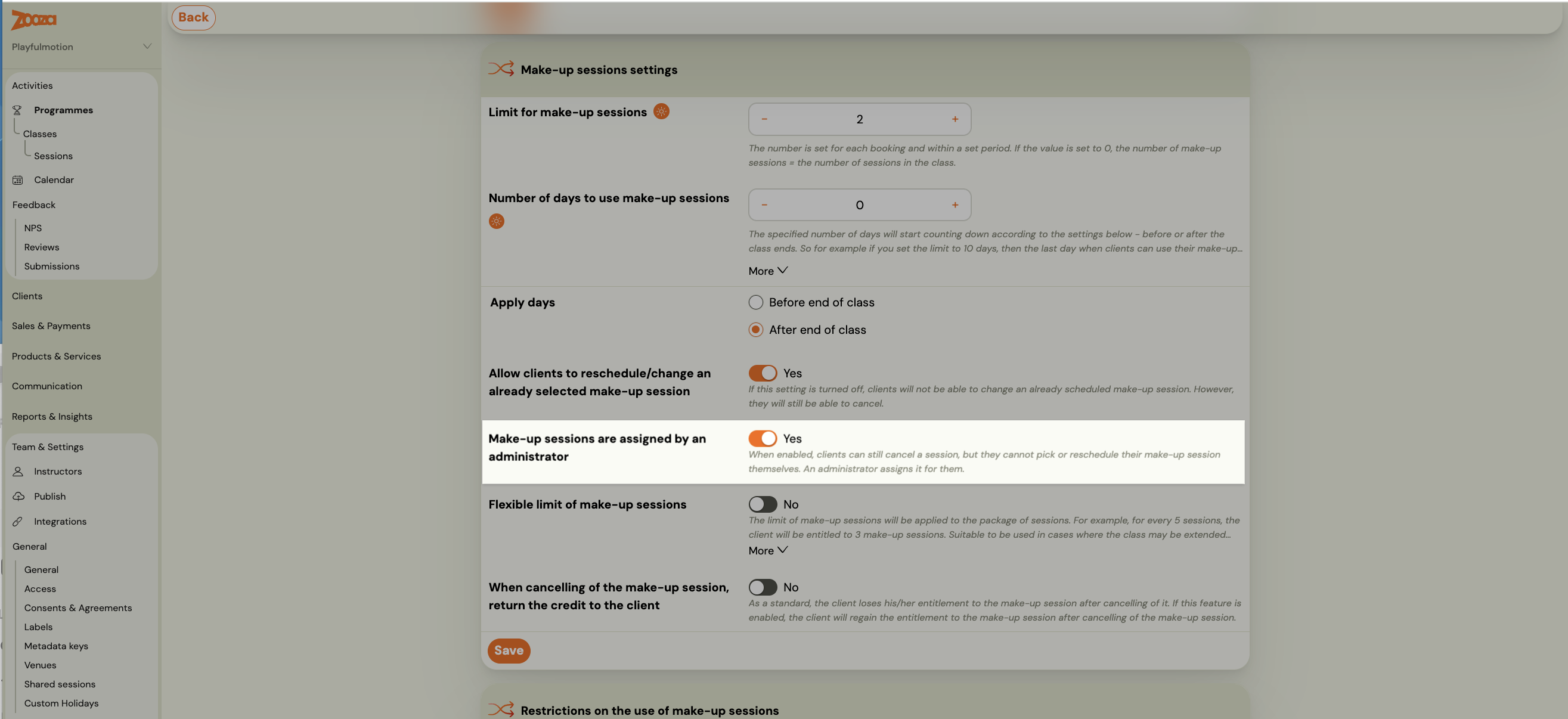
It splits the flow: clients can still cancel a session, but they cannot pick or reschedule their make-up themselves.
Switch it on when capacity, grouping or level means a child cannot simply drop into any session — the usual case for graded or streamed classes, where a parent picking the wrong group creates work rather than saving it.
With the setting off (the default, and how make-ups have always worked) a parent cancels and picks their own replacement date.
With it on:
- The parent cancels the session as usual.
- They are asked for a Requested timing — As soon as possible, No preference, or Specific request with a note. Answering is required, so their intent is not lost.
- The self-service picker disappears. They cannot choose or move a replacement date.
- You see their requested timing on the cancelled session in the attendance view, next to the cancellation reason, and assign the make-up from there.
The requested timing is in the cancellation email too, since 1 September 2026 — the new-cancellation notification that reaches you and the instructor carries it as its own row, so you can read the parent's intent without opening the app. As soon as possible and No preference arrive as labels; a Specific request arrives as the parent wrote it. Cancellations that carry no preference — a course without the toggle, or a cancellation that earned no credit — show no row at all.
Do not confuse it with the switch just above it. Allow clients to reschedule/change an already selected make-up session only controls whether a client may move a make-up they already have — with it off they still choose the first one. The administrator-assigned switch takes the choosing away entirely.
Cancelling a replacement that has already been assigned is unchanged — that still follows your other make-up settings.
Everyone gets a confirmation email when a replacement is assigned, whether you assigned it or the parent picked it themselves. Families are told which session they are in rather than having to check.
What is the 4-day rule for make-up session availability?
Classes that have not yet started do not appear as make-up options. The system only makes a class available for make-up bookings 4 days before the class's start date. This prevents make-up students from occupying capacity that should be reserved for full-paying bookings.
If you create a one-off class specifically for make-up sessions, set the class start date close to the session date. Otherwise the session will not appear as a make-up option.
How do cross-company (franchise) make-up bookings work?
Franchise networks can allow make-up bookings across branches operated by different legal entities. When enabled, a parent sees available sessions from all linked branches in their make-up options.
Setting up cross-company replacements has three steps:
- Link the companies — go to Settings → Make-up session → Cooperate with a company, enter the other branch's email, and send an invitation. The other branch must approve.
- Enable on the programme — open the programme → Make-up session → Edit → check Allow make-up session from other companies.
- Configure restrictions — set the conditions under which clients from other branches can book at your sessions.
Cross-company make-up bookings follow the same rules as regular make-up bookings (capacity, 4-day rule, programme match). The restriction settings control incoming replacements — they define when clients from another branch can use sessions at your company.
For the full setup walkthrough, admin views, and reporting, see the Cross-company replacements section in the Make-up Sessions guide.
Can I mark attendance for a client attending a make-up from another company?
Limited. When a client from another company attends a make-up session at your location, the make-up session belongs to their home company's record. This means:
- You can see the client in the attendance list for that session.
- You cannot permanently change the attendance status (present/absent) in a way that persists — because the make-up session record is owned by the other company's account.
- Any attendance you mark may revert or may not appear correctly in your own reporting.
What to do in practice:
- For your own reporting, note the attendance manually (e.g. in a session note or internal comment).
- The client's home-company admin can see and confirm the attendance from their side.
- If this is a recurring issue (e.g. franchise network with regular cross-company make-ups), contact Zooza support to discuss whether cross-company attendance reporting can be aligned for your network.
SK: Náhradky klientov z inej spoločnosti patria pod účet tej inej spoločnosti. Nemôžeš ich preto v svojej adminstrácii trvalo označiť — dochádzka zostáva pod pôvodnou firmou. Pre vlastné záznamy si príchod poznač manuálne (poznámka na termíne alebo interný komentár).
My course says 60 days but clients can still use credits from an older term
The general make-up settings override what you set on the course. That is the whole answer, and it catches people out because the course setting is the one they were looking at.
If the general settings allow a regular make-up to become a transferred make-up once a course ends, then a set number of credits carries into the next billing period — and once carried, they run on their own number of days, not the course's. So a course set to 60 days can still be handing out credits from a term two periods back.
Check Settings → Other → Make-up sessions first, not the course, whenever the expiry behaviour does not match what you configured.
There are exactly two places, and they do different jobs:
| Where | What it sets |
|---|---|
| Settings → Other → Make-up sessions | The standard validity in days, for the whole account |
| Programme → Make-up sessions | Whether credits can still be used after the class ends, and for how many days |
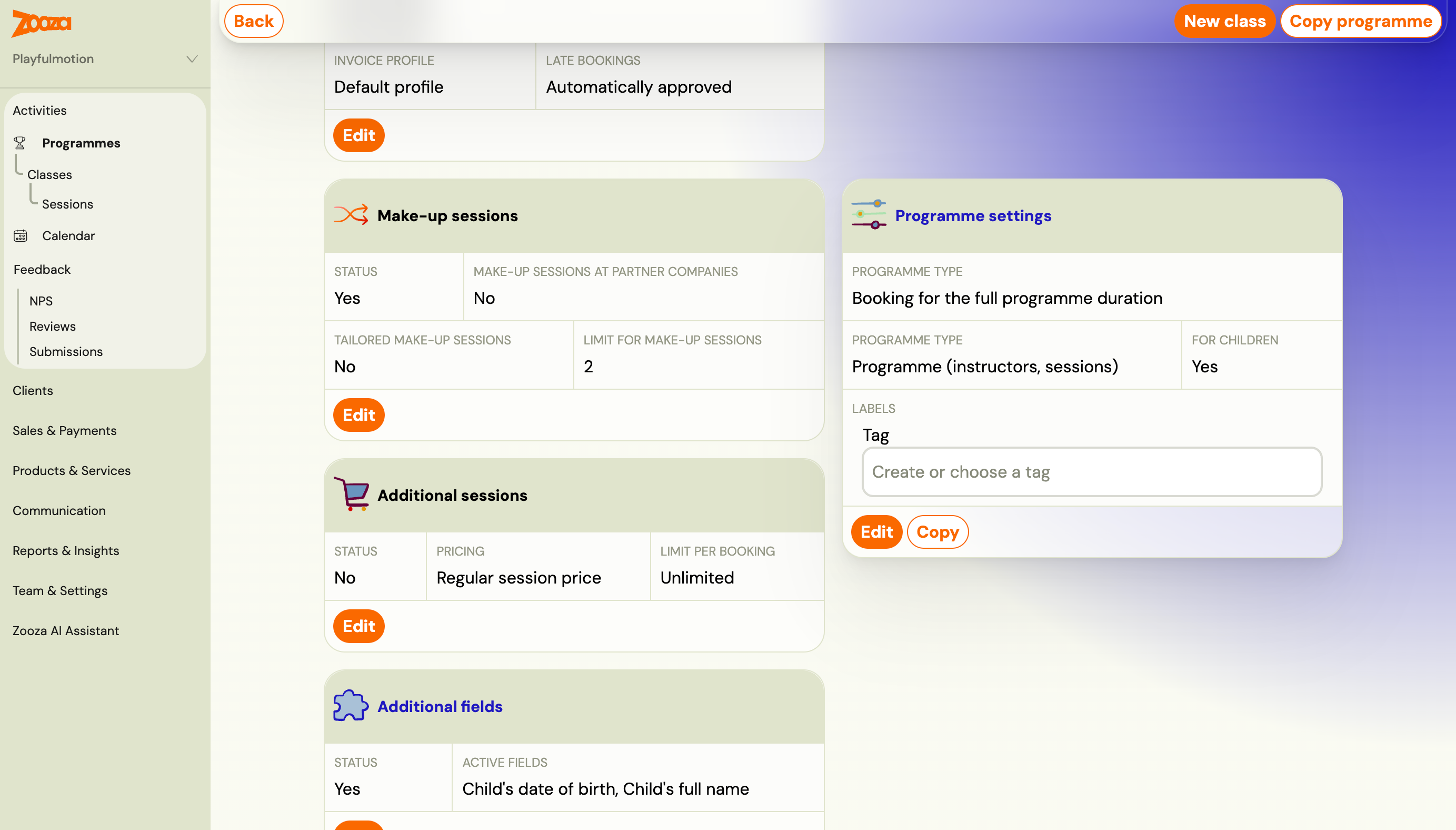
Changing either one only affects credits created from that moment on. Credits a client already holds keep the validity they were given. So tightening the rule today does nothing about the credits that are bothering you — those run to their original date, and if you want them gone you have to expire or delete them on the booking. See How do I delete or expire a make-up credit? below.
Can make-up credits carry over to the next billing period?
Yes. Go to Settings → Make-up sessions → General Settings and choose one of three expiration modes under Make-up sessions behavior:
| Mode | Behavior |
|---|---|
| Set transferred make-up sessions | When the class ends, unused credits up to your set limit are carried over to the next period with a new expiration date. Credits beyond the limit are voided. The transferred credits are created on the day the class ends — while the class is still running, parents do not see them in their profile, even if you have told them the credits will carry over. |
| All make-up sessions expire at the end of the class | All unused credits are voided when the class ends. |
| All make-up sessions expire after the preset number of days | The class end date has no effect — credits expire based only on the number of days set. |
Additional settings (when using transferred make-up sessions):
- Maximum number of transferred make-up sessions between billing periods — how many credits can be carried into the next period. Set to
0to disable the carry-over entirely. - Number of days to use transferred make-up sessions — how long after the class ends the transferred credits remain usable.
- Default expiration of credits (in days) — applies to all make-up credits from the date the credit is created (default: 90 days).
- Additional slots in classes — extra capacity in sessions reserved specifically for make-up bookings (global setting; can be overridden per class).
How do I limit clients to a set number of make-ups per month?
You cannot set it per month — there is no "once a month" option, and this is the answer people are usually looking for when they ask.
What you can set is a ratio: so many make-ups per so many sessions. Go to Programme → Settings → Make-up sessions and set the two fields together:
| Field | Example |
|---|---|
| Allowed make-up sessions | 1 |
| Flexible session limit | 4 |
That reads as one make-up per four sessions. For someone attending weekly it works out at roughly one a month, which is usually what was wanted.
The ratio form is what makes it work across different subscription sizes. A client attending twice a week (roughly 8 sessions a month) and a client attending once a week are covered by the same rule without you configuring each one.
Two things to know before you rely on it:
- Credits still get created for every eligible cancellation. The limit governs how many can be used, not how many appear. A parent who missed five sessions may still see five credits in their profile.
- Admins can override a client's credit limits. If you need to grant an extra make-up for a specific family, you can — it does not require changing the rule for everyone.
Blocking self-service entirely. If you want parents to ask you rather than book make-ups themselves, the practical workaround is to restrict make-ups to a billing period that contains no sessions. Parents then find nothing when they look, and you assign replacements manually. It is a workaround, not a designed feature — a dedicated setting for this was in development as of August 2026, so check the changelog before building a process around it.
Can I reserve a whole session just for make-ups or trials?
No. There is no way to mark a session as available only for replacements or only for trial bookings.
What you can control is capacity: reserve seats using extra capacity so make-ups and trials draw on those rather than on the seats you sell. See Capacity vs extra capacity.
If you create a one-off class specifically to host make-ups, remember the 4-day rule — set its start date close to the session date or it will not appear as an option.
Does "make-up credit validity" mean the client must attend by that date, or just book by that date?
The validity window is the deadline for booking the make-up session — not for attending it.
Example: If the class ends on 27 January and you have a 30-day validity period, the client must book a make-up session by 27 February. The booked session can be scheduled for a later date (e.g. 30 March) — as long as the booking action itself happens within 30 days of the class ending.
The only other timing rule: make-up sessions only appear as bookable options 4 days before the target class's start date. So if the client wants to book a session that starts the following month, it will not appear in their list until 4 days before.
How do I delete or expire a make-up credit?
Go to the booking detail page. Scroll to the Credits section at the bottom. Click Show all credits to see every credit on that booking. Find the make-up credit you want to remove, click the More button next to it, and either:
- Change the expiration date to a past date (to let it expire), or
- Click the Delete button to remove it entirely.
A client says make-up sessions are not showing up. Where do I start?
In almost every case this is a settings issue, not a bug. The fastest way to diagnose a specific case is to use MATKO, the built-in eligibility diagnostic tool.
Use MATKO for a precise diagnosis
Settings → Tools → MATKO runs all 19 eligibility checks at once and tells you exactly which condition is failing — attendance state, capacity, timing, programme scope, or display limit. It is the most reliable first step when a specific session is not visible.
Start from the credit, not from Settings. Open the client's registration, go to the Credits tab, find the credit in question and click Diagnose eligibility. That opens MATKO with the credit already filled in, so the only thing left to choose is the session you want to test — no IDs to copy.
The long way round, if you prefer it or you are starting from a session:
- The Credit ID — found in the client's registration → Credits tab
- The Session ID — found using the session picker on the MATKO page, or in the session URL
Then pick the date the parent is trying to book and MATKO says which of the 19 checks fails. Run it before assuming a bug. It is nearly always a make-up setting, and the diagnostic names which one — that is faster than any checklist, and it is what support will ask you to do anyway.
See MATKO — Diagnose why a make-up session is not showing for the full guide.
If you prefer to work through it manually, the checklist below covers all the same conditions.
Manual checklist
1. Check the attendance state
The absence must be recorded as "Cancelled", not "Did not attend". Only "Cancelled" generates a make-up credit. If the state is wrong, fix it in the session's attendance view and the credit will appear.
2. Check that make-up sessions are enabled on the programme
Go to Programmes → select the programme → Settings → Make-up sessions. If this is off, no options appear for any client in that programme.
3. Understand the display limit
The system shows only the first 100 compatible sessions in the client's make-up list. This is the most common reason a specific session is not visible — it exists and has capacity, but it is not in the displayed set because there are too many options overall.
Fix: Reduce the number of sessions offered as make-up options so the right ones appear. You can do this by:
- Narrowing the make-up session offer in programme settings (limit which classes qualify).
- Setting tighter time restrictions (see setting 5 below).
- Setting extra capacity to 0 on classes that should not appear as make-up options.
4. Check available capacity
Even if extra capacity is set globally, individual classes can override it. Go to the class detail → Make-up sessions tile. Check the per-class extra capacity value and whether it adds to or replaces the global setting.
If both the class is at its normal capacity limit and the extra capacity is 0, no make-up spots are available and the session will not appear.
5. Check the time restriction for regular make-up sessions
Go to Settings → General → Time restriction in hours for offering a regular make-up session. If this is set to e.g. 2 hours, any session starting in less than 2 hours is hidden from the make-up list — even if it has free spots.
6. Check the 4-day rule
Classes that have not yet started only appear as make-up options 4 days before the class start date. If a class starts next month, it will not appear in the list today.
7. Check the cancellation deadline
If the client is trying to cancel and book a make-up within the configured cut-off window, the option will not be available.
Why can't a parent see make-up options in their profile?
For a precise answer, use Settings → Tools → MATKO. Enter the client's Credit ID and the Session ID — it runs all eligibility checks and tells you exactly which condition is blocking the result. See MATKO — Diagnose why a make-up session is not showing.
Common causes without running MATKO:
- Attendance state — The absence must be recorded as "Cancelled", not "Did not attend".
- Display limit — The system shows only the first 100 compatible sessions. If there are many options available, some specific sessions may not appear. Narrow the scope in programme settings or reduce extra capacity on irrelevant classes.
- No available capacity — All compatible sessions may be full (including the extra capacity allowance).
- Make-up sessions disabled — Verify that make-up sessions are enabled on the programme. Go to Programmes → select the programme → Settings → Make-up sessions.
- Class has not started — Make-up options only appear for classes that start within 4 days or have already begun.
- Cancellation window — If the parent is looking at a session that starts within the configured cut-off time (e.g. less than 1 hour before the session), the option will no longer be available.
How does the "sign back up for this session" button work?
When a parent cancels a session, a "Sign back up for this session" button appears in their profile next to that session. This allows them to re-enroll on the original session they cancelled from.
If the parent had already booked a make-up session, clicking this button cancels the make-up booking and puts the child back on the original session. The button works automatically when make-up sessions are enabled — there is no separate setting to activate it.
The button only works if there is still available capacity on the original session at the time the parent clicks it. If the session has filled up since they left, the system will inform them that the session is full.
Can a student re-enroll on the same session they cancelled from?
Yes. The parent can use the "Sign back up for this session" button in their profile. If a make-up session was already booked, it is automatically cancelled when the parent re-enrolls on the original session.
A client cancelled their make-up — why did no credit come back?
A make-up cannot itself earn a make-up. Cancelling out of a replacement session does not produce a fresh credit; there is nothing to replace a replacement with.
What the parent can do is go back to the session they originally missed, using Sign back up for this session. That is the only route back.
So a cancelled make-up is spent. If the family genuinely needs another one, grant it by hand — an admin can add a credit on the booking.
Check the cancellation log before assuming something is broken. Every cancellation records why a credit was or was not granted, and
is_replacementas the reason means exactly this. See Understanding the cancellation log.
From your side it can look as though the make-up never existed. The parent cancelled, took a make-up, then clicked Sign back up for this session — and that last click quietly cancelled the make-up. What you are left looking at is a client with no credit, no replacement booking and a confirmation email in their inbox for a session they are not on.
Nothing has gone wrong. Check the original session's attendance to see whether they actually turned up to it, and the cancellation log for the sequence. See Understanding the cancellation log.
Where is the make-up session waiting list?
When all sessions with available capacity are taken, parents can join a waiting list (queue) for specific sessions. When a spot opens up, the system sends a notification to the parent with a link. The parent must click the link to confirm their spot — it is not automatically assigned.
The waiting list is fully automated. You can enable or disable it per programme. Go to Programmes → select the programme → Settings → Make-up sessions and look for the Make-up sessions waitlist option.
A client has a valid make-up credit but no sessions are showing up as options — why?
The most common reason is that the cancellation sign-up deadline has passed for every compatible session. Make-up sessions stop appearing as bookable options a set number of hours before the session starts (configured in Settings → General → Time restriction in hours for offering a regular make-up session). The credit is still valid — it just has no sessions in range right now.
What to check:
- Are there sessions available more than [your time restriction] hours away? If not, the client needs to wait for a future session.
- Is the credit itself still active and not expired? Check the booking's Credits tab.
- Run MATKO (Settings → Tools → MATKO) for the exact blocking reason.
Admin workaround when a deadline-expired credit should still be used: Manually change the client's attendance state on the missed session to "Did not attend", then change it back to "Cancelled". This regenerates a fresh make-up credit with a new creation date.
Does the client receive a confirmation email when they sign up for a make-up session?
This depends on your approval mode:
-
Manual approval mode — the client signs up, but no email is sent at submission time. The client receives an email only after the instructor approves the make-up request. If the instructor declines, the client also receives an email with the reason.
-
Auto-approval mode — the client signs up and receives a confirmation email immediately on sign-up. No instructor action is required.
To check or change your approval mode, go to Programmes → select the programme → Settings → Make-up sessions → look for the auto-approval setting.
A client can only see "Did not attend" for their session and not a Cancel option — what does that mean?
The cancel option is only available before the cancellation deadline. If the deadline has passed, the client sees "Did not attend" (or a configured instructions text) instead of a Cancel button.
To diagnose: Go to Settings → General → General → Settings for programmes and check Set a limit for cancelling a scheduled session. If this is set to e.g. "24 hours before the session", clients cannot cancel sessions starting within 24 hours.
Options:
- Allow cancellations after the deadline (enable Allow cancellations after the limit in Settings → General → General → Settings for programmes). Note: late cancellations record as "Did not attend" and do not generate a make-up credit.
- Manually change the attendance state to "Cancelled" on behalf of the client if you want to grant them a make-up credit despite the late cancellation.
How do I set a cancellation deadline for sessions?
Go to Settings → Programmes and enable Set a limit for cancelling a scheduled session. You can choose between two limit types:
- Fixed time — cut-off is a specific hour on the day before the session.
- Relative time — cut-off is a number of hours before the session starts (e.g. 12 hours).
This is a global setting — it applies to all programmes in your account.
Can clients still cancel after the cancellation deadline?
Yes, if you enable Allow cancellations after the limit in Settings → Programmes. When a client cancels after the deadline:
- The session slot is freed up for others.
- No make-up credit is generated.
- The attendance record shows Did not attend.
If this option is disabled, clients cannot cancel at all after the deadline and will see the instructions text you configured.
What happens with the cancellation limit over weekends?
If you enable Block cancellations on weekends and holidays, the cancellation deadline for Monday sessions shifts to Friday at midnight. This prevents clients from using the weekend to cancel sessions that would otherwise require a working-day notice.
Why does a session not appear as a make-up option even though it has capacity?
The most likely reason is the time restriction for offering a regular make-up session setting. For example, if this is set to 1 hour, a session starting at 3:00 PM disappears from make-up options after 2:00 PM — even if it still has free spots.
Check the value in Settings → Programmes → Time restriction in hours for offering a regular make-up session.
What is the difference between a standard make-up session and a custom make-up session?
A standard make-up session works by filling a vacant spot in another scheduled class. The client picks from sessions that already exist and have available capacity.
A custom make-up session lets the client propose a specific date and time to their instructor. The instructor checks their availability and approves or declines the request. If approved, a new session is created automatically.
Custom make-up session are designed for individual or specialist sessions (piano sessions, personal training, counselling) where signing into someone else's class is not practical.
See Custom make-up session for setup and workflow.
Can I use custom make-up session for group classes?
Yes, but it is unusual. Custom make-up session are primarily designed for 1-to-1 or individual sessions where the replacement needs to happen with a specific instructor at a specific time. For group classes, standard make-up sessions (based on vacant spots) are usually more practical.
Can a client cancel a custom replacement request after submitting it?
Yes. The client can cancel their request at any point before the instructor has confirmed it. Once the instructor approves, the session is created and the client is enrolled — at that point, the normal cancellation rules apply.
What happens if the instructor declines a custom replacement request?
The instructor must provide a reason for the decline. The client receives an email notification with the reason. The client can then submit a new request with a different date or time.
Why was a make-up credit not generated after a missed session?
The most common reason is that the child's attendance was set to "Did not attend" (no-show) instead of "Cancelled". Only the "Cancelled" state creates a make-up credit.
Other reasons include:
- Make-up sessions are not enabled on the programme.
- The client cancelled after the cancellation deadline. If a cancellation limit is configured (e.g. "must cancel at least 2 hours before the session"), cancelling after that deadline is recorded as "Did not attend" — not as "Cancelled" — and no make-up credit is generated. This is by design.
- The credit was generated but already expired based on your expiration settings.
- The session itself was not properly tracked (e.g. attendance tracking is disabled on the class).
To fix a missing credit, change the attendance state from "Did not attend" to "Cancelled" on the affected session. The system should then generate the make-up credit.
Note: If the client cancelled after the deadline intentionally and you still want to grant a credit, change the attendance state manually to "Cancelled" — this overrides the deadline logic.
How do group make-up sessions work and why does capacity show as full after cancellations?
A group make-up session is a one-off session you create specifically for clients to attend as a make-up. The most common setup is a new session with a fixed capacity that clients self-register into.
Why the capacity shows as full even after cancellations:
The capacity displayed in the booking form reflects the number of clients registered for the whole class — not the number of available spots on that individual session. When a client cancels from one session, they are removed from that session but remain registered in the class. The system still counts them as occupying a spot in the class capacity.
This means that even if several clients cancel from the make-up session, the booking form can still show 10/10 and block new registrations.
Workaround:
If spots have freed up but the booking form still shows the session as full, delete the session and recreate it. This resets the displayed capacity to reflect actual availability.
How does an attended make-up session appear in the attendance view?
When a student attends a make-up session in a different class, the attendance is recorded in that class's session — not in the student's original class.
What you see where:
| Where you look | What you see |
|---|---|
| Original class — session the student missed | Status: Cancelled (the absence that triggered the credit) |
| Make-up class — session the student attended | Student appears in the attendance list as a make-up student |
| Student's registration detail → Credits | The credit shows as Used with a link to the make-up session |
If you want to see all make-up sessions across your account, go to Calendar → Make-up sessions report.
Can a client on a trial book a make-up session in the same class?
No. A client who has a trial registration in a class cannot book a make-up session in that same class. This is intentional — they are already registered in the class (as a trial), so they cannot also book a make-up slot in it.
If the client needs a make-up, they must book it in a different compatible class within the same programme.
Why does the make-up waitlist notification show a different location than the make-up session?
The cancellation notification always shows the location of the client's original group (the class they are normally enrolled in), not the location of the make-up session they were waitlisted for. This is expected behaviour — the notification is tied to the booking/registration, which belongs to the original class.
If a client mentions that "the location in the email is wrong", check whether they were waitlisted for a make-up in a different location than their original class. The make-up event itself has the correct location — only the notification shows the original class location.
A client disputes a make-up session usage — how do I check the history?
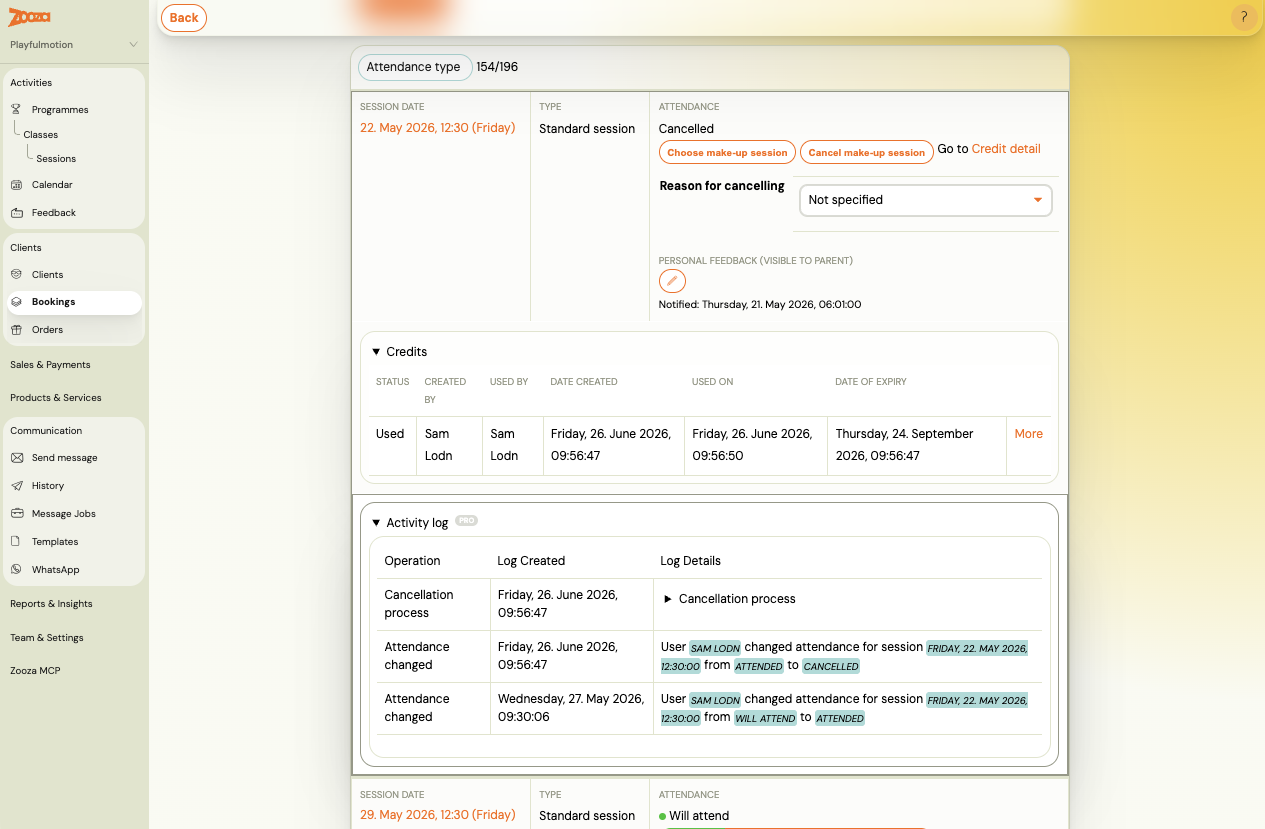
Every session in a registration has a detailed log of every action — who marked attendance, when, and what was changed. To access it:
- Open the registration (booking) detail.
- Go to the Attendance tab (Dochádza).
- Find the session in question.
- Each session shows a log of changes — who created the make-up credit, who used it, and when.
This is the most reliable way to resolve disputes. The log shows the full audit trail and cannot be edited.
Tip for clients: Direct clients to their Client Profile → open the registration → Attendance tab — they can see their own attendance and make-up history there.
Can a client get in a queue (waitlist) for a specific make-up session?
Yes. When a client selects a preferred session for their make-up and that session is at full extra capacity, Zooza places the client in a queue for that session. If a spot opens up (e.g., another make-up booking is cancelled), the client moves up the queue automatically.
Clients who are in the queue for a make-up session see the session listed in their profile with a "waiting" status. They do not need to check back manually — the system notifies them if they are confirmed.
As an admin, you can see the make-up queue in the session detail view under the attendees list.
Can I restrict make-up sessions to the same programme only?
Yes — but not to the exact same class. Make-up session eligibility is always filtered by programme, not by class. This means:
- A student can book a make-up in any compatible class within the same programme (matching age group and programme type).
- There is no built-in setting to restrict make-up bookings to only the student's original class.
If you want to limit which classes appear as make-up options, you can:
- Set extra capacity to 0 on classes you do not want used for make-up bookings — those classes will not appear in the make-up list.
- Use the time restriction setting (Settings → General → General → Settings for programmes → Time restriction in hours for offering a regular make-up session) to exclude sessions that start too soon.
A client tried to book a make-up session and got a "session is full" error — is their credit lost?
No. The credit is never spent when the booking fails. If a client tries to book a make-up session that is already at capacity, Zooza rejects the booking and leaves the credit untouched.
This can happen when two clients try to book the same last spot at the same time — the first request succeeds and the second receives a "session is full" error.
What to do:
- The client should return to their make-up session list and choose a different session.
- If the client wants to wait for that specific session to open up, they can join its waitlist. When a spot becomes available, they will receive a notification with a link to claim it.
- To confirm the credit is still available, check the booking's Credits tab in the admin panel.
Booking a make-up the rules would not allow
New in October 2026, for the cases where the rules are right in general and wrong for this one family.
When you pick a make-up session as an admin, the finder has two modes:
| Mode | What it searches |
|---|---|
| Allowed by make-up rules | The sessions the client would be offered themselves. The default. |
| Any session | Every session in your company, including past ones and full ones. Make-up rules are not checked at all. |
Any session is the deliberate override. Use it to record a make-up the client was never going to be offered — most often one that has already happened, which the normal list can never show. If the session is full, Zooza asks you to confirm before taking it over capacity.
The eligible list stops at the first 100 matching sessions. If what you want is further out, switch to Any session rather than scrolling.
A make-up disappeared from the register
The parent booked a make-up, you saw it on the session, and now it is gone. That is deliberate.
If a parent cancels a make-up they had chosen, the attendance row for it is removed and the credit goes back to them, free to be spent on another session. From your side there is nothing left to show: the request was withdrawn before it happened, so leaving it on the register would only have you chasing somebody who is not coming.
It depends on your settings. Parents can only do this where your programme allows a make-up to be cancelled. If you would rather they could not, that is the Allow clients to reschedule or change an already selected make-up session setting.
To confirm what happened in a particular case, the booking's attendance history records the cancellation underneath the session.
Related
- MATKO — Diagnose why a make-up session is not showing — run a precise eligibility diagnostic for a specific credit and session
- Make-up sessions complete guide — full setup and workflow
- Custom make-up sessions — instructor-approved custom replacement sessions
- Cancellation log — track and audit session cancellations
- Cancellation limit settings — configure cut-off windows