Attendance and Catch-up Classes FAQ
What are Quick view and Full view for attendance?
When you open a session from the Calendar, the attendance panel has two views you can switch between using the toggle in the top right:
- Quick view — a simplified attendance list. Shows each client with four status buttons: Will attend, Attended, Cancelled, Did not attend. Includes a Mark all as attended button to set all clients to "Attended" in one click. Displays an attended count (e.g. "Attended 3/5") so you can see progress at a glance.
- Full view — the detailed attendance panel. Shows everything from Quick view plus: make-up session selection, cancellation reasons, attendance notes, replacement credits, and waiting list management.
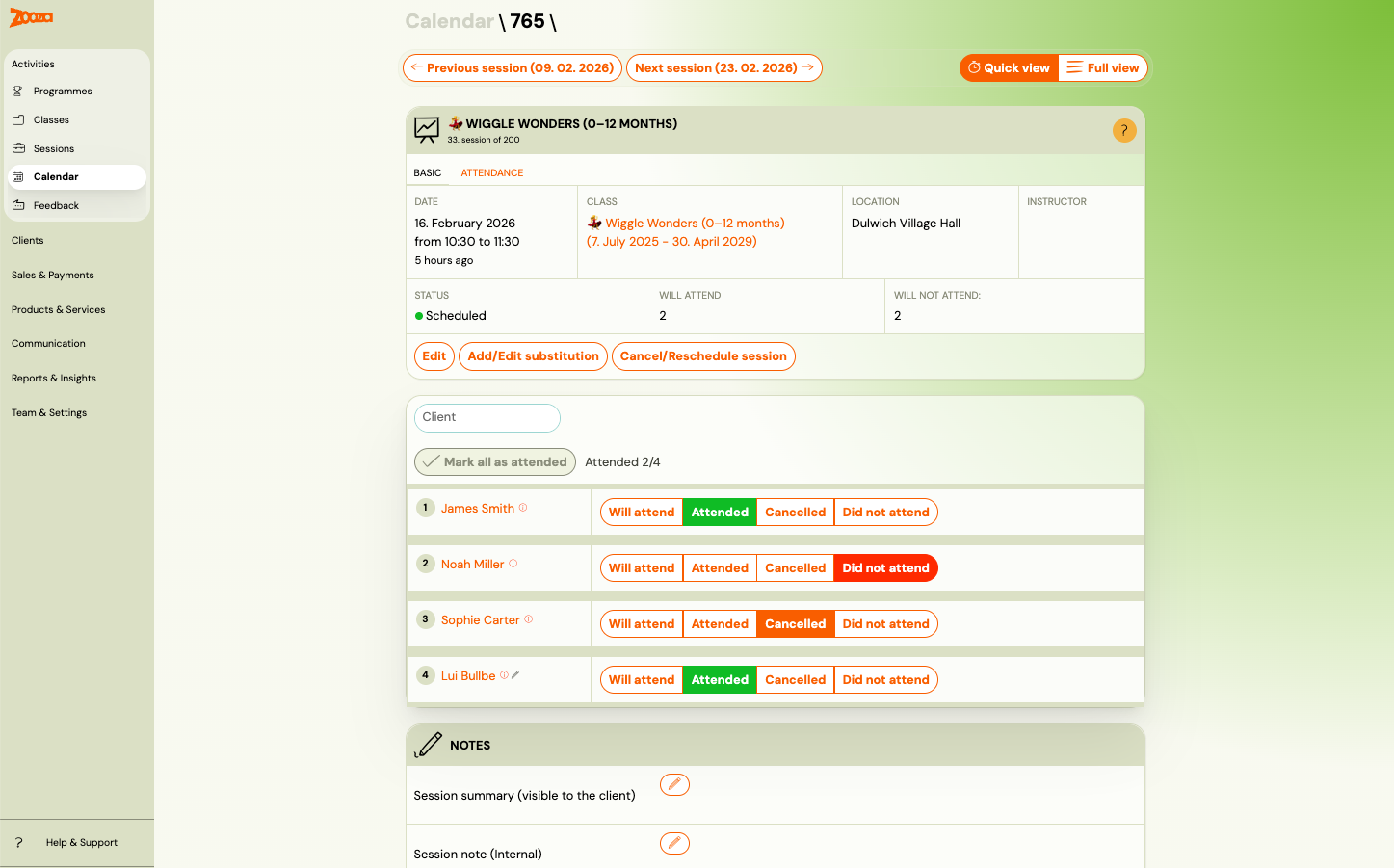
Both views are available to admins and instructors alike. Quick view is not a "limited" mode — it is fully functional. It simply hides the details you don't need when all you want is to quickly mark who showed up. You can switch between views at any time without losing data.
When to use Quick view: Daily attendance marking when you just need to check off who came. Ideal for instructors marking attendance on their phone before or after a session.
When to use Full view: When you need to handle cancellations with make-up credits, add attendance notes, manage make-up session, or review detailed attendance history.
How does "Mark all as attended" work?
In Quick view, click the Mark all as attended button at the top of the attendance list. This sets all enrolled clients to "Attended" in one action. The attended count next to the button updates to show the result (e.g. "Attended 5/5").
You can still change individual statuses after using this button — for example, switching one client to "Did not attend" or "Cancelled" if they didn't show up.
Make-up session clients are listed separately below the enrolled class and are not affected by the bulk action.
How do instructors mark attendance?
Instructors log in to Zooza, open their Calendar, and select the current session. They see the attendance panel and can switch between Quick view and Full view. They mark each client as Attended, Cancelled, or Did not attend. Attendance can be marked from both mobile and desktop.
Tip: Instructors should add Zooza to their phone's home screen so it works like a native app. Quick view with Mark all as attended is especially useful for fast attendance on mobile.
For a full walkthrough, see the Attendance management for instructors guide.
Where do instructors see their upcoming sessions?
On the Welcome dashboard, the My Next Sessions section lists all upcoming sessions assigned to that instructor, sorted by date. Each row has a Detail button that opens the session directly — no need to navigate through the calendar.
At the bottom of the section, Dates with incomplete attendance record shows past sessions where attendance hasn't been recorded yet.
Can an instructor see and manage make-up session clients in the session?
Yes, in Full view. make-up session clients appear in a separate make-up session section below the enrolled list. For each make-up client, the instructor can:
- Mark their attendance (same buttons as enrolled clients).
- Click Change make-up session to move them to a different session.
- Click Cancel make-up session to remove the make-up booking.
- Navigate to the original session they missed via Go to Make-up Session Original Session.
Can an instructor add notes to a session?
Yes. At the bottom of the session detail, in the Notes section, there are two fields:
- Session summary (visible to the client) — shared with parents after the session. Use it for what was covered, homework, or announcements.
- Session note (Internal) — visible to admins and instructors only.
Availability may depend on the organisation's settings.
Can instructors see client consents in the session view?
Yes. The Consents section at the bottom of the session detail shows the consents each enrolled client has given. This is useful for activities where consent matters — for example, checking who has given photo permission before taking pictures during a session.
Can instructors send messages to all clients in a session?
Yes, from Full view. At the bottom of the session, two buttons appear:
- Send email to N recipients — sends an email to all enrolled clients in that session.
- Send text message to N recipients — sends an SMS to the same class.
This is useful for last-minute changes like a venue update or session reminder. Communication permissions depend on the instructor's role — if the buttons are not visible, the admin needs to adjust the role settings.
Can an admin mark attendance on behalf of a instructor?
Yes. As an admin, go to Calendar, select the session, and mark attendance for any class — including past sessions. Admins can see all classes, while instructors only see their own. Both Quick view and Full view are available to admins.
How do catch-up / make-up sessions work?
When a child misses a session (marked as absent or session was cancelled), the system can offer a make-up session. The parent selects from available make-up sessions in their Client Profile.
Catch-up availability is based on:
- Real class capacity — there must be space in the alternative session.
- Programme match — the catch-up must be within a compatible programme/age group.
If no suitable session is available, the parent will not see a catch-up option.
Why can't a parent see catch-up options?
Check these common causes:
- The absence was not properly recorded — the child's attendance needs to be set to "Cancelled" for that session.
- There are no sessions with available capacity in a compatible class.
- The catch-up window may have expired based on your automation settings.
As an admin, you can verify and trigger the catch-up option by toggling the attendance status (e.g., "Will attend" → "Cancelled" again).
What do the attendance numbers mean on the calendar?
On the calendar view, you may see numbers like "12/15" and "4":
- 12/15 — the number of enrolled children vs. total class capacity.
- 4 — how many are actually booked into that specific session (including trials).
Hover over the numbers for a detailed breakdown.
Is attendance tracking important for automations?
Yes. Marking attendance triggers automations — especially for trials. When a instructor marks a trial attendee as "attended", the system automatically sends the enrolment offer to the parent.
What is the difference between "Did not attend" and "Cancelled" for make-up credits?
Only the Cancelled attendance state generates a make-up credit. The Did not attend (no-show) state does NOT grant a make-up credit. This is by design — clients who simply do not show up without cancelling in advance are not eligible for make-up sessions.
If a client contacts you saying they did not receive a make-up credit, check the attendance record for that session. If it shows "Did not attend" instead of "Cancelled", that is why no credit was generated. You can manually change the state to "Cancelled" if the absence was legitimately excused.
What does the "extra capacity for make-up sessions" setting do?
This setting allows more students into a session than the standard class capacity, specifically for make-up bookings. For example, if a class has a capacity of 10 and the extra capacity is set to +1, up to 11 students can attend that session — 10 regular plus 1 make-up.
You can configure this setting at two levels:
- Global (Programme level) — Go to the Programme Settings and set the extra capacity value. This applies to all classes within the programme.
- Per class — On the class detail, override the global value. You can choose to replace the global value entirely or add to the class's own capacity.
How does the system automatically set "Did not attend" status?
If a client does not cancel before the session and does not check in (i.e., the instructor does not mark them as attended), the system automatically marks them as Did not attend after the session ends. The exact timing depends on the session end time.
This automatic status does NOT generate a make-up credit. Only the Cancelled state — where the client actively cancels before the session — creates a make-up credit.
Sessions with no attendance requirement show as "unclosed attendance" on the Dashboard — how do I fix this?
This happens when sessions have attendance tracking enabled but nobody has marked attendance for them. The Dashboard flags these as "unclosed" because the system expects attendance to be recorded.
To resolve this, you have two options:
- Mark attendance for those sessions — open each session from the Calendar and record who attended.
- Disable attendance tracking on the class if attendance is not needed for those particular sessions. This prevents the Dashboard from flagging them.