Login and Account FAQ
How do I delete my Zooza account entirely?
Account deletion must be handled by Zooza support. Contact support@zooza.online and request account deletion. Once processed, all data associated with the account is removed. If you decide to return later, you can create a new account.
How do I change the email I use to log in?
Go to Settings → General → Access, open the profile, replace the email address and save. From then on that person logs in with the new address — they enter it on the login page and request a link or code. There is no password to change.
You do not have to replace it. You can add a second access with the other email instead, and keep both working. That is the better option when:
- you want to keep the old address reachable while people get used to the new one,
- the two addresses are really two people who have been sharing one login,
- you are moving from a personal address to a business one and do not want to lose access mid-way.
Give each person their own login wherever you can. Permissions and the activity record are tied to the account, so a shared login makes both meaningless — see Can multiple team members share one login? below.
Where do I see my password?
There isn't one. Zooza has no passwords at all — not for you, not for your team, not for parents. Everyone signs in with a one-time code sent to their email.
To sign in as an owner or an instructor:
- Go to your regional address —
zooza.app,uk.zooza.apporasia.zooza.app(see below). - Enter the email address you were invited into the account with. Not a personal address you prefer — the one that appears in Settings → General → Access.
- Open the code that arrives and you are in.
The same email can be both an owner and a parent. They are separate things: the admin app at your regional address, and the client profile on your own website. Signing into one does not sign you into the other, and neither has a password.
Which address do we log in at?
The login address follows your account's region, not your business name. There is
no yourbusiness.zooza.app — that address does not exist and will not load.
| Your region | Log in at |
|---|---|
| Europe | zooza.app |
| United Kingdom | uk.zooza.app |
| Middle East and Asia | asia.zooza.app |
Everyone on your account uses the same one — you, your office staff and your instructors alike. If you are not sure which is yours, it is the address you are already using yourself; send that exact one on.
This is the first thing to check when someone "never gets the login email". Requesting a link on the wrong regional address does not fail loudly — it simply never arrives, because that region has no account with their email on it. Send them the right address before you start looking at spam folders.
After changing an instructor's email, they cannot log in — what is the process?
When you update an instructor's email address in Settings → General → Access, the instructor must log in again using the new email:
- Go to your regional Zooza app URL (see the table above).
- Enter the new email address.
- Click the login link that arrives by email.
No separate invitation is needed. The instructor simply requests a new login link with the corrected email. If the link does not arrive, check that the email address is spelled correctly in Settings → General → Access and ask the instructor to check their spam folder.
A new account was created but not verified — how does verification work?
When a new business account is created in Zooza, it goes through a verification step before it becomes fully active. During verification, the Zooza team reviews the account details and approves it. If your account is stuck in an unverified state, contact support@zooza.online — they can check the status and approve it manually.
A client keeps creating new accounts on zooza.online instead of logging in through our website — what should I do?
This happens when a client goes to zooza.online (the main Zooza website) and creates a standalone account instead of using the registration or profile widget embedded on your website.
To prevent this:
- Direct clients to your website for registration and profile access, not to zooza.online.
- Embed the Zooza profile widget on your site so clients can log in and manage bookings from there.
- If a client already created a separate account on zooza.online, contact Zooza support to resolve duplicate accounts.
There is no way to block clients from visiting zooza.online directly, so clear communication about where to register is important.
How do parents log in to their profile?
Zooza uses a passwordless, token-based login. Parents do not set or use a password. The process is:
- The parent opens the profile widget on your website (or goes to your Zooza app URL).
- They enter their email address.
- Zooza sends a one-time login code to that email.
- The parent enters the code to access their profile.
If a parent reports not receiving the code, ask them to check their spam folder. Login codes are sent almost instantly under normal conditions. There is no password to reset — every login uses a fresh email code.
A client requested a login link twice and now the first link doesn't work — why?
Zooza uses single-use login tokens. Each time a client requests a new login link (PIN code), the previous link is immediately invalidated. Only the most recent link is valid.
This often happens when a client:
- Clicks "send login link" twice in quick succession
- Waits too long and requests a second link while the first is still in their inbox
Solution: Ask the client to use only the most recent email they received from Zooza and ignore any earlier login emails. If the second link also expired, they simply request a new one — there is no lockout.
Tell them to click the link, not type the code. Each login email carries both a PIN code and a login link. The code is what gets invalidated by the next request; the link stays valid considerably longer. A client who keeps requesting new codes and typing the old one in a loop is unstuck the moment they click the link in whichever email they have open.
Can multiple team members share one login?
No. Each team member should have their own account with an individual email address. Shared logins create problems with audit trails, permissions, and notifications. To add team members:
- Go to Settings → General → Access.
- Add each person with their own email address.
- Assign the appropriate role (owner, admin, instructor, etc.).
Each team member then logs in with their own email using the same passwordless login link process.
A colleague's name changed on their own profile — who did that?
Another admin, almost certainly. Anyone with admin access to the team can edit the profile details of everyone else on it, name included, from Settings → General → Access. No warning is shown, and nothing tells the person their name was changed.
The usual cause is innocent and worth recognising: somebody meaning to bring a new colleague in edited an existing profile instead of adding a new one. The new person then gets the old person's account — same login, same permissions — and the original member finds themselves renamed. If a name suddenly looks wrong, check whether a new starter joined around the same date.
To fix it: set the name back in Settings → General → Access, then add the new person properly with their own email address. One person, one account — see above.
To change your own name, open your profile at the top right rather than the team screen.
Automatic emails will use whatever the profile says. Until the name is corrected, anything Zooza sends addresses the person by the wrong name. That is the signal most people notice first.
Can I log in as one of my team members to see what they see?
Not directly — there is no "view as this user" switch, by design.
The only way to be in Zooza as somebody else is to use their login link: they forward you the email or message containing it, and you open it before it expires. That is a deliberate act by the account holder, which is the point.
What you can do without their login:
- Check what their role can reach — the menus and permissions for each role are listed in User roles.
- Edit their profile details from Settings → General → Access, as above.
- Create a test account with the role you want to inspect, and look around in that. See How do I create a test or sandbox Zooza account? below.
Note that a login link is single-use: if they request a new one, the one they sent you stops working.
How do I change the app language for admins or instructors?
Two routes, same setting — take whichever you reach first:
- your name (top right) → My profile, in the Application Communication Language card.
- The Dashboard, at the very bottom of the page.
The interface reloads immediately. Each admin and instructor sets their own language independently; it does not affect colleagues, and it does not affect the client-facing widgets or emails.
Do not use Settings → General for this. The setting there has the same name but a different job — it is the language Zooza writes to parents in, across notifications, emails and WhatsApp. See Change the language in Zooza.
Available languages: Slovak, English, Czech, Hungarian, Romanian, and others depending on your account.
For more detail — including how to change the language of client-facing widgets and emails — see Change the language in Zooza.
How do I switch Zooza to dark mode — or turn it off?
Go to your name (top right) → My profile and find the Appearance card.
Theme offers three choices:
| Choice | What you get |
|---|---|
| System | Follows your computer's own light/dark setting — the default |
| Light | Always light, whatever your computer is set to |
| Dark | Always dark |
If Zooza went dark on its own and you want it back, that is System following your computer. Pick Light and it stays light regardless.
Under it, Colour sets the accent used across the app: Zooza orange (the default), Veronese Green, Rosso Corsa, International Klein Blue, Mauve, or Monticello.
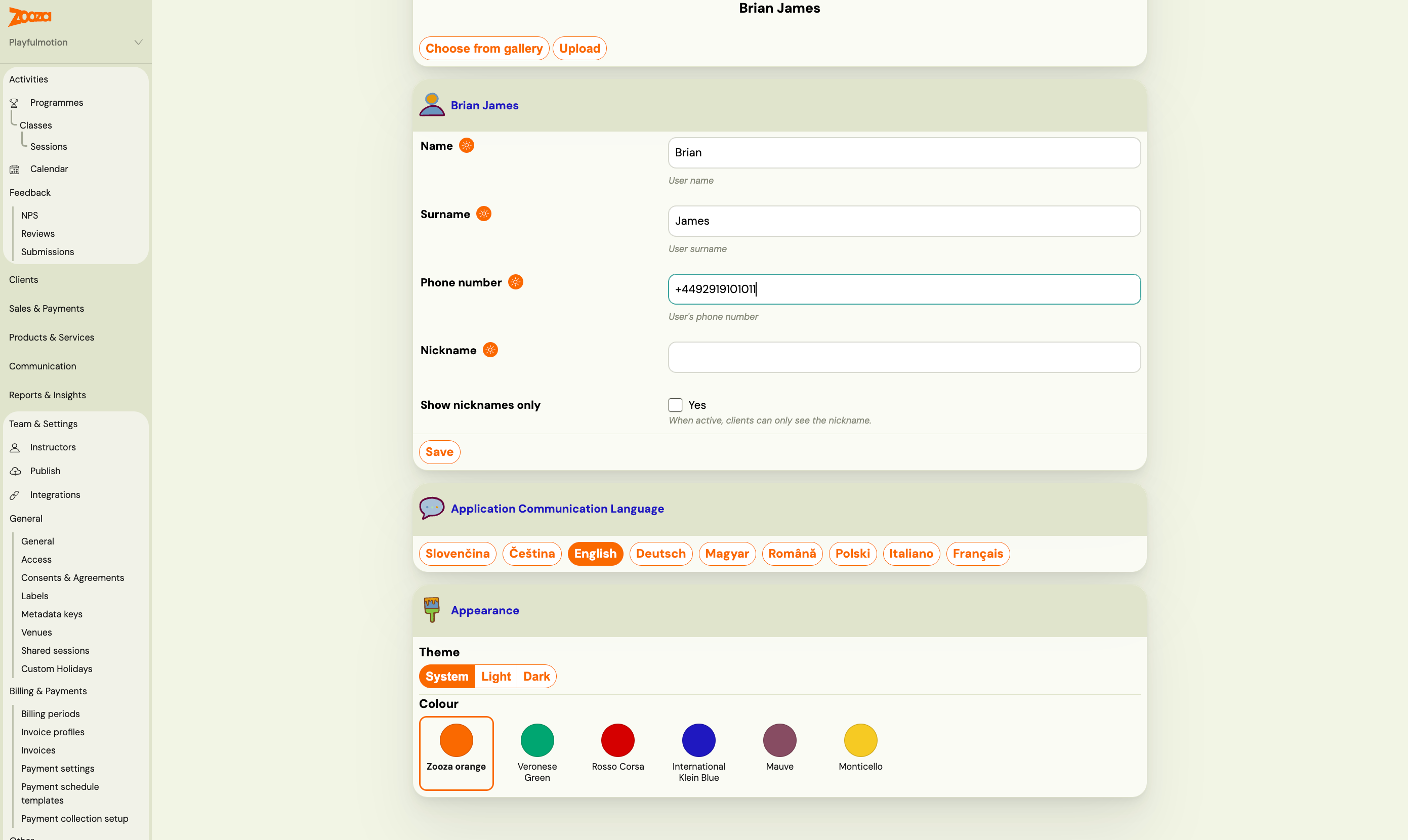
The choice is yours alone and follows you between devices — it is saved to your user account, not to the company, so changing it does not affect your colleagues or anything your clients see.
How do I create a test or sandbox Zooza account?
Zooza does not provide a dedicated sandbox environment, but you can set up a separate test account using the Try for FREE flow on the Zooza website.
- Go to the Zooza sign-up page and register a new free account.
- Use a name that makes it clear the account is for testing — for example, "Playground", "Test account", or include your name: "ELA playground".
- Use a different email address from your main account (or a sub-address like
yourname+test@domain.comif your provider supports it).
The free account gives you access to the full Zooza feature set up to the Free plan limit (up to 10 active clients). This is enough to test programme setup, booking forms, payment flows, email templates, and widget embedding without affecting your live account data.
Keep the test account separate — do not connect it to live payment providers (Stripe, GoCardless) unless you are specifically testing payment integrations. Use the test/sandbox modes of those providers in your playground account.
Is there a Zooza mobile app to download?
Zooza is a web application — there is no native app to download from the App Store or Google Play. You access it through a browser at zooza.app. This is intentional:
- No installation required — parents and instructors can open the app immediately on any device or browser without going through an app store.
- Always up to date — web updates deploy instantly. There is no "please update your app" friction.
- Works everywhere — any phone, tablet, or desktop with a modern browser.
- Lower barrier for clients — asking clients to install a native app creates friction. A link they click in an email just works.
You can add it to your phone's home screen so it behaves like an app:
iPhone (Safari):
- Open zooza.app in Safari.
- Tap the share icon (square with an arrow pointing up).
- Tap Add to Home Screen.
Android (Chrome):
- Open zooza.app in Chrome.
- Tap the three-dot menu (top right).
- Tap Add to Home screen.
The icon will appear on your home screen and the app will open in full-screen mode.
I cannot log in, and no code arrives
Almost always this is two different accounts, not a fault.
The address you use as a client is not automatically an admin address. A parent profile on your website and the Zooza admin app are separate logins. If your staff address is you@yourschool.sk but you are typing the address you once booked with as a parent, Zooza will not send you an admin code — that address simply is not an access account.
Check Settings → General → Access for which address is registered as your access, and use that one.
Zooza never says whether an address exists. Type any address and the screen says a code has been sent, whether or not the account is real. That is deliberate — telling an attacker which addresses are registered is a gift — but it does mean "it says it sent a code and nothing came" is also what you see when the address was simply never an account here.
Related
- Getting started with Zooza — initial setup and orientation
- How to clear your cache — fix display issues by clearing browser cache
- App navigation map — overview of the Zooza interface
- Getting help and support — how to contact Zooza support