Creating entry passes
Entry passes let clients prepay for a set number of sessions or a credit amount, which is then redeemed each time they book a session in a Pay-as-you-go programme. Entry passes are optional — without them, clients simply pay per session.
Entry pass vs Prepaid credit
Zooza supports two types of prepaid products:
- Entry pass — A visits-based pass. The client purchases a fixed number of entries (e.g. 10 sessions). Each time they book a session, one entry is deducted.
- Prepaid credit — A money-based pass. The client purchases a credit amount (e.g. 50 EUR). Each time they book a session, the session price is deducted from their credit balance.
Both types work the same way in the booking flow. Choose based on whether you want to sell by number of visits or by monetary value.
Step-by-step: Create an entry pass product
-
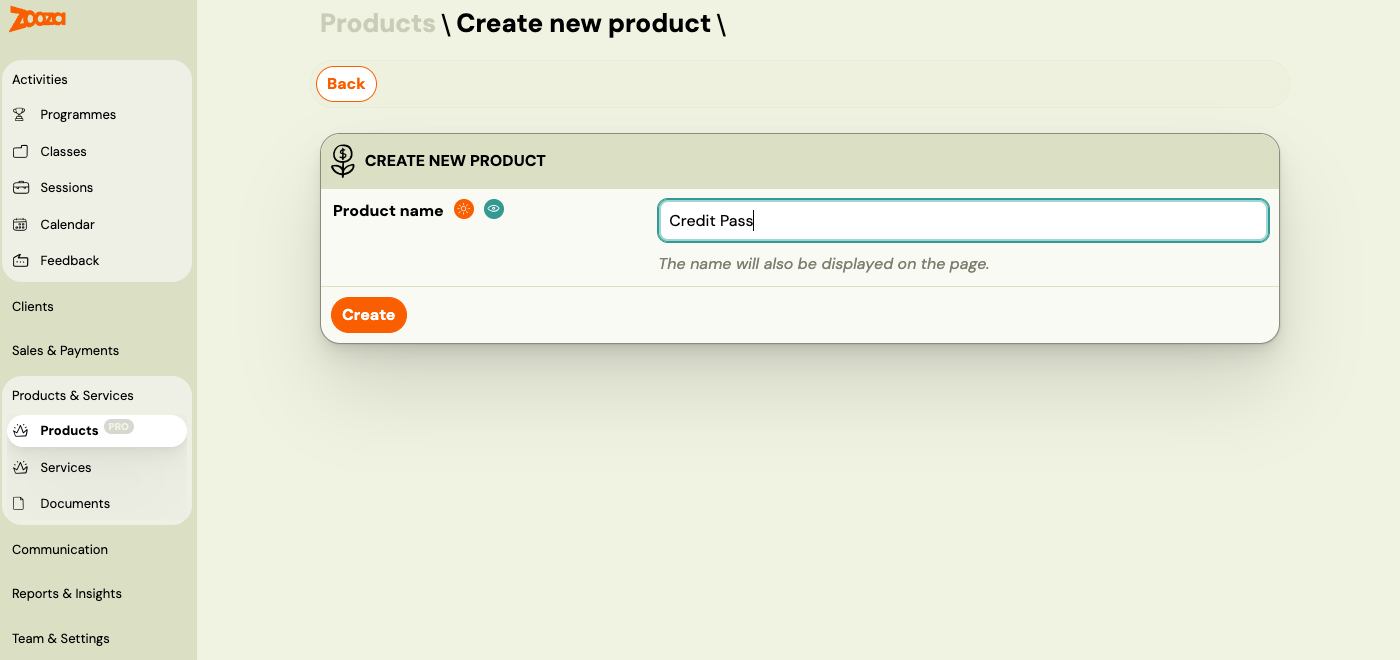
Go to Products → Create New Product → Create.
-
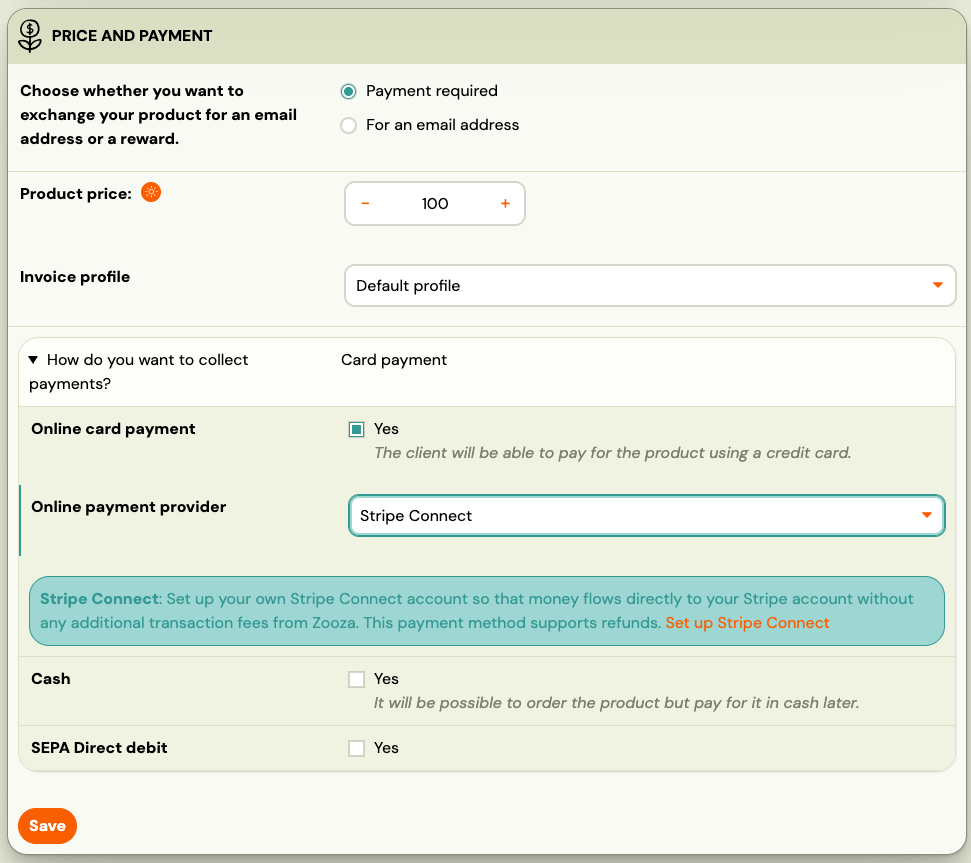
Enter the credit value, configure payment methods (online payment, bank transfer, cash, etc.) and save.
-
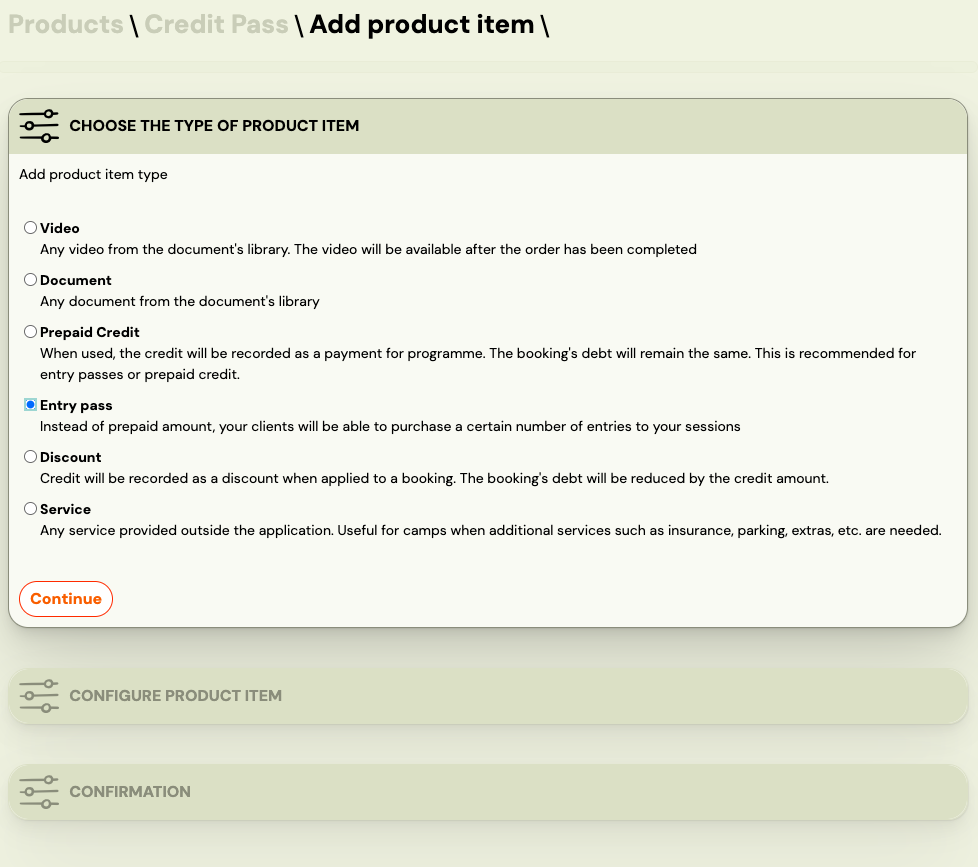
Go to Items for sale → click Add.

-
Select Entry Pass as the item type.
-
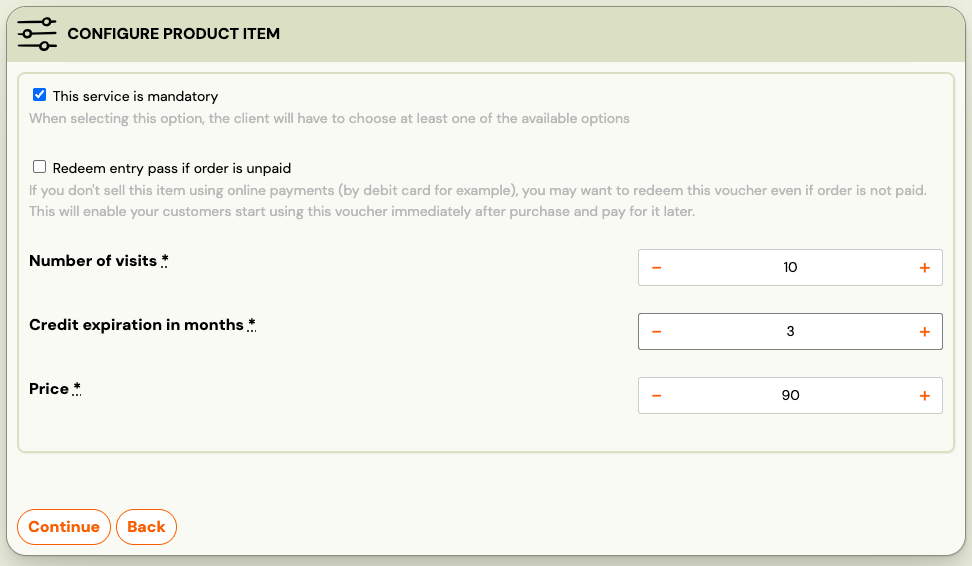
Set the value (number of entries or credit amount), validity period, price, and whether the item is mandatory.
-
To offer a discount, set the price lower than the value (e.g. 10 entries for 80 EUR instead of 100 EUR).
-
Click Continue → Start and Continue.
-
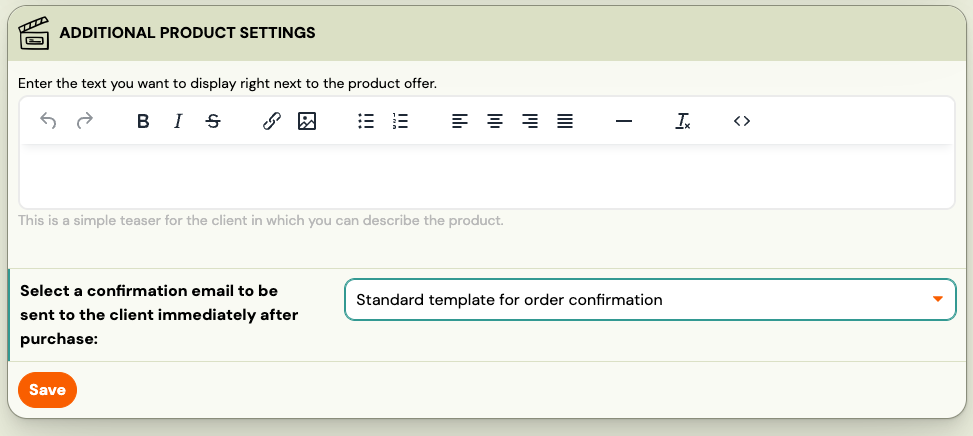
Add a description and notification template if needed.
Assign pass to a class
After creating the entry pass product, assign it to the relevant programme or class.
-
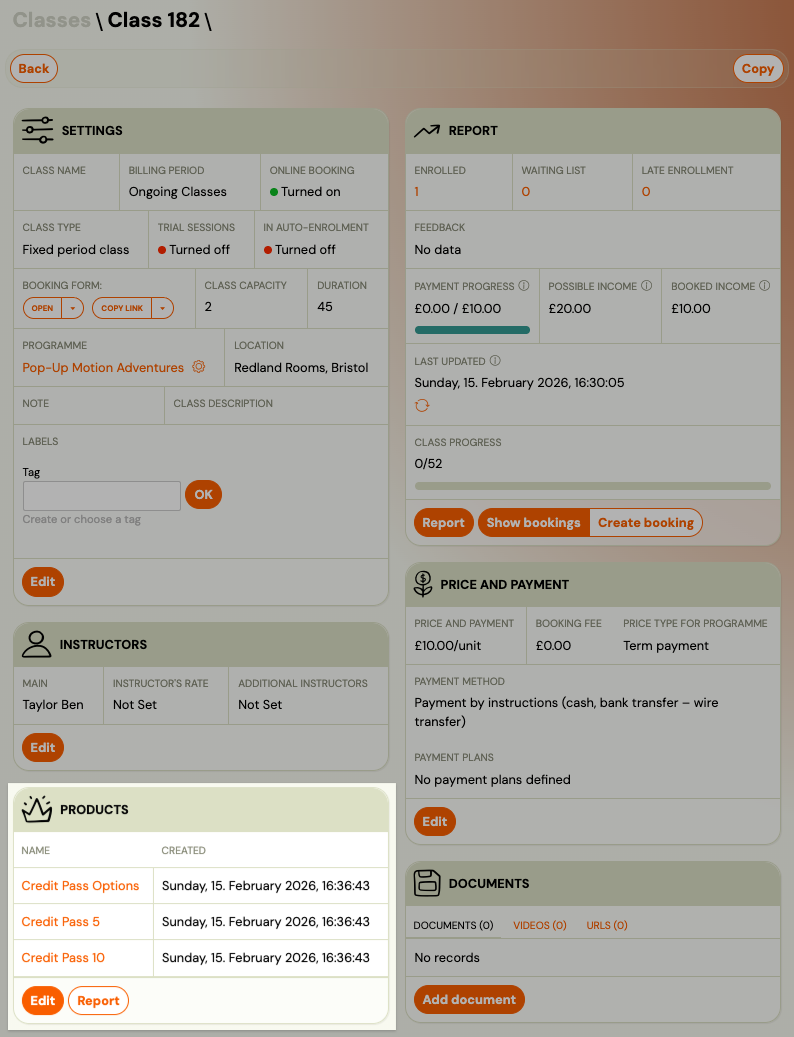
Go to the Programme → Class → Select Product.
-
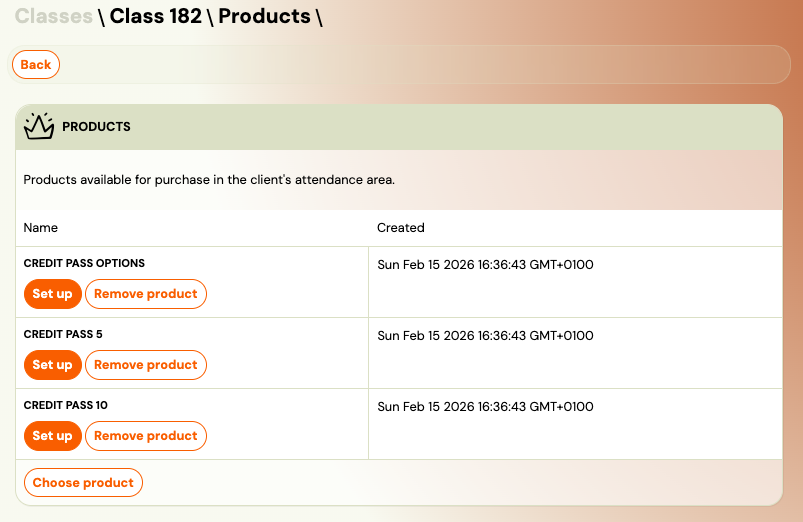
Choose the entry pass product you created.
-
Click Save.
You can assign multiple pass types to the same class. For example, you might offer both a 5-session pass and a 10-session pass.
Product settings per class
For each assigned product, you can configure where it appears:
-
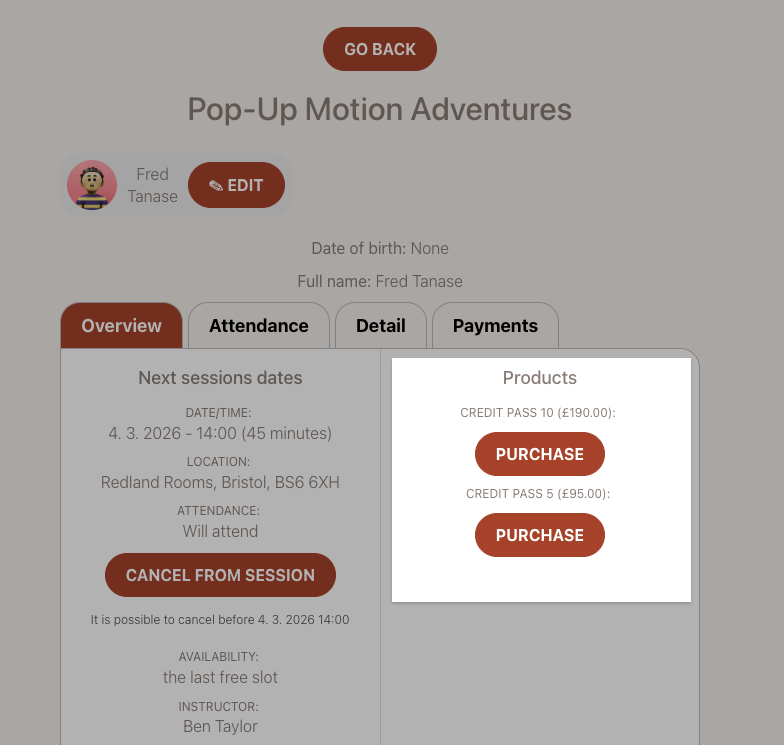
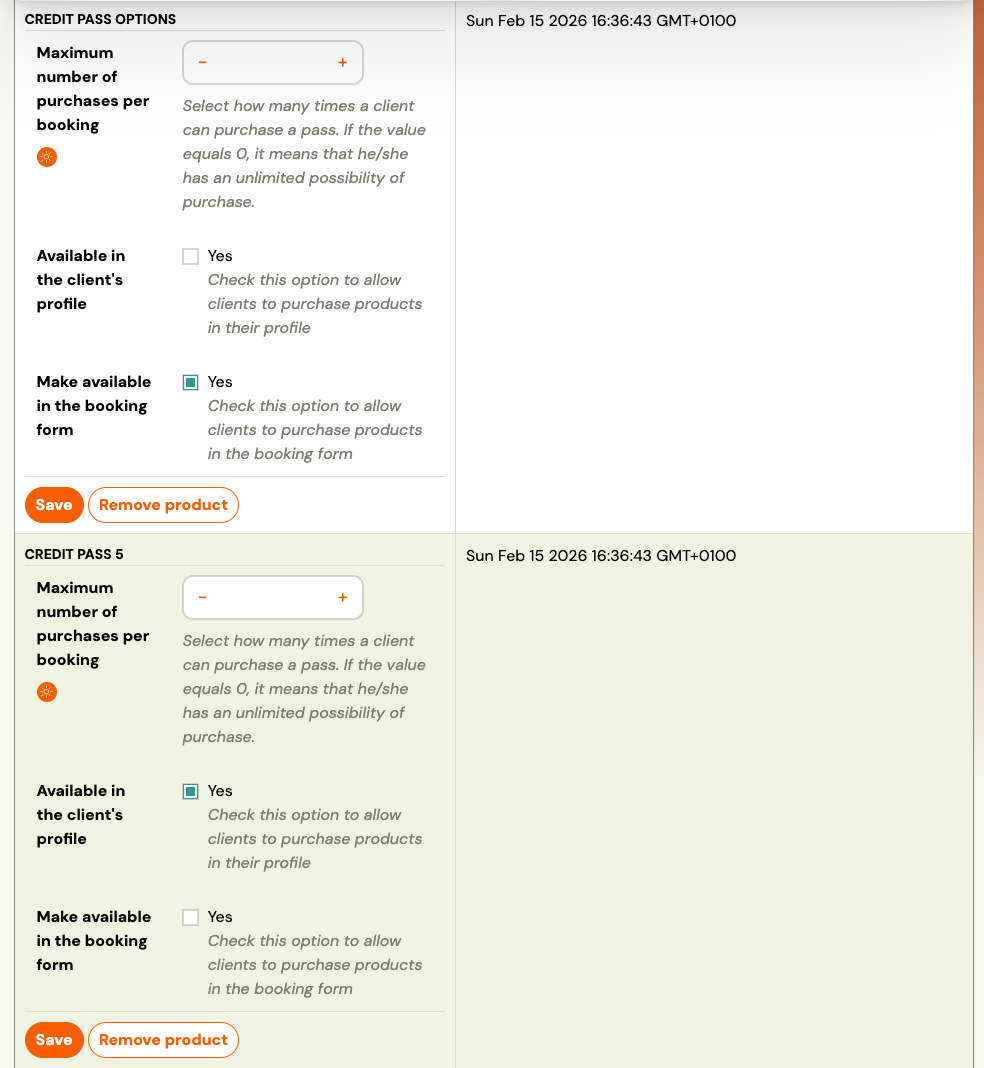
Profile availability — The pass is available for purchase in the client's profile after booking.
-
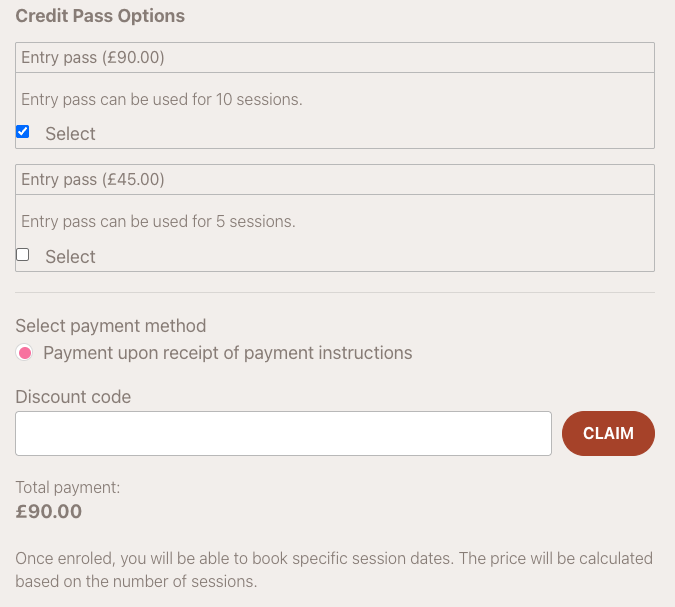
Booking form availability — The pass is available during the booking/booking process.
Two-product setup for dual availability
There is an important limitation: a single product cannot be both mandatory (shown in the client profile) and optional (shown in the booking form) at the same time.
To offer the same entry pass in both locations, create two separate products:
- Mandatory product — Set as mandatory. This makes it available in the client's profile (under Benefits).
- Optional product — Set as optional. This makes it available in the booking form during booking.
Both products should have the same value and price. The only difference is the mandatory/optional setting.
Example: 5 EUR and 10 EUR passes
To offer two pass values (5 EUR and 10 EUR) in both the profile and the booking form:
- Create a 5 EUR mandatory product (available in profile).
- Create a 10 EUR mandatory product (available in profile).
- Create a Credit Pass Entry Options (5 EUR optional product and 10 EUR optional product) (available in booking form).
You can also create a third product as a booking form bundle** that combines multiple pass options into one offering during the booking flow.
Client perspective
After enroling for a Pay-as-you-go programme, clients can:
- Purchase an entry pass from their profile (under Orders and in the detail of a booking).
- See their credit balance or remaining entries on their profile home page.
- Book sessions — the pass is automatically redeemed when they book.
- If they cancel the session, the entry or credit is returned.
For a detailed walkthrough of how clients see and use entry passes, see Entry pass — client view.
Related guides
- Pay-as-you-go programme — How to set up the programme type that uses entry passes.
- Linked classes — Use one entry pass across multiple linked classes.
- Selling products during booking — How to offer products in the booking flow.
- Entry pass — client view — How clients see and use entry passes in their profile.
- Pay-as-you-go FAQ — Common questions about entry passes and Pay-as-you-go.