Dashboard
The Dashboard is the first screen you see after logging in to Zooza. It provides a quick overview of your upcoming sessions, latest bookings, unread messages, and team announcements.
Navigation: This is the home screen — click the Zooza logo or go to your Zooza app URL.
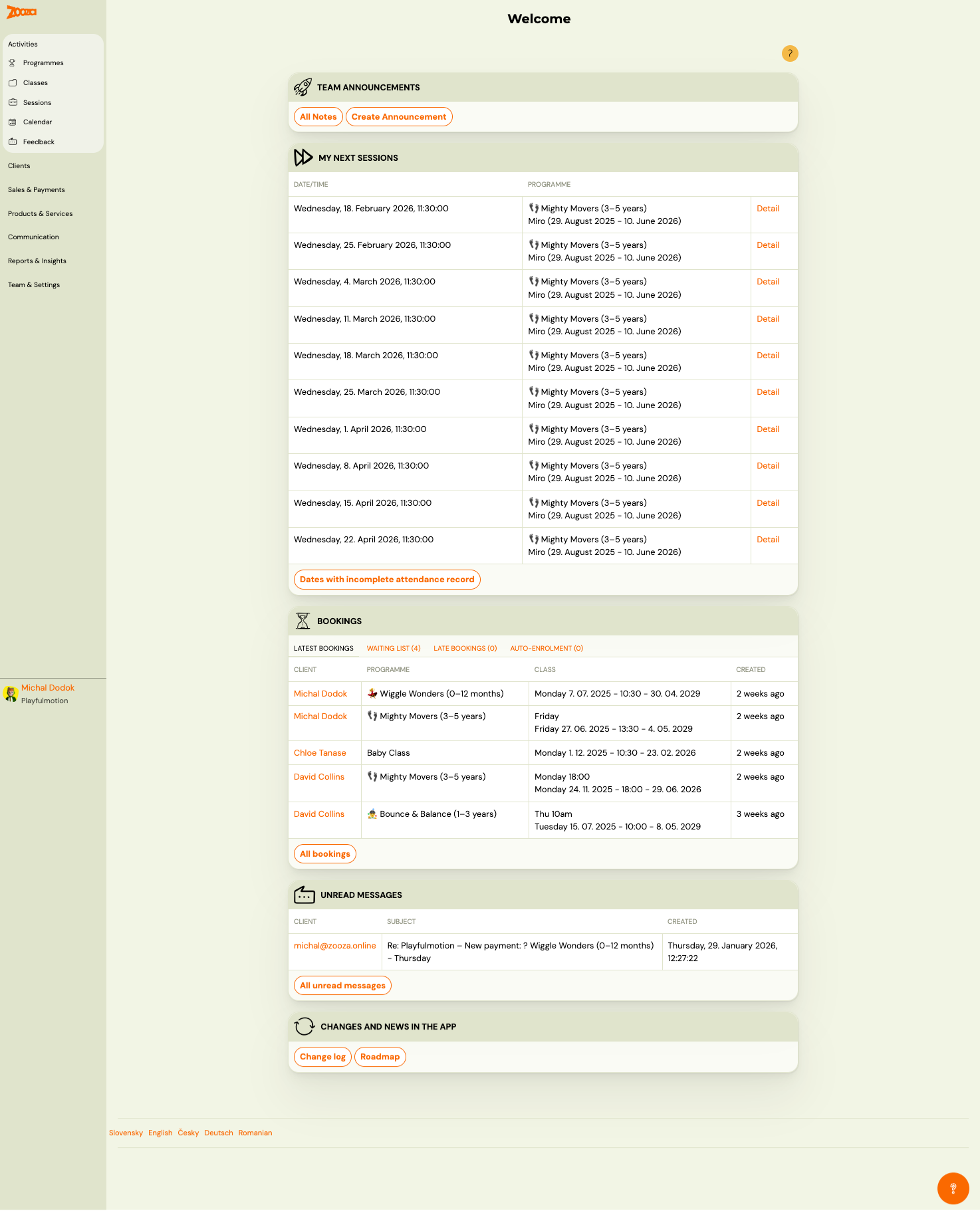
Team Announcements
The top section of the Dashboard. Use it to share internal notes with your team (instructors, staff).
| Element | Description |
|---|---|
| All Notes | Opens the list of all published announcements with date filters. |
| Create Announcement | Opens the announcement editor. |
Creating an announcement
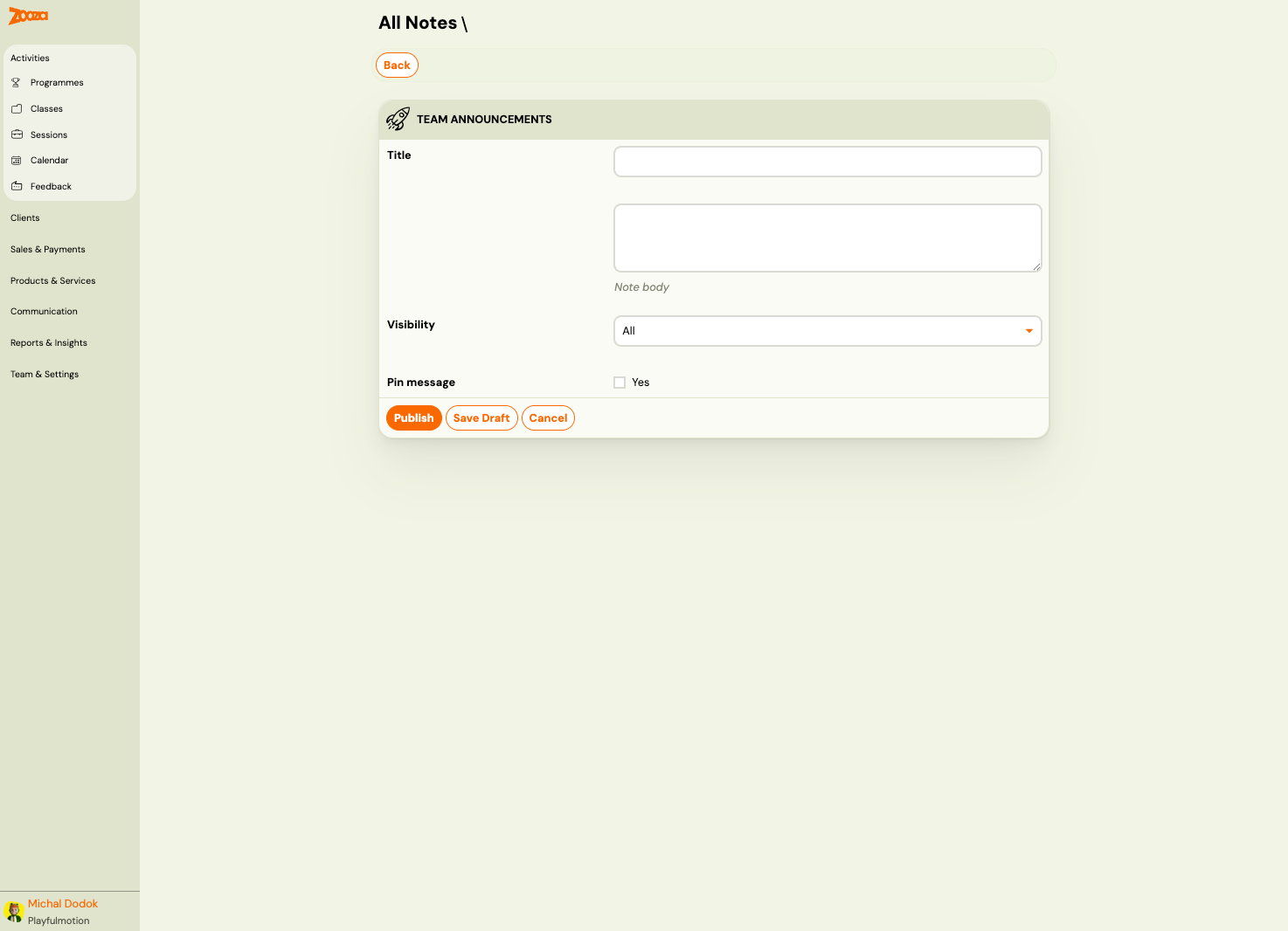
| Field | Description |
|---|---|
Title | Short headline for the announcement. |
Note body | Full text of the announcement. |
Visibility | Who can see it: All (everyone on the team) or specific roles. |
Pin message | Check Yes to keep the announcement pinned at the top of the list. |
| Publish | Publishes the announcement immediately. |
| Save Draft | Saves without publishing — you can publish later. |
| Cancel | Discards the announcement. |
Announcements list
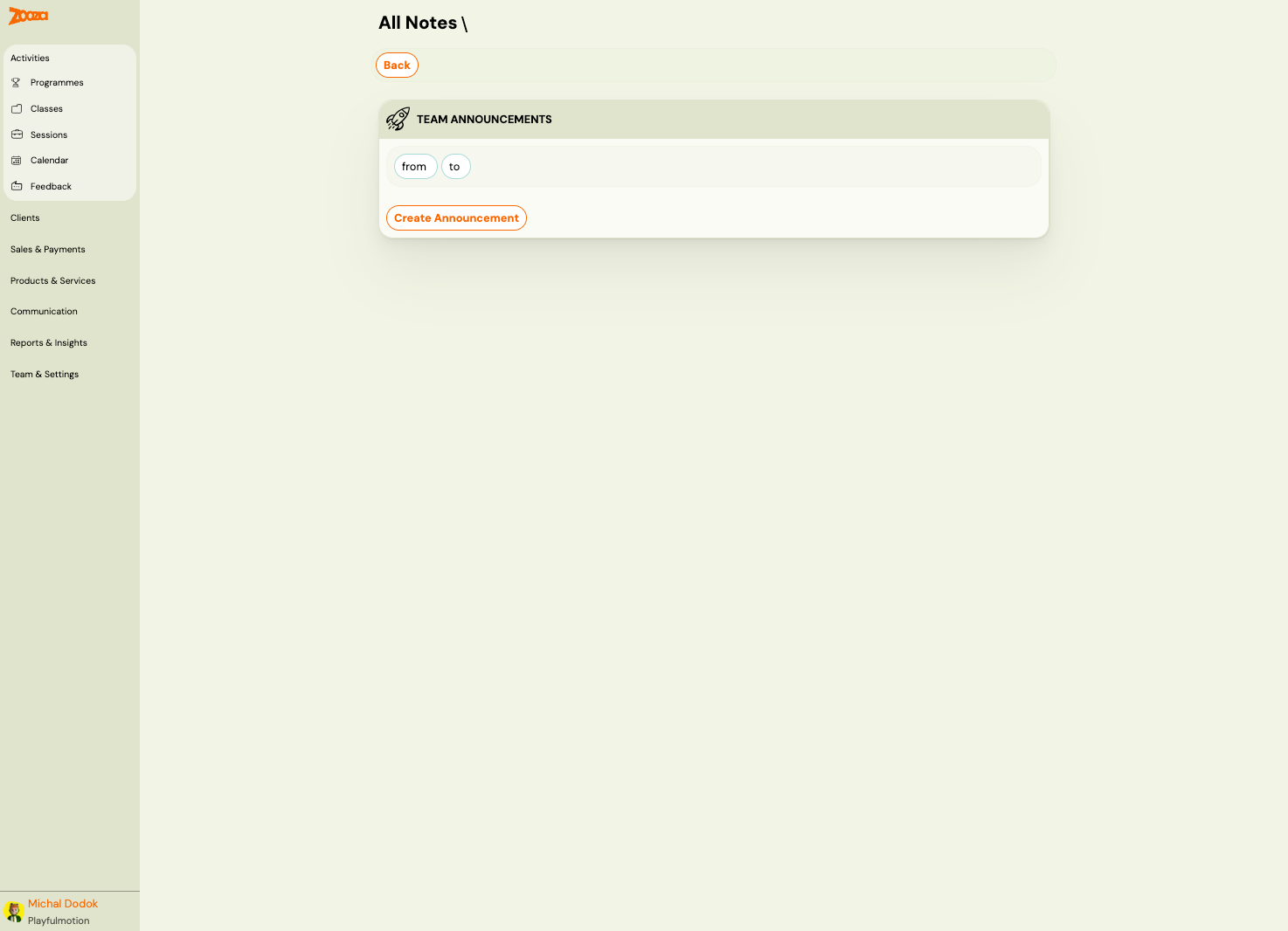
The list view shows all published announcements. Use the from and to date filters to narrow the view. Click Create Announcement to add a new one.
My Next Sessions
A table showing your upcoming sessions as an instructor or admin.
| Column | Description |
|---|---|
Date/Time | Date and start time of the session. |
Programme | Programme name and class name with date range. |
| Detail | Link to the session detail (attendance, notes). |
Below the table:
- Dates with incomplete attendance record — quick link to sessions where attendance has not been fully marked. Helps you stay on top of tracking.
Bookings
A summary of your latest booking activity with four tabs:
| Tab | Description |
|---|---|
| Latest Bookings | Most recent bookings across all programmes. |
| Waiting List (n) | Bookings where the class was full — awaiting your approval. |
| Late Bookings (n) | Bookings submitted after the programme/billing period started. |
| Auto-Enrolment (n) | Bookings created automatically by an automation rule. |
Each row shows:
| Column | Description |
|---|---|
Client | Parent name (clickable — opens client profile). |
Programme | Programme the booking belongs to. |
Class | Day, time, and date range of the class. |
Created | When the booking was created. |
Click All bookings to go to the full Bookings list.
Unread Messages
Shows incoming messages from clients (replies to system emails).
| Column | Description |
|---|---|
Client | Sender email (clickable — opens conversation). |
Subject | Email subject line. |
Created | Date and time received. |
Click All unread messages to see the full inbox.
Changes and News in the App
Links at the bottom of the Dashboard:
| Link | Description |
|---|---|
| Change log | What's new — recent updates and fixes to the app. |
| Roadmap | Upcoming features and planned improvements. |
Related
- Common Booking Scenarios — how to handle waitlist, duplicates, refunds.
- Attendance and Catch-up Classes FAQ — marking attendance, catch-up flow.
- Email and Communication FAQ — understanding messages and notifications.